

Everything you can do in the "My Shipments" section
From My Shipments you can check the status of your packages, print documents, report issues, manage returns, and much more without leaving the same screen.
Access it from the left sidebar: My Shipments
Review your operations summary
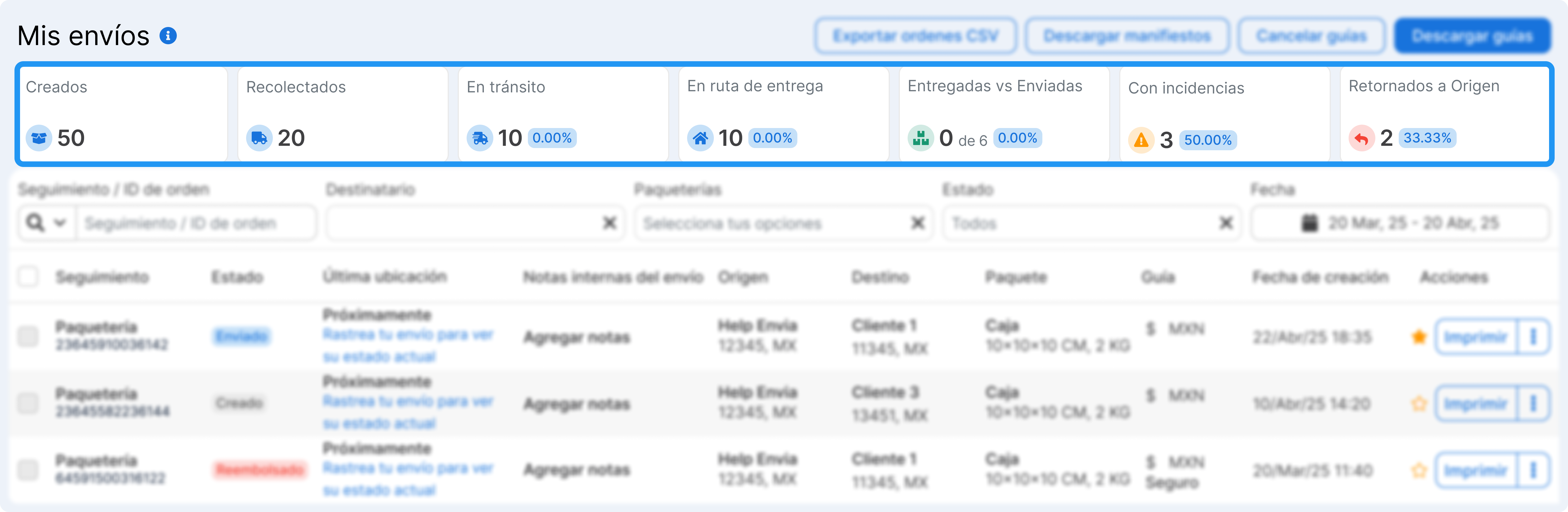
Section titled “Review your operations summary”At the top you will see cards with the overall status of your shipments. Each card is a quick filter; click any of them to see only those shipments.
-
Created. Total labels generated in the period.
-
In transit. Packages on the way to destination.
-
Out for delivery. Packages being delivered right now.
-
Delivered. Proportion of shipments delivered vs total sent (e.g. 1 of 4 = 25%)
-
Incidents. Shipments with problems that need attention (delays, incorrect address, etc.)
-
Returned to origin. Packages returned to your address
Filter and search your shipments
Section titled “Filter and search your shipments”Below the metrics summary, you have a search bar and advanced filters to quickly find any shipment.
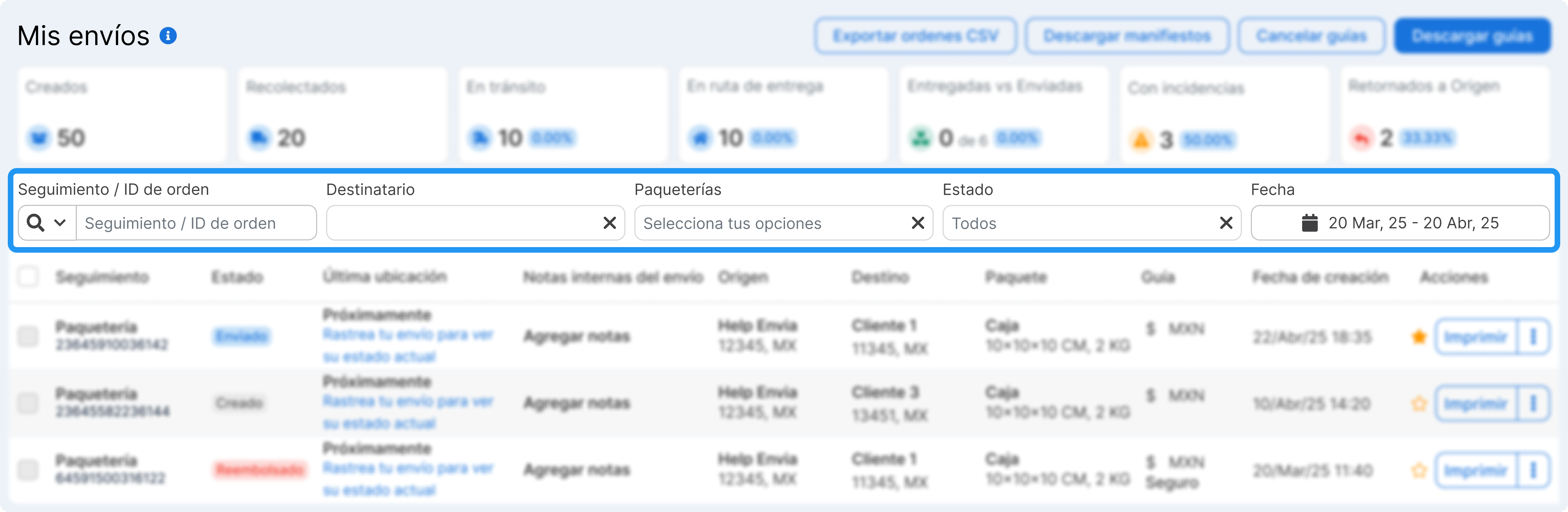
- Tracking / Order number. Search by label number or order folio
- Recipient name
- Carriers
- Status / Last location. Filter by shipment status or its last recorded location
- Date range (default: last month)
Explore the shipments table
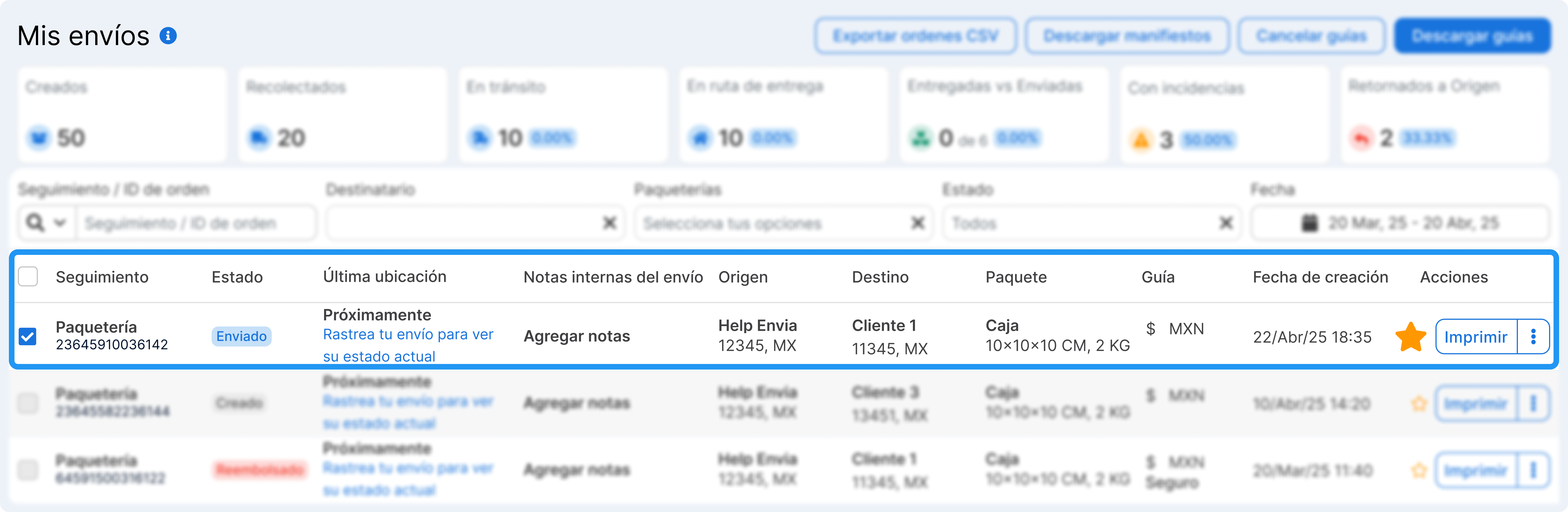
Section titled “Explore the shipments table”The main table shows all relevant information per shipment:
-
Carrier and tracking number (click to see details).
-
Current status of the shipment (e.g. shipped, delivered, canceled).
-
Origin and destination.
-
Internal notes (you can add information for your team).
-
Package dimensions and weight.
-
Additional services.
-
Creation date.
-
Quick actions.
-
Etc..
You can also mark any shipment as a favorite ⭐, which is useful for tracking important orders.
Customize your columns
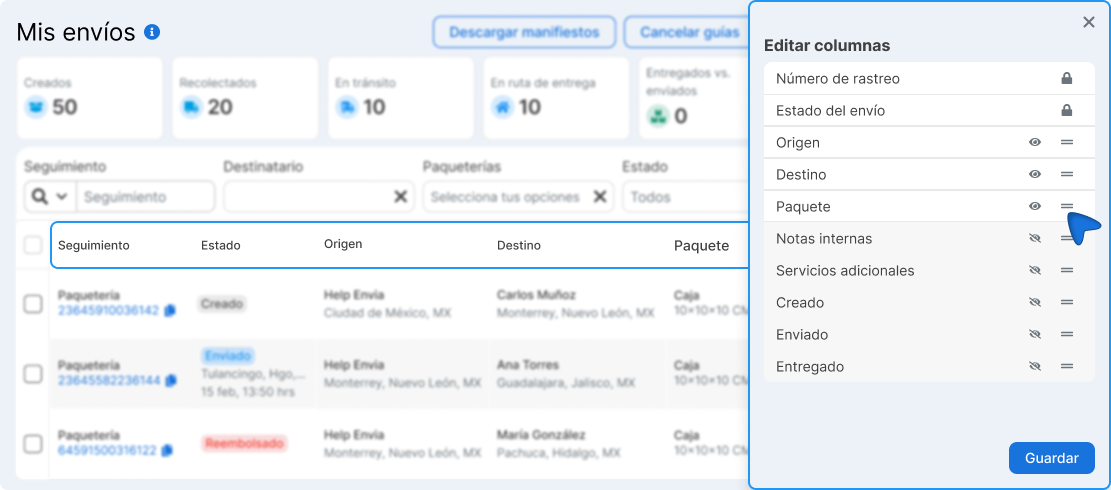
Use the columns icon to show or hide the ones you need, reorder them by dragging, and save the configuration for future sessions.
View shipment details
Section titled “View shipment details”Click the tracking number to open a view with all the information. This lets you track more precisely.
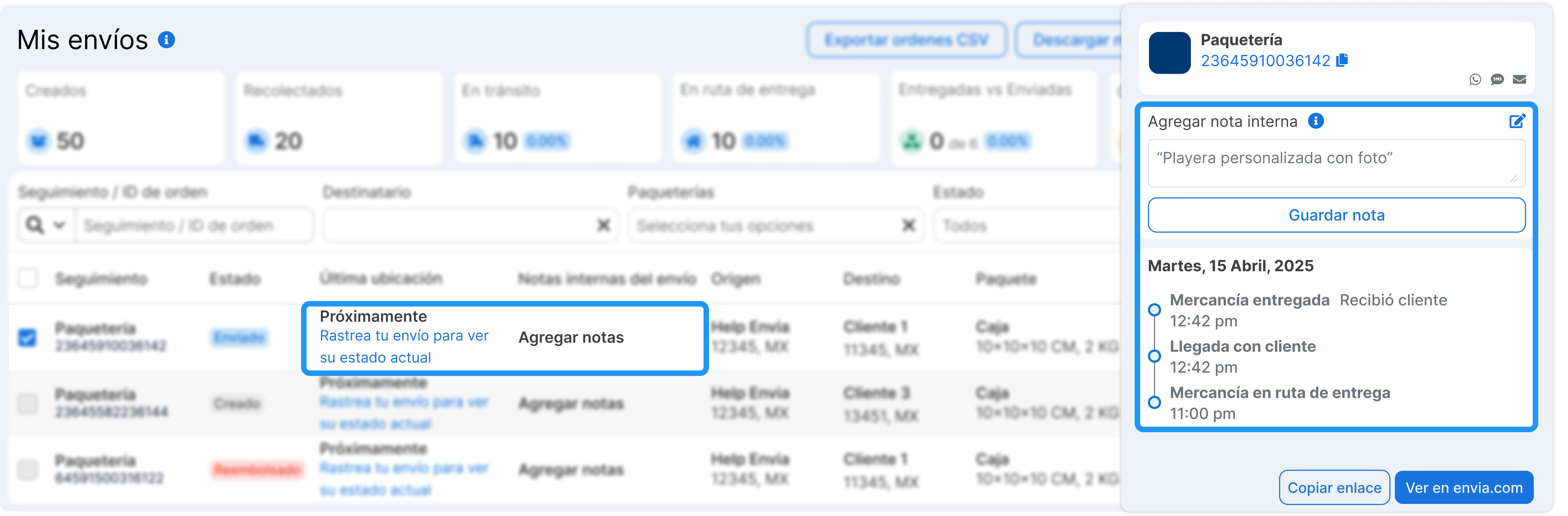
- Step-by-step history (real-time traceability).
- Shipment data and related order.
- Buttons to share status via WhatsApp, SMS, or email.
- Space for internal notes.
Actions available per shipment
Section titled “Actions available per shipment”Some shipments show the Reship button directly on the row, as a quick way to create a new label with the same data without opening the menu. For the rest of the actions, click the three dots ( ⋮ ) next to the shipment:
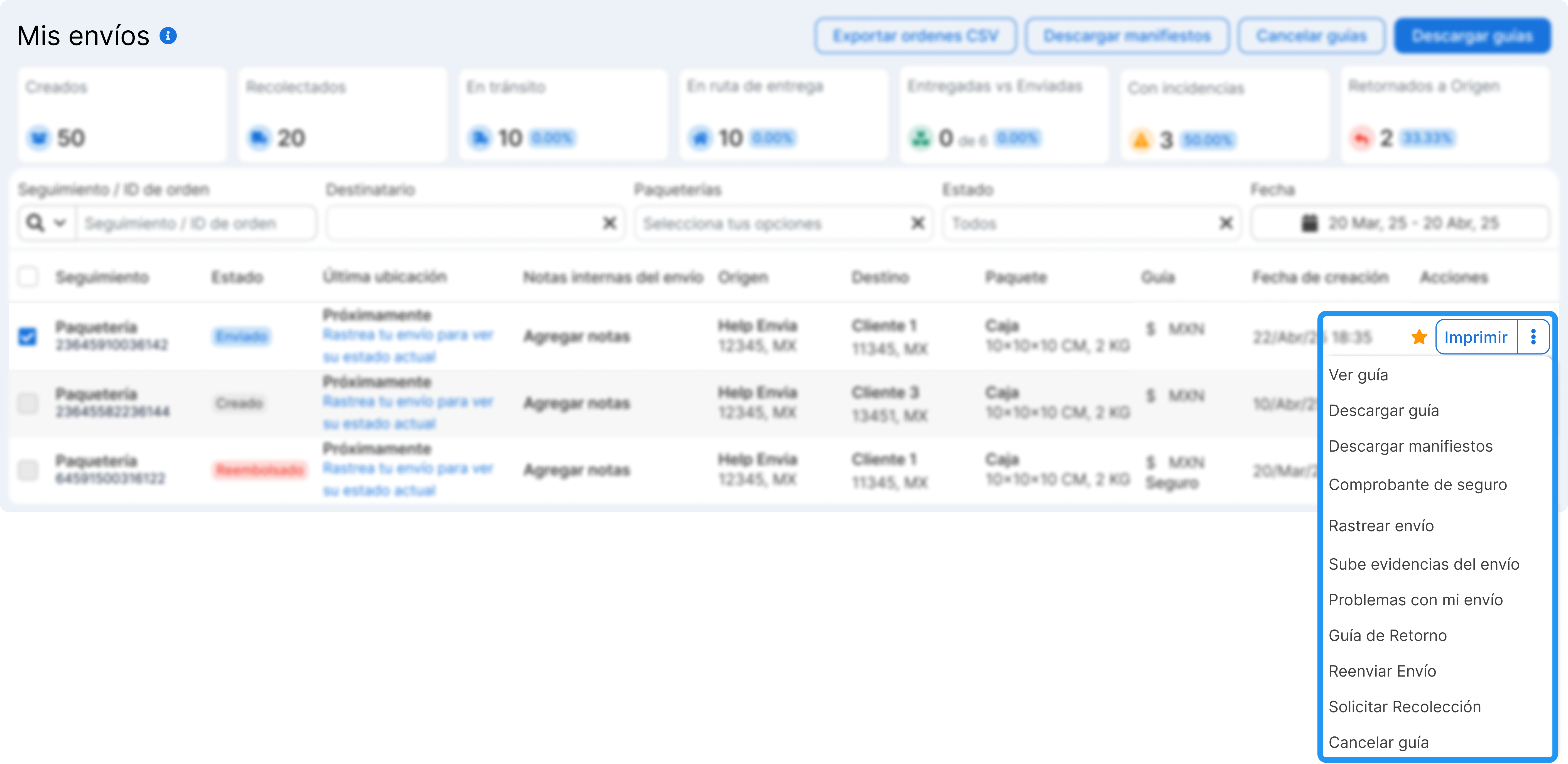
| Action | When it appears |
|---|---|
| View label | When the label was generated |
| Download label | When the label was generated |
| Download manifest | Document that lists the shipments in a pickup (depending on the carrier) |
| Download commercial invoice | Only on international shipments |
| Proof of delivery (POD) | When the shipment was delivered and the carrier has the POD available |
| Track shipment | Opens the public tracking page |
| Copy tracking link | Copies the tracking URL to the clipboard |
| Upload photo evidence | When a package photo has not been uploaded yet |
| View photo evidence | When a photo has already been uploaded |
| Report a problem | Opens the form to create a support ticket |
| View ticket | When a ticket is already associated |
| Link to order | When the shipment is not linked to an ecommerce order |
| Return label | Generates a label to return the package to the sender |
| Reship shipment | Creates a new label with the same data to the destination |
| Request pickup | Schedules the carrier to pick up your package (Generated status) |
| Commercial invoice | For international shipments that require it |
| Cancel label | Only if the shipment is in a cancelable status |
| Archive | Moves the shipment to the archived tab |
Handle many shipments? Use bulk actions
Section titled “Handle many shipments? Use bulk actions”At the top right of the table, you have quick access to apply actions to several shipments at once.
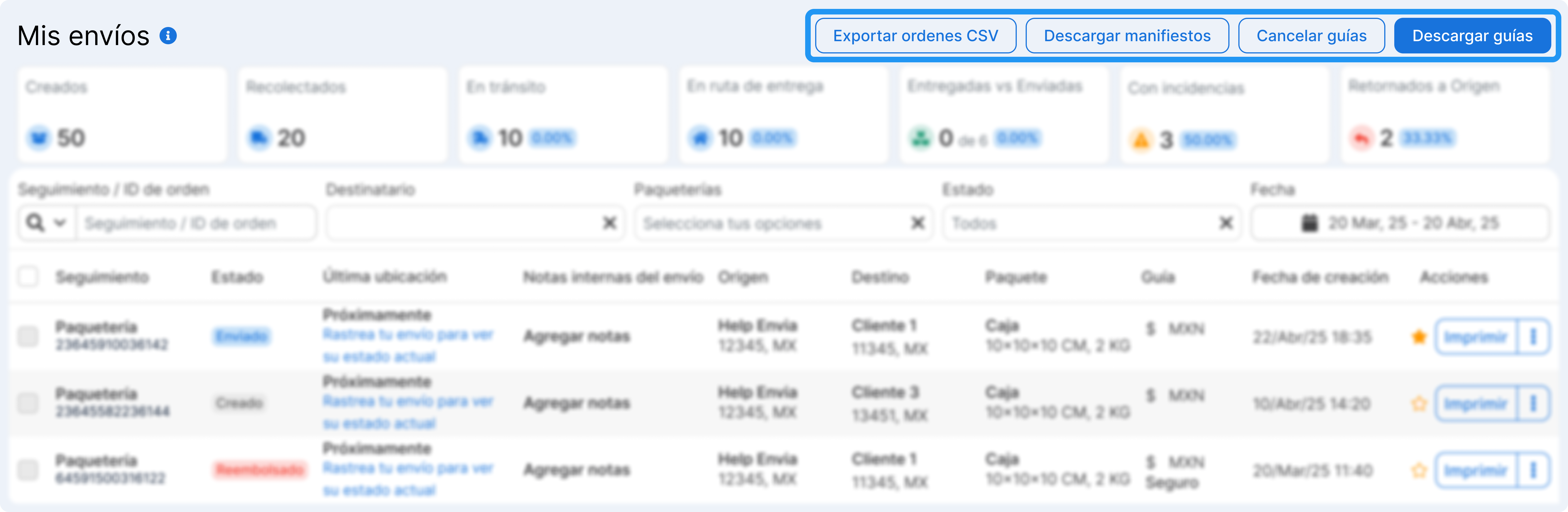
- Export orders CSV. Download all information for control or analysis.
- Download manifests. Useful for large pickups.
- Cancel several labels at the same time.
- Download labels. Ideal if you need to print labels in bulk.
Customize the column view
Section titled “Customize the column view”Want to see only the information you need? Use the columns icon and customize your shipments table.
- Show or hide columns such as status, origin, destination, notes, etc.
- Reorder columns by dragging them.
- Save the configuration for future sessions.
Manage your archived shipments
Section titled “Manage your archived shipments”The Archived tab stores the shipments you moved from the main view to keep your main table organized. You can:
- Unarchive a shipment to return it to the main view
- Permanently delete shipments you no longer need
Shipment statuses
Section titled “Shipment statuses”| Status | Means |
|---|---|
| Generated | The label was created but the package has not been scanned by the carrier yet |
| Picked up | The package has already been collected |
| In transit | The package is on the way |
| Out for delivery | The package is about to be delivered |
| Delivered | The package arrived to the recipient |
| Delivery attempt | The carrier tried to deliver but could not |
| With incident | A problem occurred that needs attention |
| Returned to origin | The package was returned to the sender |
| Canceled | The label was canceled |
Frequently asked questions
Section titled “Frequently asked questions”Why don’t I see the cancel option on a shipment? Cancellation is only available for shipments in Generated or error status. If the carrier already scanned the package, it cannot be canceled from the platform.
What happens to an archived shipment? It is moved to the Archived tab and disappears from the main view. You can unarchive it whenever you want or permanently delete it from that tab.
Can I download all my shipments in Excel? Yes. Select the shipments and use Export CSV from the bulk actions bar. For complete monthly reports, go to My Shipments > Reports.
What is the manifest? It is a document that lists all the packages you hand over to the carrier in the same pickup. Some carriers require it at drop-off.
Can I customize which columns I see in the table? Yes. Use the columns icon at the top right of the table to turn columns on, off, and reorder them. The configuration is saved for your future sessions.