







Ecommerce Pro / Products
Add products
Adding your products allows you to register all the necessary information to create shipments faster and more accurately. By having your products created in advance, you can reuse them when generating domestic or international shipments, avoiding the need to enter the same information for every shipment.
From this flow, you can add products with or without a linked e-commerce and define key details from the start, such as dimensions, weight, and international shipping configurations.
- Register products to use them directly when creating shipments.
- Add products even if you don’t have a linked e-commerce.
- Define dimensions, weight, and logistical details for each product.
- Prepare products for international shipments from the moment they are created.
Steps to add a product
1. Log in to your Envia.com account.
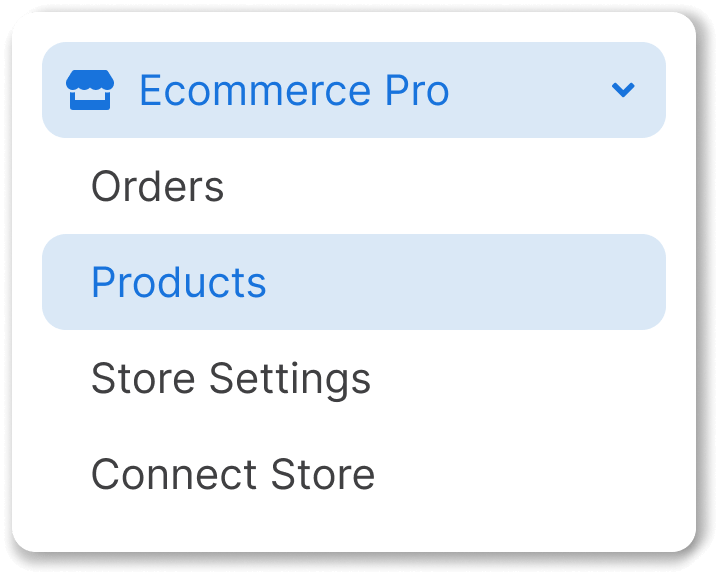
2. from the side menu, select Ecommerce Pro > Products.
3. Click on Add product +.
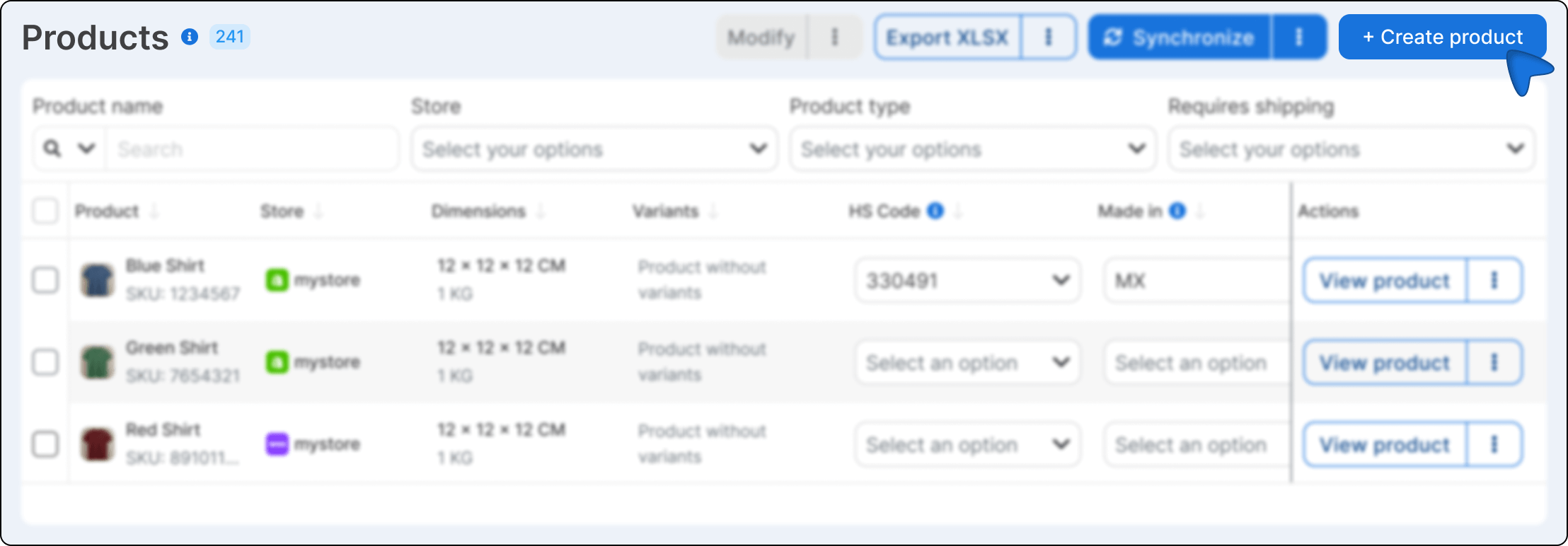
4. Fill in the fields with the product information.
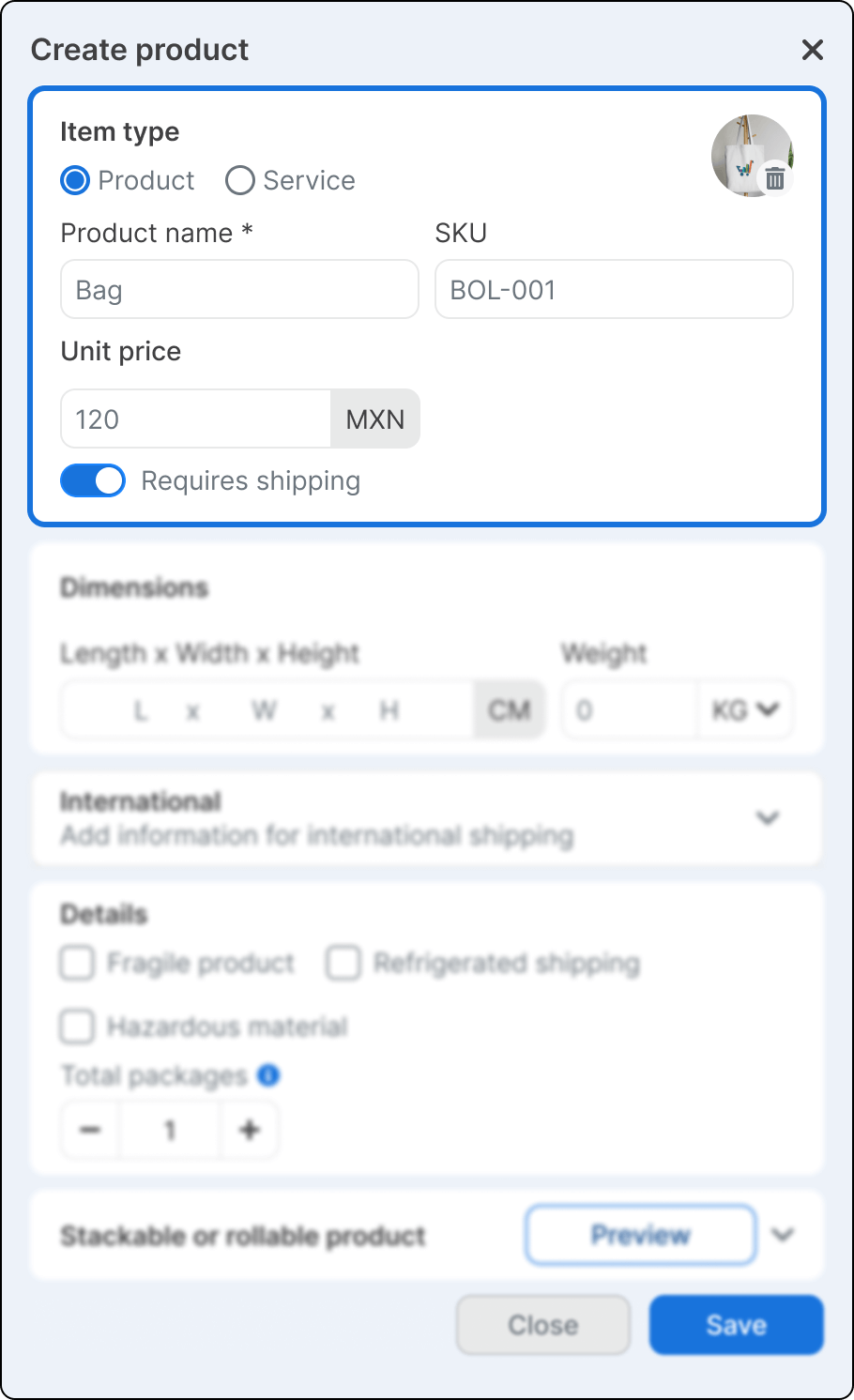
Product Type
5. Indicate whether the itme you are creating is a Product or a Service.
- Product. Select this option if it is a physical item that requires shipping.
- Service. Select this option if the item does not require physical shipping.
6. Complete the fields to identify your product.
- Product image. Image used to identify the product. Applies only to products created directly in Envia.com.
- Product Name. Name you will use to identify the product when creating shipments.
- SKU. Internal code used to identify the product (optional).
- Unit price. Product sale price in your account’s currency.
- Requires Shipping. Enable this option if the product needs to be shipped physically.
Dimensions and weight
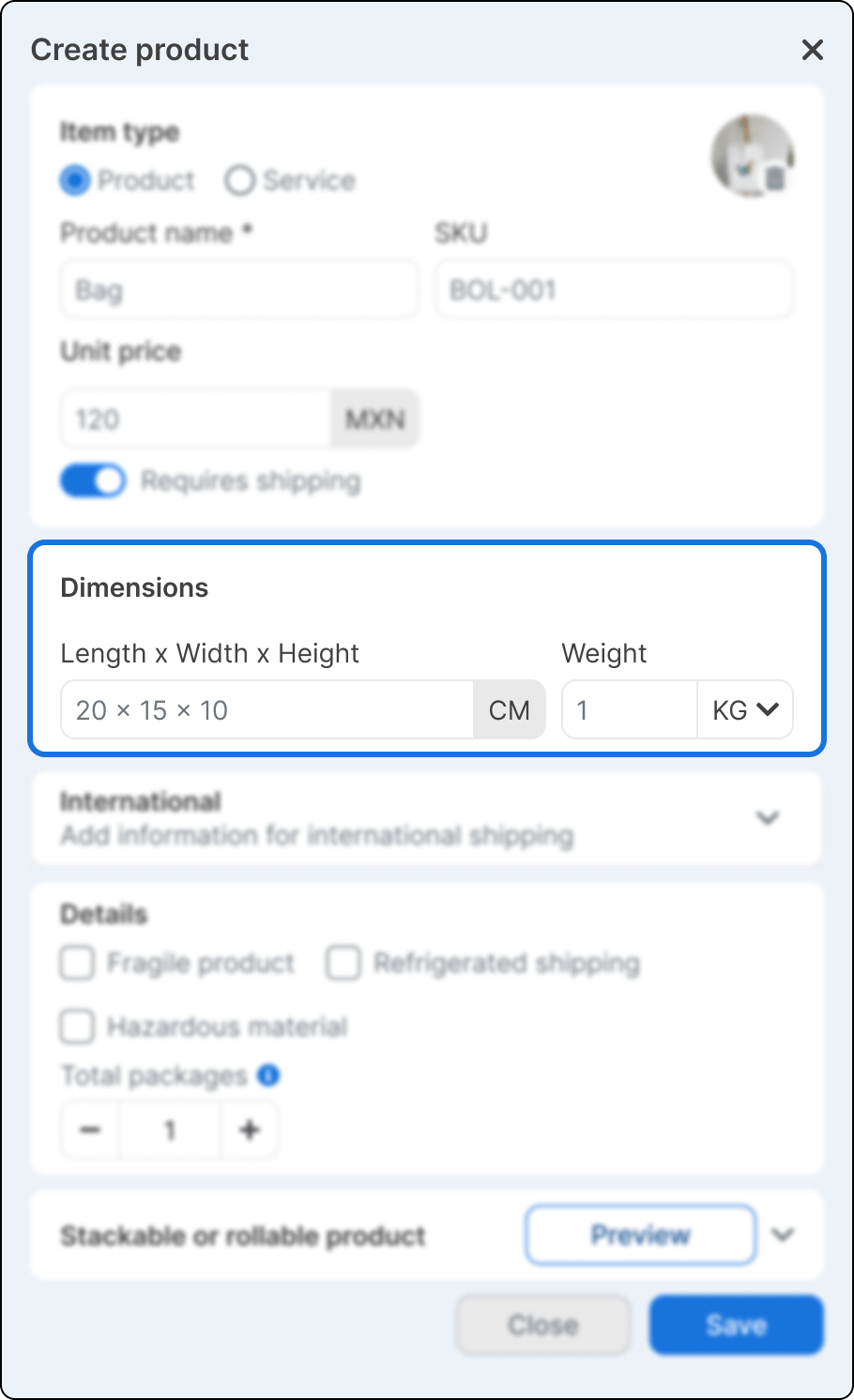
7. Enter the product measurements to correctly calculate shipping costs.
- Dimensions. Enter the product’s length × width × height .
- Unit of measure. Choose between centimeters or inches.
- Weight. Enter the product weight and select the unit.
Use real dimensions and weight to avoid differences in shipping quotes.
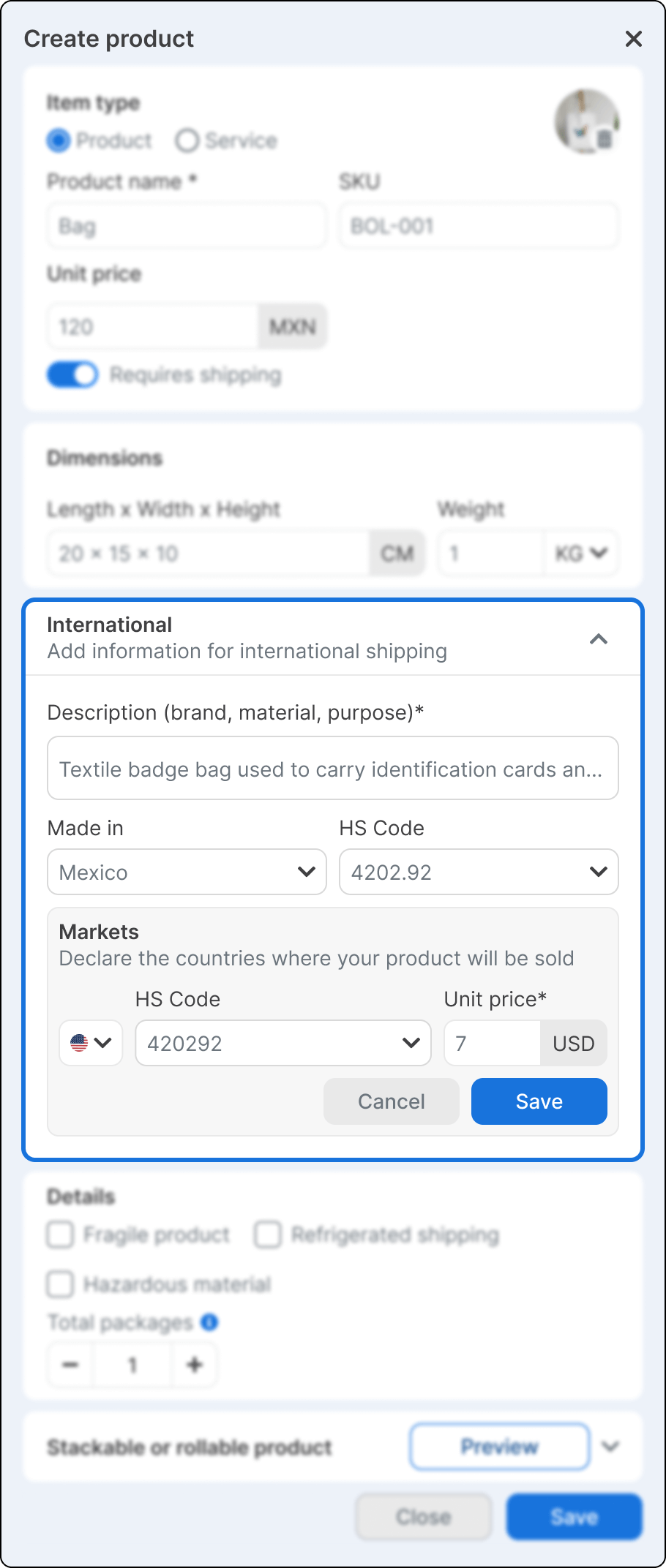
International information
8. Add this information if your product will be shipped internationally.
- Product description. Describe the product in English indicating brand, material and purpose.
- Made in. Select the product’s country of origin.
- HS Code. Choose an HS code to classify your product for customs. The system may suggest codes automatically based on the description.
9. Declare the countries where you will sell or ship your product.
- Select the destination country.
- Assing a specific HS code fot that county.
- Define the unit price in the corresponding currency.
Product details
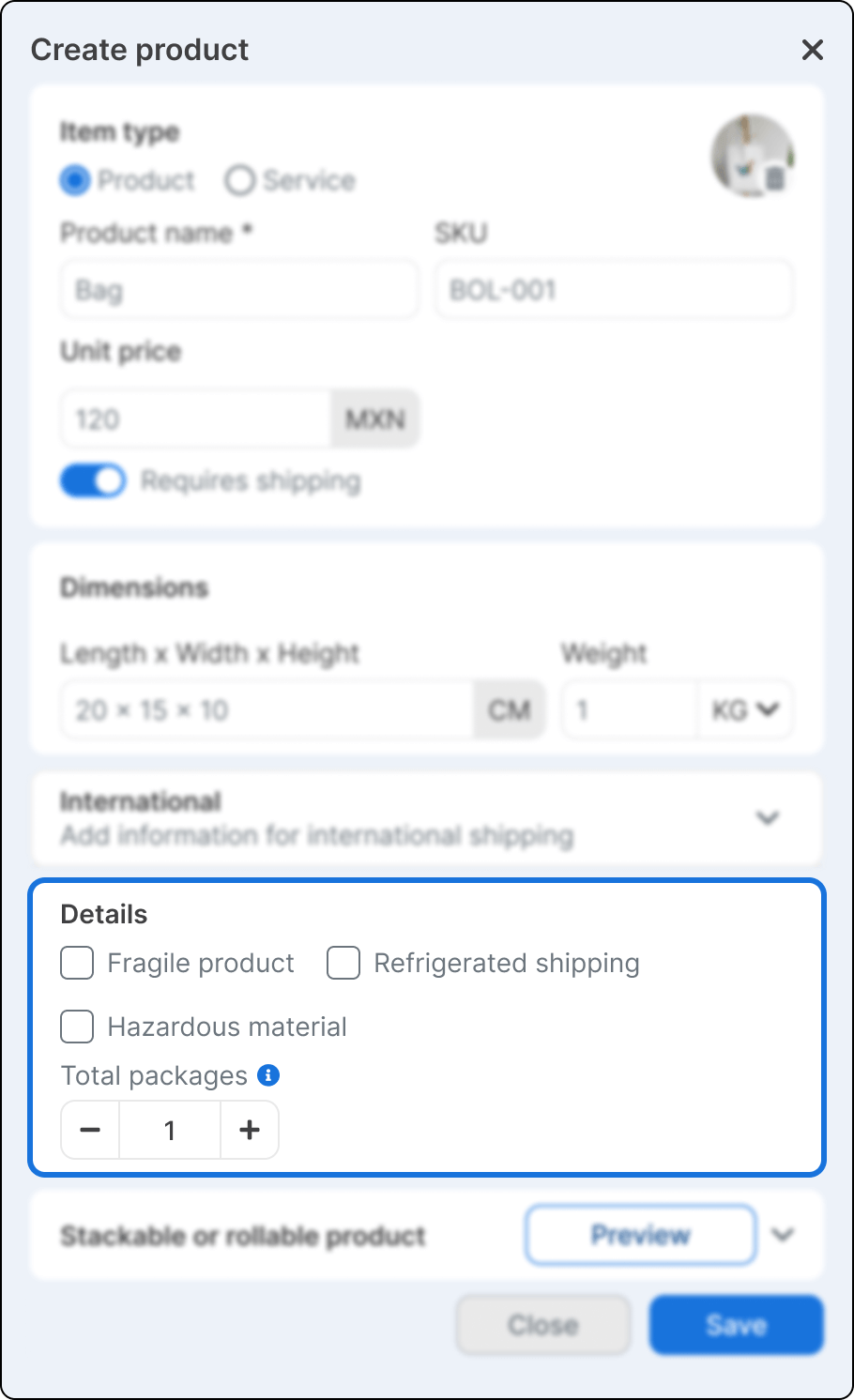
10. Select the options that apply based on the product´s characteristics.
- Fragile product. Indicates the product requires special handling.
- Refrigerated shipping. Select this option if the product requires temperature control.
- Hazardous Material. Select this option if the product is classified as hazardous.
11. Indicate the total number of packages in which the product will be shipped.
Stackable or Rollable Product
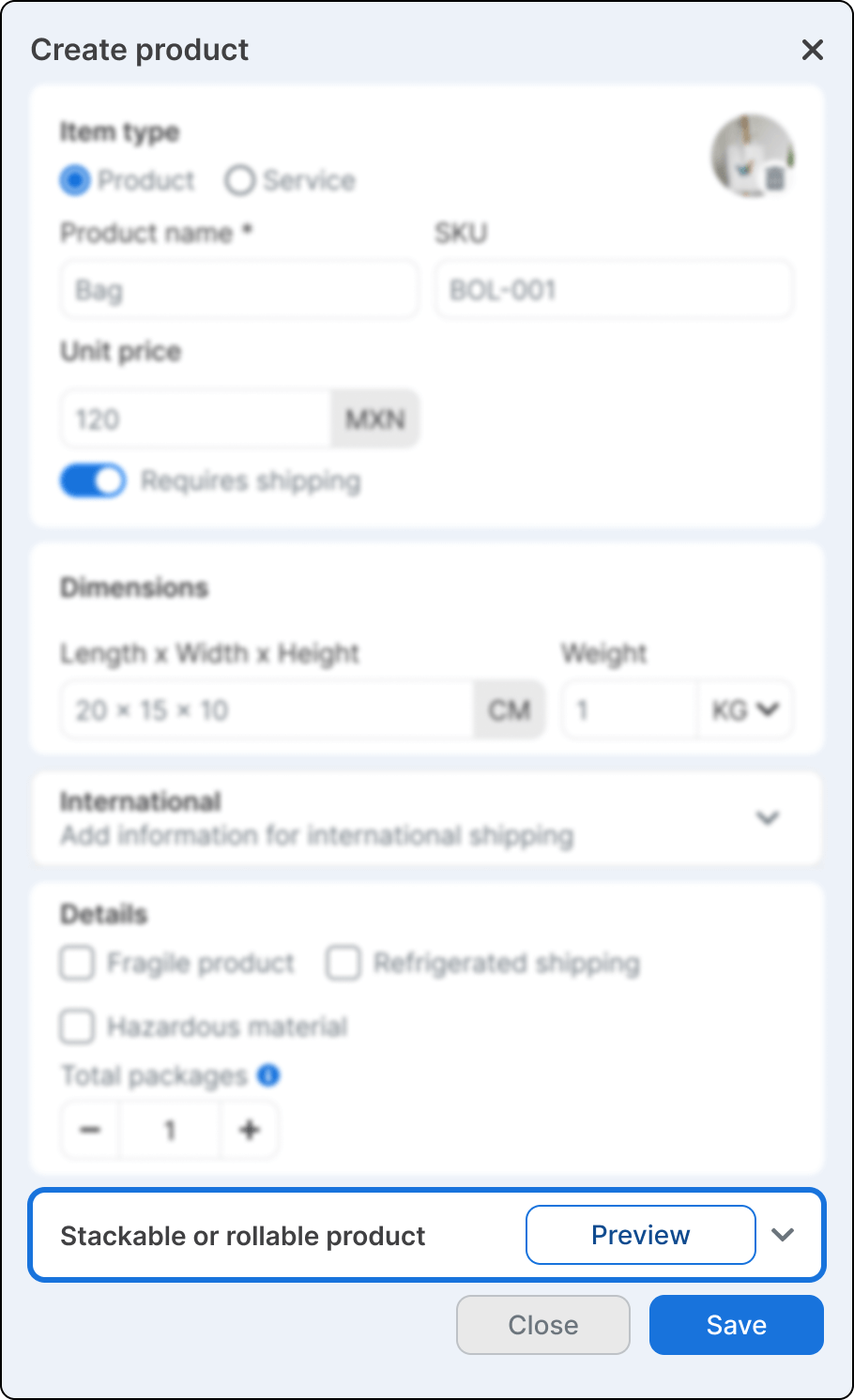
12. Select how the product behaves during shipping. This configuration helps calculate shipment space and volume correctly.
- Stackable Allows you to indicate the height increase when the product is stacked.
- Rollable Applies to products that can be rolled to optimize space.
13. Click Save to create the product.
Difference between e-commerce products and non–e-commerce products
E-commerce Products
For products linked to an e-commerce:
- The product name, SKU, and image cannot be edited.
- You can:
- Add or edit HS codes.
- Configure international markets.
- Define prices per market.
Non–E-commerce Products
For products created directly in Envia.com:
- You can edit all product information.
- Yo can:
- Modify the product name, SKU, and image.
- Adjust dimensions, weight, and logistical details.
- Configure international information and prices per market.

Did you find this resource useful?