If you manage your store or orders in Odoo, integrating Envia allows you to Get quotes and manage shipments using actual rates from multiple shipping carriers, without having to pack each shipment by hand or switch between tools. The goal is the same in every case: Close the sale in Odoo and arrange shipping with Envia — Compare options, apply the correct cost, and proceed to the guide or fulfillment depending on the workflow you use.
There are three ways to connect them. They are not the same thing: they depend on What version of Odoo do you have?, How is your instance hosted? and Where do you want to trade?(in Envia or within Odoo). Before making your choice, confirm your version and hosting type to find out which option applies to you and who provides support.
Confirm your Odoo version
Log in to your Odoo account using an administrator account.
Go to Settings.
At the bottom right, or at About / About, check the version number.
You can also see it in the URL or in the dashboard's welcome message, depending on your setup.
How to Tell if It's Odoo Online (SaaS), Odoo.sh, or On-Premise
Type
How to Recognize It
In practice
Odoo Online (SaaS)
Your URL usually looks like this: yourdomain.odoo.com. You don't install modules manually from code; you use the apps that Odoo provides in the cloud.
Hosting managed by Odoo.
Odoo.sh
When you log in through the Odoo.sh portal, you'll see branches, builds, and deployments. You can install modules from Apps / Repository.
Hosting on the platform Odoo.sh (more control than online).
On-Premises
Odoo runs on your server or a partner's server. You (or your integrator) They oversee the installation and the code.
Our own server or a third-party server.
ℹ️ Quick summary: If your store is just *.odoo.com without Odoo.sh > Online (SaaS). If you have a project on Odoo.sh or your own server > .sh u On-Premises.
In Odoo (Apps / Inventory), using the Envia account
Compatible hosting
Depending on your Odoo instance, which can be connected via API
Alone Odoo.sh u On-Premises. No Odoo Online (SaaS)
Aimed at Odoo Online (SaaS) and Odoo's native workflows
What is it used for?
Synchronize orders and generate guides from Envia
Get real-time rate quotes in Odoo orders (and fees at checkout if you enable it)
Create a quote / ship from the Odoo delivery workflow, depending on what Odoo offers
Support
Send
Send
Odoo (It is an extension of its platform; Envia can provide guidance on the Envia account, but the module is supported by Odoo.)
Which one is right for you?
OAuth from Envia.com. If you want to process shipments on Envia (orders, quotes, and generate guides) and your Odoo is compatible (documented workflow for v18)
Envia Plugin (Apps). If you have Odoo 19 at Odoo.sh u On-Premises and you'd like a quote included in the order in Odoo.
Native Odoo Integration (SaaS). If you're in Odoo Online (SaaS) and you want the connector that Odoo offers with its product. Official guide: Envia Shipping in the Odoo documentation.
Am I eligible for the new Envia plugin (Option 2)?
You must comply everything this:
Version Odoo 19.0
Web Hosting Odoo.sh u On-Premises(not Odoo Online / *.odoo.com (pure)
Administrator access to install apps and edit odoo.conf (server_wide_modules)
Envia.com Account
1. Integrate Odoo using Envia.com's OAuth
Connect your Odoo store to Envia.com to automate shipping management and generate shipping labels from a single platform.
This integration is designed to Odoo Version 18. If you're using an older version, update Odoo or check with your consultant regarding compatibility.
Log in to your Envia.com account.
2. Go to Ecommerce Pro > Connect Store
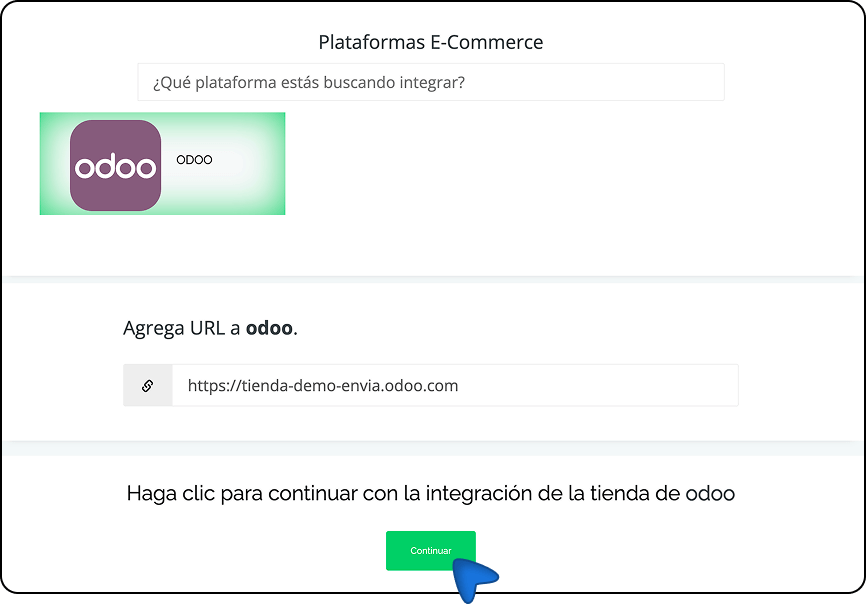
3. Click on Integrate my ecommerce, and select Odoo
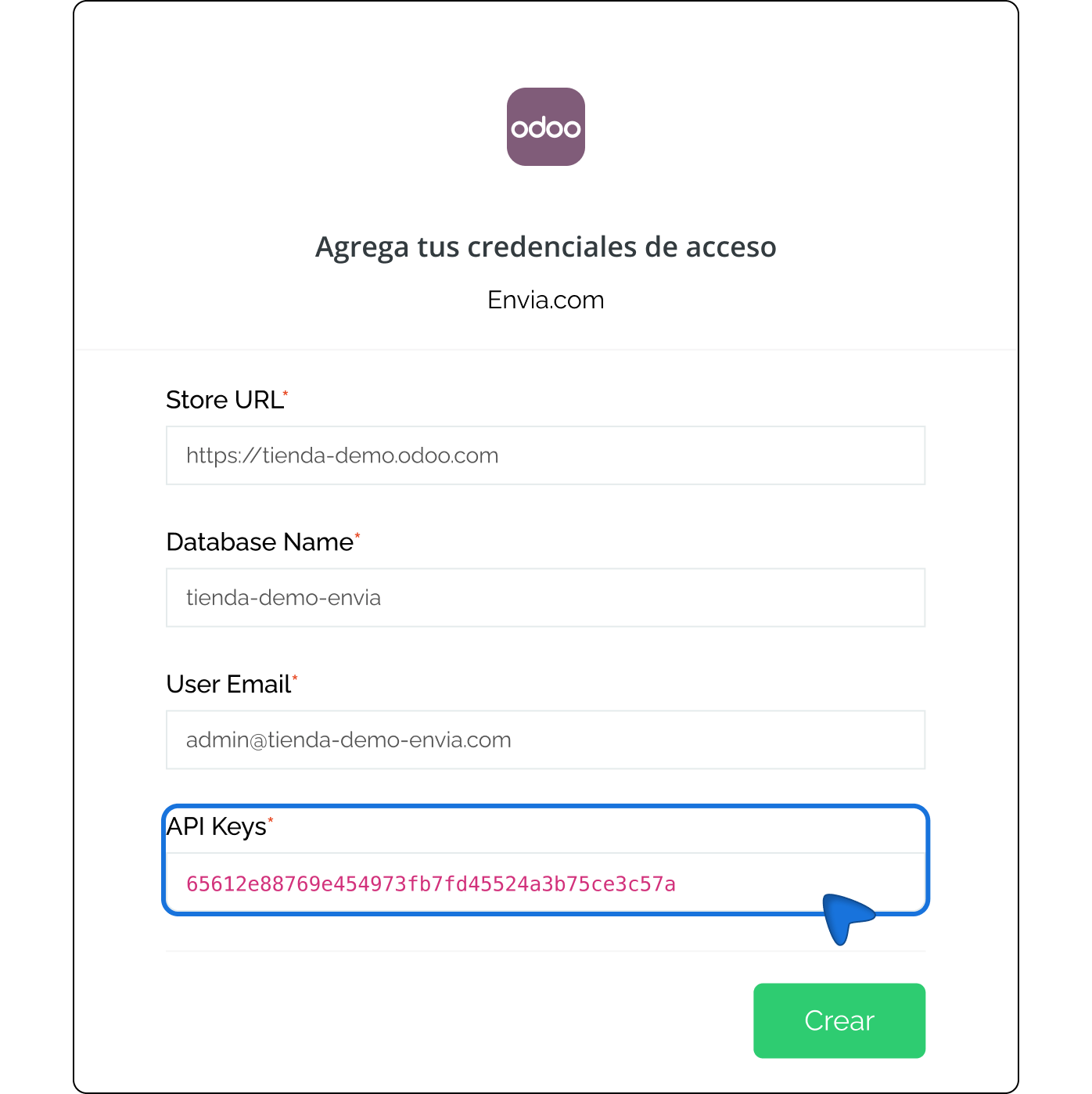
4. Enter your Odoo store URL and click Continue.
5. Open a new tab and log in to your Odoo account.
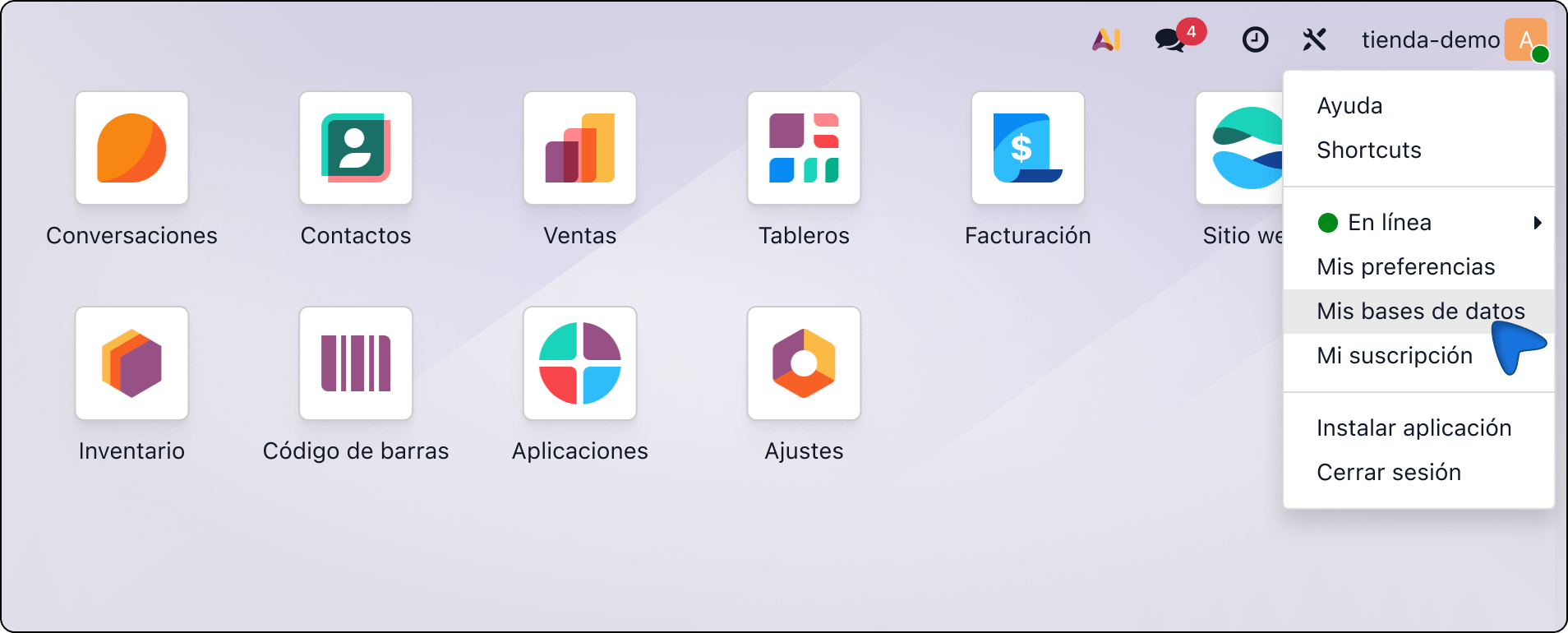
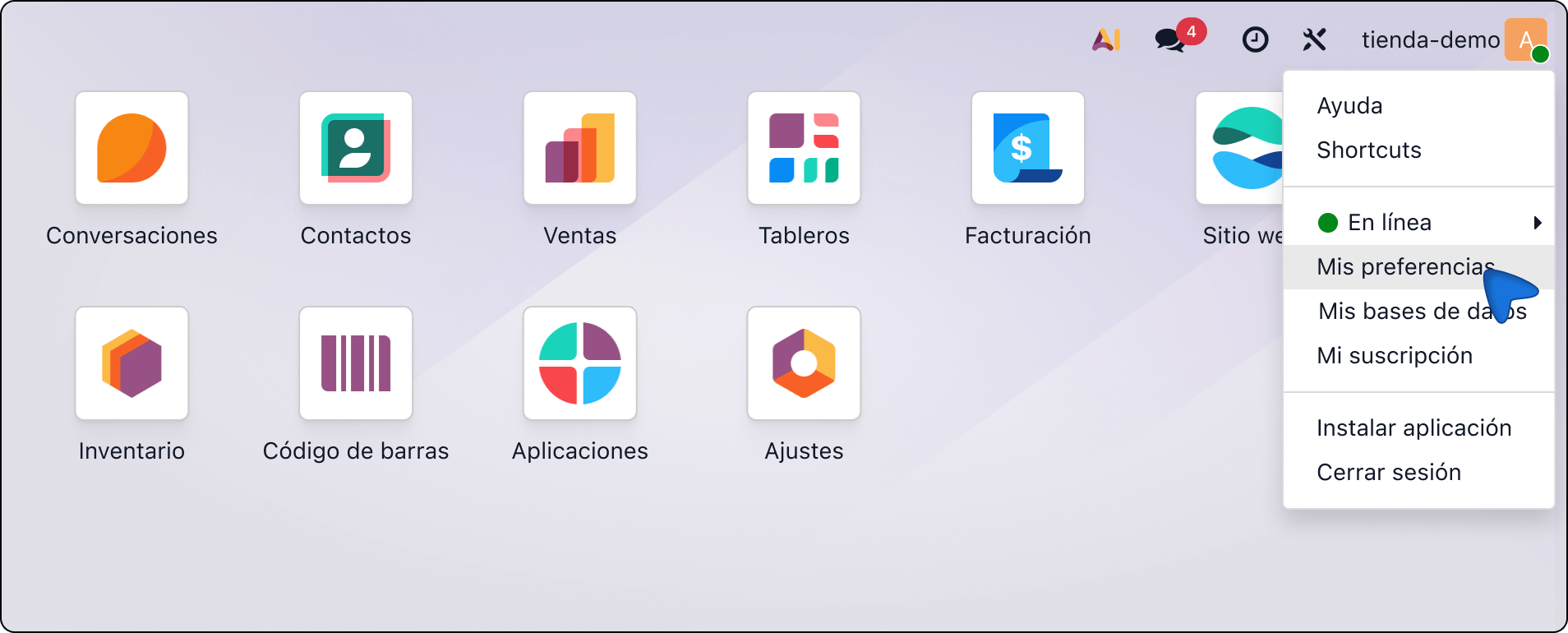
6. In the Odoo panel, click the user menu in the top corner and select My Databases
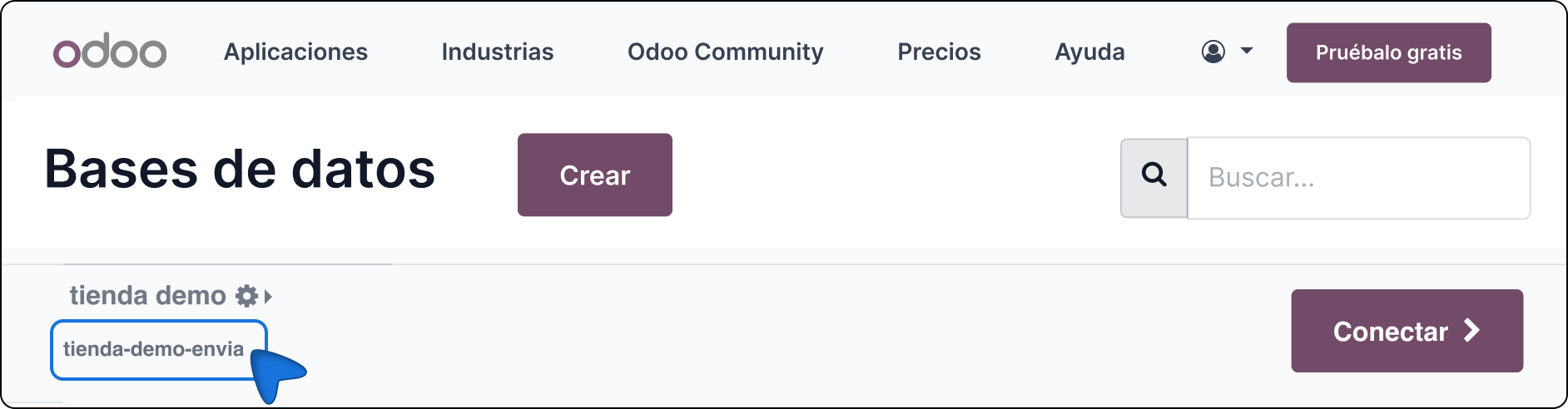
7. Copy the database name (the text shown below the domain).
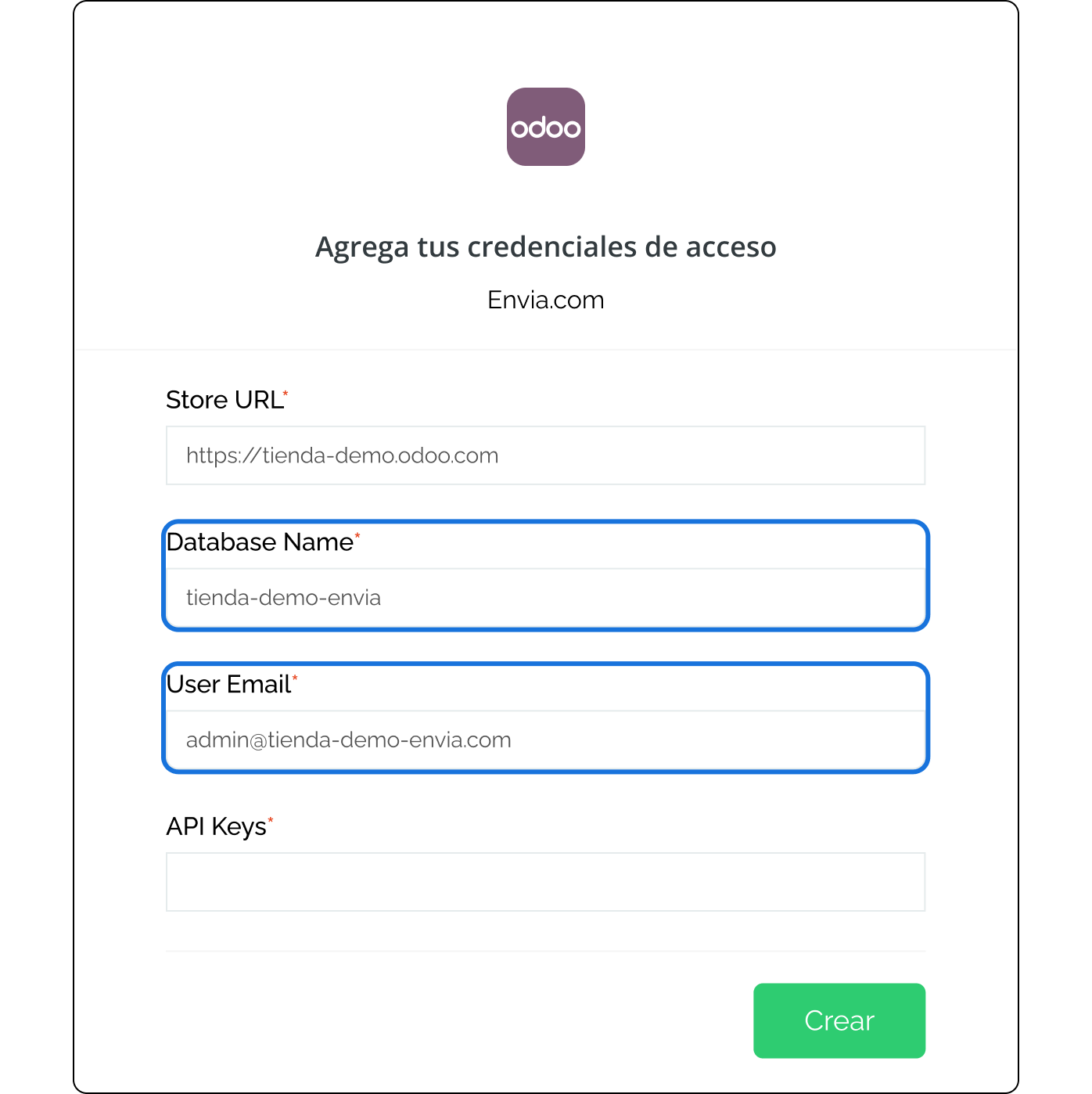
8. Go back to Envia.com and paste this value into the Database Name field.
9. In the User Emailfield, enter the email you use to access Odoo.
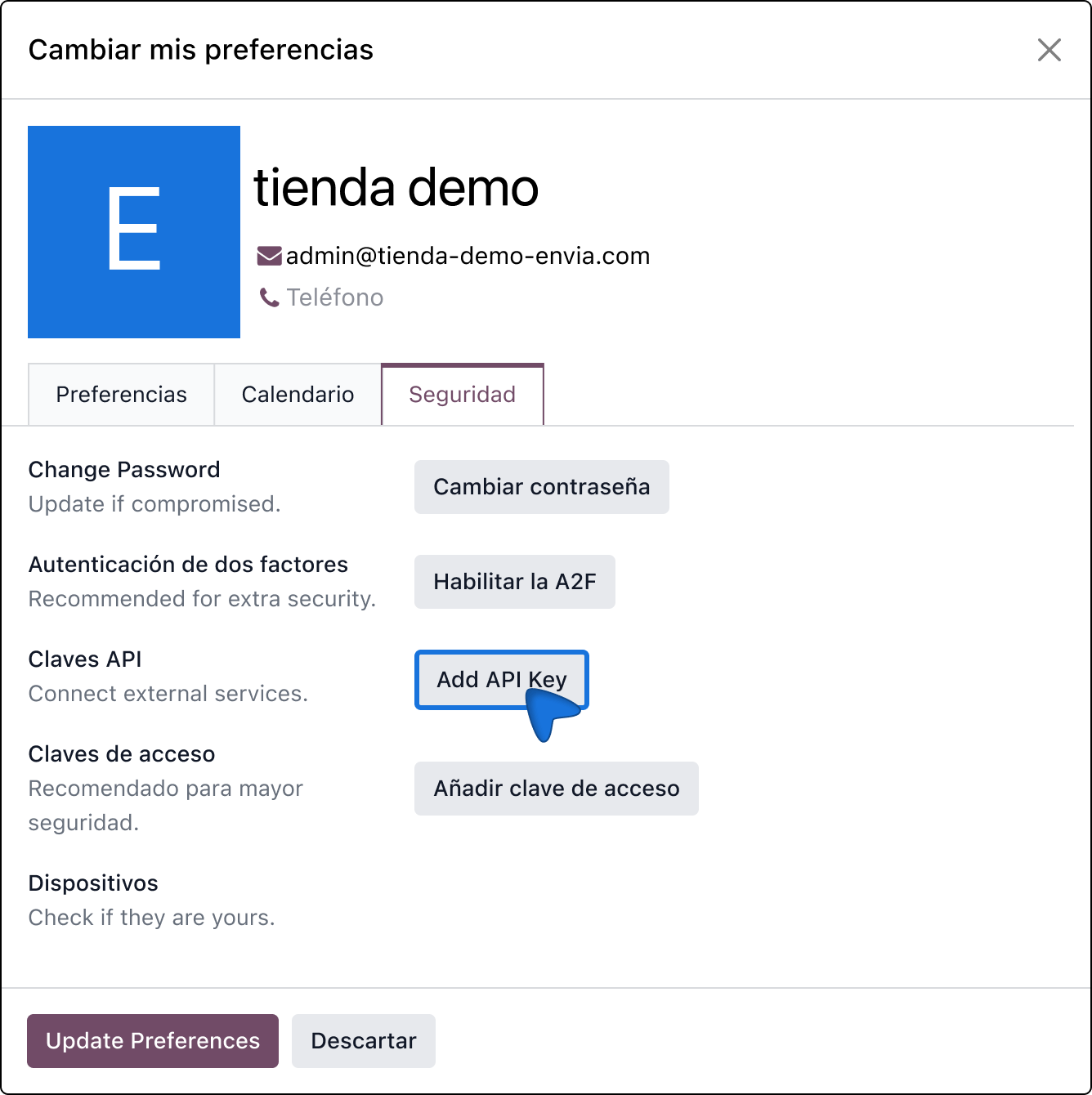
10. In Odoo, open the user menu and select My Preferences.
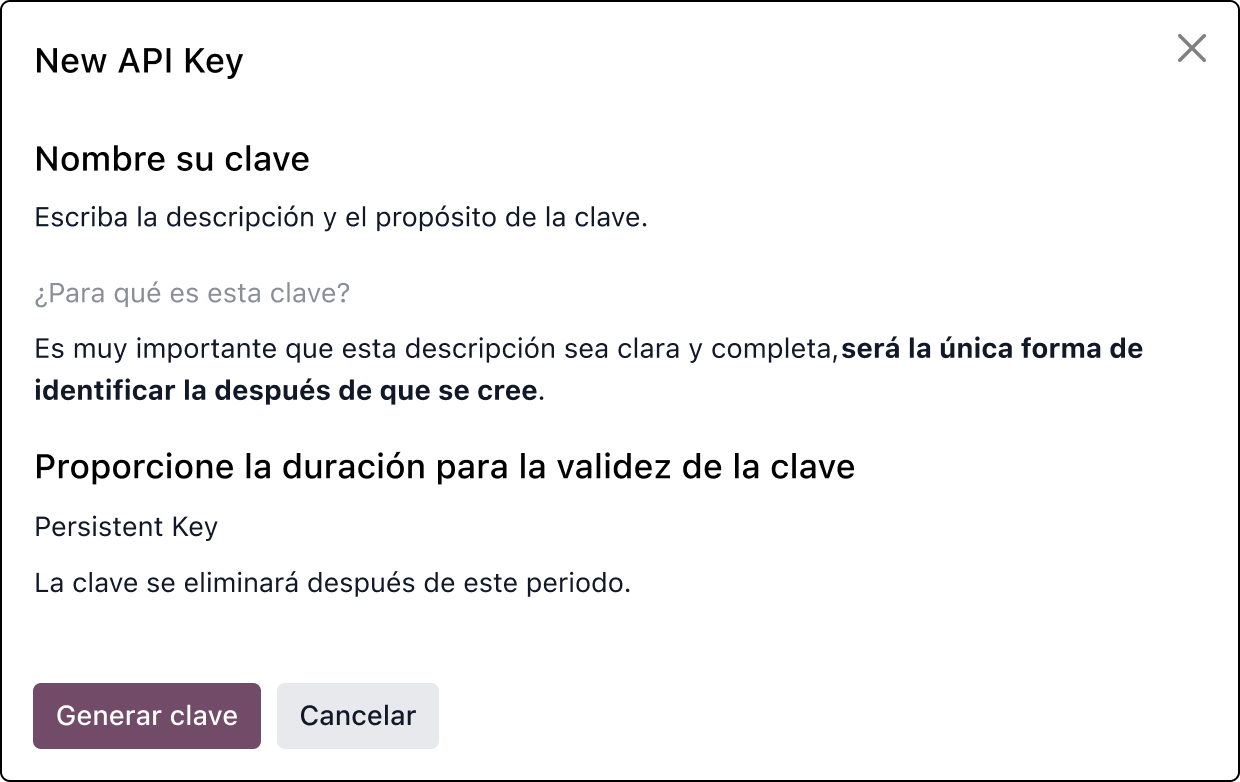
11. Go to the Security section and click on Add API Key to create a new key.
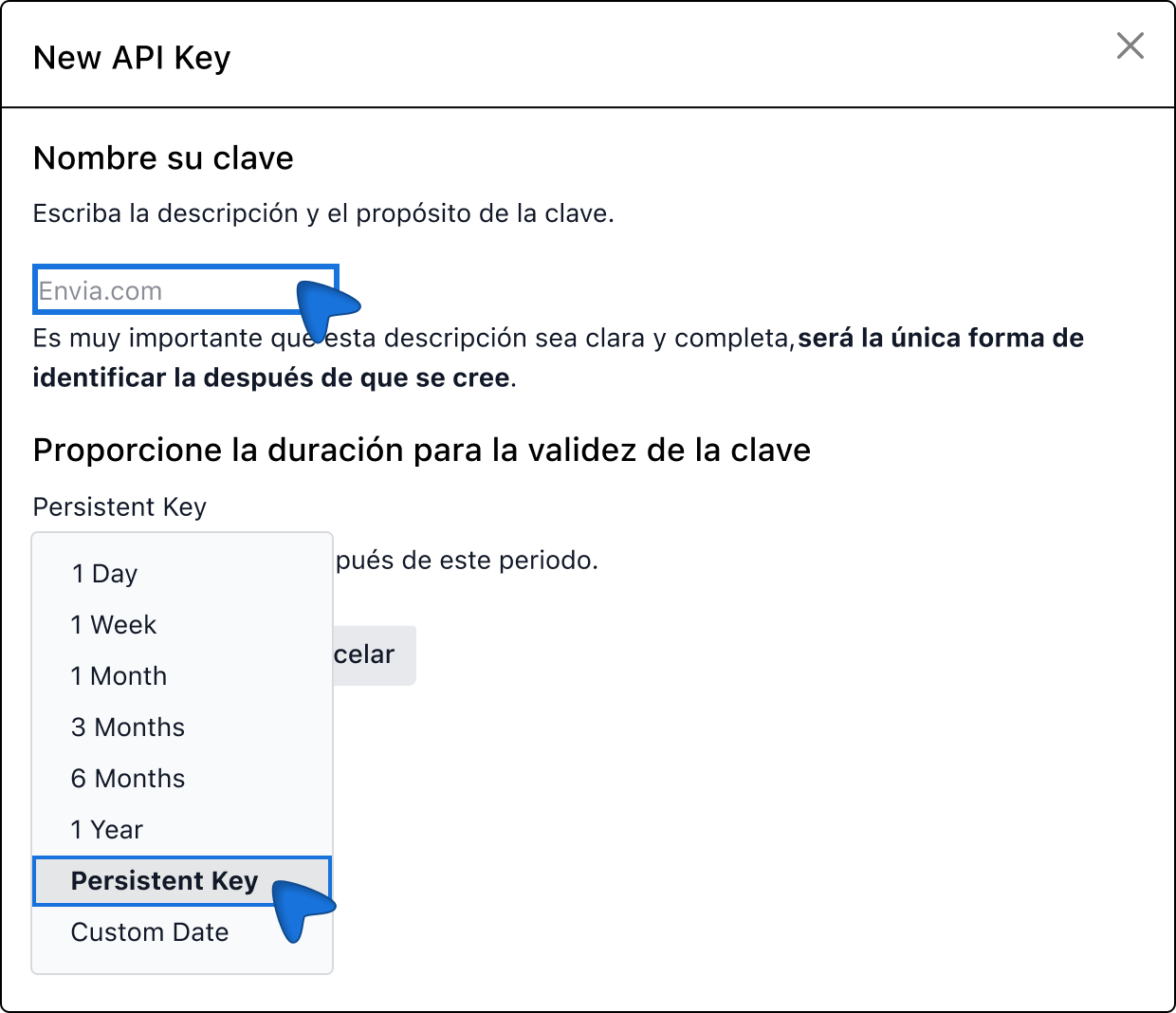
12. In the What is this key for? field, enter Envia.com account.
13. In the key duration, select Persistent Key section and click on Generate key.
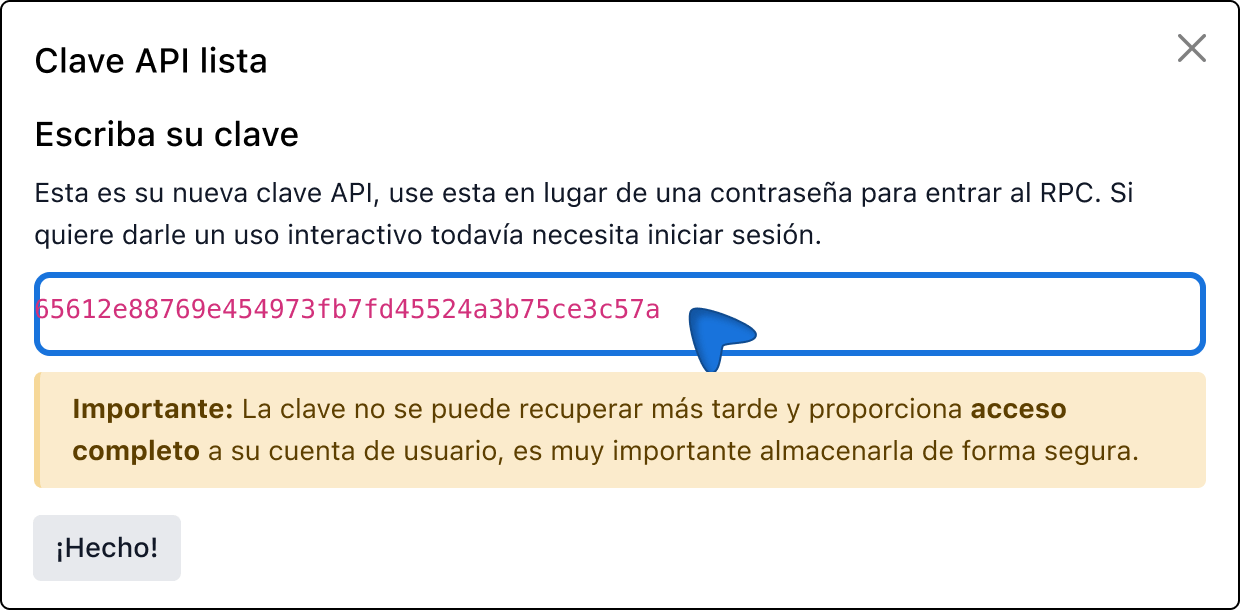
15. Copy the newly generated API key.
⚠️ Important: This key cannot be viewed again. Make sure to store it securely before continuing.
16. Go back to Envia.com and paste the key into the API Keys.
17. Click Create to finish the setup.
18. Check the email registered in Envia.com and click Continue.
Done! Your Odoo store is now successfully integrated with Envia.com.
Set up your store on Envia.com
These settings are made directly from your Envia.com panel. They are essential for the integration to work properly.
Source address and packages
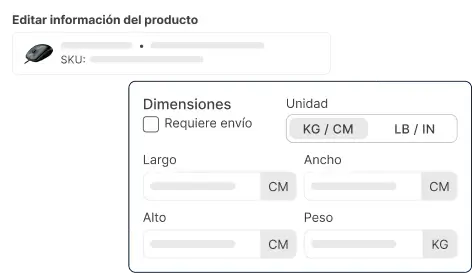
Establish where your shipments leave from and what packaging you use. This is necessary for collecting and quoting.
ℹ️ If you already have the Envia module installed in Odoo or prefer to install it directly from Odoo, you can refer to the official Odoo documentation for detailed steps.
2. Envia.com Plugin (Odoo.sh/On-Premise)
This is the module published on Odoo Apps. It allows you to Get real-time rate quotes within Odoo (in the order) and, if you enable it, display prices at checkout.
With this plugin, you can get shipping quotes within Odoo: Compare shipping carriers, choose a delivery address or branch, and apply the rate to the order. If you have an online store, your customers can also view rates at checkout.
Only Odoo.sh or On-Premise — Does not apply to Odoo Online (SaaS)
Odoo 19.0 at Odoo.sh u On-Premises
Administrator Access
Ability to edit odoo.conf (server_wide_modules)
ℹ️ This version of the plugin provides rate quotes. It does not generate waybills or tracking information in Odoo. The guides are created on Envia.com.











Did you find this resource useful?