

Product declaration
When you make an international shipment, customs needs to know exactly what your package contains. This information determines the taxes, duties, and whether the product can enter the destination country.
📦 Completing the product declaration correctly helps you avoid delays, extra costs, or holds at customs.
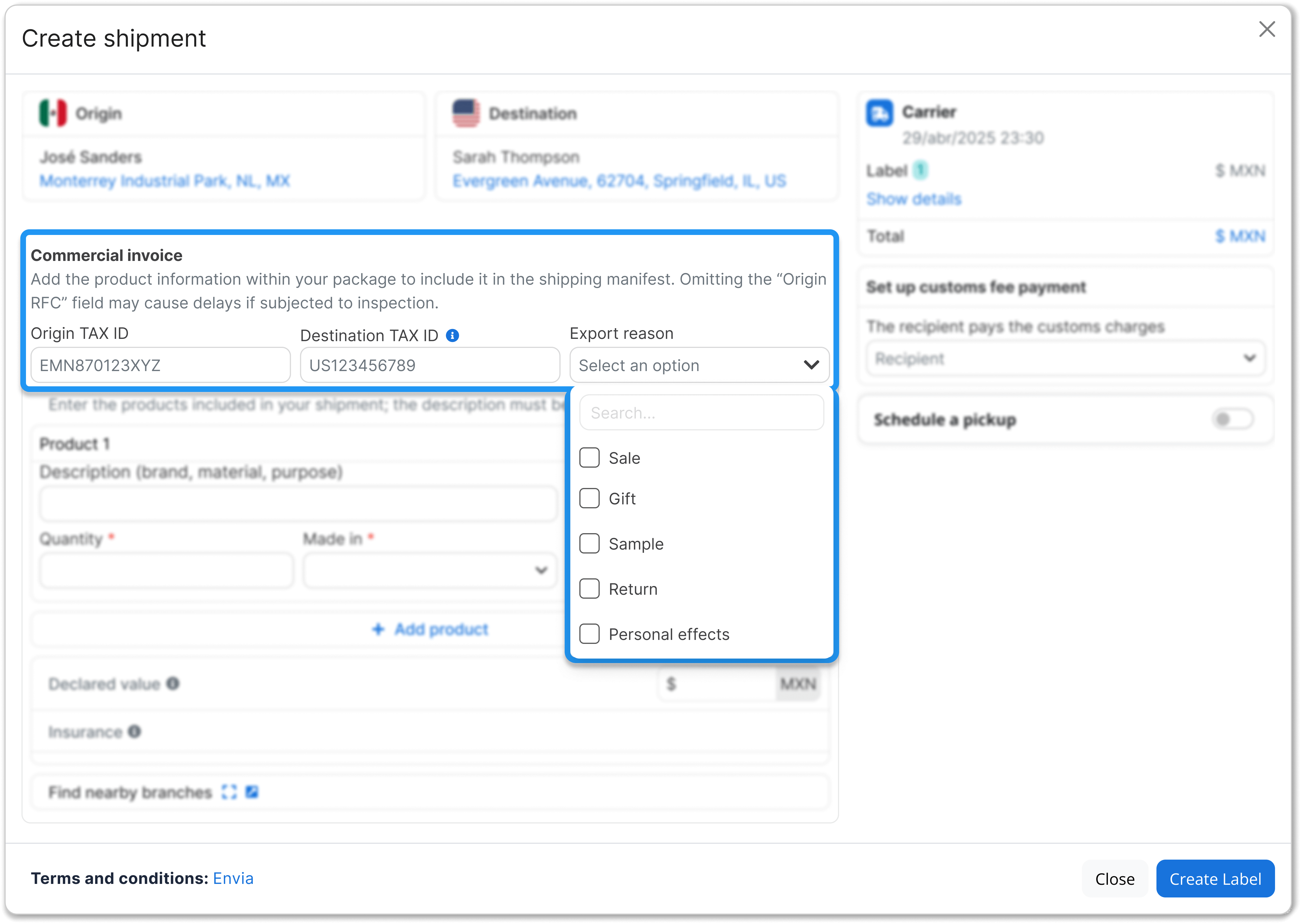
Choose the export reason
Section titled “Choose the export reason”When you declare your product, select the reason you are sending the package:
- Sale
- Gift
- Sample
- Return
Complete all product fields
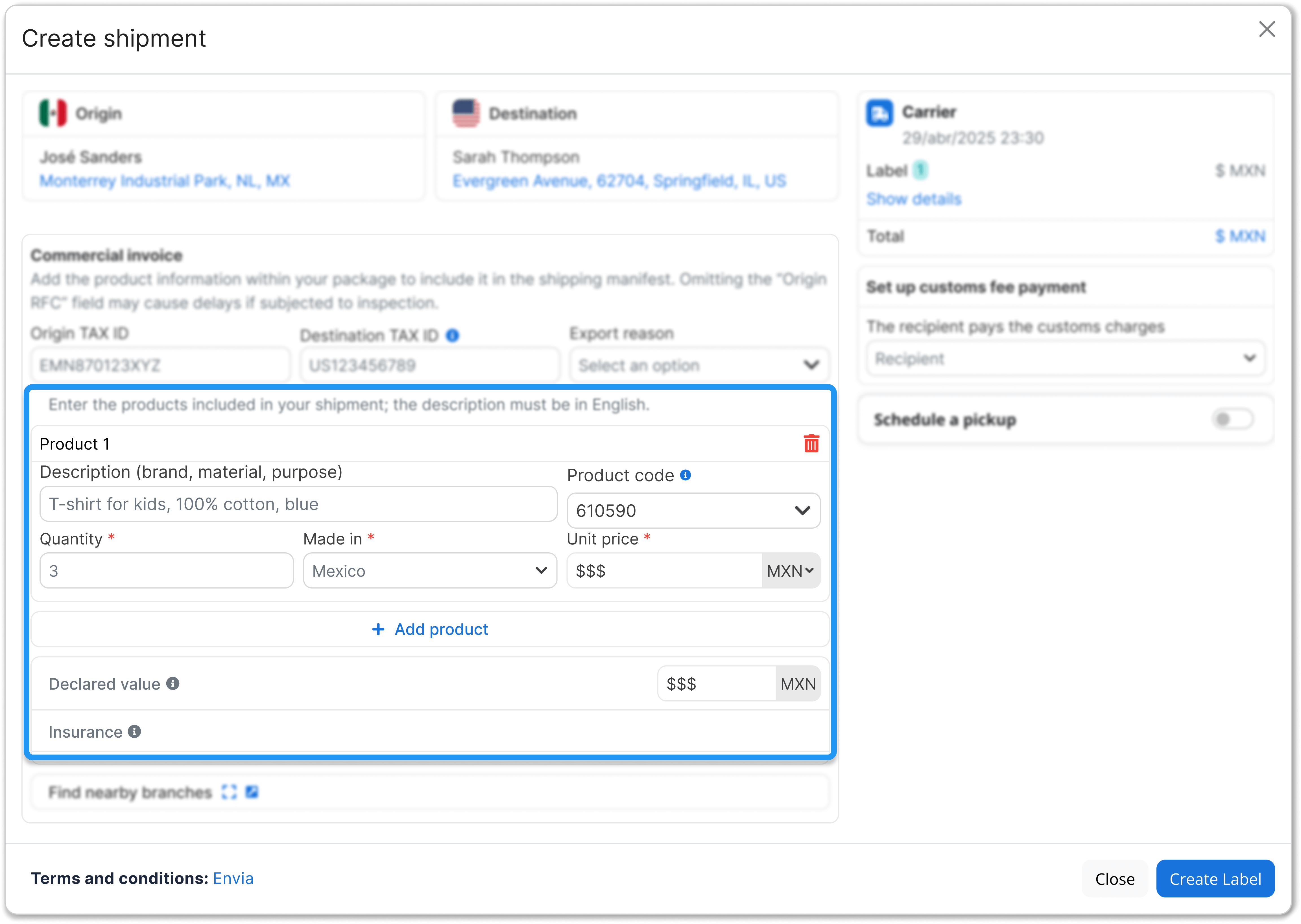
Section titled “Complete all product fields”Enter the information customs requires:
| Field | What should you write? |
|---|---|
| Detailed description in English | What the product is, what it is made of, and what it is for. Example: “Cotton t-shirt for casual use”. |
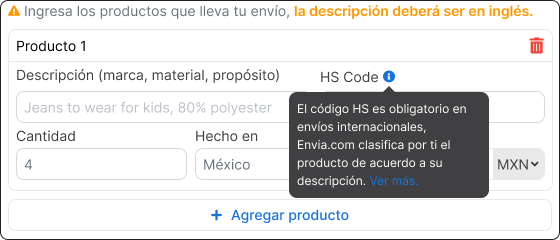
| HS Code (Harmonized System) | Required international classification to identify products and apply duties. Envia.com suggests it automatically based on your description. You can review and edit it if needed. |
| Number of units | Number of identical products included in the package. |
| Country of manufacture | Country where it was manufactured, not where it is shipped from. |
| Unit price | Individual cost of each product. |
| Declared value | Actual commercial value of the contents (what the buyer paid). |
HS Code and why it is required
Section titled “HS Code and why it is required”The Harmonized System nomenclature (HS code) identifies the product precisely and determines which duties and requirements apply. It is a logical structure for classifying goods that customs authorities around the world use in a uniform way.
📚 You can read more at Access2Markets: Harmonised System
Important notes
Section titled “Important notes”- The declared value must be real and consistent across all documents (shipping label, commercial invoice, and receipts). If it does not match, customs can hold the package or apply extra charges.
- Use clear, specific descriptions. Avoid generic terms such as “accessory” or “gift”.
- If your product is a kit or set (for example: “Gift set with t-shirt and cap”), describe each component; customs classifies materials separately.
- Always review the suggested HS Code. If the system shows low confidence, confirm or adjust the code.
Identify products on DHL or FedEx shipments to the European Union
Section titled “Identify products on DHL or FedEx shipments to the European Union”If the destination is a European Union country and the carrier is DHL or FedEx, declaring the product shows European Union import. The carrier uses it to recognize each item. From 1 November 2026, DHL and FedEx reject a shipment to a buyer in the European Union when the item does not include these identifiers. These codes do not replace the description, the HS Code, the country, the price, or the quantity.
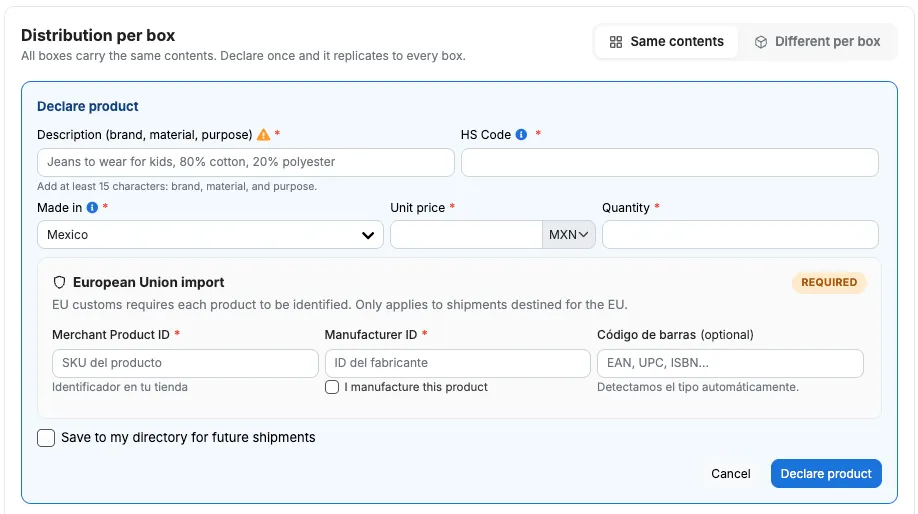
The card says: “EU customs requires each product to be identified. Only applies to shipments destined for the EU.” Envia shows it only for DHL or FedEx. Another carrier, or a destination outside this list, does not ask for them.
Destination countries where it can appear: Germany, Austria, Belgium, Bulgaria, Czechia, Cyprus, Croatia, Denmark, Slovakia, Slovenia, Spain, Estonia, Finland, France, Greece, Hungary, Ireland, Italy, Latvia, Lithuania, Luxembourg, Malta, the Netherlands, Poland, Portugal, Romania, and Sweden.
If both the origin and the destination are in the European Union, the product declaration often does not open and these codes are not requested. They are requested when the origin is outside, the destination is inside, and the carrier is DHL or FedEx. They are also not requested on bulk shipments, on several shipments at once, or in flows that do not use this confirmation.
| Field | What it is | Where it comes from | If you leave it out |
|---|---|---|---|
| Merchant Product ID | The code you use for the product in your store. It is the SKU. Envia does not generate it. | You type it or take it from your catalog. If the directory product has a SKU, the field is filled in and you can change it. | You cannot declare the product. The row turns red because product data is missing. Generate label and Update stop, and you see the incomplete-products notice. |
| Manufacturer ID | The code the manufacturer uses for that product. | You take it from the manufacturer or from the product record. If you make the product, check I manufacture this product: your SKU is copied and the field is locked. If you clear the check, the value stays and you can edit it. | Same result as a missing store code: the product is not declared and the label is not generated. |
| Código de barras | The code printed on the product: EAN, UPC, ISBN, ISSN, or GTIN. The label marks it optional. | You take it from the packaging. If it is already saved on the product, the field is filled in. | You can declare the product and generate the label. If the format is not recognized, you see Non-standard format and the label stays available. If Envia recognizes the type, it shows it (for example ISBN-13 and Books). |
- In Declare product, complete the description, the HS Code, Made in, the Unit price, and the Quantity.
- In European Union import, enter Merchant Product ID. The hint says Identificador en tu tienda.
- Enter Manufacturer ID. If you make the product, check I manufacture this product.
- If you have a barcode, enter it in Código de barras. Empty is valid.
- To reuse these details, check Save to my directory for future shipments.
- Click Declare product. If you are editing a product already added, the button says Save.
When the contents are complete, if the origin is the United States and the declared value is over 2,500 USD, AES ITN can appear. How to use it: Declare AES ITN on US exports.