

Miravia
Connect your Miravia store with Envia.com
Section titled “Connect your Miravia store with Envia.com”-
To integrate Miravia with Envia.com, visit envia.com and go to Ecommerce Pro > Connect Store
-
Click the Integrate my ecommerce button, select Miravia and click Continue.
-
Sign in with your Miravia account and accept the permissions to complete the integration.
-
Verify the email registered in Envia.com and click Continue.
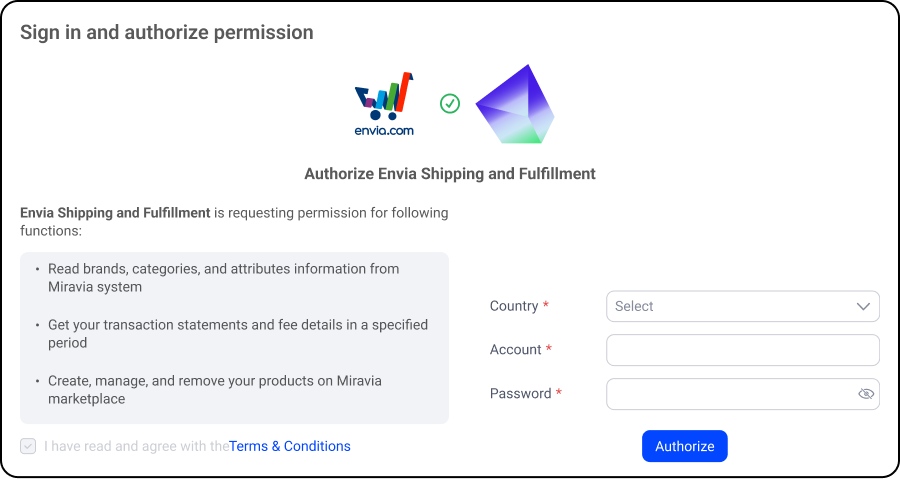
That’s it! Your Miravia store is now integrated with Envia.com
Set up your store in Envia.com
Section titled “Set up your store in Envia.com”You make these settings from your Envia.com dashboard. They are required for the integration to work correctly.

Origin address and packages
Set where your shipments leave from and which packaging you use to calculate shipping rates
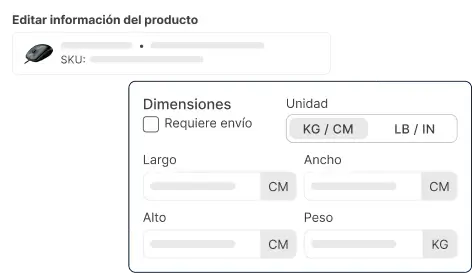
Products
Set the weight and size of each product. The system then calculates rates correctly and picks the right package
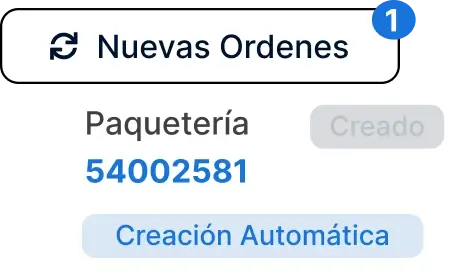
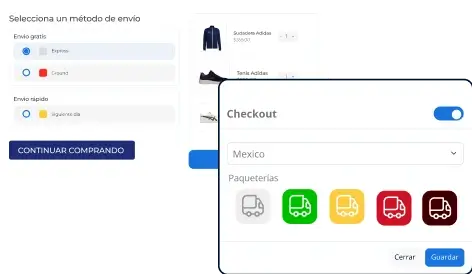
Store checkout
Show the shipping cost in real time when the buyer checks out. It improves the experience and avoids surprises
For more details, see our Help Center articles on setting up your store.
Important notes
Section titled “Important notes”-
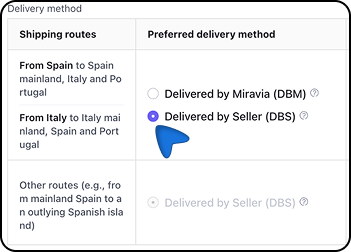
Only orders managed under the Delivered by Seller (DBS) logistics model will be shown. If you use Miravia logistics, those orders will not appear in Envia.com.
-
The initial settings are required for the integration to work correctly.