







Shipments / My Shipments
Create ticket
Did you have a problem with one of your shipments? You can file a report (also called a ticket) so our team can help you resolve it as soon as possible. This process allows us to track your situation internally and improve our service.
What is a ticket?
A ticket is a formal report generated when you report a problem with your shipment. It is tracked both internally and by the shipping carrier; you can check its status at any time and receive notifications via email and within the portal for each update.
Create a support ticket
1. Log in to your Envia.com account.
2. In the side menu select Tickets
3. Click on Report an issue.
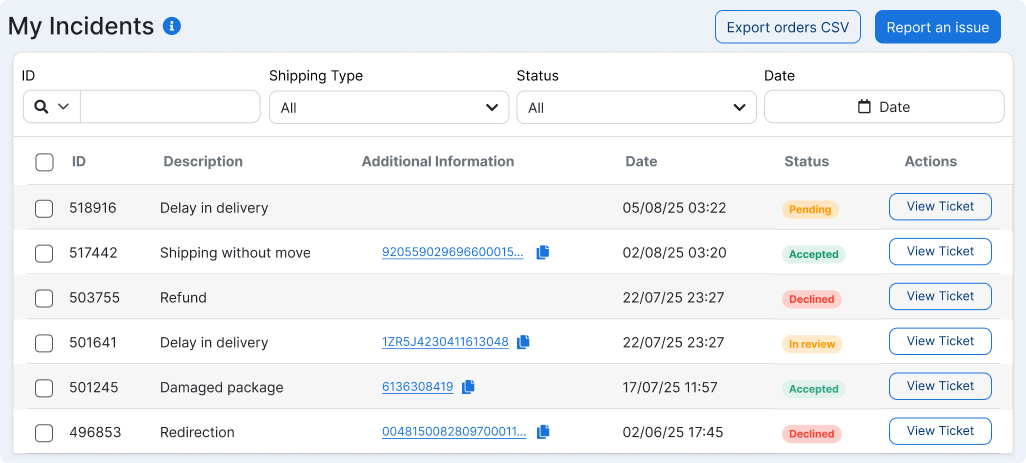
4. Choose the type of incident that applies to your problem.
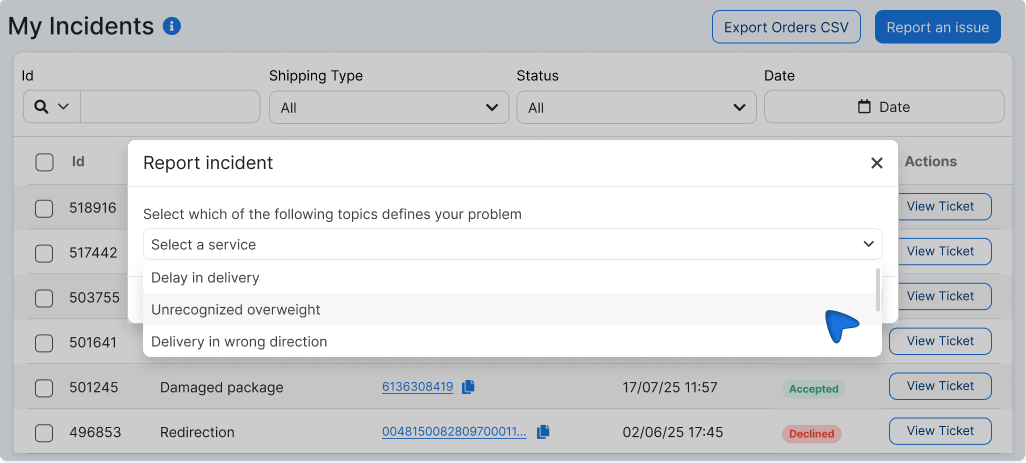
5. Select the related guide to verify the shipping information.
6. Fill in the additional information requested based on the type of issue.
7. Attach the required evidence and click on the following link Submit evidence.
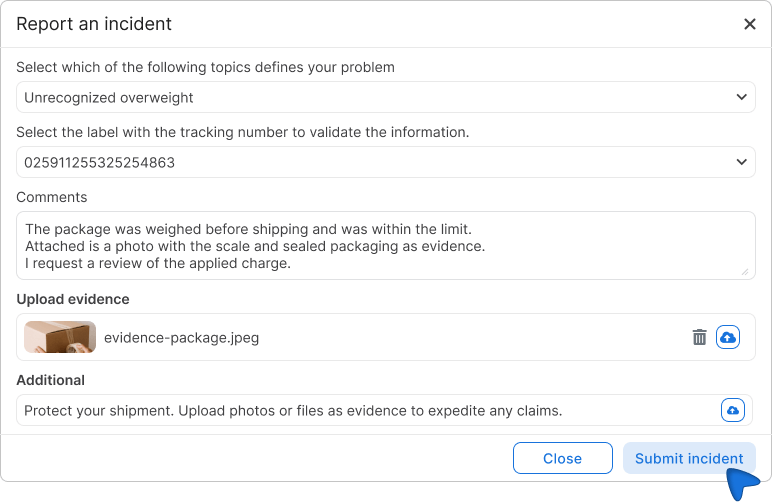
Once it's created, you'll receive updates in the upper-right corner of the portal and via email.
ℹ️ You can also create a ticket directly from "My Shipments": Click the three dots ( ⋮ ) next to the affected shipment and select "Report a Problem.".
Types of incidents
| Type of incident | When to Use It |
|---|---|
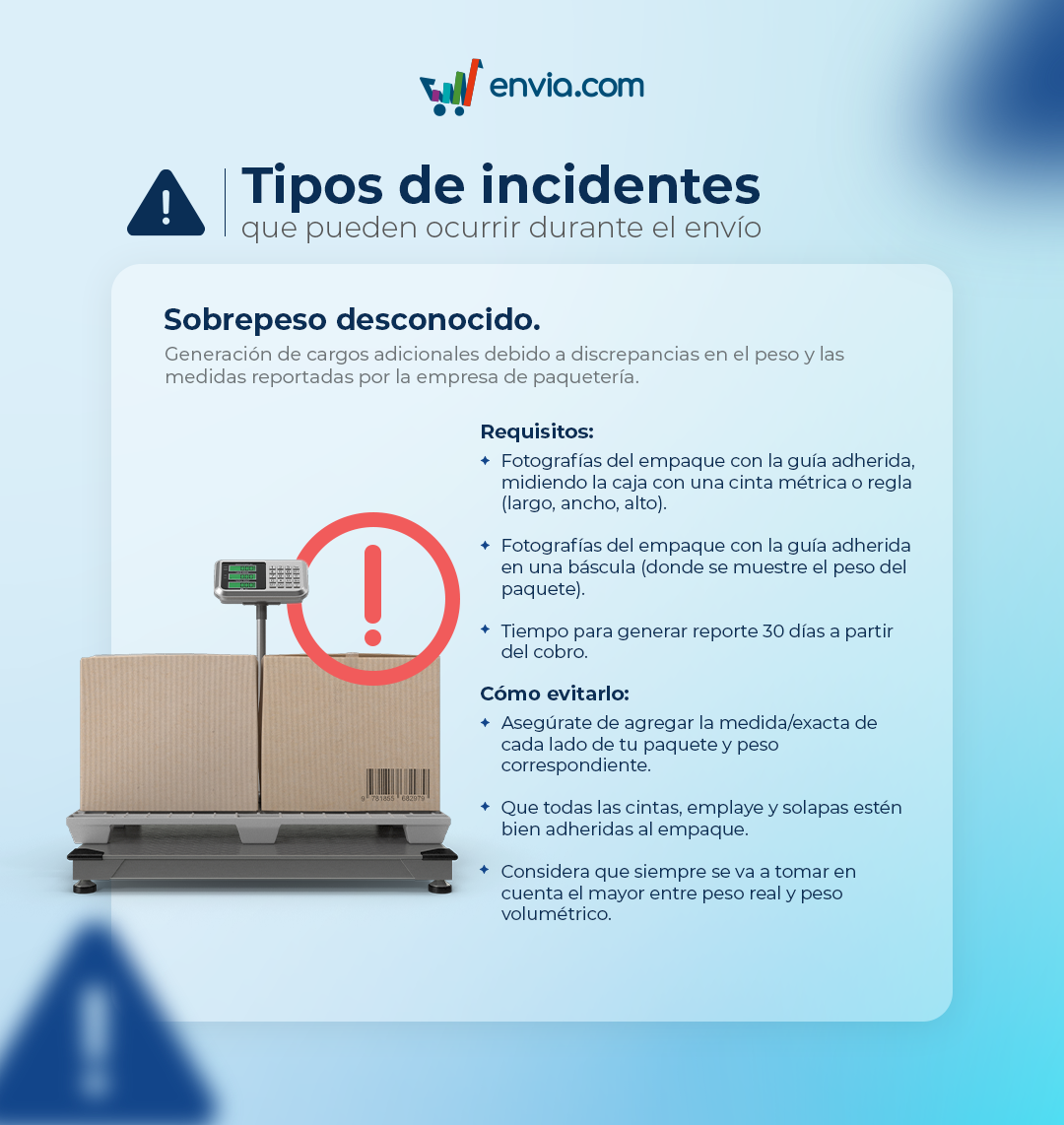
| Unrecognized overweight | A weight-based charge was applied that does not match what was declared when the waybill was created |
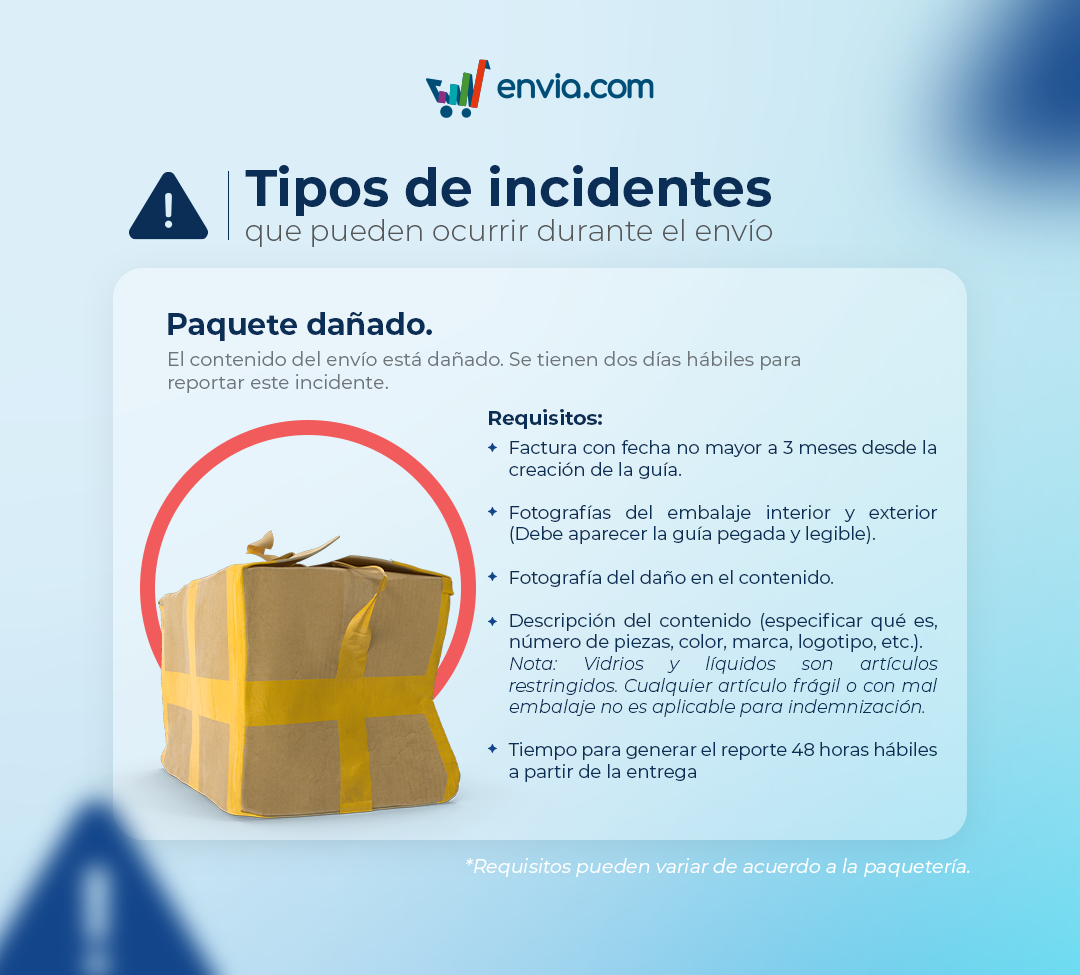
| Damaged package | The package arrived broken, wet, opened, or showing signs of damage |
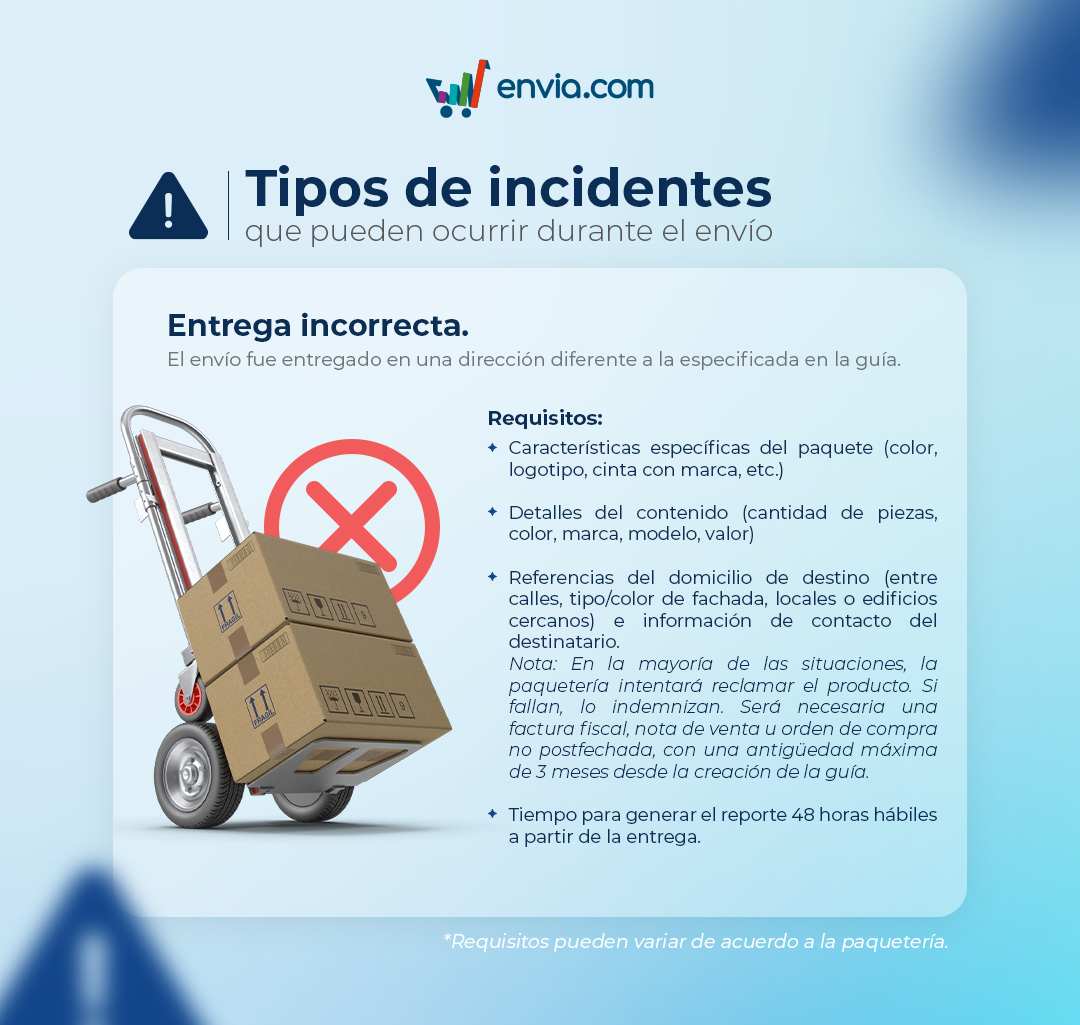
| Delivery in wrong direction | The package was delivered to an address other than the one provided |
| Refund | You are requesting a refund for the shipping charges |
| Partial refund | You are requesting a partial refund of the amount paid |
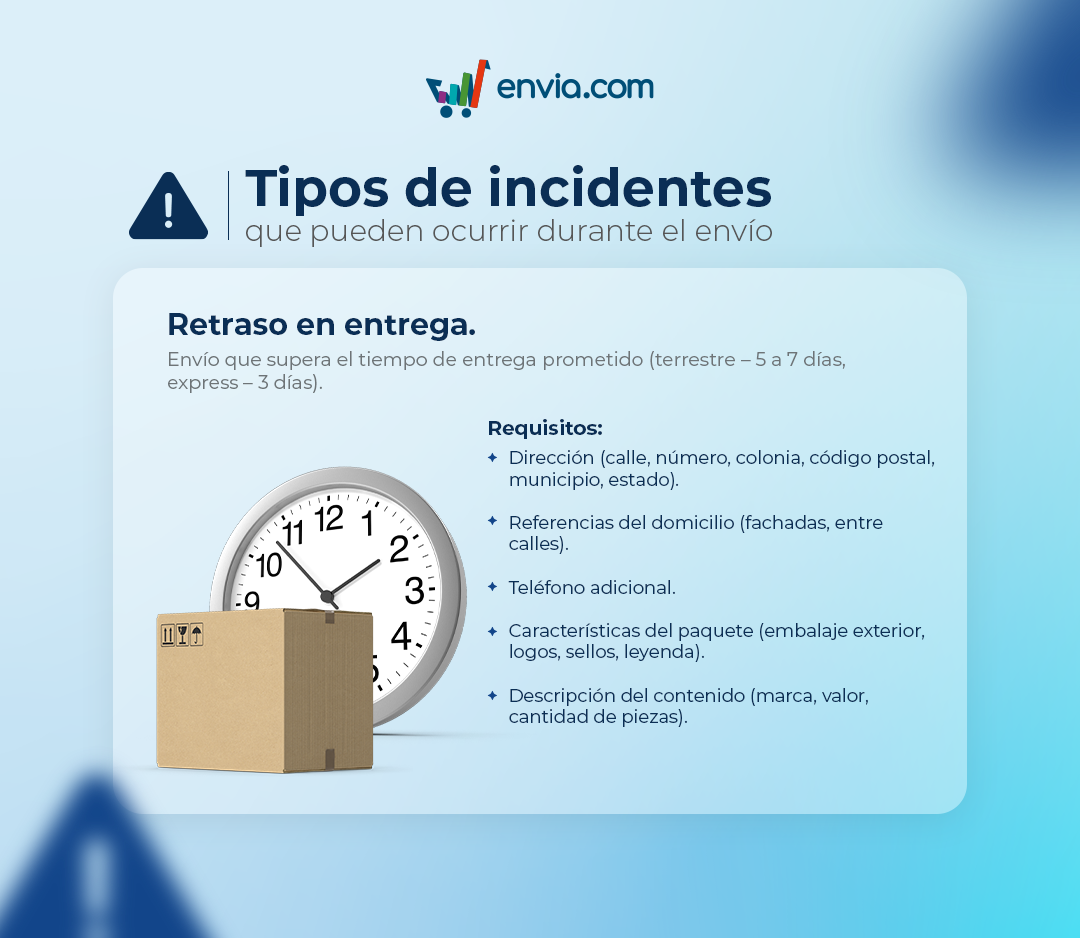
| Delay in delivery | The shipment is still in transit after the estimated delivery time |
| Payment not reflected | You made a payment that doesn't appear in your account |
| Shipping without movement | The package has not been scanned and shows no progress since it was picked up |
| Credit | You request that a credit be applied to your account |
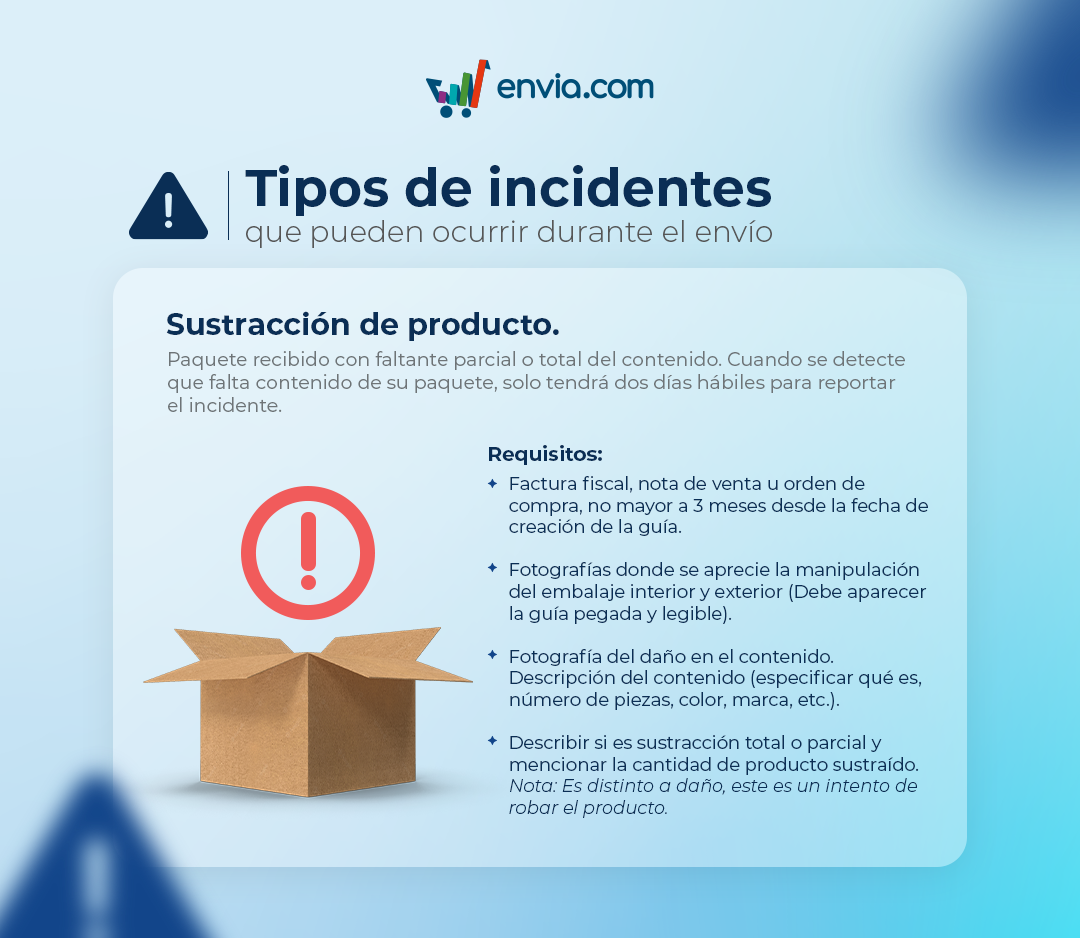
| Product subtraction | Some of the contents were taken or stolen during transit |
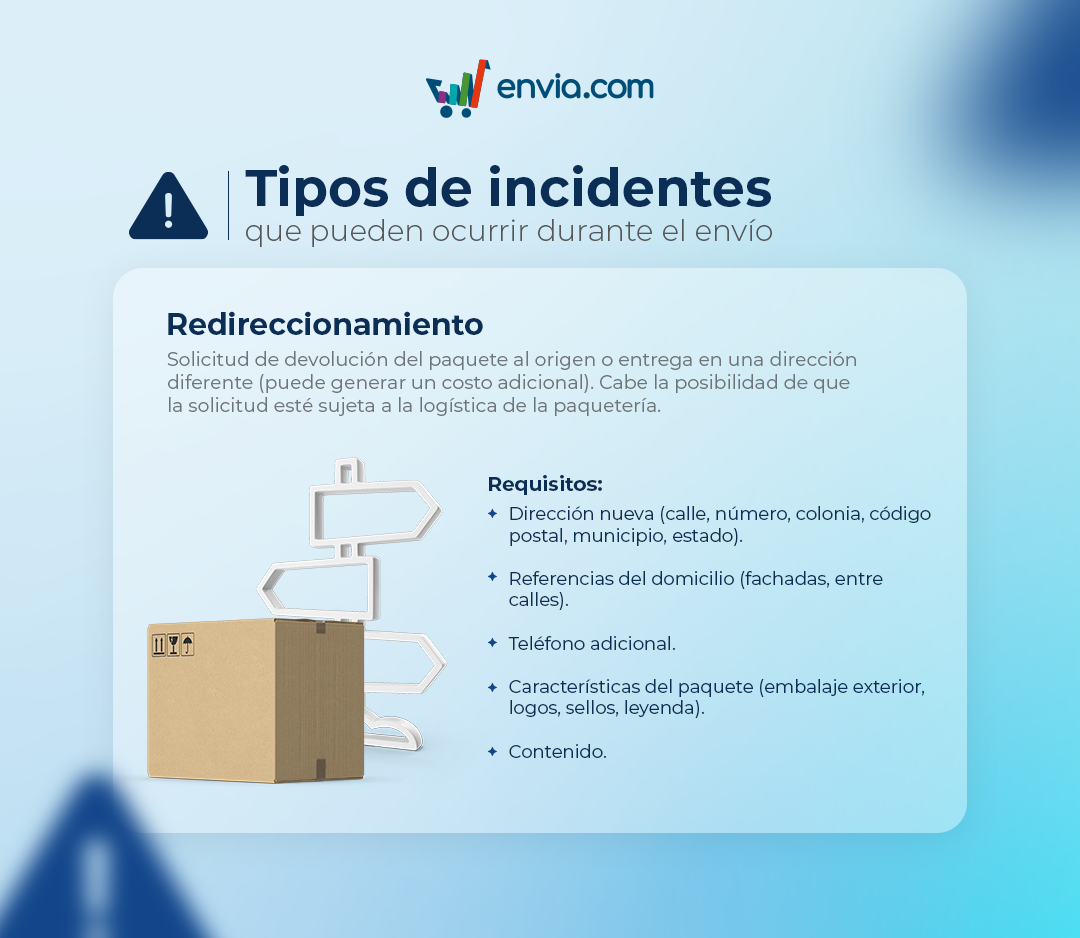
| Redirection | You need to change the shipping address after generating the shipping label |
| Delayed payment | The charge was processed late and affected the processing of your shipments |
| Irregular package | The shipment contains prohibited items, has incorrect labeling, or is improperly packaged |
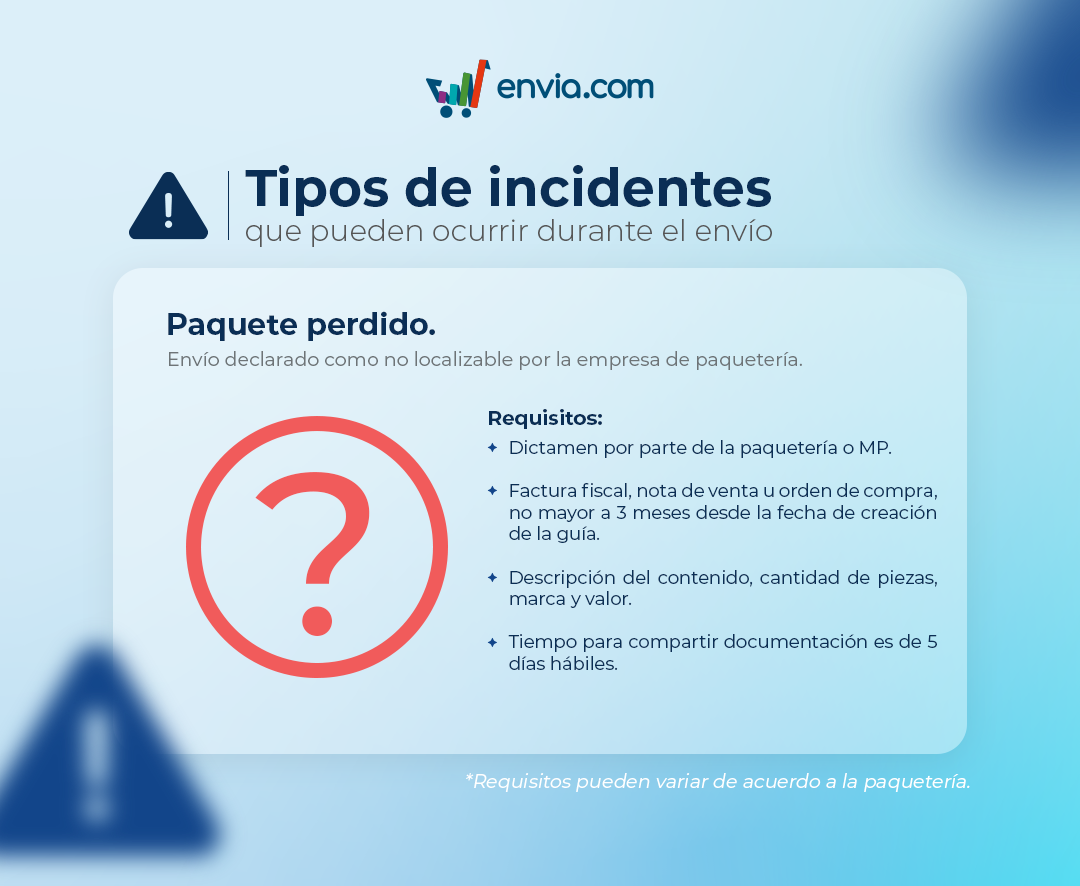
| Lost package | The shipment was reported as undeliverable by the shipping company |
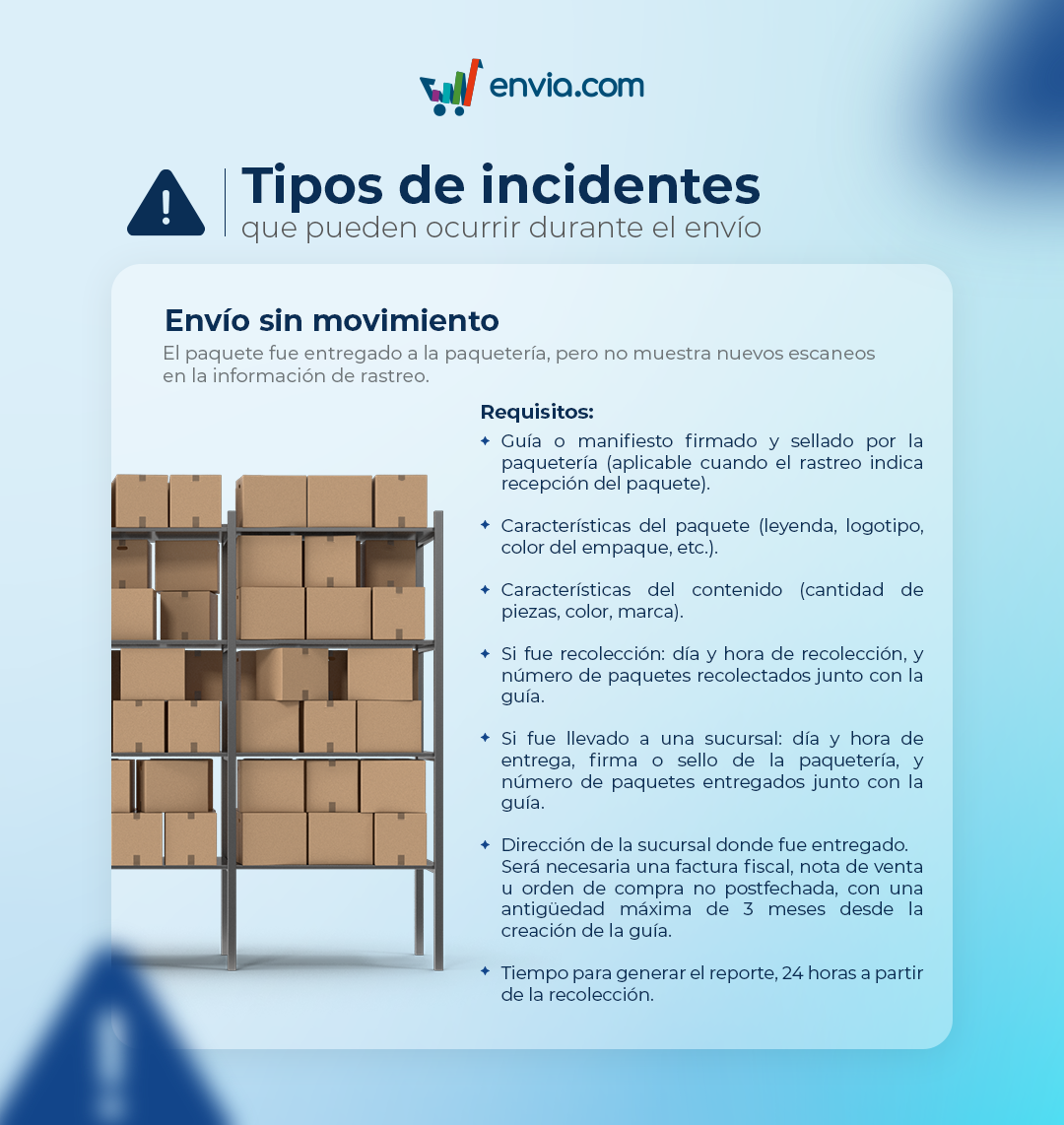
Requirements by type of issue
Shipping without movement
Unrecognized overweight
Wrong delivery
Damaged package
Redirection
Delay in delivery
Product subtraction
Lost package
Automatic tickets
In some cases, the system detects a problem and automatically creates a ticket, without you having to report it manually.
| Situation Detected | Automatically Generated Ticket |
|---|---|
| Package not located | Lost package |
| Damaged package | Damaged package |
| 2 or 3 failed delivery attempts | Delay in delivery |
| Delivery address error | Redirection |
ℹ️ Even if the ticket is generated automatically, you can add comments, photos, or additional evidence through your portal to speed up the resolution.
View and manage your tickets
From the Tickets You can view all your active and historical reports:
- Open — tickets currently being processed that have not yet been resolved
- Resolved — History of closed tickets (accepted or declined)
The table shows the following for each ticket: ID, problem description, shipping destination, insurance applied, additional shipping label information, creation date, status, and the button View Ticket to view the details.
Use Export CSV to download the complete list of your tickets with all the details.
Track the status of your ticket
| Status | What does it mean? |
|---|---|
| Pending | Your ticket is in the queue to be reviewed |
| In review | We are waiting for a response from the shipping company |
| Incomplete | Some data or documents are missing. Please review and complete the information. |
| Tracking | There's a new comment on your ticket |
| Accepted | Decided in favor of your request |
| Declined | Application Rejected |
FAQ
How can I avoid overweight charges for my shipments?
- Measure and weigh your package correctly before registering the shipment.
- Make sure the packaging is properly sealed and protected.
- Consider the volumetric weight in addition to the actual weight.
For more information, check out our packing guide.
What should I do if I have an issue and I'm using customized keys?
If you are using customized keys and encounter an issue with your shipment, contact the call center of the carrier directly. Envia.com cannot intervene in these cases; you need to contact the courier managing your customized keys.
Can I create a ticket from "My Shipments" without going to "Tickets"? Yes. From "My Shipments," click the three dots ( ⋮ ) next to the affected shipment and select "Report a Problem." The process is the same, and the ticket will be logged in the "Tickets" section.

Did you find this resource useful?