Scheduled maintenance on Envia.com: Thursday, October 29, 12:00–12:30 a.m. Login, APIs, and operations will be unavailable.


Bling
Steps to integrate Bling
Section titled “Steps to integrate Bling”- Sign in to your Envia.com account and go to Ecommerce Pro > Connect Store
- Click the Integrate my ecommerce button and select Bling
- Enter the name of your Bling store and click continue
- Allow our “Envia.com” app to connect with your Bling store
- Once you authorize the connection you will be redirected to Envia.com
- Verify the email registered in Envia.com and click Continue
That’s it! Your Bling store is now integrated with Envia.com.
Set up your store in Envia.com
Section titled “Set up your store in Envia.com”You make these settings from your Envia.com dashboard. They are required for the integration to work correctly.

Origin address and packages
Set where your shipments leave from and which packaging you use. This is required to schedule pickups and get quotes
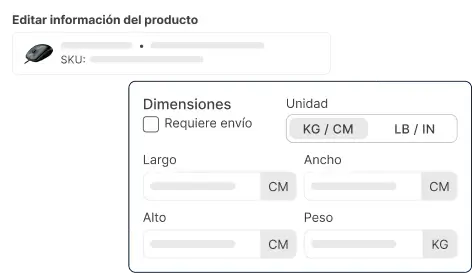
Products
Set the weight and size of each product. The system then calculates rates correctly and picks the right package

Automatic package
The system picks the best packaging for each order so you do not have to do it by hand
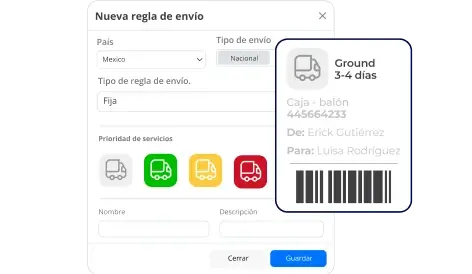
Automatic shipping rules
Set shipping rules that automatically calculate shipping costs for your orders
For more details, see our Help Center articles on setting up your store.
Set up webhooks in the integration
Section titled “Set up webhooks in the integration”The Envia.com and Bling integration lets you manage orders efficiently with webhooks. These webhooks make sure that any action related to creating or updating orders is reflected automatically on both platforms.
Step 1: Get the webhook links from Envia.com
- Go to Ecommerce Pro > Set up your store
- Select your store to open the settings.
- Click the three dots next to the Edit button
- In the dropdown menu select Show webhooks
- Copy the links for the create and update webhooks. You need these links to set them up in Bling.
Step 2: Set up the webhooks in Bling
Now that you have the links, follow these steps to set them up in Bling:
-
Sign in to your Bling account and go to Settings (all settings).
-
Click Integrações and select Configurações de integração com lojas virtuais e marketplaces
-
On the right, use the search field and enter API to find the section, or look in the list on the left for Outros and select API.
-
In the Autenticação section, enter a name that helps you identify the webhook.
-
In the Callbacks section, select JSON as the callback type.
-
Enable the callbacks you need and paste the webhook URLs you got from Envia.com for the following actions:
- For the inventory callback, use updateProducts.
- For the orders callback, use updateOrders.