

Magento2
Connect your Magento 2 store with Envia.com to automate shipments, manage multiple carriers, and set up your delivery methods from one platform. This integration lets you optimize costs, control the order flow, and improve your buyers’ experience.
Connect your Magento2 store to Envia.com
Section titled “Connect your Magento2 store to Envia.com”Step 1: Generate the keys from Magento
-
Sign in to the admin dashboard of your Magento store.
-
Go to System > Integrations and click Add New Integration.

-
In the Integration Info section, enter:
- Name: Your store name
- Your Magento account password

-
In the API section, change the Resource Access field from “Custom” to All. Click Save.

-
Then select the integration you created and click Activate.

-
Confirm the permissions by clicking Allow.
-
Copy the keys that are generated: Consumer Key, Consumer Secret, Access Token, and Access Token Secret.
Step 2: Connect Magento to Envia.com
- Sign in to your Envia.com account
- Go to Ecommerce Pro > Connect Store
- Click Integrate my ecommerce and select Magento2.
- Click Add your store and paste the keys you obtained.
- Click Create.
- Verify the email registered in Envia.com and click Continue.
That’s it! Your Magento2 store is integrated with Envia.com
Set up your store in Envia.com
Section titled “Set up your store in Envia.com”You make these settings from your Envia.com dashboard. They are required for the integration to work correctly.

Origin address and packages
Set where your shipments leave from and which packaging you use. This is required to schedule pickups and get quotes
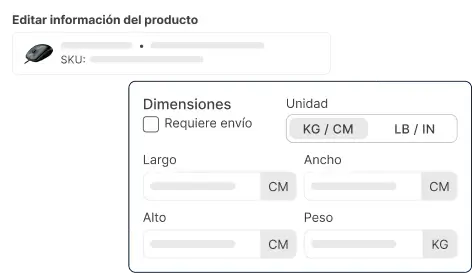
Products
Set the weight and size of each product. The system then calculates rates correctly and picks the right package

Automatic package
The system picks the best packaging for each order so you do not have to do it by hand
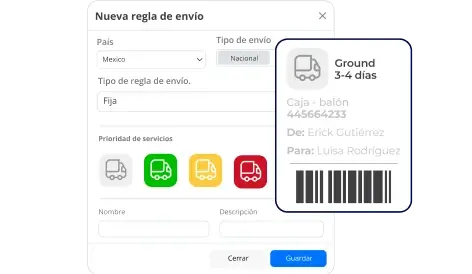
Automatic shipping rules
Set shipping rules that automatically calculate shipping costs for your orders
Set up shipping methods from your Magento store
Section titled “Set up shipping methods from your Magento store”These settings are made directly from the Magento admin dashboard. You can use them as a complement to Envia.com or as a backup for alternative methods.
Enable Magento’s native shipping methods
-
Go to Stores > Configuration > Sales > Shipping Methods.
-
Enable and set up the following methods according to your needs:
- Flat Rate: a fixed rate per order or item.
- Free Shipping: free shipping under conditions (such as a minimum purchase amount).
- Table Rates: rates based on destination, weight, price, or quantity.
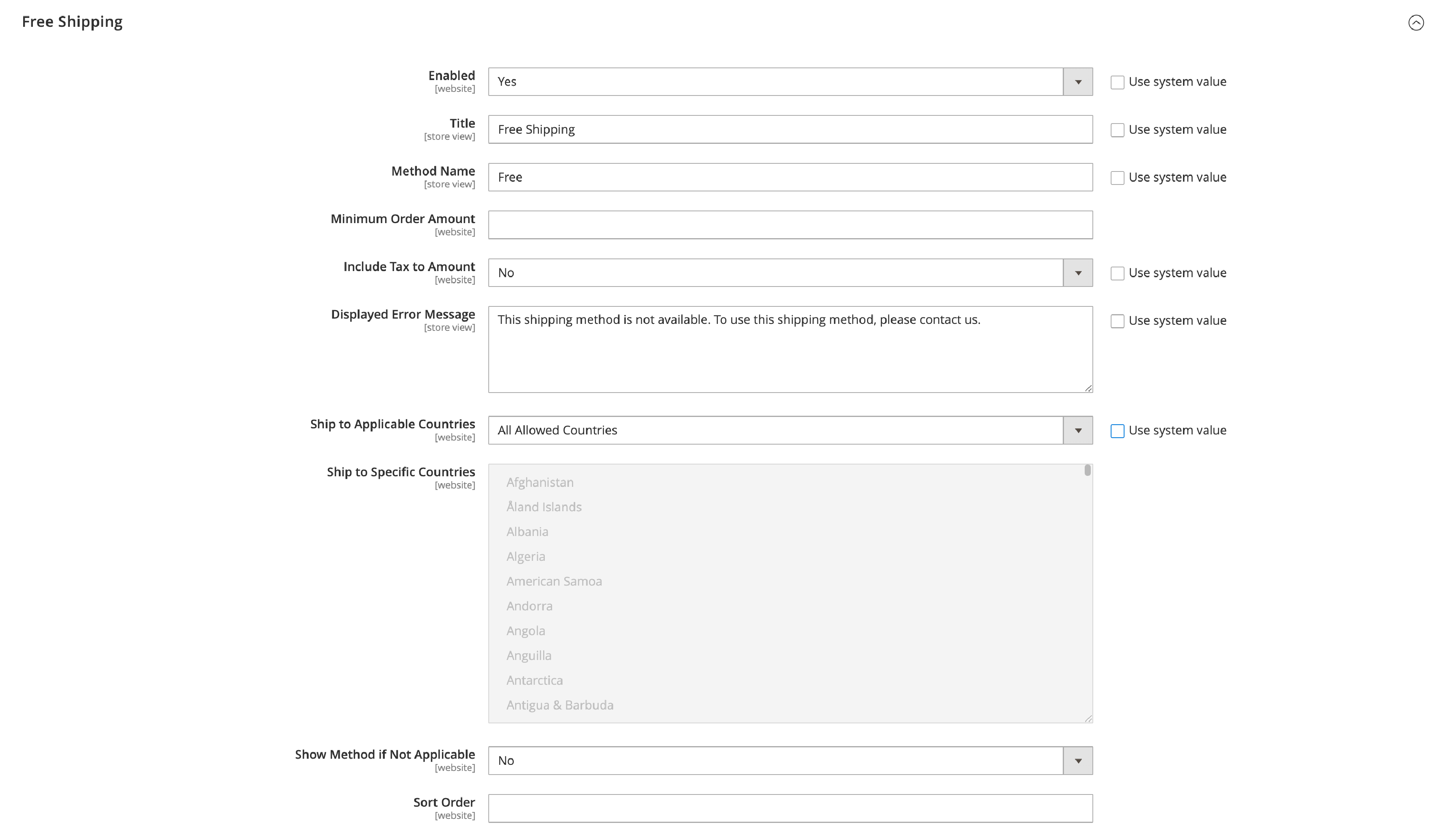
Best practices and recommendations
Section titled “Best practices and recommendations”- Use Envia.com to automate shipping and access multiple carriers.
- Use Magento’s native methods as a backup or for internal promotions.
- Set clear, realistic rates in both systems.
- Make sure all products have weight and dimensions to avoid errors.
Frequently asked questions
Section titled “Frequently asked questions”What shipping methods can I set up in Magento 2? Magento 2 lets you enable flat rates, table rates, free shipping, and integration with carriers such as FedEx, UPS, DHL, and USPS.