

Tiktok
This article walks you step by step through integrating your TikTok Shop Spain store with Envia.com and getting it ready for automatic shipments. You will learn how to connect your store, set up shipping from Envia.com, and complete the shipping templates inside TikTok Shop correctly so your orders flow without errors.
Connect your Tiktok Spain store
Section titled “Connect your Tiktok Spain store”- Sign in to your Envia.com account.
- Go to Ecommerce Pro > Connect Store.
- Click Integrate my ecommerce, select Tiktok Shop.
- Enter your store name and select the origin of your marketplace.
- Then click Continue.
- Verify the email registered in Envia.com and click Continue.
That’s it! Your Tiktok store is now integrated with Envia.com.
Set up your store in Envia.com
Section titled “Set up your store in Envia.com”You make these settings from your Envia.com dashboard. They are required for the integration to work correctly.

Origin address and packages
Set where your shipments leave from and which packaging you use. This is required to schedule pickups and get quotes
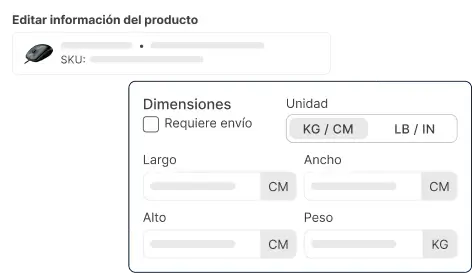
Products
Set the weight and size of each product. The system then calculates rates correctly and picks the right package

Automatic package
The system picks the best packaging for each order so you do not have to do it by hand
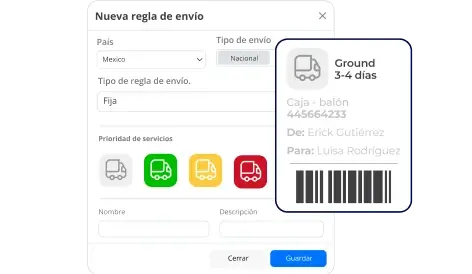
Automatic shipping rules
Set shipping rules that automatically calculate shipping costs for your orders
For more details, see our Help Center articles on setting up your store.
Set up Tiktok Shop to use Envia.com
Section titled “Set up Tiktok Shop to use Envia.com”If you already have a shipping template
Section titled “If you already have a shipping template”-
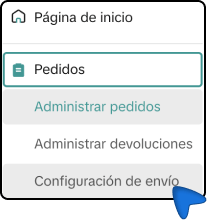
Go to the Tiktok Shop side menu: Orders > Shipping settings.
-
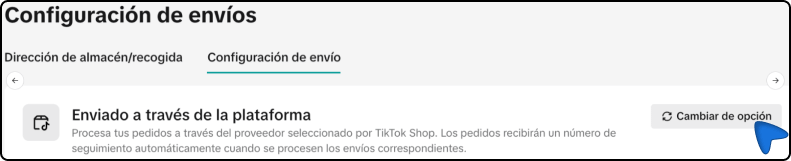
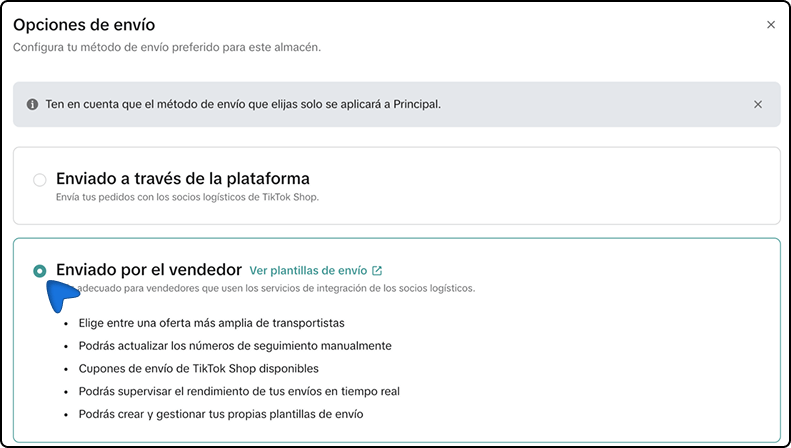
Change the current option by clicking Change option.
-
Select Shipped by seller and save.
-
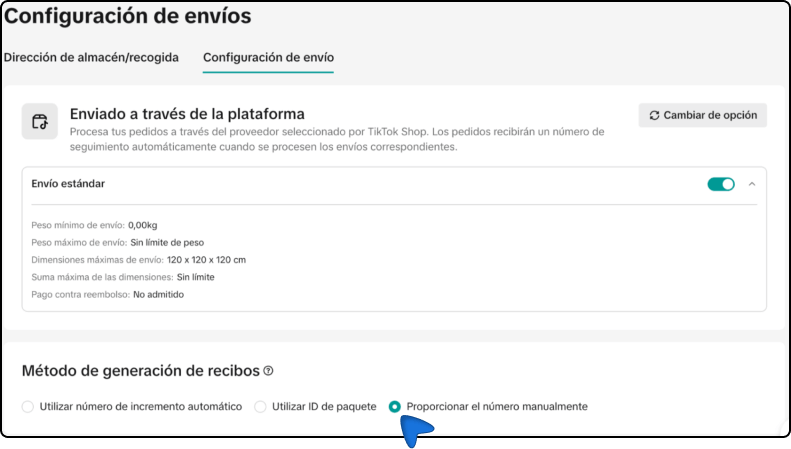
In the receipt generation section, choose Provide the number manually (this lets Envia.com update the tracking).
If you do not have a shipping template yet
Section titled “If you do not have a shipping template yet”-
Go to the Tiktok Shop side menu: Orders > Shipping settings.
-
Click Change option and then View shipping templates.
-
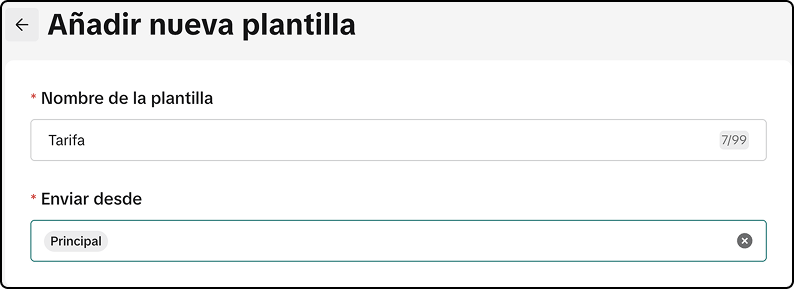
Select Add new template.

-
Give the template a name (e.g. “Rate”) and choose Ship from: Main.
-
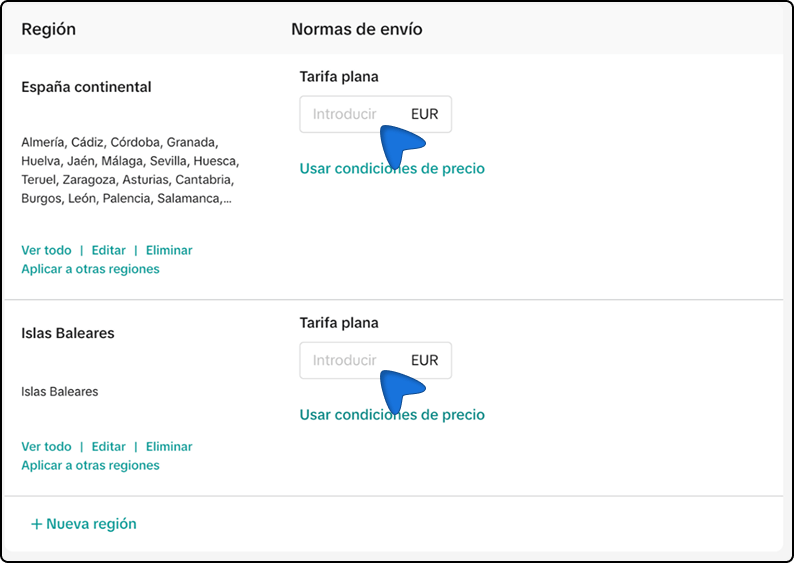
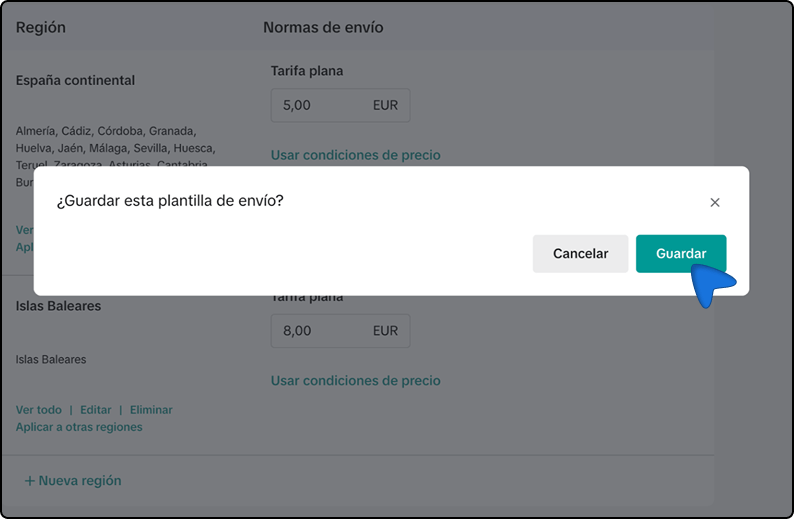
Define regions and prices. Example:
- Mainland Spain: €5.00 | Balearic Islands: €8.00
- or you can also use price or weight conditions.
-
Save the template and confirm.
-
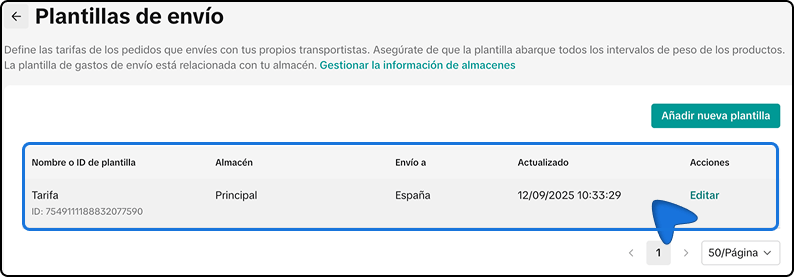
Confirm that it appears in the list.
-
Return to Shipping settings, select Shipped by seller, and save.
-
In receipt generation, select Provide the number manually.
Important notes
Section titled “Important notes”- Tracking will be assigned automatically by Envia.com once the label is generated.
- Do not select “TikTok handles shipping”, because that mode turns off the option to use Envia.com.