

Walmart
Steps to integrate Walmart Marketplace USA
Section titled “Steps to integrate Walmart Marketplace USA”- Visit envia.com and go to Ecommerce Pro > Connect Store
- Click the Integrate my ecommerce button and select Walmart
- Enter the name of your Walmart store and the country it belongs to, then click continue.
- Accept the permissions our app needs.
- Verify the email registered in Envia.com and click Continue.
That’s it! Your Walmart Marketplace USA is now integrated with Envia.com.
Set up your store in Envia.com
Section titled “Set up your store in Envia.com”You make these settings from your Envia.com dashboard. They are required for the integration to work correctly.

Origin address and packages
Set where your shipments leave from and which packaging you use. This is required to schedule pickups and get quotes
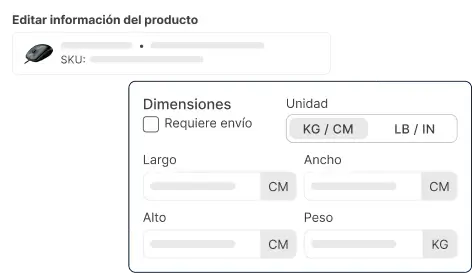
Products
Set the weight and size of each product. The system then calculates rates correctly and picks the right package

Automatic package
The system picks the best packaging for each order so you do not have to do it by hand
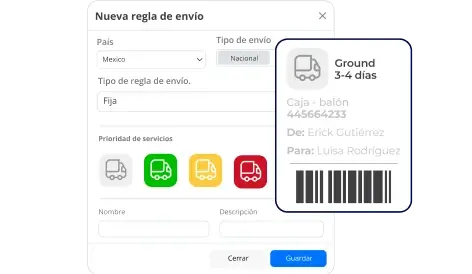
Automatic shipping rules
Set shipping rules that automatically calculate shipping costs for your orders
For more details, see our Help Center articles on setting up your store.
Important: Order handling
Section titled “Important: Order handling”For your Walmart orders to be enabled for label generation in Ecommerce Pro, keep the following in mind:
- Order acceptance: You must accept orders from your Walmart Marketplace account. Only accepted orders (acknowledged orders) will be enabled in Ecommerce Pro.
- On hold orders: If you have not accepted an order (unacknowledged orders), it will appear with the On hold status in the Ecommerce Pro table and will not be enabled for label generation. These orders will stay on hold until you accept them in Walmart.
- Status update: When you accept the order in Walmart, it updates automatically in Ecommerce Pro, the On hold status is removed, and it becomes enabled for shipping label generation.