

Woocommerce

WooCommerce is a WordPress plugin that adds ecommerce functionality to your website. It includes features such as product management, order processing, and payment gateway setup. With WooCommerce, you can set up an online store to sell products or services directly from your WordPress site.
Prerequisites for the integration
Section titled “Prerequisites for the integration”Before you start installing the Envia.com 5.1 plugin, make sure your website meets these minimum versions:
| Requirement | Version |
|---|---|
| PHP | 7.4 or higher |
| WordPress | 6.5 or higher |
| WooCommerce | 8.9 or higher |
Version 5.1 is tested with WordPress 7.1.3 and WooCommerce 11.2.1.
Also make sure your web server is configured correctly to accept API connections and has valid SSL certificates.
Install the Envia.com plugin in WooCommerce
Section titled “Install the Envia.com plugin in WooCommerce”- Download our plugin (a ZIP file will download; keep it compressed)
- Go to the WordPress dashboard > Plugins > Add New Plugin.
- Click Upload Plugin, select the downloaded ZIP file, and press Install Now. (If you already have an earlier version of the plugin installed, select Replace current with uploaded).
- Click Activate Plugin and then Connect store. In the popup window, select Approve.
- Verify the email registered in Envia.com and click Continue.
- Close the popup window and the plugin will update automatically.
That’s it! Your WooCommerce store is now integrated with Envia.com
Configure the plugin from WooCommerce
Section titled “Configure the plugin from WooCommerce”Plugin view options
Section titled “Plugin view options”| Checkbox | What it does |
|---|---|
| Envia live shipping rate | Shows the shipping quote in the cart and at checkout |
| Carrier brand image | Shows the carrier logo on each rate |
| Delivery time | Shows the estimated delivery time. Pickup options use this same checkbox |
| Pickup rates options | Shows pickup locations. Available only in some countries |
| Pickup classic checkout format | WooCommerce standard or Dropdown list |
| Pickup block checkout format | List only (WooCommerce standard), Map only, or Map and list |
| Max pickup options to display | How many pickup locations are shown per service, from 1 to 10. The starting value is 5 |
Origin address
Section titled “Origin address”Select a saved address or create a new one in the plugin section. Save your changes to finish the setup.
Set up your store
Section titled “Set up your store”Set up your store correctly so shipping runs without issues. See the following articles for the core settings you should apply in your store.
What settings can I apply in my ecommerce?
Set your shipping address, manage different package types, and enable checkout.
On our platform, every detail helps you get the best performance.
How do I set up my products in Ecommerce Pro?
Learn how to set up your products with Ecommerce Pro to optimize your shipments. Improve efficiency and shipping rates in your ecommerce.
How do I enable the automatic calculator in my ecommerce?
Optimize your shipping process with checkout. Get shipping rates and estimated delivery dates for up to three carriers per country.
Add “Envia Rates and Shipping” as a shipping method
Section titled “Add “Envia Rates and Shipping” as a shipping method”- Go to your WordPress dashboard, select Plugins, and then Installed Plugins.
- Find Envia Shipping and Fulfillment, select Settings, and then go to Shipping.
- Then select Shipping zones and Add zone.
When you click Add zone, you will be asked for information to set up the shipping zone. Here is how to fill in each field:
| Zone name | Add a name for your zone so you can identify it easily |
|---|---|
| Region | List the regions you want to include in your shipping zone. Buyers will be associated with these regions. |
| Shipping method | In Add shipping method, choose Envia Rates and Shipping. Then select an origin address and click Create to finish setting up the zone. |
Generate the label
Section titled “Generate the label”The label is created on the order itself, inside WordPress. You can quote it, generate it, and download it without leaving the order. If the service starts at a branch, you choose the origin there. If the label will not ship, you cancel it on that same order.
- In the WordPress dashboard, open WooCommerce and go to Orders.
- Open the order. The Shipping label box does not appear if the order is completed or cancelled.
- Under In WooCommerce, click Generate label. You can also click Generate in the Envia column on the orders list.
- In New shipping label, review the origin, destination, and package. Weight and dimensions must be greater than zero.
- Choose the rate and click Generate.
- When you see Label created, use Download label.
The order keeps the Tracking number. That number opens the Envia tracking page. Next to the label you will see Active label.
If you prefer to quote the order in Envia.com, use In Envia.com and Open Envia.com in the same box.
If the shipment is international
Section titled “If the shipment is international”Under Customs, complete Origin identification, Destination identification, and Export reason. At checkout, the buyer fills in Destination tax ID.
If the product code is missing, the message offers Edit products in Envia. Update the product and generate the label again.
Choose the origin branch
Section titled “Choose the origin branch”Origin branch appears when the service is branch to home or branch to branch. Search for the branch, filter by Province and Locality, and choose the type. The map centers on the nearest branch.
If you do not choose a branch, the label is not created and you will see Select an origin branch for branch-to-home or branch-to-branch shipping.
Cancel the label
Section titled “Cancel the label”- On the order, next to the tracking number, click Cancel.
- Confirm Unlink this shipment in Envia and remove the label from this order?
The label is marked Cancelled label and the shipment is unlinked in Envia. If the order was not cancelled or on hold, it moves to On hold and adds the note Envia label unlinked.
If the label cannot be generated
Section titled “If the label cannot be generated”- Refresh your Envia connection. This version uses a new token. Click Refresh connection and try again.
- Enable labels from your store. Label generation from the store is turned off in Envia. Open it with Enable in Envia.
- Add funds in Envia. There is not enough balance for this label. You can top up your balance and generate it again.
- Account can only quote rates; generation is restricted. An account that can only quote does not store the label.
Important note about Cloudflare
Section titled “Important note about Cloudflare”Cloudflare, a platform used to protect and speed up websites, includes a feature called bot fight mode. Although this feature can help fight malicious bots, it can also cause problems if it is not managed correctly.
If you are using Cloudflare and “bot fight mode” is on, it can interfere with collecting information through your website’s application programming interface (API). As a result, this can cause 403 errors and keep your site from working correctly.
For that reason, we suggest turning off “bot fight mode” to avoid these issues and keep your website running well.
To turn off this feature, you can read this article.
Common error solutions
Section titled “Common error solutions”❌ “Unable to verify the first certificate” or “Internal Server Error”
If you receive this message while trying to integrate, check that your store has the correct certificates and that there are no permission or communication problems between WooCommerce and other services on the wp-json routes.
Depending on what you find when you review the endpoint, you may need to do the following:
- Fix the .htaccess file: Make sure your store’s .
htaccessfile is configured correctly. - Make any other required settings.
❌ 403 “Forbidden” or “400” or “UPS” error message
This error appears when the firewall blocks certain API connections or is limited to certain IP addresses.
In these cases, temporarily turn off the block so the integration can proceed, or add our IP addresses to your whitelist:
- 3.209.100.219
- 34.224.235.111
- 3.211.106.119
- 35.173.225.189
Also consider turning off bots that may be interfering with WooCommerce functionality, and if possible add our IP addresses to the whitelist of those tools.

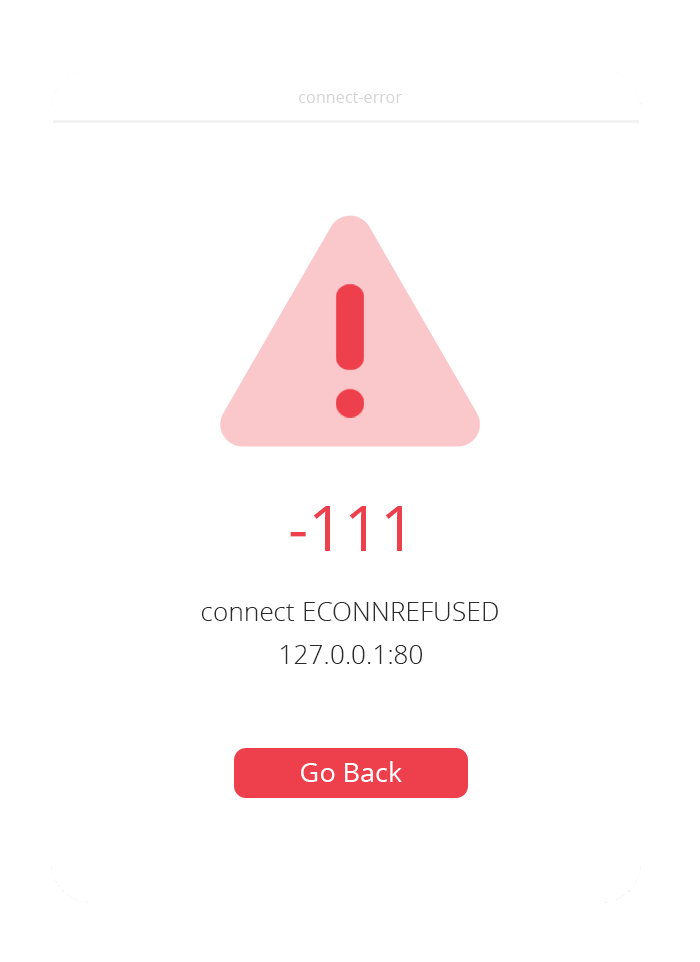
❌ “-111 connect ECONNREFUSED” error message
This error occurs when you try to connect to a local environment that is not available. In most cases, this happens because your store is running in a local environment instead of a hosting service reachable from the web. To fix this, you need to make your local environment reachable from the cloud. You can do this with tools such as ngrok, which let you expose your local server through a public URL.
If you still have problems after following the steps above, contact our support team for more help, and provide the following information:
- A detailed description of the problem.
- WordPress version.
- Versions of the WooCommerce and Envia Shipping and Fulfillment plugins.
- PHP version of your server.
- Active theme in your store (go to WordPress > Appearance > Themes).
To identify the requested versions, go to your WordPress Dashboard > Tools > Site Health > Info.
Frequently asked questions
Section titled “Frequently asked questions”How do I set up manual rates in WooCommerce?
You can set fixed shipping costs in your WooCommerce online store, with different conditions. To learn how to set them up, see the following article with the available options. WooCommerce article on shipping rates
Why do our automatic checkout options not appear in WooCommerce?
If our automatic checkout options do not appear in your WooCommerce store, there may be a duplicate in the shipping zones. This can happen if you have duplicate states in your shipping zones, which causes WooCommerce to prioritize the order of the shipping zones you created. To fix this, follow these steps:
- Review your shipping zones:
- Go to WooCommerce > Settings > Shipping > Shipping zones.
- Confirm that there are no duplicate states in the shipping zones.
- Remove the duplicates:
- If you find duplicates, remove them to avoid conflicts.
- Add our shipping option:
- Inside the shipping zones you already created, make sure you add our shipping option.
- This will let our automatic checkout appear correctly.
- Save your changes:
- Remember to save your changes after making the necessary edits.
Why does the settings option not appear in the plugin list?
In some cases, the store may have a plugin that adds extra options, such as translation. WooCommerce limits the number of links that can appear in the list, which can cause some options to be replaced. To open Envia rates and shipping settings, follow these steps:
- Go to WooCommerce > select Settings > shipping
- Click Envia rates and shipping.