






Ecommerce Pro / Products
Link a product to a shipping package
When you manage multiple products, it is important that each one is linked to the correct package so that your shipments are accurately priced and processed. With the Packaging and shipping, If you have a standard package, you can define exactly what type of box each product will travel in, either in a standard package or in its own box.
Why is it important? Without this configuration, the system cannot know which package corresponds to which product, which can lead to errors in the calculation of rates or in the preparation of orders.
Types of packaging
| Type of packaging | When to use it? |
|---|---|
| Third party package | When the product is packed in a standard or courier box. |
| Own packaging | When the product already comes in its own integrated box. |
Configure the packaging of a product
Third party package
Log in to your Envia.com account.
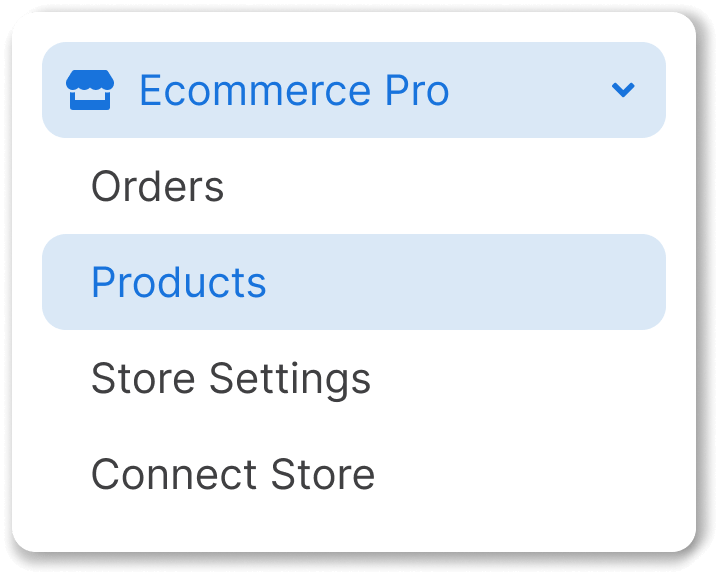
2. Go to Ecommerce Pro > Products.
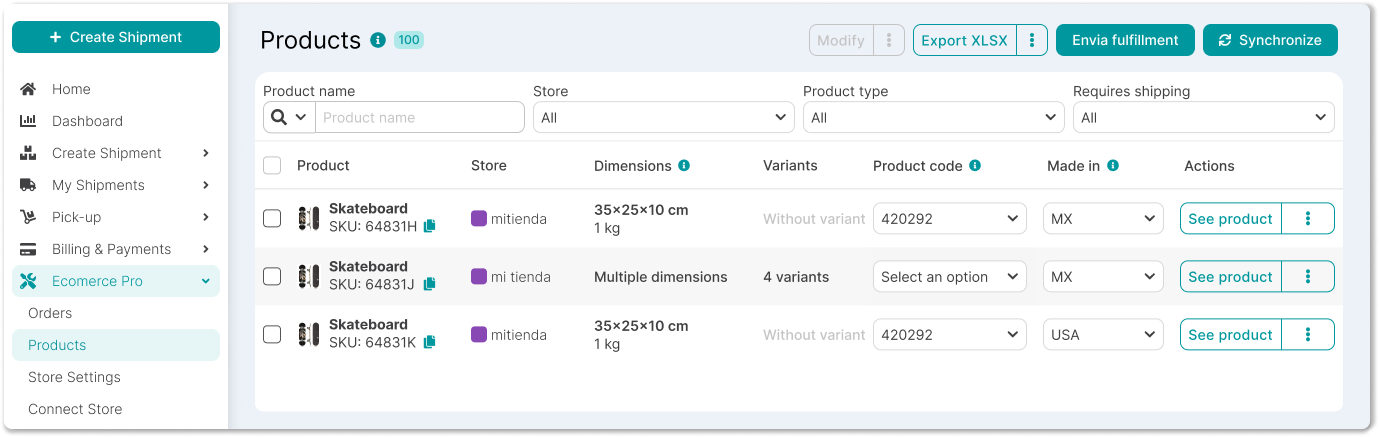
3. Select one of your products that you want to configure.
4. Go to the section Packaging and shipping
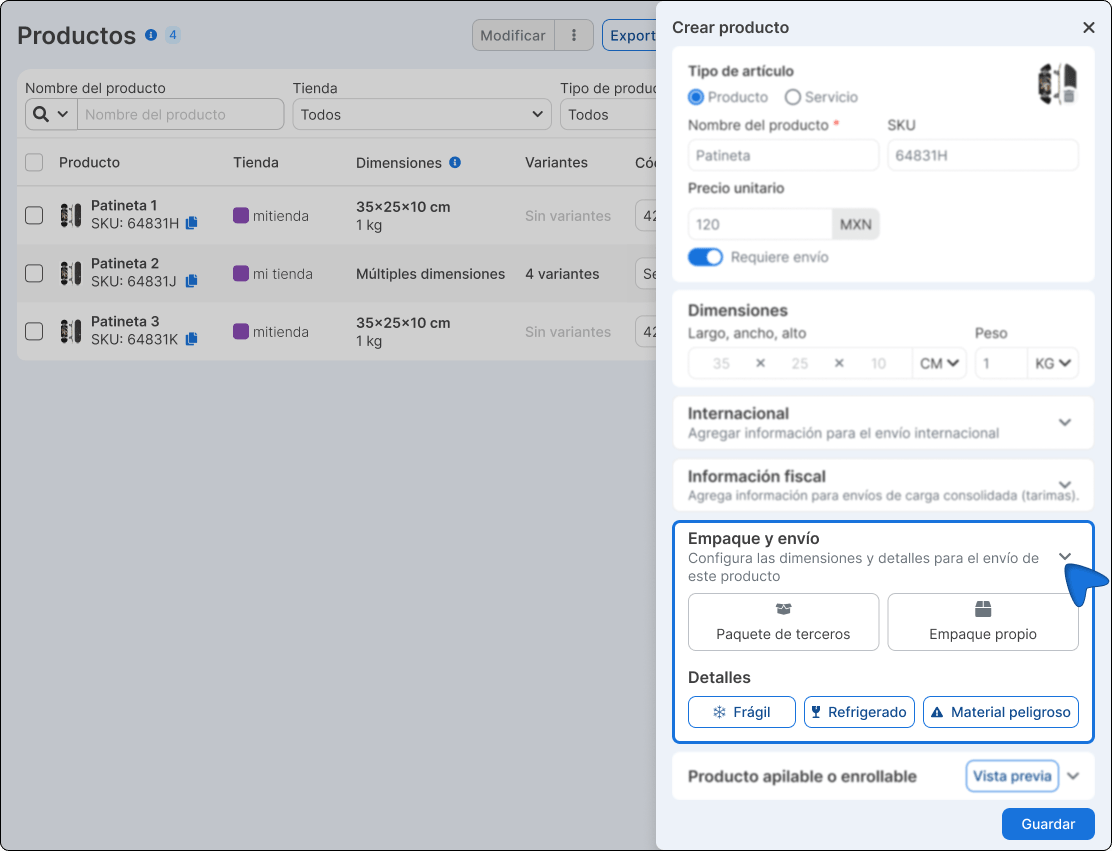
5. Select the tab Third party package.
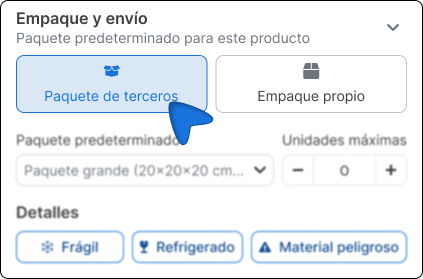
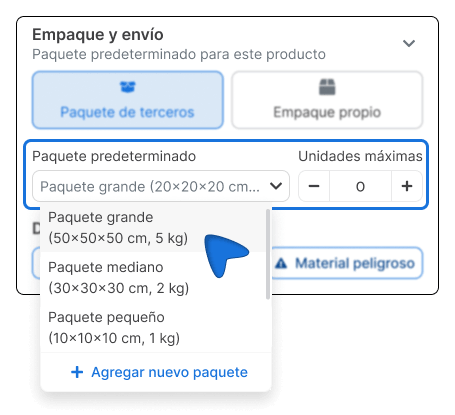
6. In the field Default package, Click on the drop-down menu and choose the package that corresponds to the product or create a new package.
7. In the field Maximum units, defines how many pieces of the product fit in that package.
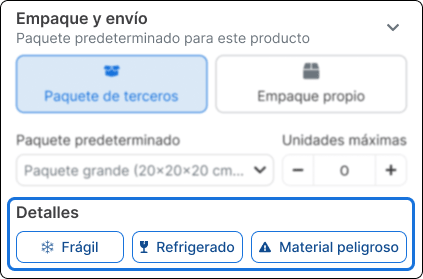
8. In the section Details, activates the labels that apply to the product.
- Fragile product. The product requires special handling to avoid damage.
- Refrigerated shipping. The product needs a cold chain during transportation.
- Hazardous material. The product contains materials with shipping restrictions.
Own packaging
Use this option when the product is already packed in its own box and the dimensions of the packaging are the same as those of the product.
Log in to your Envia.com account.
2. Go to Ecommerce Pro > Products.
3. Select one of your products that you want to configure.
4. Go to the section Packaging and shipping.
5. Select the tab Own packaging.
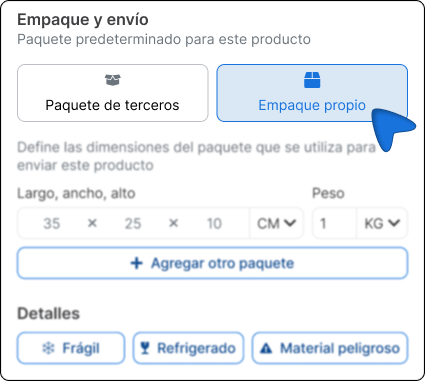
6. Enter the dimensions of the package in the following fields Length × Width × Height and the Weight.
7. And choose the unit of measure (CM / KG) from the selectors next to each field.
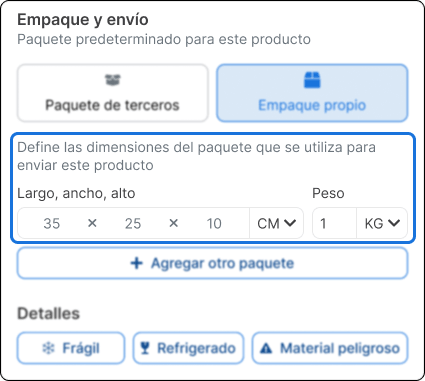
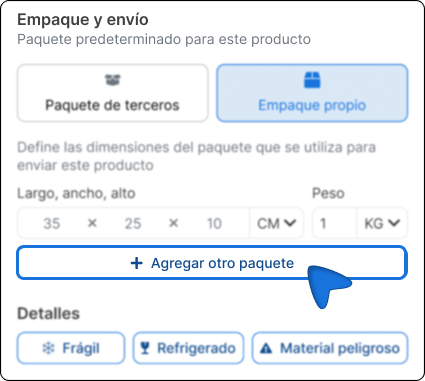
(Optional) If the product can be presented in more than one box format, select + Add another package to record additional dimensions.
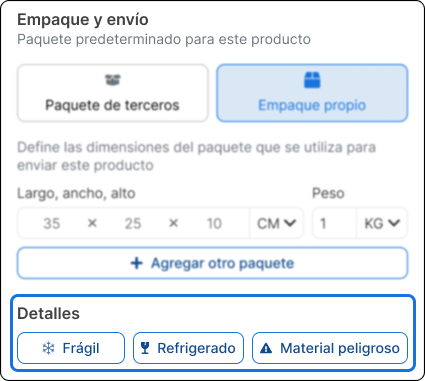
9. In the Details section, activate the labels that apply to the product.
- Fragile product. The product requires special handling to avoid damage.
- Refrigerated shipment. The product needs cold chain during shipment.
- Hazardous Material. Product contains materials with shipping restrictions.
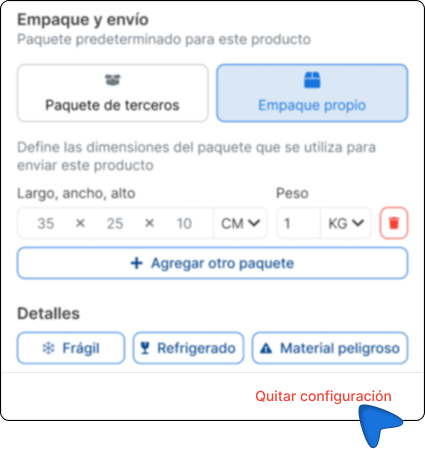
10. If you need to delete the entire product packaging configuration, select Remove configuration at the bottom of the section.
Important Notes
- The field Maximum units defines the limit of pieces per box, not the number of boxes per order.
- New packages created from a product are stored in the general catalog of packages and can be reused in other products.
- The option Own packaging is designed for products with an integrated box: cosmetics, small household appliances, branded items, among others.
FAQ
Can I assign the same package to several products? Yes, a package stored in your catalog can be selected on all products that require it.
Can I change the package assigned to a product later? Yes, you can edit the packaging configuration at any time from the product detail.
Does the packaging configuration affect the shipping quote? Yes, the dimensions and weight of the package are the data carriers use to calculate the shipping rate.

Did you find this resource useful?