Ecommerce Pro / Integrate ecommerce

Tray

Easily integrate your Tray store with Envia.com to automate your shipments, calculate real-time rates, and generate automatic labels. This guide shows you how to connect your ecommerce, configure key settings, and enable the quote calculator at checkout.

Connect your Tray store with Envia.com

  1. Login in your Envia.com account.
  2. Go to Ecommerce Pro > Connect Store.
  3. Click Integrate my ecommerce button and select Tray.
  4. Enter the URL of your Tray store and click on Continue.
  5. Verify your Envia.com registered email address and confirm the connection by clicking on Continue.

You're done! Your Tray store is now connected to Envia.com.

Set up your store on Envia.com

These settings are made directly from your Envia.com panel. They are essential for the integration to work properly.

Source address and packages

Establish where your shipments leave from and what packaging you use to calculate shipping rates.


Read more

Products

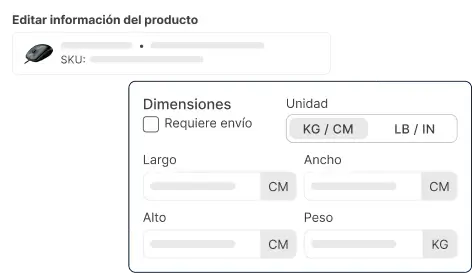
Define the weight and size of each product. This way the system calculates the rates and selects the ideal package.

Read more

Automatic label creation

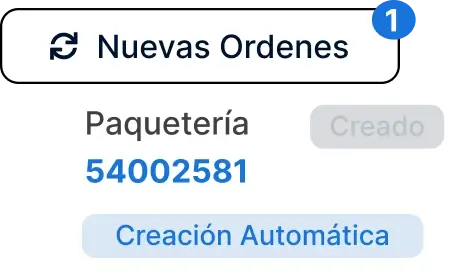
Generates shipping labels automatically when an order is received.

Read more

Checkout of your store

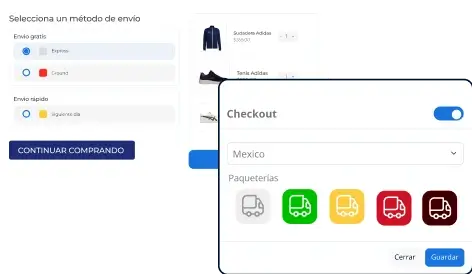
Displays the cost of shipping in real time to the customer at checkout. Improves the experience and avoids surprises.

Read more

Activate the automatic quotation

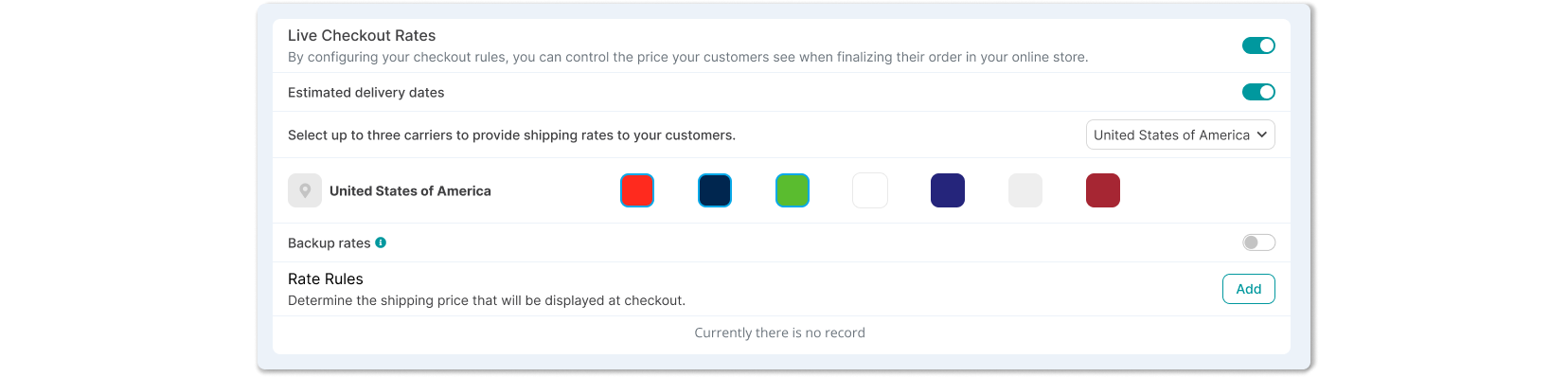
Show the shipping cost in real time to your customers during the checkout process. Improve the user experience and reduce shipping surprises.

From Envia.com

  1. Go to Ecommerce Pro > Store settings.
  2. Select your Tray store.
  3. Activate the option Automatic Quotation in Store Checkout.
  4. Choose up to four parcels to display at checkout.

ℹ️ Save the generated URL and token to add them to your Tray panel.

From Tray

  1. Login to the administration panel of your Tray store.
  2. Go to Settings > Shipping and Delivery > General.
  3. Click External integration (in the upper right corner).
  4. In the Principal, complete:
    • Name of integrationThe name you want to identify the integration with Envia.com.
    • Tracking URL: https://envia.com/tracking
  5. In the Setting, If you do not have the credentials you obtained from Envia.com, add the credentials you obtained from Envia.com:
    • WebService URL
    • Location URL for shipping with pickup point
    • Authentication token
  6. Verify that the shipping method is activated.

Did you find this resource useful?

0
0

Send us a message

Our support team will always be available to answer your questions and provide you with the help you need.