







Notifications and Shipment Tracking / Set up notifications
Shipping Notifications via Email, SMS, and WhatsApp
When a package changes status, your customers want to know. And when there's a problem with an order, you want to know about it before the customer contacts you.
Envia.com's notifications do this automatically: they notify the right person, at the right time, and through the channel they use most often. You don't have to manually check every shipment or respond to messages asking, “Where is my package?”.
You can set up two separate workflows: one for your internal team, with alerts about orders and shipments that require attention, and another for your customers, with automatic tracking updates via email, SMS, or WhatsApp at each stage of the package's journey.
Go to Notifications to access this section.
Types of Notifications
This section has two tabs:
| Tab | Who is it for? | What does it do? |
|---|---|---|
| For you | Your in-house team | It notifies you when something important happens with your orders and shipments |
| For your customers | The final recipient of the package | Notify the buyer about the status of their shipment |
For You — Internal Notices
Set up which events you want to receive in your account and who on your team will receive them.
Recipients
In the Recipients You'll see a list of people in your company who can receive notifications. Each person has an "Email" toggle that you can use to enable or disable notifications for them individually.
In the Additional Recipients You can add external email addresses or people who don't have an account on the platform but need to receive certain notifications.
ℹ️ Only the Super Admin can add recipients.
Events
Events are organized by category: Orders, Shipments, Pickups, and more. Enable only those that are relevant to your operation. The counter on the tab shows you how many are active out of the total available.
For your customers — End user
Automatically notify your buyers whenever their package's status changes.
Available Channels
You can send notifications through three channels:
| Channel | Additional charge per message |
|---|---|
| Free of charge | |
| SMS | Mexico: $1.50 MXN / Colombia: $350 COP |
| Mexico: $1.00 MXN / Colombia: $50 COP |
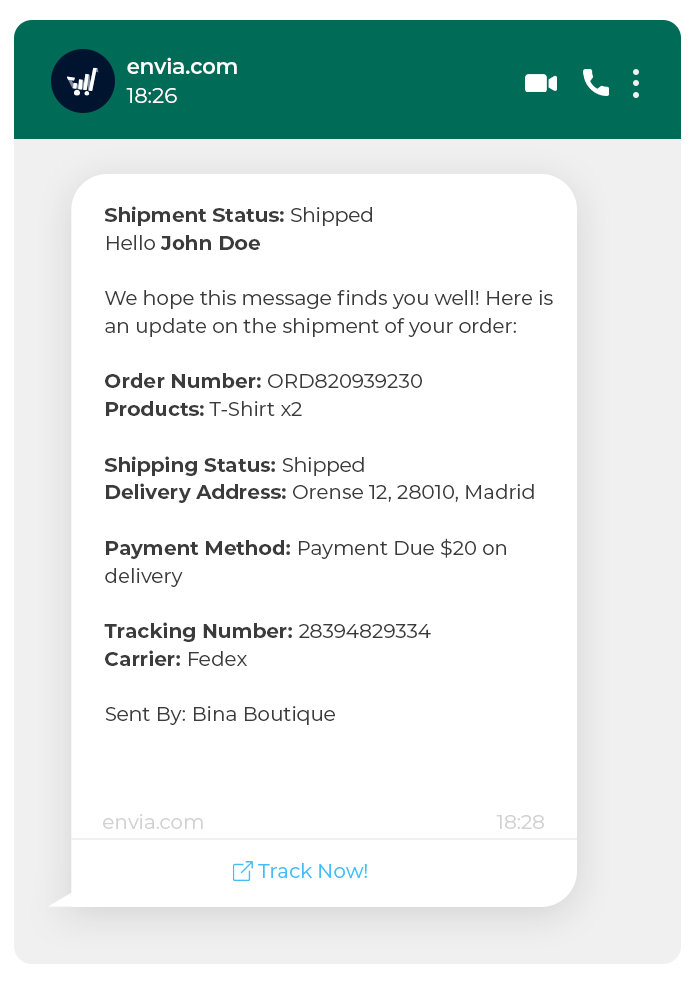
SMS
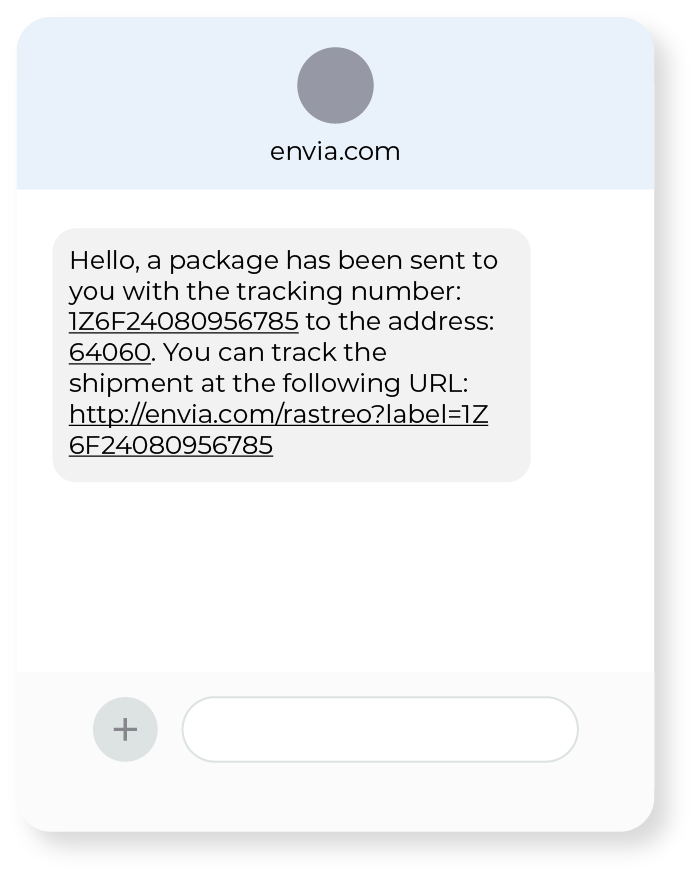
⚠️ SMS and WhatsApp charges apply for each message successfully sent. Check the availability of each channel based on your country.
Follow-up events
Enable or disable each event independently for each channel:
| Event | What does it mean? |
|---|---|
| Tag created | A new shipping guide was generated |
| Package picked up | The courier service picked up the package, and it's already on its way |
| In distribution | The package is on its way to its final destination today |
| Ready for pickup | The package arrived at the pickup location |
| Delivery Confirmation | The customer confirms receipt of the package |
| Delivered | The recipient received the package |
| Shipping Issue | An exception has occurred that requires attention |
| Failed delivery attempt | The delivery service was unable to deliver the package |
Ecommerce Pro — COD Notification via WhatsApp
If you use cash on delivery (COD), you can enable a special WhatsApp notification that alerts your customer when the order is placed, so they can confirm whether they want to receive it and know how much they need to pay before the delivery person arrives.
ℹ️ What is COD? This is a service in which the buyer pays in cash upon receiving the package, rather than paying in advance.
This notification helps reduce cancellations at the time of delivery, because the customer already knows how much to pay and confirms in advance that they intend to receive the order.
You can preview the message before sending it by clicking the button Preview.
⚠️ This feature requires Ecommerce Pro to be enabled on your account. For more details about this workflow, see the article Confirmation by WhatsApp for payment on delivery (COD).
Notification History
The History tab displays a complete log of all notifications sent:
| Column | Description |
|---|---|
| Customer | Name of the recipient who received the notification |
| Notification | Type of event sent |
| Channel | Email, SMS, or WhatsApp |
| Guide number | The shipment to which it pertains |
| Date | Exact date and time of shipment |
💡 Use the message history to confirm that messages were delivered successfully or to address your customers' questions about whether they received a notification.
Recommendations
- Enable "In Transit," "Delivered," and "Shipping Issue" so your customers are always kept informed at the most critical moments.
- If you sell online, combine email and WhatsApp to increase the likelihood that your message will be delivered and read.
- If you use COD, enable WhatsApp confirmation to reduce delivery refusals.
- Review the history periodically to identify patterns of recurring delivery issues.

Did you find this resource useful?