Scheduled maintenance on Envia.com: Thursday, October 29, 12:00–12:30 a.m. Login, APIs, and operations will be unavailable.


Multi-company on Envia.com
The multi-company feature lets you manage several companies from a single Envia.com account, without multiple sign-ins or separate accounts. If you operate under different legal names or brands, you can switch between them immediately from the platform.
Each company has its own balance, shipments, settings, and users. When you switch companies, only the information for the company that is active at that moment is shown.
Switch companies
Section titled “Switch companies”-
Sign in to your Envia.com account
-
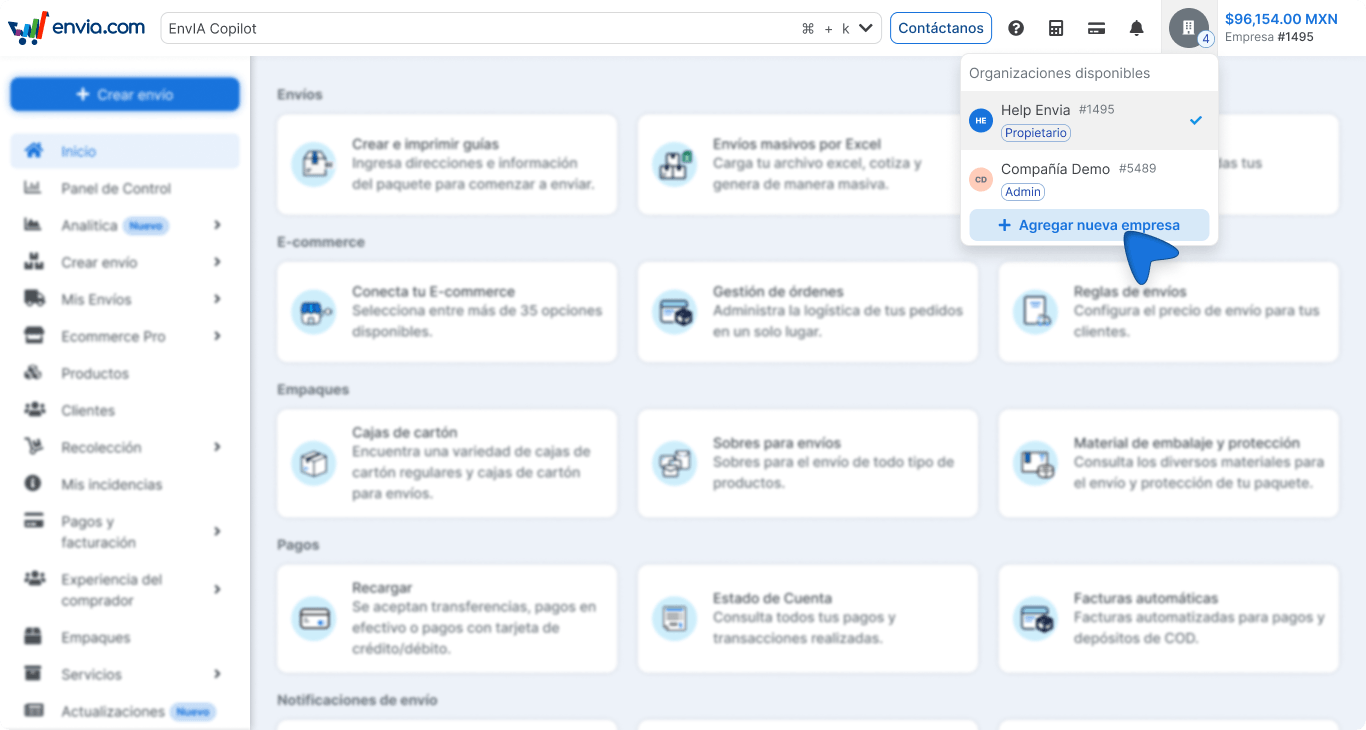
In the upper-right corner, click the company selector to see the list of companies linked to your account.
-
Select the company you want to switch to.
-
The platform will automatically update the data, permissions, and balance of the selected company. You do not need to sign out.
Add a new company
Section titled “Add a new company”You can create a new company directly from the platform, without contacting support.
-
In the upper-right corner, click the company selector.
-
Select Add new company.
-
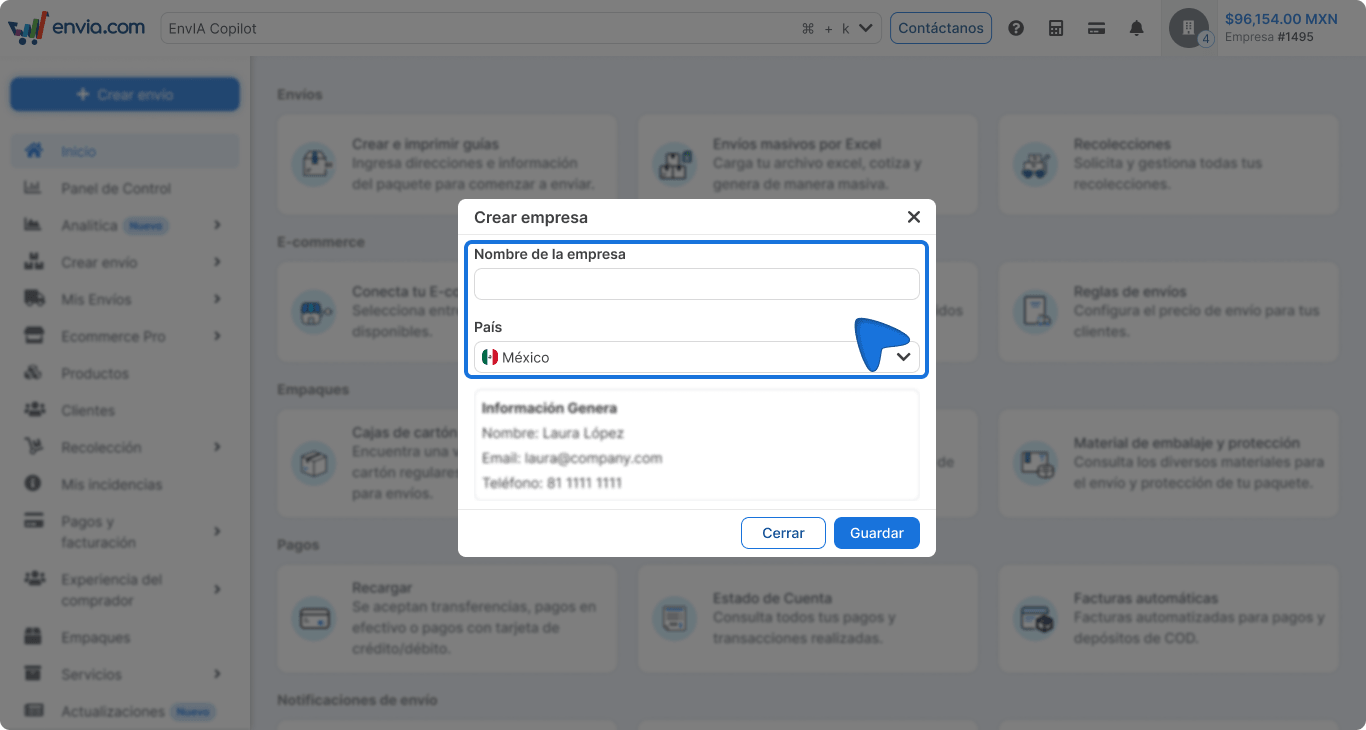
Complete the required information: company name and choose the origin country.
-
Click Save.
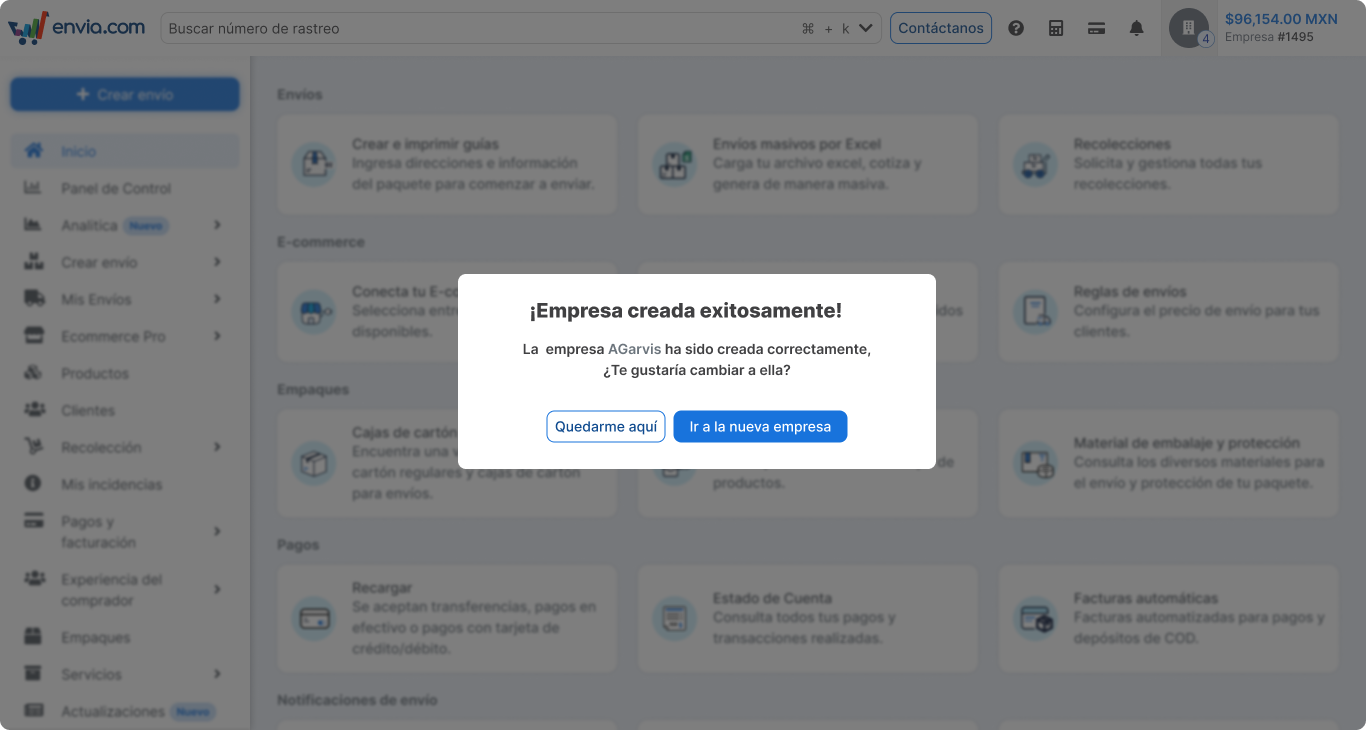
The new company will appear immediately in your selector list. You will automatically be its Super Administrator and can invite users and configure it independently.
Invite a user to your company
Section titled “Invite a user to your company”-
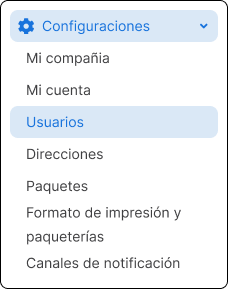
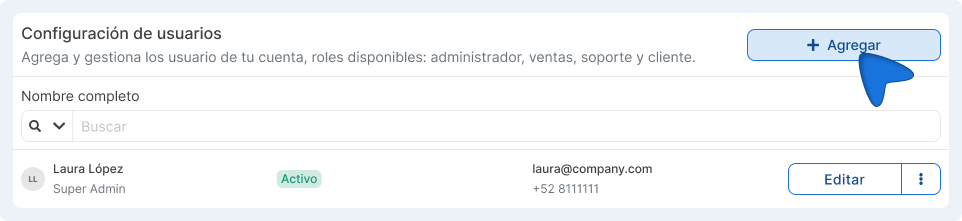
Go to the Users section.
-
In user settings, click the +Add button.
-
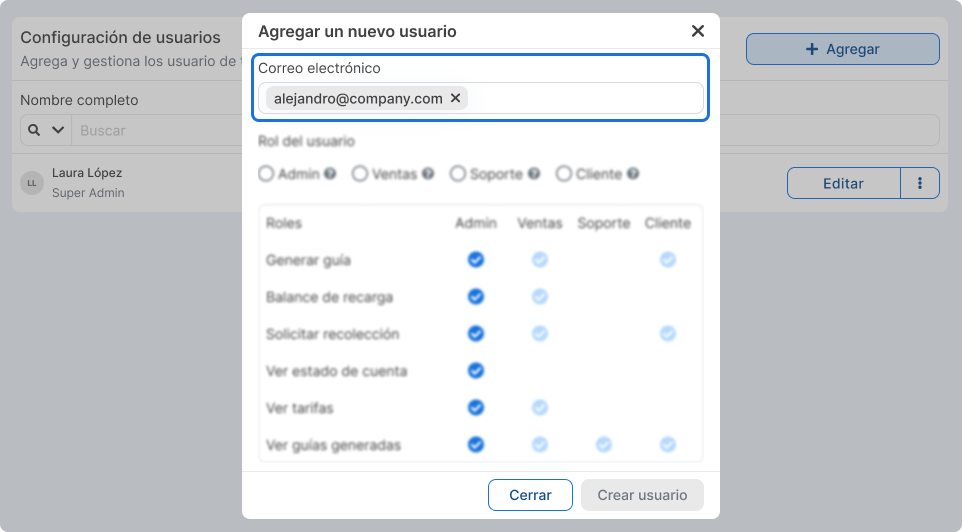
Add the email of the user you want to invite.
-
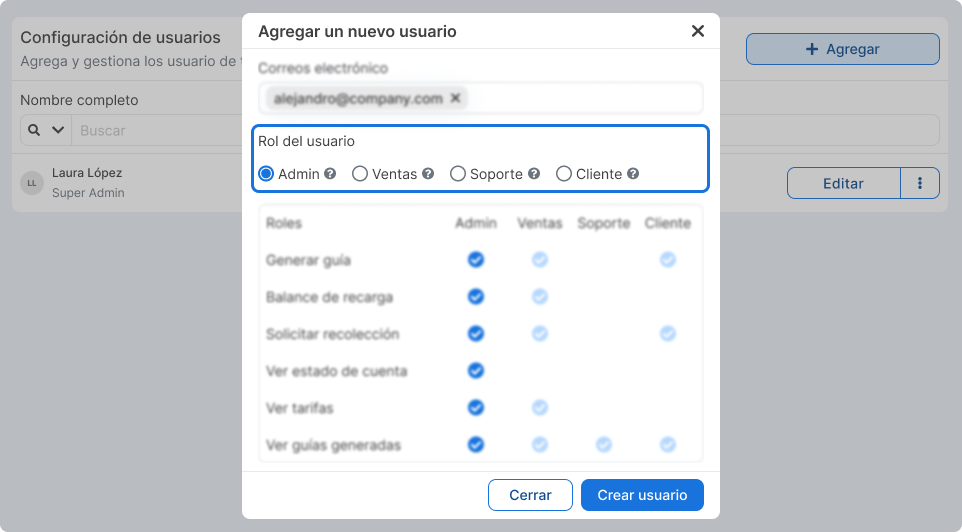
Assign a role: Admin, Sales, Customer, or Support.
-
Click Create user.
-
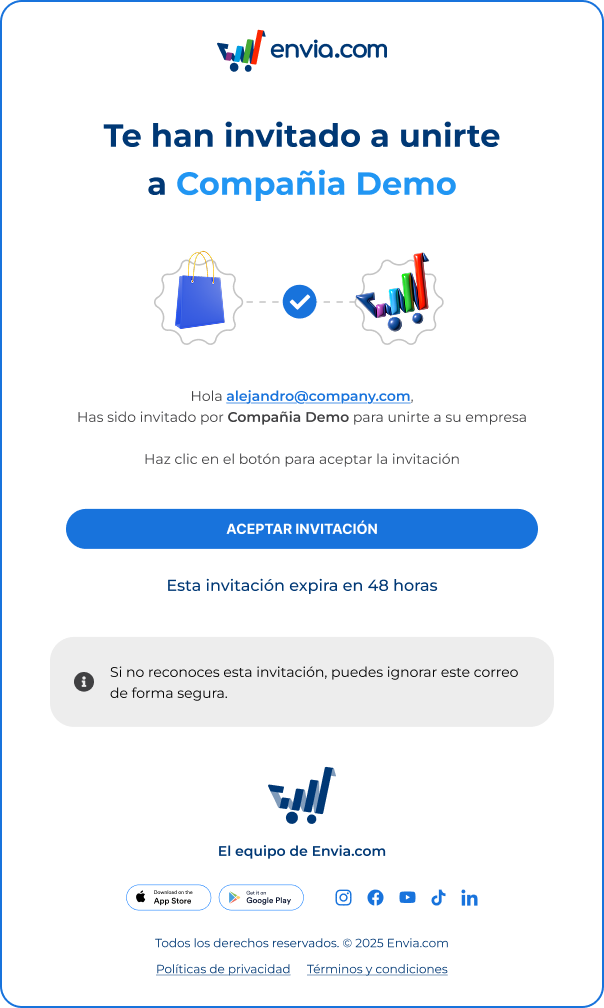
The user will receive an email to accept or decline the invitation. The invitation is valid for 48 hours. If it is not accepted in that time, it will expire automatically.
Revoke a pending invitation
Section titled “Revoke a pending invitation”If an invitation has not been accepted and you no longer want that user to have access:
-
Go to the Users section.
-
Find the user with status Pending invitation.
-
Click the options icon (⋮) and select Revoke invitation.
Remove a user from your company
Section titled “Remove a user from your company”-
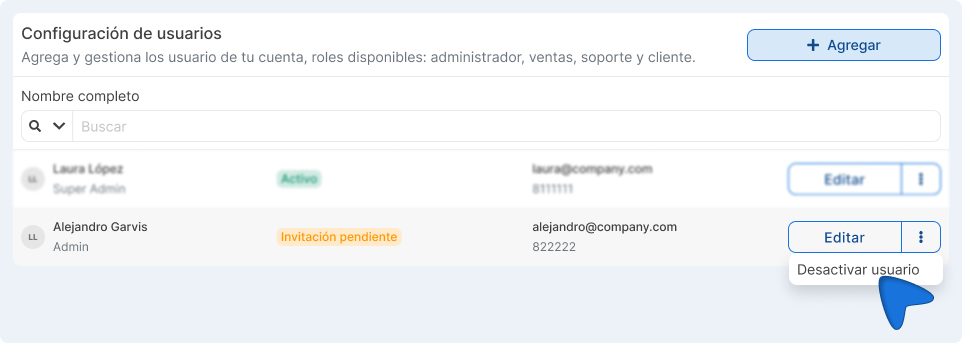
Go to the Users section.
-
Find the user you want to remove.
-
Click the options icon (⋮) and select Deactivate.
-
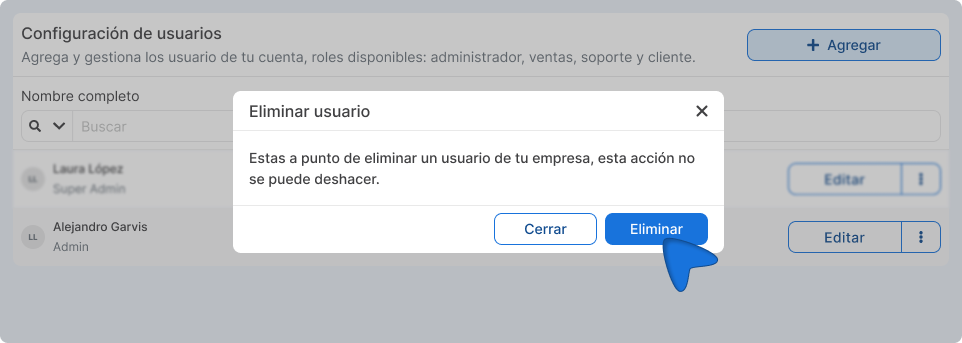
Confirm the action in the confirmation message.
Important things to know
Section titled “Important things to know”- One user, multiple roles: You can have a different role in each company. For example, be Super Admin in one and have a Support role in another.
- Data is independent: Each company’s balance, shipments, and settings are completely separate. When you switch companies, you only see what belongs to that company.
- You do not need multiple accounts: Everything is managed with the same email and password.
- Actions apply to the active company: You can only operate (create shipments, view reports, manage users) within the company you have selected at that moment.
- If your primary company was deactivated but you have access to another, the platform will automatically redirect you to an available company.
Frequently asked questions
Section titled “Frequently asked questions”Can I belong to companies in different countries? Currently each company is associated with a country. If you need to operate in multiple countries, you need one company per country.
What if the invited user does not have an Envia.com account? They will receive an email with a link to create their account and join your company at the same time.
Can I remove a user from my company? Yes. From the Users section, Super Administrators can remove users from their company at any time.
What if the invitation expires before the user accepts it? The invitation expires after 48 hours. You can revoke it from the Users section and send a new one.
How many companies can I manage? There is no set limit. You can create or join as many companies as you need, as long as they are in different countries if you require international operations.