







Ecommerce Pro / Orders
Order Details View in E-commerce
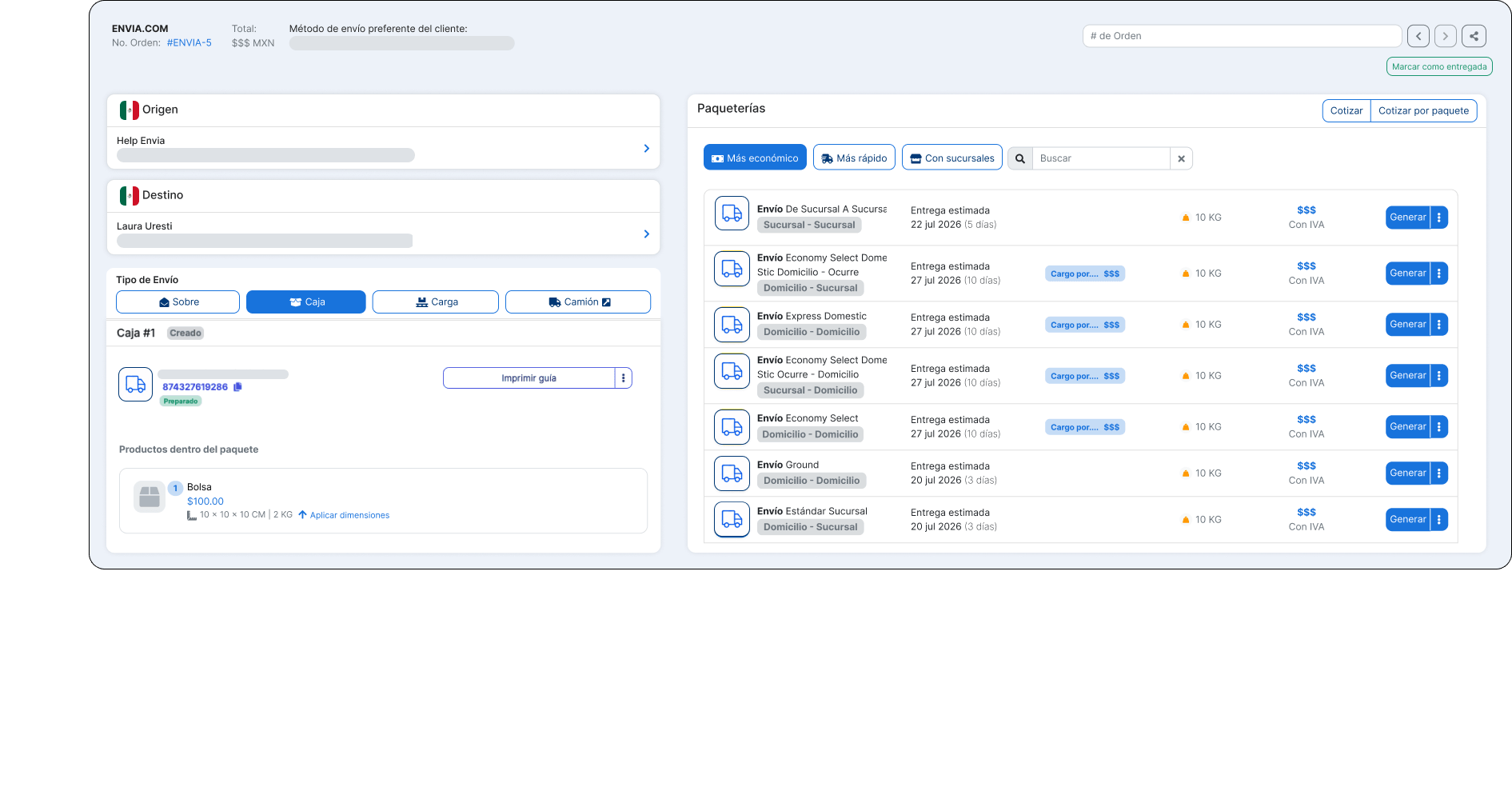
Now you can open any e-commerce order in a full-screen detail view. This gives you more space to work, allows you to share the direct link to the order with your team, and lets you switch from one order to another without having to go back to the table each time.
The side panel is still available. The detail view is another way to manage the same order.
ℹ️ You can place an order regardless of their status (pending, paid, completed, partial, or canceled). The available actions, such as getting a quote or generating a quote, depend on the order status, just as they do in the side panel.
What can you do in this view?
From the order details page, you can:
- View the full order details (store, order number, amount, shipping method, and status)
- Edit addresses and packages when the order allows it
- Get a Quote and Generate Invoices
- Navigate to the previous or next order
- Search for another order by name
- Filter by store (if you have more than one)
- Share the order link with your team
- Switch between origins when the order has more than one shipping location
This view is especially useful if you're working on orders multi-source, if you need share an exact order with someone on your team, or if you'd rather move on to the next order without going back to the table.
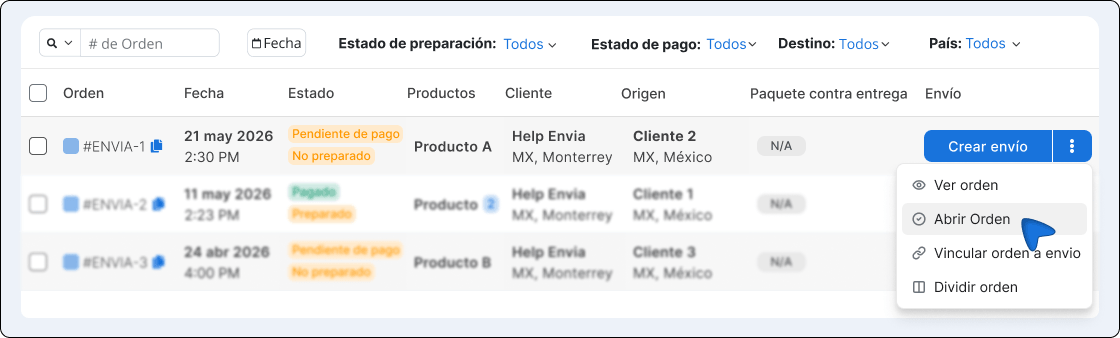
Open the order details
- Log in to your Envia.com account.
- Go to Ecommerce Pro > Orders
- In the order queue, open the actions menu (button Create Shipment or the options menu).
- Select Open Order.
- A new tab will open displaying the order details.
ℹ️ The link is not public. Only users in your account with access to Ecommerce can open it. If the order does not exist or does not belong to your account, you will see a message stating that the order was not found.
Browse orders
Header with search bar, store filter, arrows, and share button
At the top of the detail view, you'll find tools to navigate between orders without returning to the table:
| Control | What is it used for? |
|---|---|
| Left Arrow | Go to the previous order |
| Right arrow | Go to the next order |
| Searcher | Find an order by name and open it when you select it |
| Store Filter | Limit browsing and searching to a specific store (this option appears only if you have more than one) |
| Share | Copy the order URL to the clipboard to send it to your team |
Search for another order
Order Search with Suggested Results
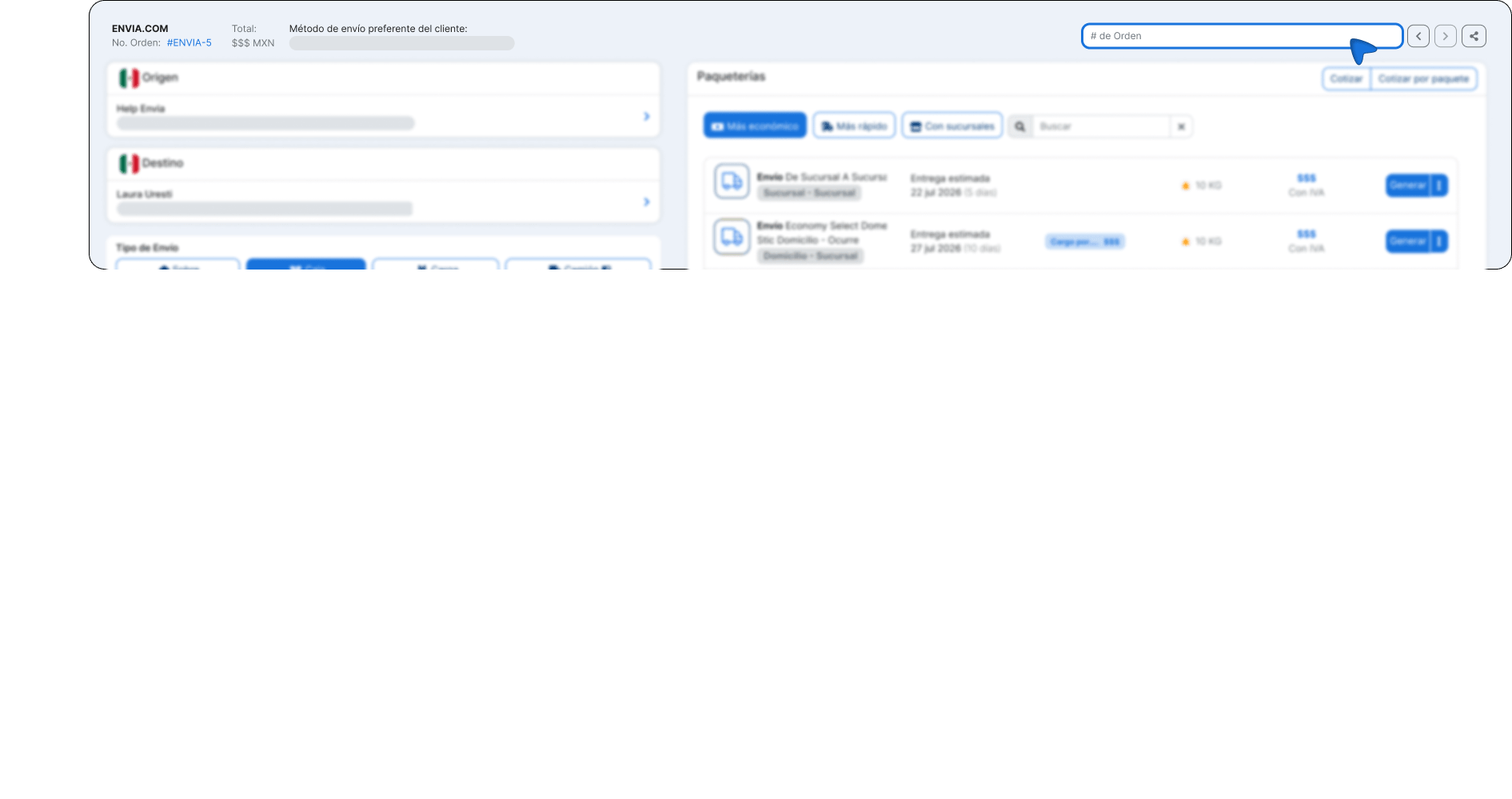
Enter the order number or name in the field # Order. Results will appear showing the status, date, amount, and store. Click on the one you need to open it.
Filter by store
Store filter with a list of connected stores
If you have more than one store connected, use the selector (default All) to limit browsing and searching to a specific store.
Go to the next or previous order
"Next Order" button with a tooltip
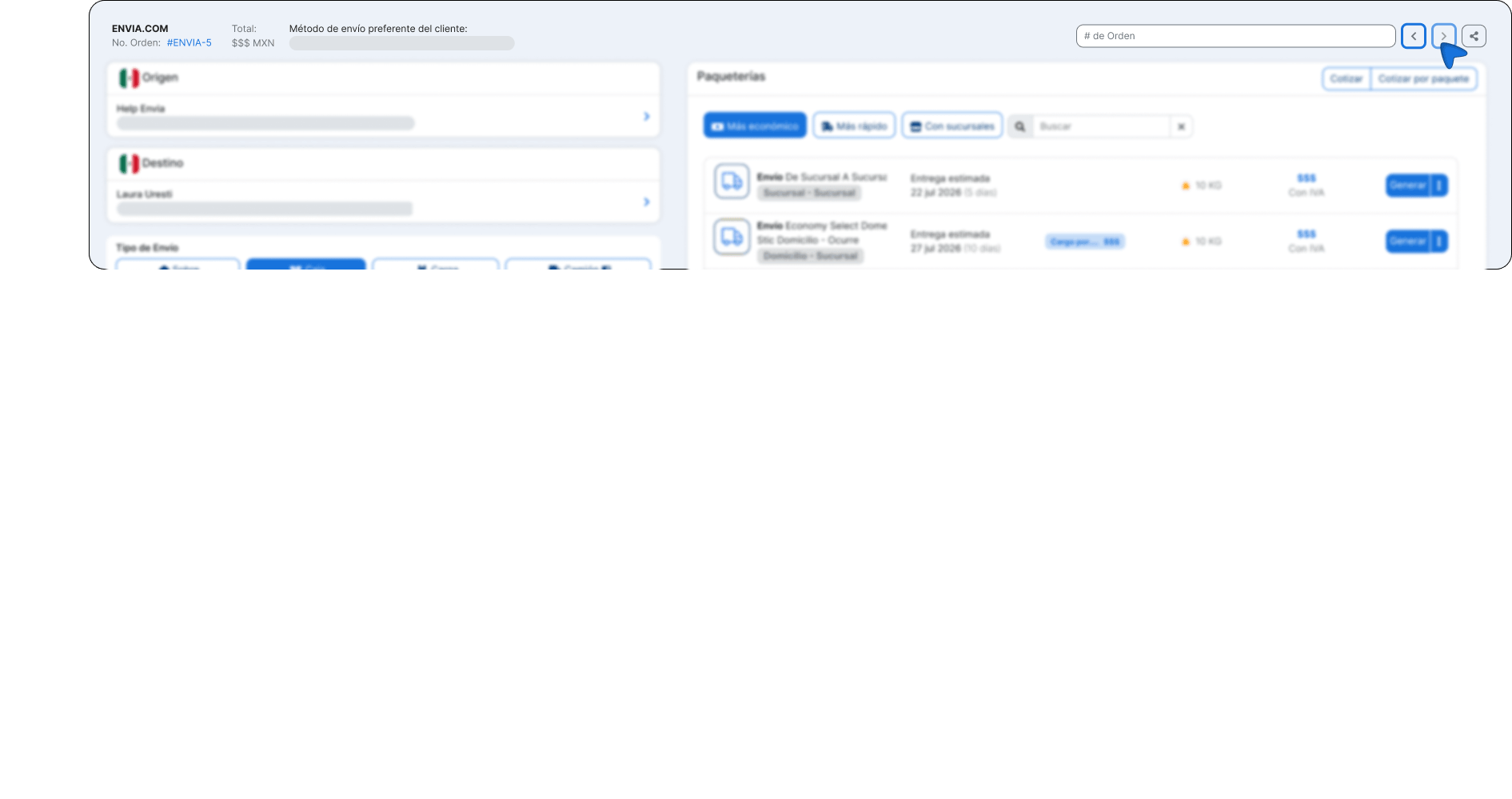
Use the arrows to move forward or backward between orders. If there is no previous or next order, the corresponding arrow will be disabled.
Share an order link
- Open the order details view.
- Click the share (share icon) at the top.
- The URL is automatically copied to the clipboard.
- Stick it wherever you need it (chat, email, internal ticket, etc.).
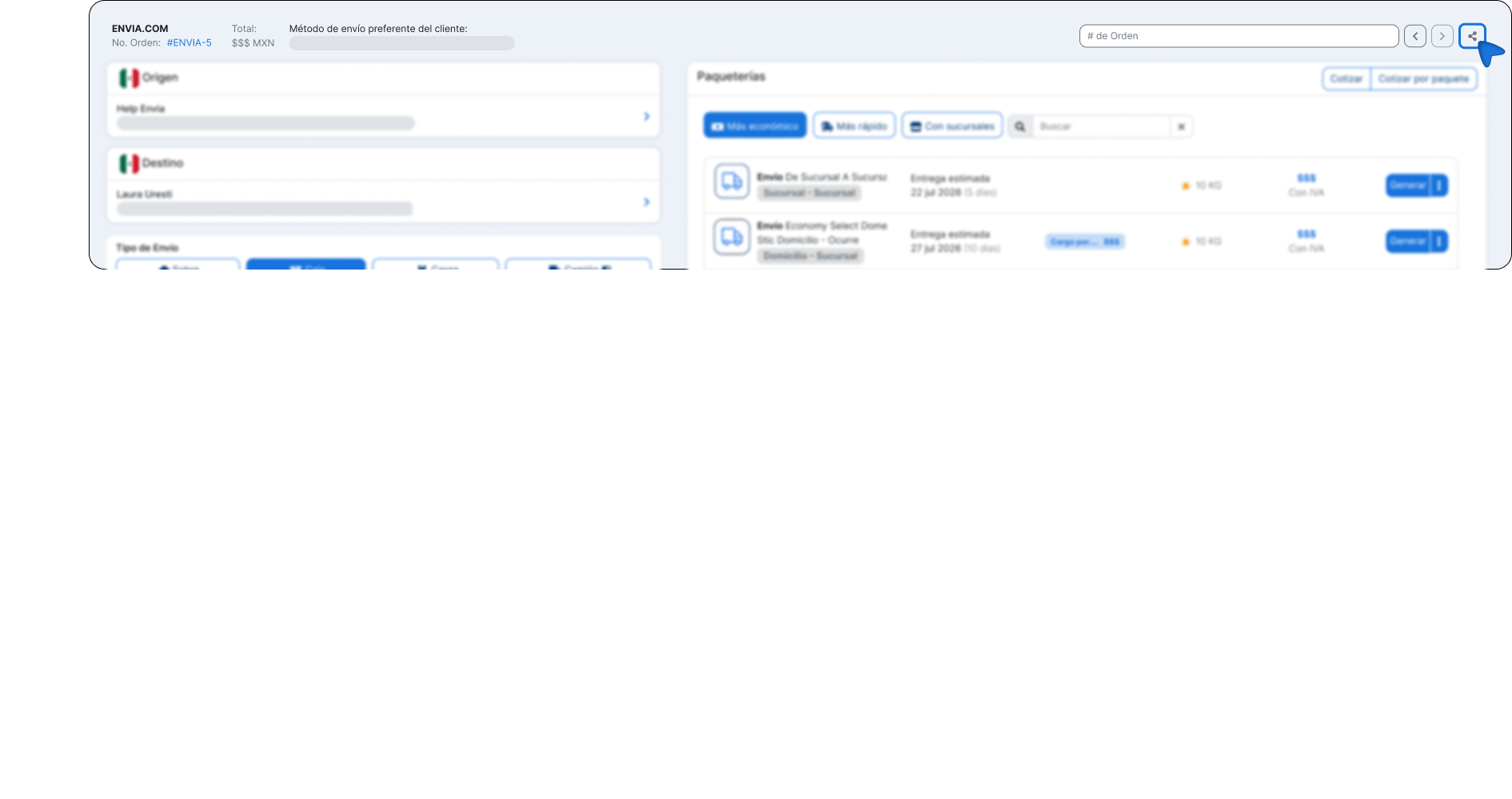
Anyone on your account with access to Ecommerce can open that same order by clicking the link. This is useful for tracking, reviewing an issue, or continuing a fulfillment process started by someone else.
ℹ️ This link It is not intended for the end buyer. It's designed for internal collaboration within your account.
Orders with Multiple Origins
Some orders are shipped from more than one place of origin. In those cases, the detail view displays tabs for each source.
- Each tab indicates the location name and how many packages are his responsibility.
- When you select a tab, you'll see only the packages from that source.
- If the order has a single origin, the tabs do not appear, and all packages are displayed as usual.
This helps you generate quotes and shipping labels by location without mixing information from different warehouses or branches.
Generate guides from the detail view
The process for creating quotes and generating shipping labels is the same as the one you're already familiar with from the side panel:
- Check or adjust addresses and packages.
- Get a quote for the available shipping options.
- Select the shipping carrier and generate the shipping label.
- The order is updated with the new status once the process is complete.
You can use the detail view as your main workspace when you need more screen space or want to review several orders in a row.
ℹ️ If the order has already been filled or canceled, you can view it, but quoting or generating actions will only be available when the order status allows it.
FAQ
Can I open an order regardless of its status? Yes. The detail view works for any order in your account. What changes depending on the status are the available actions (get a quote, generate a waybill, etc.), just like in the side panel.
Does the detail view replace the Ecommerce side panel? No. Both options are available. You can continue to open orders from the table in the sidebar, or use the detail view when you need more space or want to share the link.
Can I edit an order from this view? You can perform the same operational tasks as in the side panel: adjust addresses and packages, get quotes, and generate waybills, depending on the order status. The way orders are managed doesn't change—only the workspace does.
Is the shared link public? No. It only works for users of your account who have access to Ecommerce. It is not intended to be sent to the end buyer.
What happens if I filter by store? Navigation between orders (previous/next) and the search function are limited to orders from that store. If you choose All, you can switch between orders from any of your connected stores.

Did you find this resource useful?