







Create shipment / Create shipment
Generate bulk mailings
Bulk shipments 2.0 is the place to put together a lot (list of shipments you're quoting and labels combined), Compare shipping carriers and generate multiple quotes tags (guides) without having to enter each shipment separately.
On the screen, you'll see New batch, Your orders, Save Batch and Back to the lot.
The process is as follows: you add shipments → the table validates each row → Quote → Select a service → Generate tags.
From the history, you can reopen a batch that you had previously saved. Help (top right) opens this guide.
ℹ️ Available today at Mexico and USA. The following features will be enabled in future releases Colombia, Guatemala, Brazil e India; the remaining countries will be rolled out in phases. This screen is not available for this role Support.
How to Log In
- Sign in to your Envia.com account
- In the menu, open Bulk shipments 2.0.
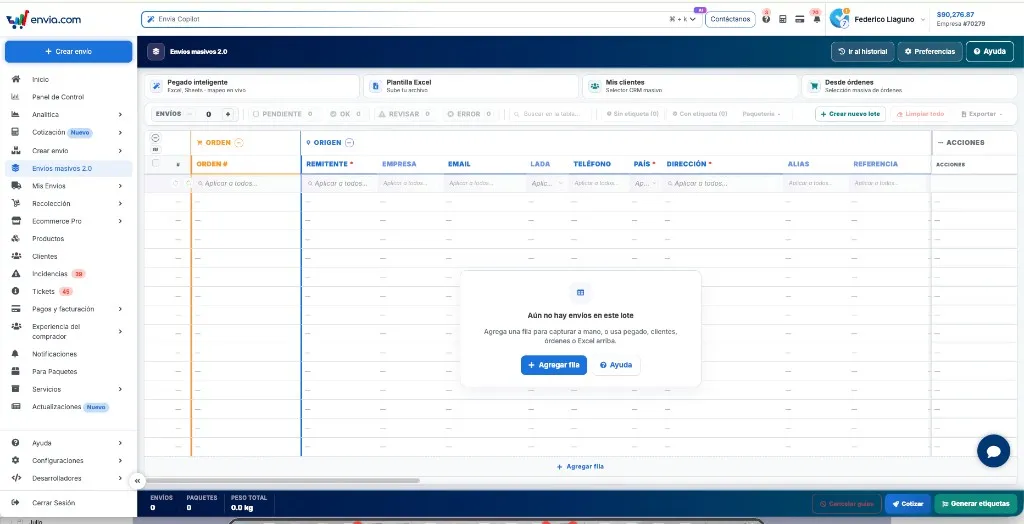
- You start with an empty table (New batch). To view lots you've already saved, select Go to History.
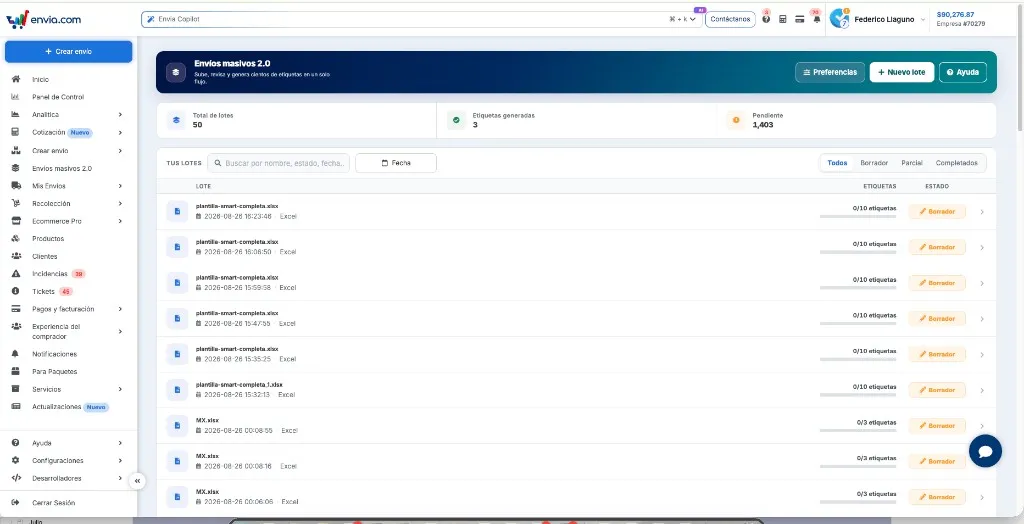
History: Your Lots
Your orders This is the history: each row represents a batch you've already saved. The header summarizes Total number of lots, Generated tags and Pending.
- Open Go to History, or go to the menu Bulk shipments 2.0 and go to the list Your orders.
- Search by name, state, or date. Filter by Date or by tab: All, Draft, Midterm, Completed.
- Click on a row to open that batch in the table. + New batch Start with an empty batch.
| Column | What do you see? |
|---|---|
| Lot | Name (file or Lot + number), date, and source (for example, Excel). |
| Tags | How many have already been generated out of the total, for example 0/10 tags. |
| Status | Draft (no tags), Midterm (some) or Completed (all of them). |
Preferences and Help They are also on this screen.
Add shipments to the batch
If the table is empty, you'll see: There are no shipments in this batch yet. Choose + Add Row or one of the methods listed above. You can combine several methods in the same batch.
| Method | What is it used for? |
|---|---|
| Smart Paste | Paste from Excel or Sheets and map the columns to the fields in Envia. |
| Excel Template | Upload a file. If your spreadsheet doesn't follow the template, the AI will parse the file. |
| My clients | You select recipients from your saved contacts. |
| From orders | You select orders from your connected store. |
| + Add Row | You enter a hand-delivered shipment. |
In Excel Template You can download an official template, one with more descriptive names, or one organized by country.
ℹ️ AI-powered interpretation processes up to 300 rows per file. If your list is larger, split the Excel file.
When importing, choose whether to you replace the current rows or add the new ones to the batch. + Create a new batch (in the table bar) opens another batch; the current one is saved if it already had a name.
What the table shows
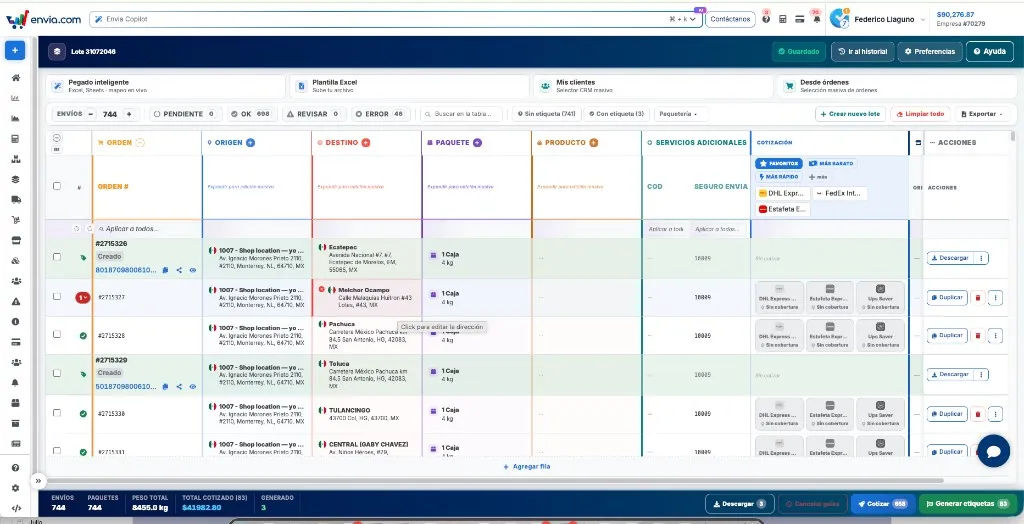
Each row represents a shipment. The columns are grouped by color. Click a cell to edit it (you'll see Click to edit the address).
| Group | What a catch! |
|---|---|
| Order | Order number. If a label already exists, the status (for example Created) and the tracking link. |
| Origin | Sender: sender, company, email, area code, phone number, country, address, alias, reference. Fields marked with an asterisk are required. |
| Destination | Who receives it, following the same line of reasoning. |
| Package | Type (e.g., box), dimensions, weight, and quantity. Multiple packages in the same row constitute an MPS shipment. |
| Product | What is transmitted: name, SKU, value, HS Code (international shipments), SAT codes if applicable. |
| Additional Services | COD (cash on delivery) and Envia Insurance, along with the amount, if you activated it. |
| Quote | Shipping rates for that row. |
| Actions | Download, Duplicate or delete the row. |
Below the headings is the row Apply to all…: You enter a value once, and it is copied to the rows (or just to the ones you've selected).
The bottom bar displays Shipping, Packages, Total weight, the total number of entries, and how many tags have already been They generated.
Fill in, filter, and save
To get a quote without restrictions, enter the recipient's name, country, and shipping address, as well as the package type and weight. At the origin, Sender, Country and Address are marked as required. Phone number, email, content, and declared value prevent the status To be reviewed.
- Fill in or correct the cells. In Address, use the country-specific format (street, number, neighborhood, ZIP code).
- Use Apply to all… when multiple rows share the same sender, weight, or package type.
- Filter the table:
- Shipping That's the total. Pending, OK, To be reviewed and Error are the results of the validation.
- Search the table… Find text.
- Uncategorized / Tagged They separate rows that do not yet have a guide.
- Shipping service It shows only one service, even though you've already requested a quote.
- When you save it, you'll see Saved. If it's a new batch, give it a name. If you make changes, choose Save and Exit, Cancel and Exit without saving.
Clean everything Delete the data from the rows without label (requires confirmation). Export Download the batch to Excel. Rows that already have labels are not edited or cleared.
ℹ️ If a street name is longer than 80 characters, the shipping carrier may reject the quote. Shorten the street name or enter it as Reference.
How It Is Quoted
- On the bottom bar, select Quote. The number on the button indicates how many rows will be quoted. The batch is saved first if there are pending changes.
- In Quote, compare prices by row. Above the logos, you can see Favorites, Cheaper and Faster.
- Click on the package in that row. No coverage This means that this service does not apply to that route.
- If the service uses a branch, specify it in the row or select the nearest one / your branch in Preferences.
Favorites Use the lists Domestic shipment, International shipment and LTL / Pallets from Preferences. If all rows already have a price, the button changes to "Requote.".
Generate tags
- Correct the rows in Error and To be reviewed. Generate tags Use the quoted rows and lists (the number on the button indicates this).
- Choose Generate tags. The total amount billed for the bar is what is charged for those rows.
- Download or print from Download in the row or in the bar. Copy the trace or open it from the column Order.
- Cancel guides Deletes labels that have already been generated from the rows you select. This option is only enabled when there are labels in the batch.
The tags also remain in My Shipments.
Quote Generator Preferences
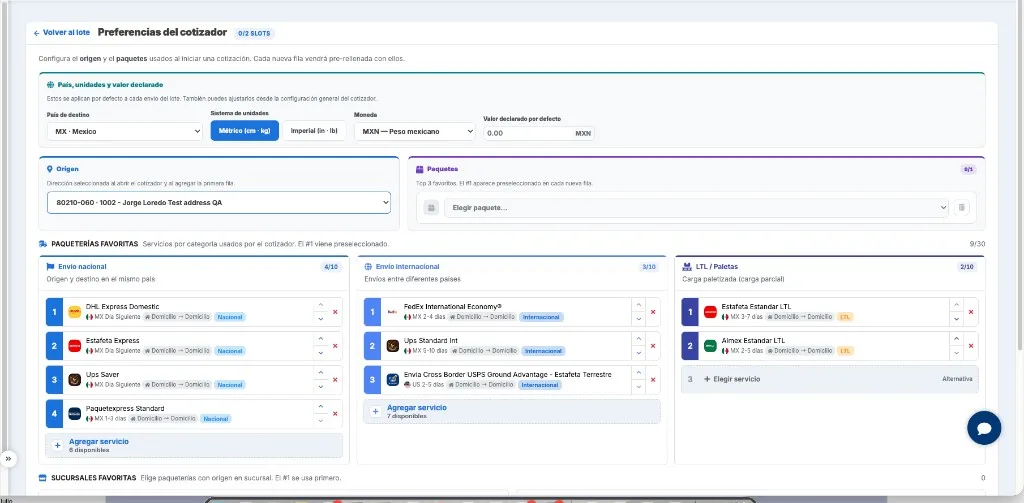
Preferences open Quote Generator Preferences. The origin and the packages whichever you choose are pre-filled in each new row. The services of Favorite Shipping Carriers are the ones from Favorites when quoting. Back to the lot It brings you back to the board.
- In Country, units, and declared value specifies what applies to each shipment in the batch:
- Country of destination
- System of Units: Metric (cm · kg) and Imperial (in · lb)
- Currency
- Default value
- In Origin Select a saved address. In Packages Create up to three favorites with Choose a package…. The #1 It is used in new rows.
- In Favorite Shipping Carriers sorts services by type. The #1 Each item on the list is preselected when you get a quote. Use the arrows to move it up or down in priority, or remove a service by clicking X.
- + Add service (or Choose a service (if the space is empty) opens the catalog. Favorite Branches, below, lists delivery or pickup locations by service.
| List | When to Use It |
|---|---|
| Domestic shipment | Origin and destination in the same country. |
| International shipment | Origin and destination in different countries. |
| LTL / Pallets | Freight shipments (pallets). |
Each list can hold up to 10 services. You don't have to fill them all in.
FAQ
In which countries is it available? Today in Mexico and the United States. Colombia, Guatemala, Brazil, and India will be added in the next rollout. The remaining countries will be added in phases.
Does this replace "Shipments with Excel"? No. Excel-based shipments are still Create shipment. Bulk Shipments 2.0 is the tool for putting together, quoting, and generating the batch—all on the same screen.
Can I ship internationally? Yes. Complete Product, HS Code and the declared value. The quote uses your favorite international carriers when the origin and destination are different countries.
What do "COD" and "Envia Insurance" mean in the table? These are services per row. COD Cash on delivery. Envia Insurance Covers the amount you declare. Details at
One row says "No coverage.". That shipping carrier doesn't cover that route, or some information is missing. Try another service, or correct the address, weight, and package type, and try again. Quote.

Did you find this resource useful?