Scheduled maintenance on Envia.com: Thursday, October 29, 12:00–12:30 a.m. Login, APIs, and operations will be unavailable.


Packing slip settings
The packing slip is the document that lists the products in an order so you can pack and verify the contents. From Set up your store you decide how it prints next to the labels and what data appears, so your warehouse team works with the format they use every day.
Steps to set up the packing slip
Section titled “Steps to set up the packing slip”-
Sign in to Envia.com
-
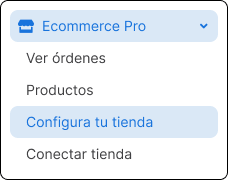
Go to Ecommerce Pro and click Set up your store.
-
Select the Set up packing slip button.

-
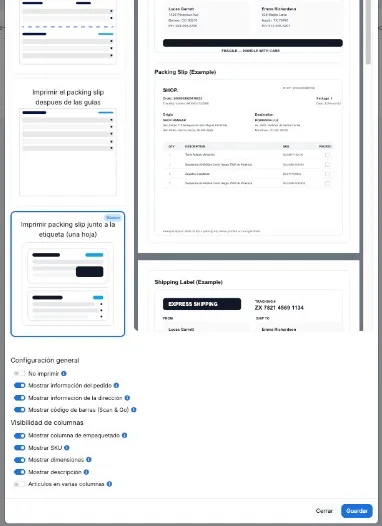
Choose how the packing slip is printed and what information to show. When you finish, select Save.
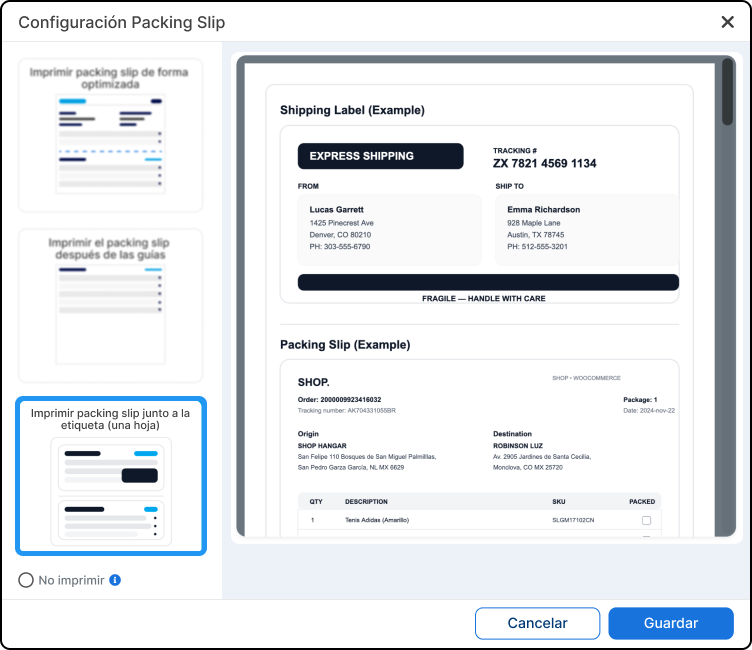
Choose how it is printed
Section titled “Choose how it is printed”Choose one of these three options. It applies when you generate or download packing slips together with the labels.
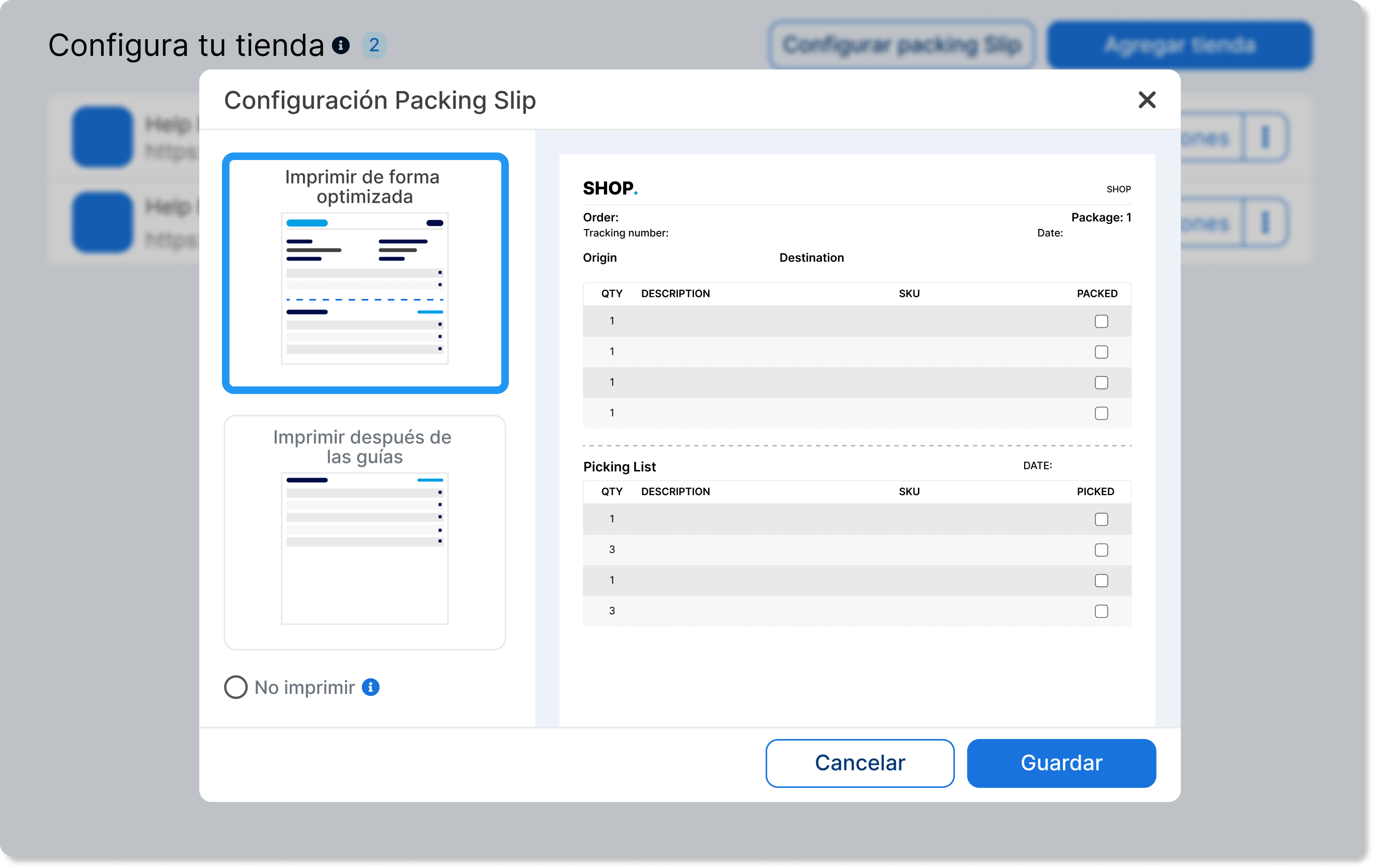
Print packing slip in an optimized way. Groups several packing slips on a single sheet to use less paper.
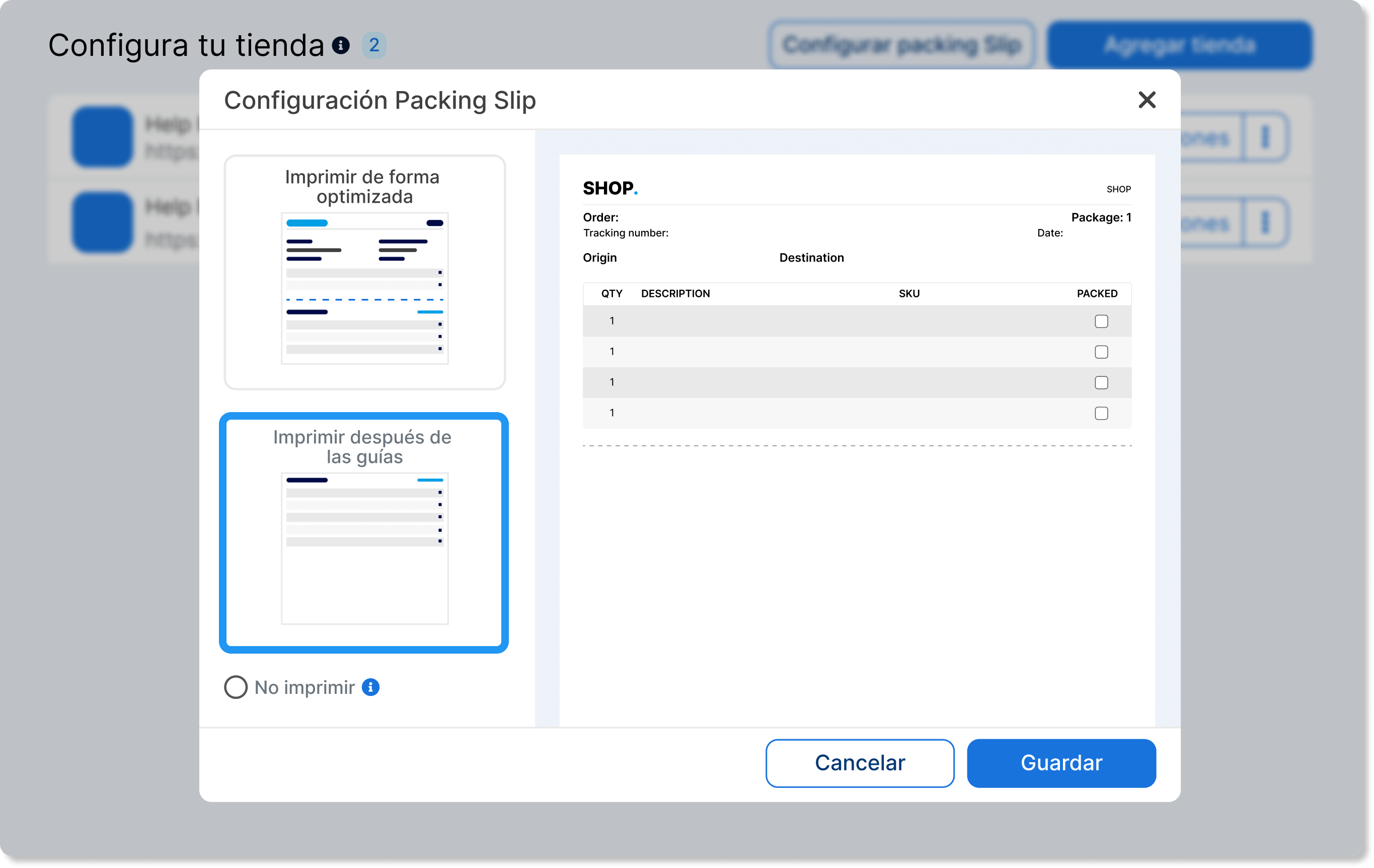
Print the packing slip after the labels. Prints each packing slip on the sheet that follows its label.
Print packing slip next to the label (one sheet). Combines the label and the packing slip in the same document.
Set up the document information
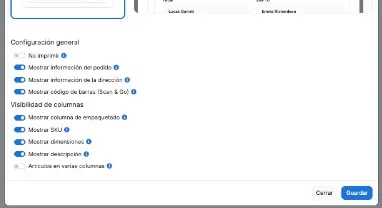
Section titled “Set up the document information”In General settings you decide which blocks appear and whether the packing slip downloads when you generate labels.
| Option | What it does |
|---|---|
| Do not print | Prevents automatic packing slip download when you generate labels in a batch. Labels are still generated. |
| Show order information | Includes order data, such as store, order number, and date. |
| Show address information | Includes origin and recipient. |
| Show barcode (Scan & Go) | Includes the order barcode, the one you use to identify the order in Scan & Go. |
Choose the item columns
Section titled “Choose the item columns”In Column visibility you decide what your team sees in the product list.
| Option | What it does |
|---|---|
| Show packing column | Adds a column to mark each item as packed. |
| Show SKU | Shows the SKU of each product. |
| Show dimensions | Shows the product dimensions. |
| Show description | Shows the product name or description. If you turn it off, the document does not show the name or the dimensions below it; quantity and SKU remain. |
| Items in multiple columns | Prints the items in more than one column so more products fit per sheet. You do not choose the number: the system uses two columns if the description is visible and three if it is hidden. |
The description is visible by default and the items are in a single column.
Check the result
Section titled “Check the result”- Save the changes in Set up packing slip.
- Go to View orders and download a packing slip from a test order.
- Confirm that the PDF matches the preview: print mode, visible blocks, and columns.
If it does not match, open Set up packing slip again, check that the options stayed as you left them, and Save again.
Frequently asked questions
Section titled “Frequently asked questions”Can I choose whether there are two or three columns?
No. You only turn Items in multiple columns on or off. The number is defined by whether Show description is on or not.
Does Do not print hide the packing slip forever?
No. It only stops the automatic download when you generate many labels. You can still download the packing slip from View orders when you need it.
Do these options change the labels?
No. They only apply to the packing slip.