Scheduled maintenance on Envia.com: Thursday, October 29, 12:00–12:30 a.m. Login, APIs, and operations will be unavailable.


Generate a less-than-truckload (LTL) shipment
Less-than-truckload shipments, also known as LTL (Less Than Truckload), let you transport freight without filling a complete unit, sharing space with other shipments. This option helps reduce costs and optimize logistics.
Steps to generate your shipment
Section titled “Steps to generate your shipment”1. Go to Create shipment
Section titled “1. Go to Create shipment”Sign in to Envia.com and in the sidebar click Create shipment > Freight shipments
2. Fill in origin and destination
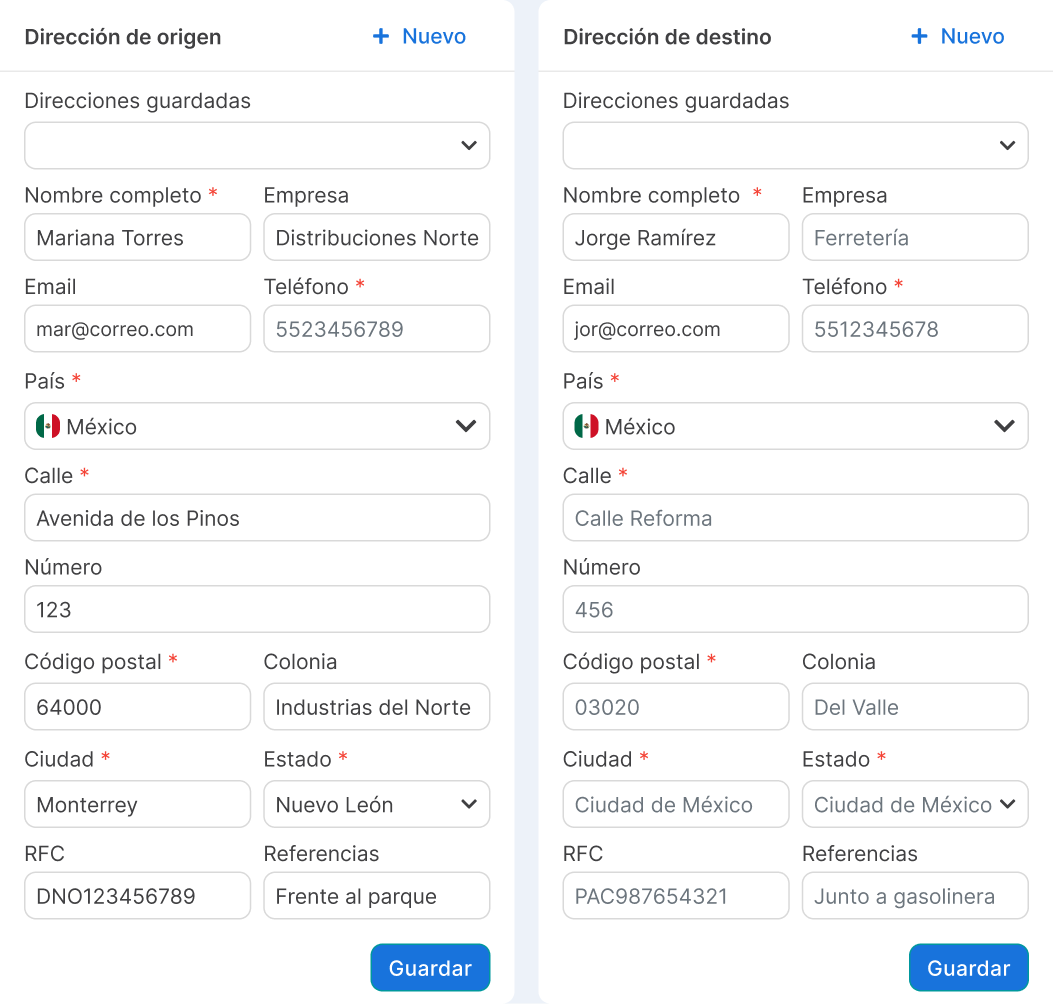
Section titled “2. Fill in origin and destination”Complete Origin Address and Destination Address. Required fields appear marked with a red asterisk (*), for example: name, company, email, phone, country, street, number, postal code, and neighborhood.
3. Select the shipment type: Freight
Section titled “3. Select the shipment type: Freight”In Shipment Type you will see these options; choose Freight
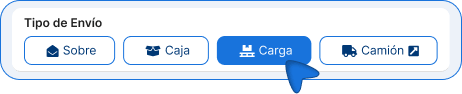
| Shipment type | What it is used for |
|---|---|
| Envelope | Documents or small pieces. |
| Box | Conventional parcel. |
| Freight | LTL shipment (less than truckload). |
| Truck | Full truck (FTL); opens cargo.envia.com. |
4. Complete the freight data
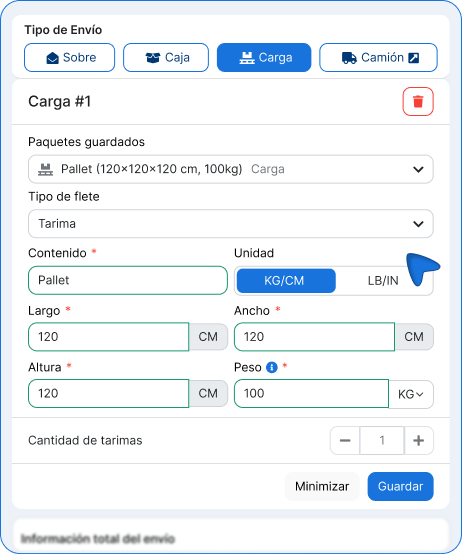
Section titled “4. Complete the freight data”In Freight #1 enter the information about your merchandise.
- Saved packages. If you already have a saved package profile, you can select it in Saved packages to reuse measurements and data.
- Freight type (Mexico origin). Indicates how your merchandise travels so the carrier classifies it correctly when quoting and generating the label.
Contents, unit, measurements, weight, and quantity
- Contents: describe what you are shipping (maximum 50 characters). This field is required.
- Unit: confirm KG/CM or change to LB/IN if you need to.
- Measurements: enter length, width, and height. They are required.
- Weight: enter the weight. It is required.
- Quantity: use the + / – buttons to indicate how many identical units you are shipping (minimum 1, maximum 100).
If you have loads with different measurements or weights, click + Add pallet to register another section (Freight #2, Freight #3, etc.) and complete their data one by one.
5. Enter the declared value and turn on insurance (if you want)
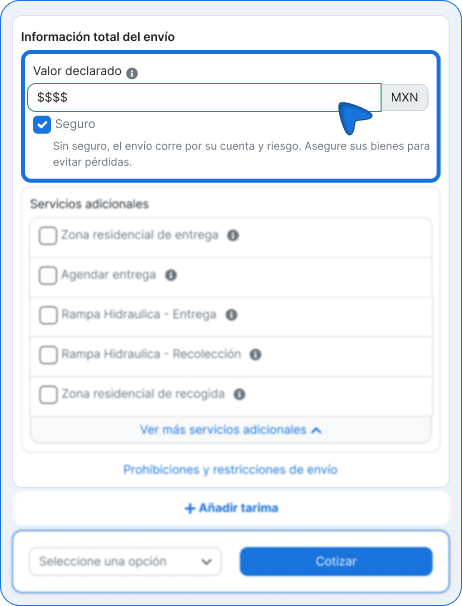
Section titled “5. Enter the declared value and turn on insurance (if you want)”In Total shipment information:
-
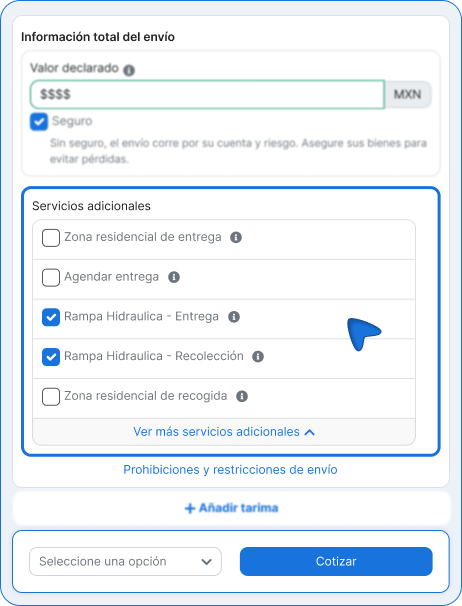
Enter the Declared value in MXN. This field is required; if you leave it empty, you will see the message Required field.
-
If you want to protect the shipment, turn on the Insurance checkbox.
6. Select additional services (optional)
Section titled “6. Select additional services (optional)”In Additional services you can check the ones you need. Each option has an information icon (i) with its definition.
| Additional service | Description |
|---|---|
| Residential delivery zone | Some carriers charge a fee for a residential address because of the extra effort of delivering directly to houses or apartments. |
| Schedule delivery | The time and date agreed between the seller and the buyer for the products to arrive at the selected destination. |
| Liftgate - Delivery | When the shipment requires a liftgate at delivery, it generally means the recipient does not have a shipping dock or a forklift to unload the freight. |
| Liftgate - Pickup | When the shipment requires a liftgate at pickup, it generally means there is no shipping dock or forklift at origin to load the merchandise. |
| Residential pickup zone | A home or home-based business in a residential zone that typically does not have a loading dock. |
7. Quote and choose a carrier
Section titled “7. Quote and choose a carrier”-
Click Quote.
-
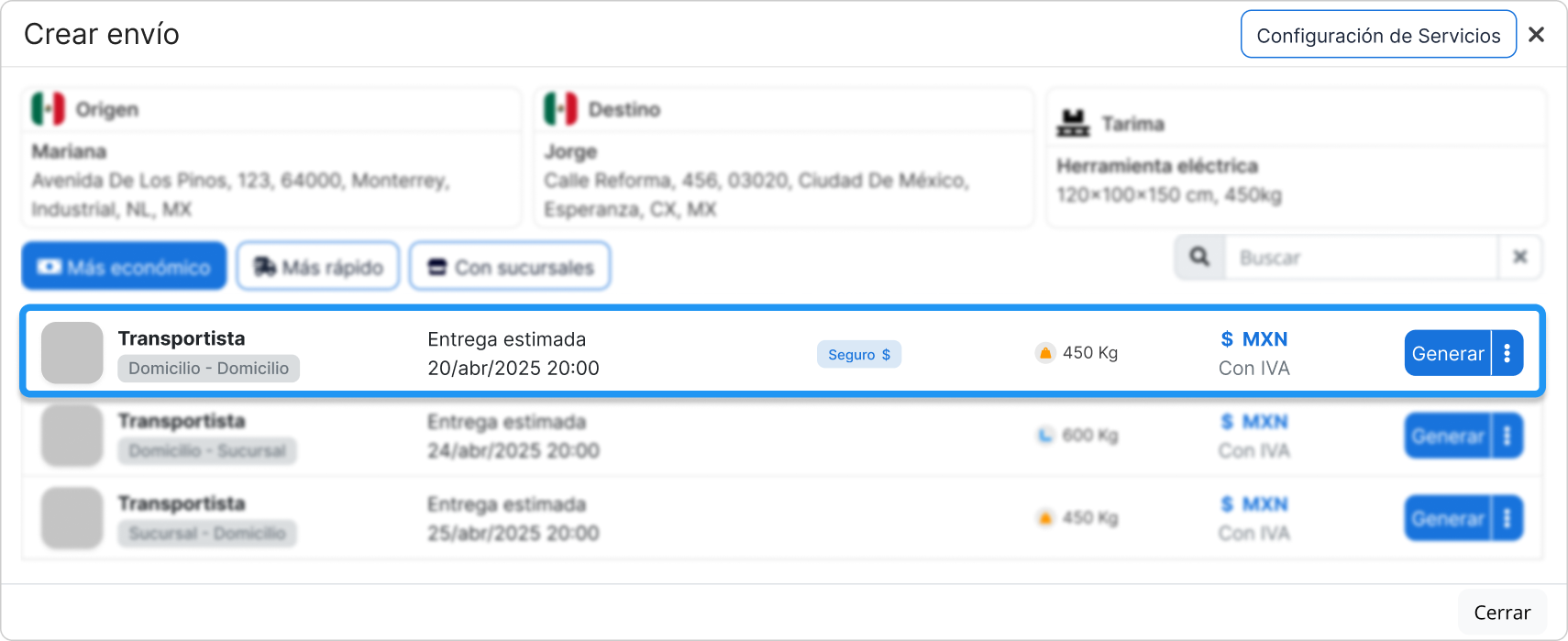
A modal opens with the origin, destination, and freight summary, and the list of available options. This screen is only for choosing a carrier.
-
Filter the results with: Cheapest, Fastest, With branches
-
If you need to, use the modal search or Service Settings.
-
Review each option: carrier, service type (for example Home-Home or Branch-Branch), estimated delivery date, weight, and cost (with tax).
-
Click Generate on the option you choose. The label is not created yet: you only go to confirmation.
8. Complete the data before generating the label
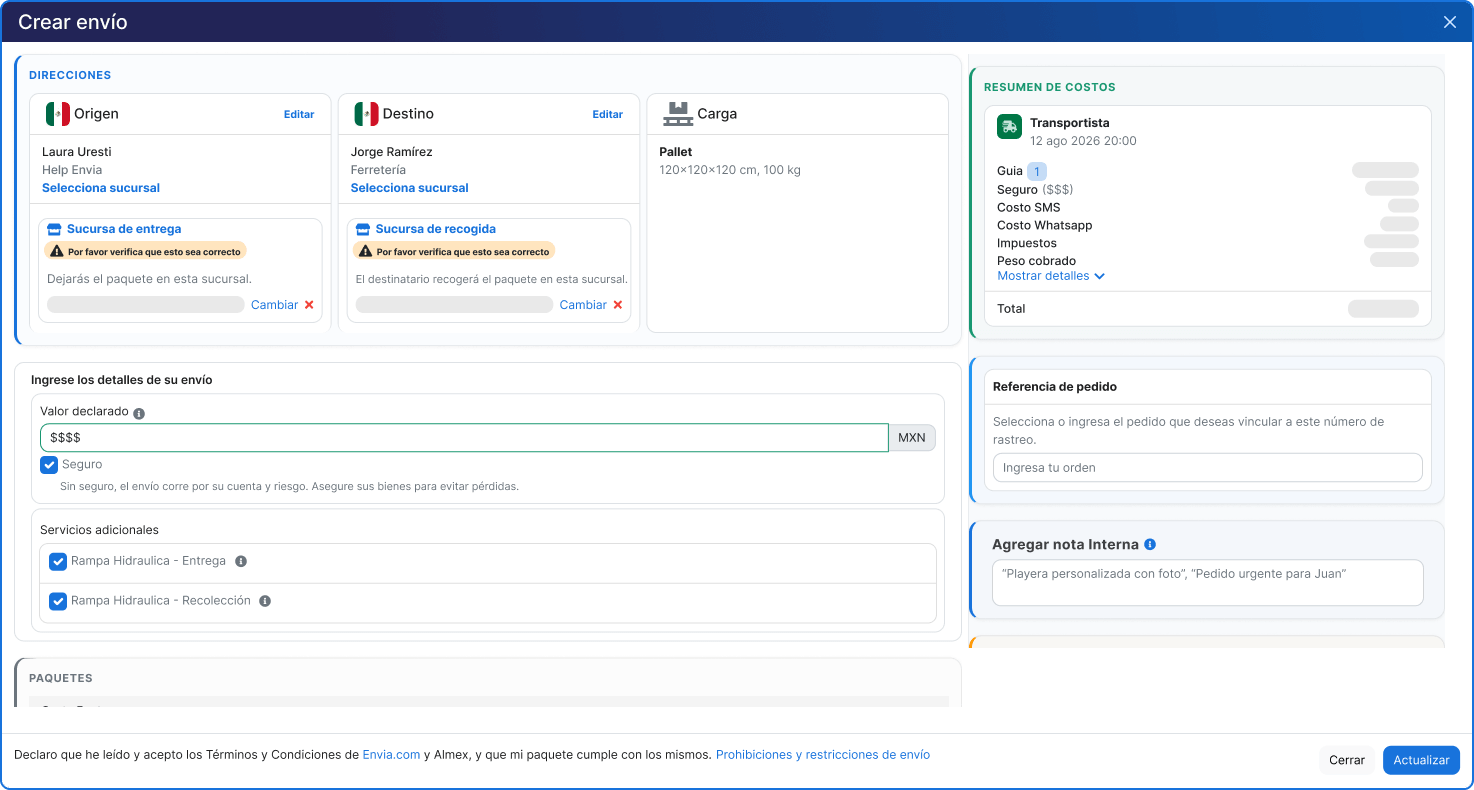
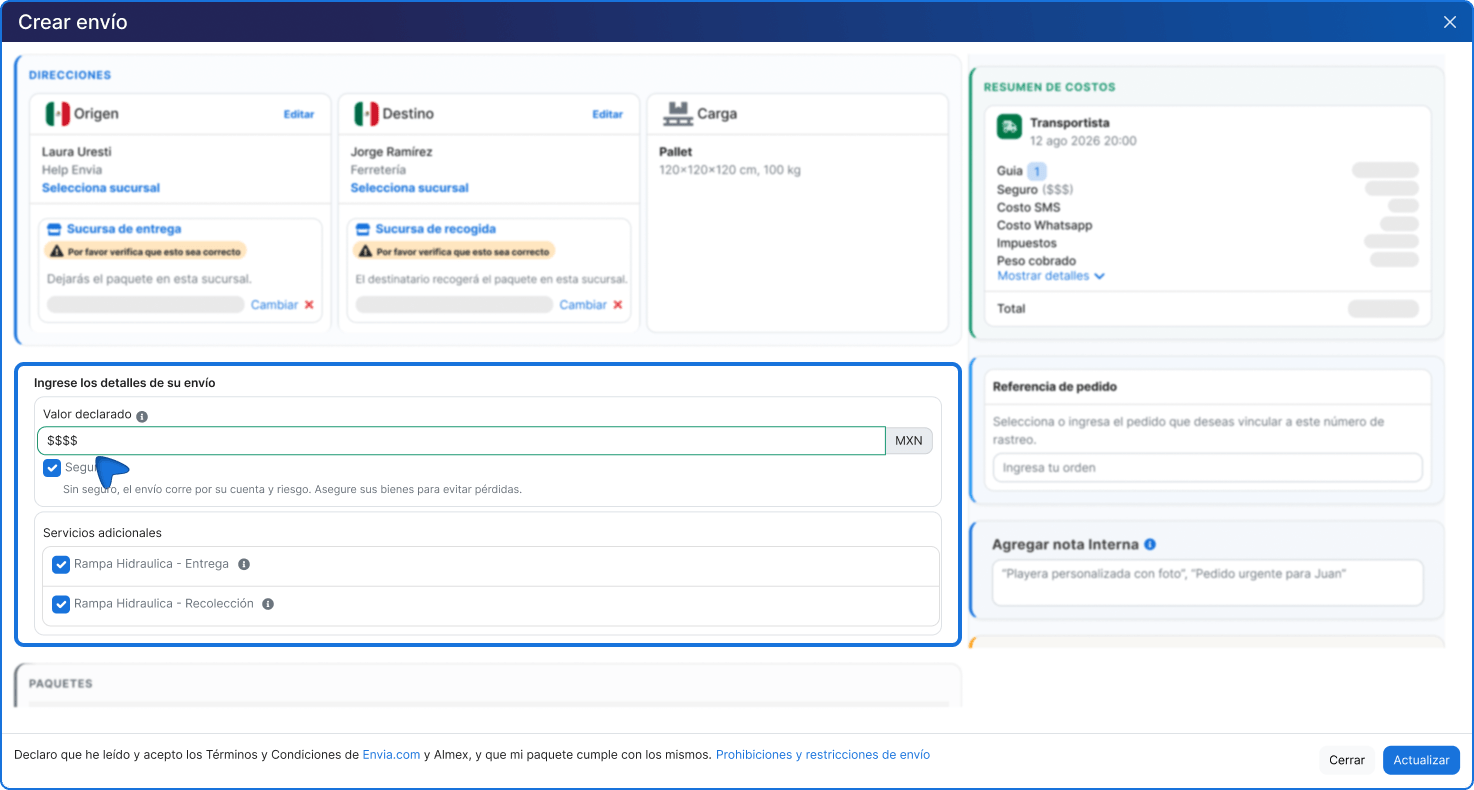
Section titled “8. Complete the data before generating the label”When you click Generate, the confirmation screen opens. Here you do complete Carta Porte, review the cost, and create the label with Generate label.
Addresses and freight
In the ADDRESSES section you will see the summary of:
- Origin
- Destination
- Freight (contents, measurements, and weight)
You can use Edit if you need to correct something. If the service is with a branch (for example Ocurre), options such as Delivery branch or Pickup branch will appear. Verify that the branch is correct before continuing.
Shipment details
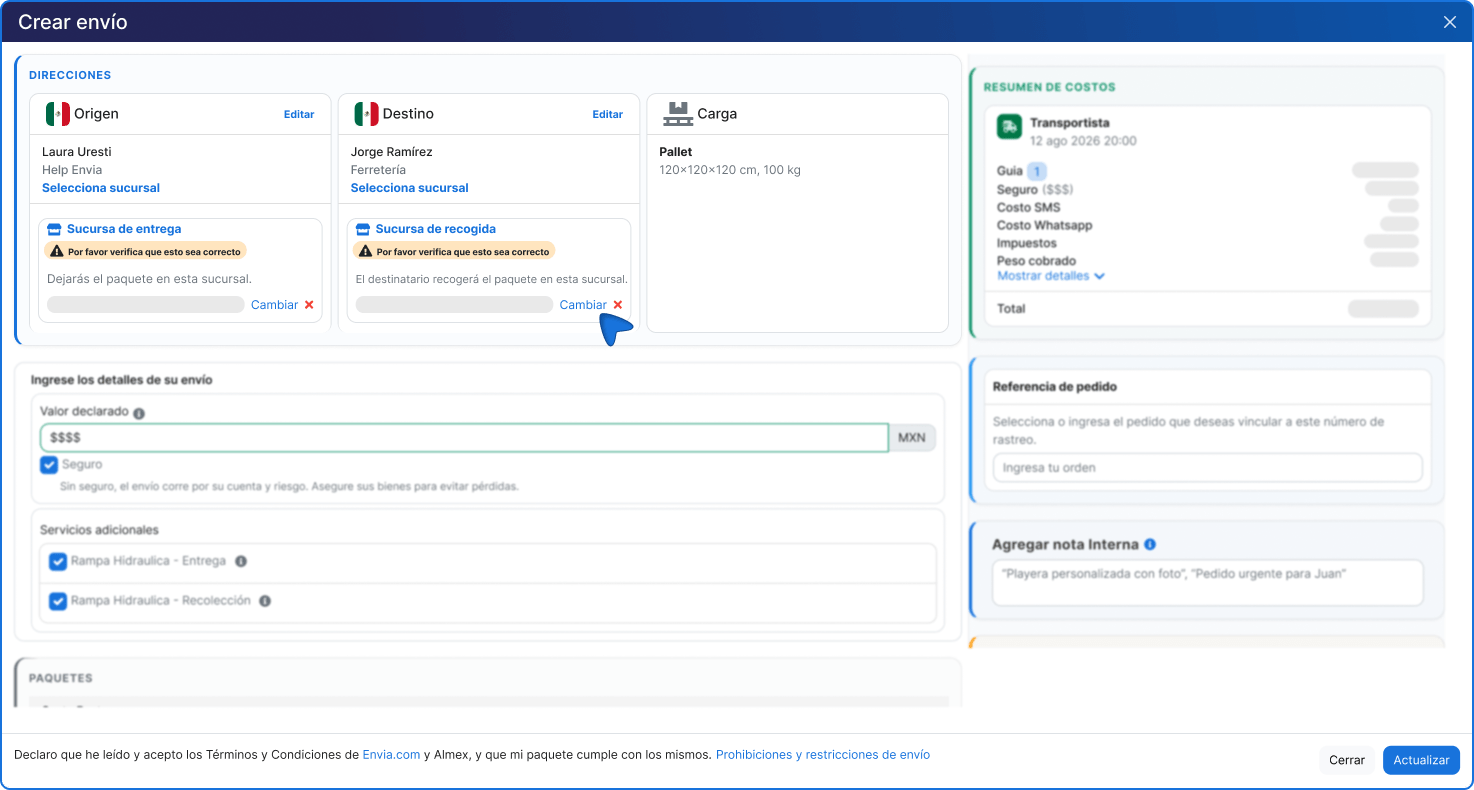
In Enter your shipment details you will see the Declared value and, if you checked them before quoting, Insurance and Additional services already preselected (for example Liftgate - Delivery or Liftgate - Pickup).
On this screen you do not choose new services and no more options are shown: you can only confirm the declared value or uncheck insurance or an additional service if you no longer need it.
Carta Porte
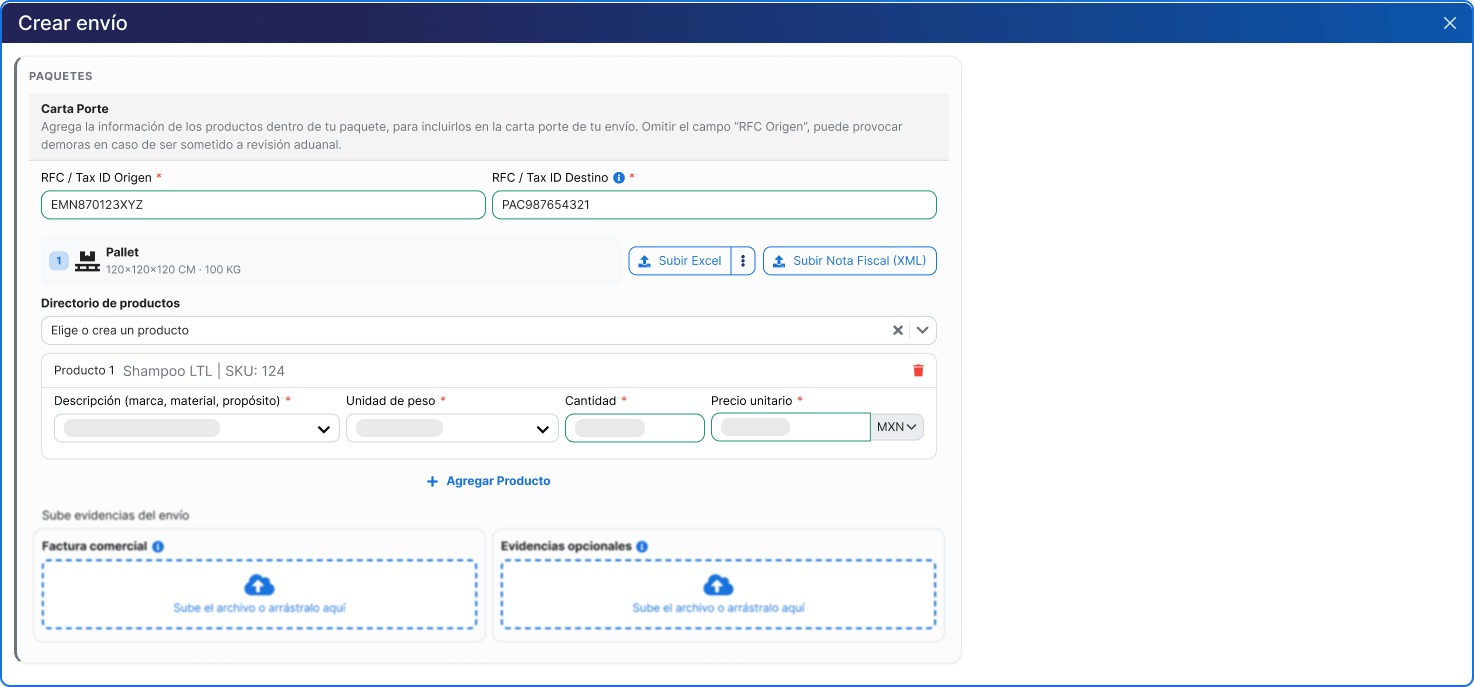
On shipments within Mexico, complete the Carta Porte tax information. If you omit the origin RFC, you may have delays in reviews or inspections.
Tax fields:
- RFC / Tax ID Origin (required)
- RFC / Tax ID Destination (required)
For the freight products you can:
- Choose a product from Product directory
- Enter them manually in Product 1 (and following)
- Use Upload Excel to load them in bulk
- Use Upload Nota Fiscal (XML) if it applies
If you enter the product by hand, complete these required fields:
- Description (brand, material, purpose)
- Weight unit
- Quantity
- Unit price (with currency, for example MXN)
To register another product, click + Add Product.
Shipment evidence
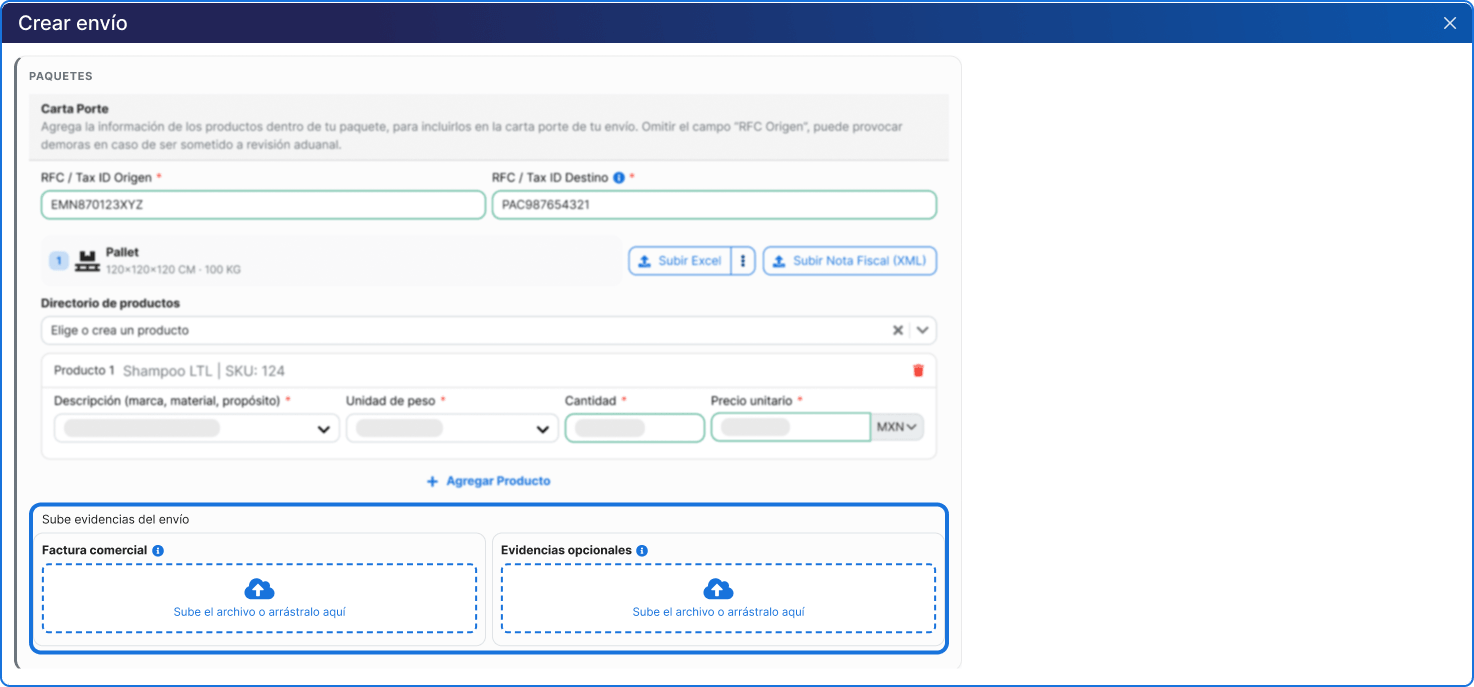
- Commercial invoice: Required if you are sending products of value. Upload the file or drag it to the indicated area.
- Optional evidence: You can attach images of the product or its packaging.
Cost summary and optional data
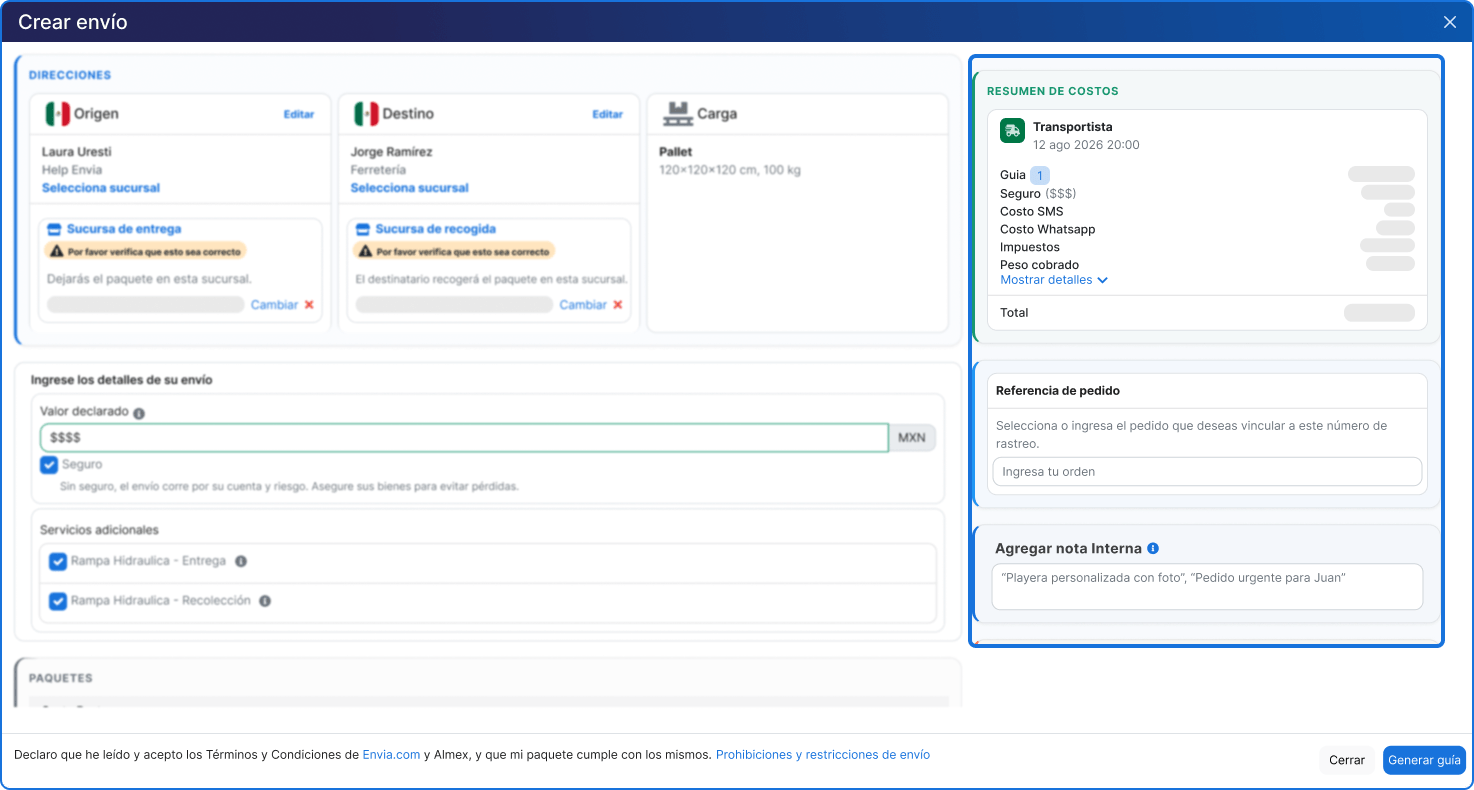
In the right panel review the COST SUMMARY: carrier and service, breakdown (label, taxes, billed weight, etc.) and the total.
Optionally you can enter:
- Order reference
- Add internal note (for internal use only; it does not appear on the label)
9. Generate your label
Section titled “9. Generate your label”Check that all the information is correct and click the blue Generate label button to complete the process. Your label will be ready to download.
Frequently asked questions
Section titled “Frequently asked questions”What is the difference between LTL and FTL?
LTL (less than truckload) is when your merchandise shares space with other shipments on the same truck, which reduces costs. FTL (full truckload) is when you rent the entire unit for yourself. If you need FTL, click the Truck tab from the generation screen to access cargo.envia.com.
Can I send several pallets with different measurements? Yes. Click + Add pallet to register each group of pallets with their own dimensions and weight.
Is filling in Carta Porte required? Yes. Carta Porte is a tax requirement for transporting goods in Mexico. You must enter the origin RFC, the destination RFC, and the content details.
What happens if the declared value exceeds $50,000 MXN? An additional field will be enabled to enter the invoice number, which is needed to document the shipment correctly.
What is Freight type for? It indicates how your merchandise travels (pallet, roll, drum, etc.). That data is used when quoting and generating the label. Choose it before quoting.
What are additional services? They are optional extras you can check before quoting, such as residential zone or liftgate at pickup or delivery. To see what each one means, hover over the information icon (i). Use See more additional services if you do not see the one you need. Availability may vary by carrier.