Scheduled maintenance on Envia.com: Thursday, October 29, 12:00–12:30 a.m. Login, APIs, and operations will be unavailable.


Set up packing slip printing
From Ecommerce Pro you can decide how packing slips are printed and downloaded when you generate your labels. These options help you save paper, avoid unnecessary downloads, and work in a more organized way when you make many shipments at the same time.
- Save sheets by printing several packing slips per page.
- Avoid interruptions when generating many labels.
- Adjust printing to how you work, without affecting the labels.
Steps to set up printing
Section titled “Steps to set up printing”-
Sign in to Envia.com
-
Go to Ecommerce Pro and click Set up your store.
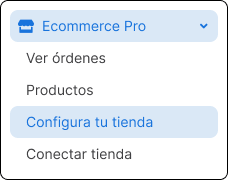
-
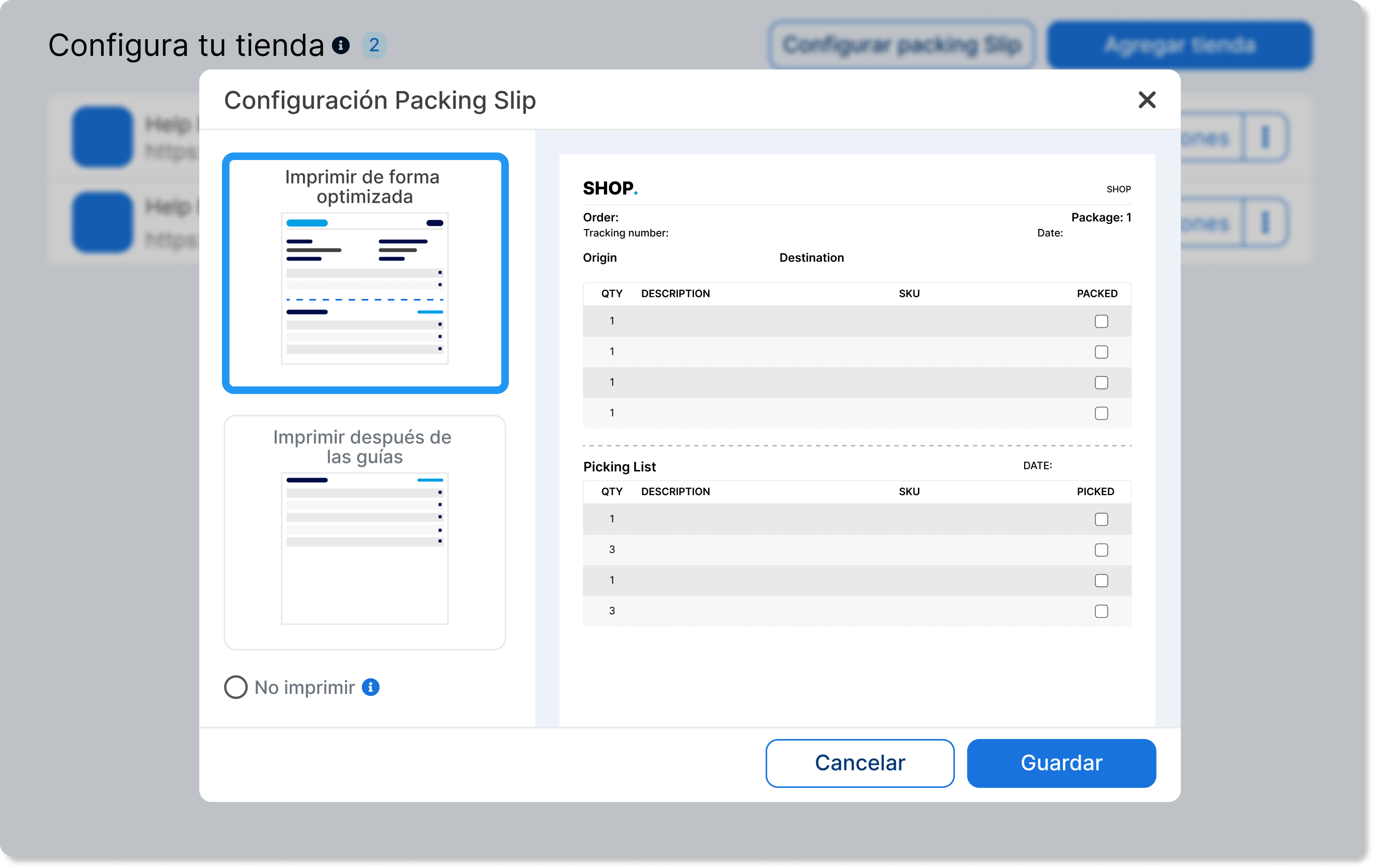
Select the Set up packing slip button.

-
Choose the print option you prefer.
Optimized printing. Groups several packing slips on a single sheet to reduce paper use.
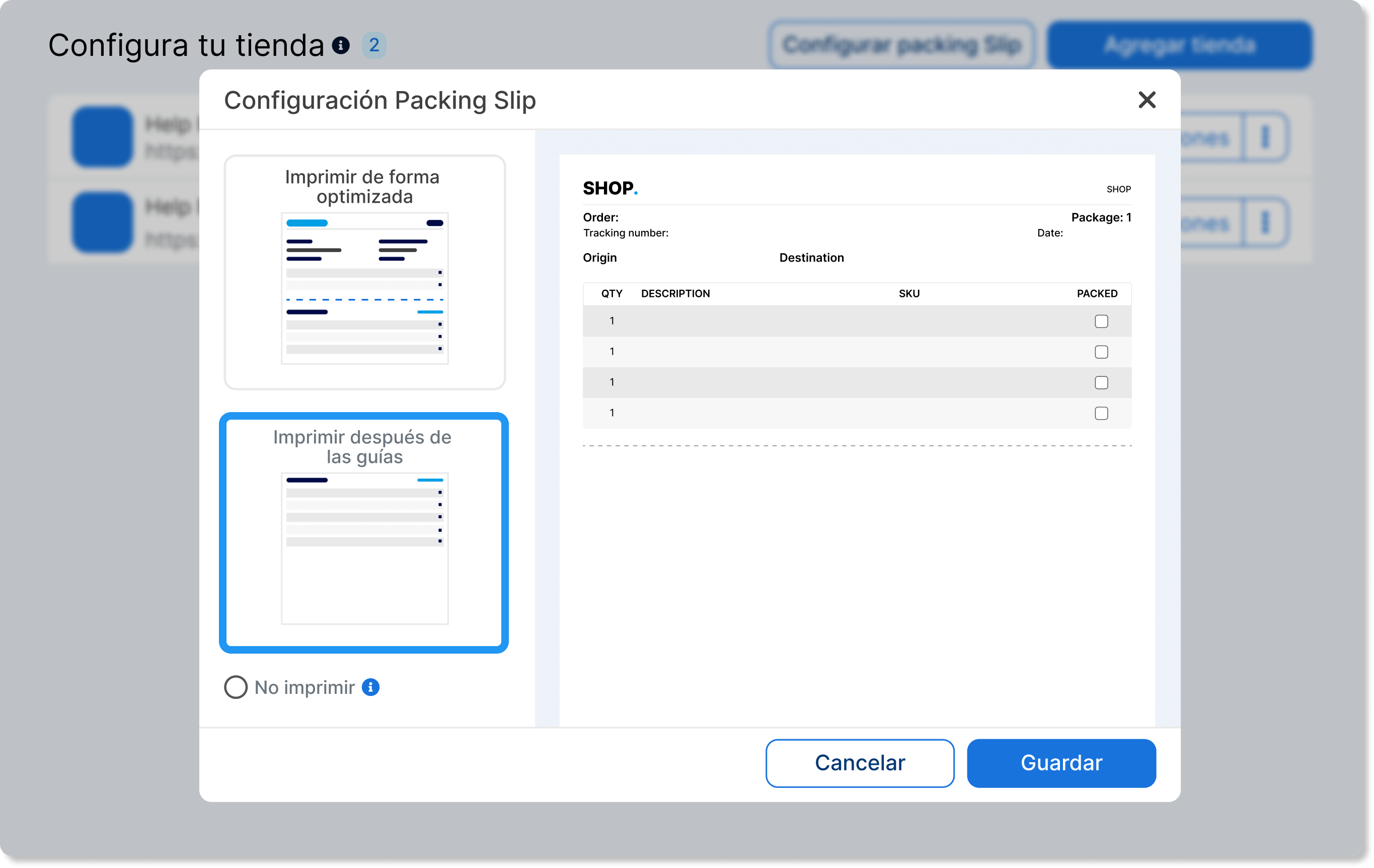
Print after the labels. Prints each packing slip after its corresponding label.
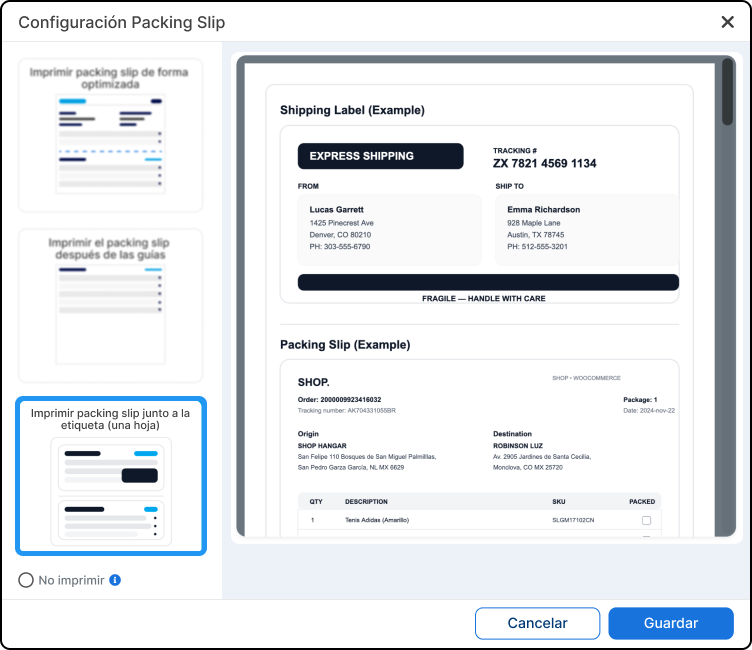
Print packing slip next to the label. Generates and prints the label and the packing slip in the same document.
Frequently asked questions
Section titled “Frequently asked questions”Can I change this setting at any time?
Yes, you can change these options whenever you need from your store settings section.
What happens if I leave the default options?
Individual printing per label and automatic download of each packing slip will stay in place.
Does this setting affect the labels?
No, these options only apply to printing and downloading packing slips. Labels keep working as usual.