Scheduled maintenance on Envia.com: Thursday, October 29, 12:00–12:30 a.m. Login, APIs, and operations will be unavailable.


Link a product to a shipping package
When you manage multiple products, it is important that each one is linked to the correct package so your shipments are quoted and processed accurately. With the Packaging and shipping settings, you can define exactly which type of box each product will travel in, whether in a standard package or in its own box.
Packaging types
Section titled “Packaging types”| Packaging type | When to use it? |
|---|---|
| Third-party package | When the product is packed in a standard or carrier box. |
| Own packaging | When the product already comes in its own integrated box. |
Configure packaging for a product
Section titled “Configure packaging for a product”Third-party package
Section titled “Third-party package”-
Sign in to your Envia.com account
-
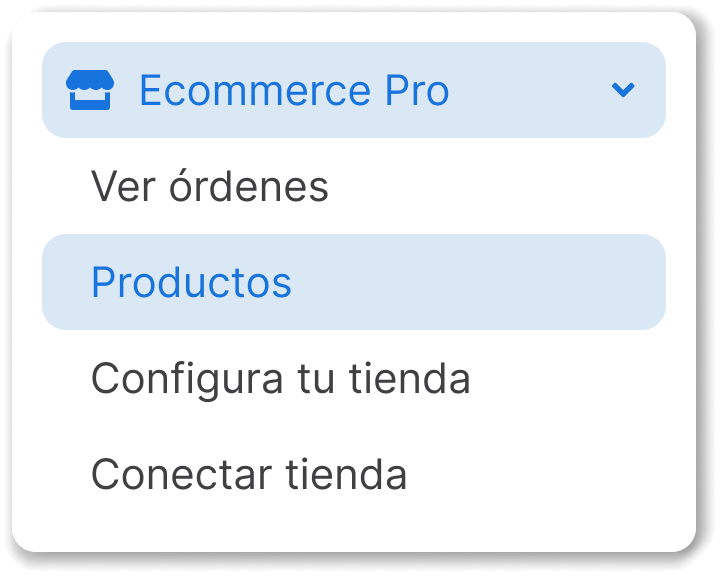
Go to Ecommerce Pro > Products.
-
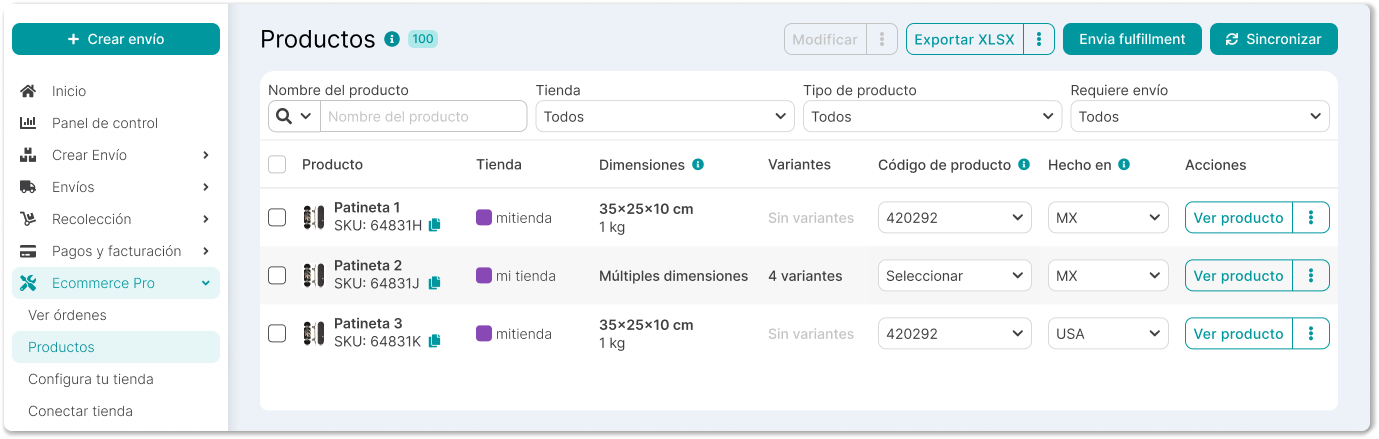
Select one of the products you want to configure.
-
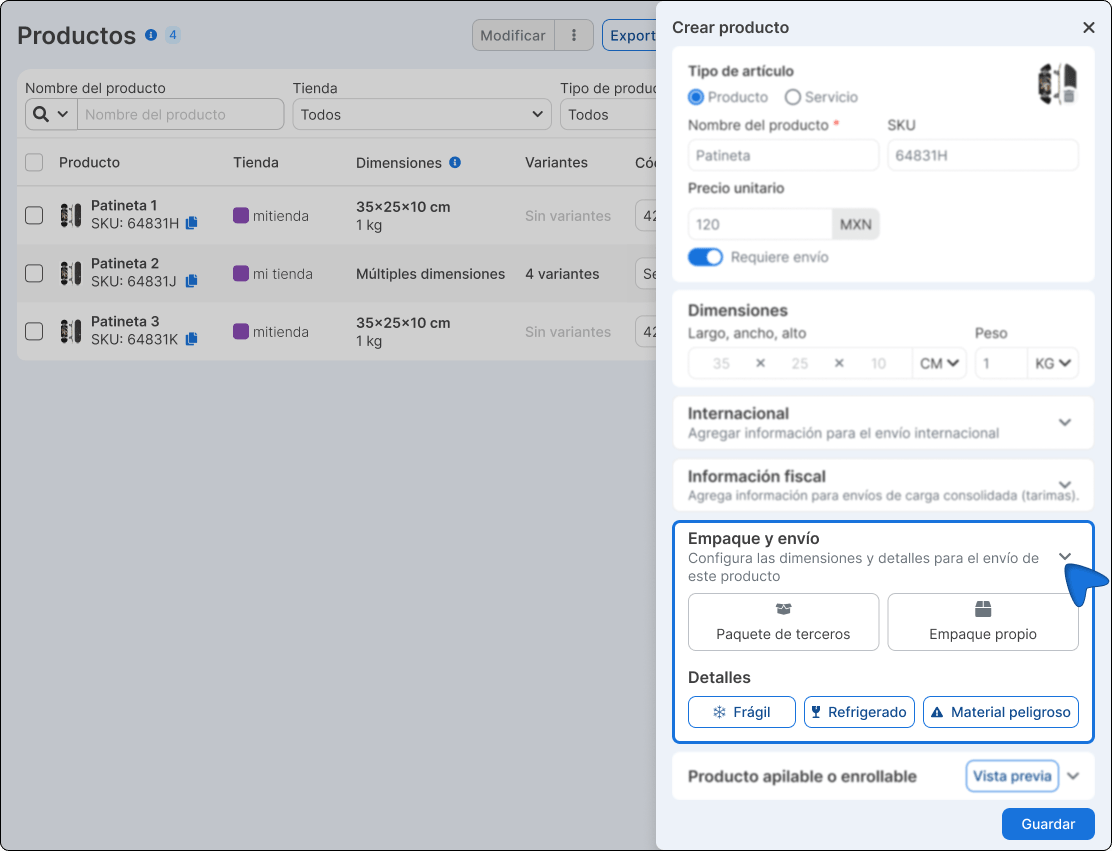
Go to the Packaging and shipping section
-
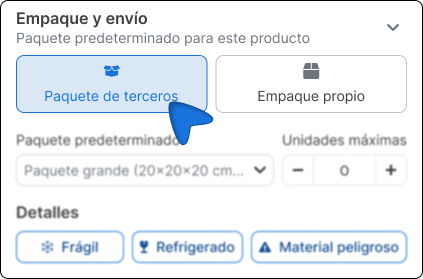
Select the Third-party package tab.
-
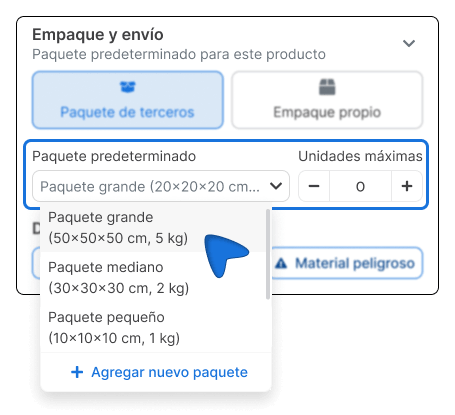
In the Default package field, click the dropdown menu and choose the package that corresponds to the product, or create a new package.
-
In the Maximum units field, define how many pieces of the product fit in that package.
-
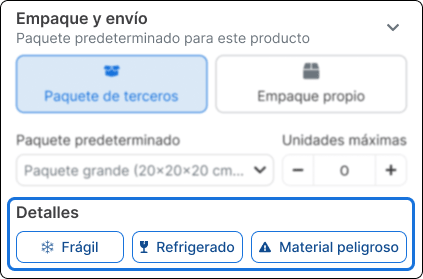
In the Details section, enable the labels that apply to the product.
- Fragile product. The product requires special handling to avoid damage.
- Refrigerated shipping. The product needs a cold chain during transport.
- Hazardous material. The product contains materials with shipping restrictions.
Own packaging
Section titled “Own packaging”Use this option when the product already comes packed in its own box and the packaging dimensions are the same as the product’s.
-
Sign in to your Envia.com account
-
Go to Ecommerce Pro > Products.
-
Select one of the products you want to configure.
-
Go to the Packaging and shipping section.
-
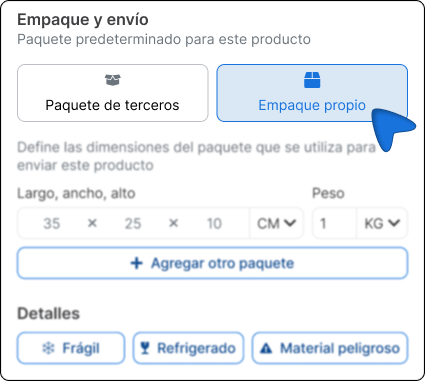
Select the Own packaging tab.
-
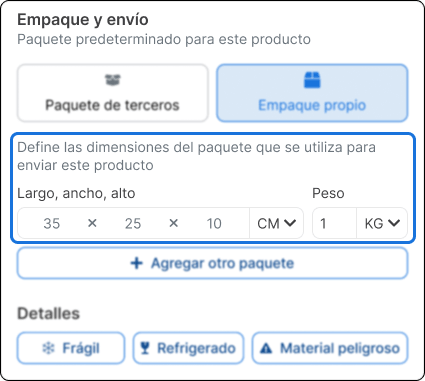
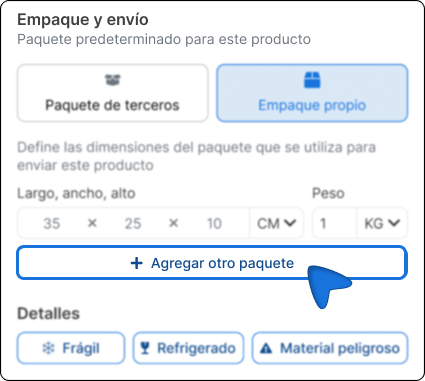
Enter the packaging dimensions in the Length × Width × Height fields and the Weight.
-
And choose the unit of measure (CM / KG) from the selectors next to each field.
-
(Optional) If the product can be presented in more than one box format, select + Add another package to register additional dimensions.
-
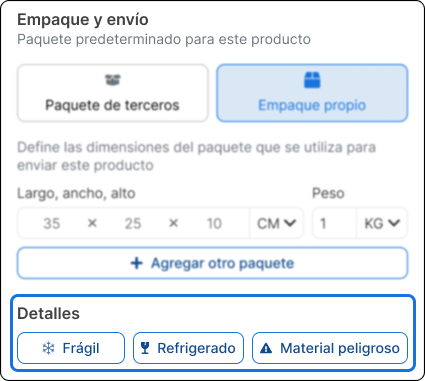
In the Details section, enable the labels that apply to the product.
- Fragile product. The product requires special handling to avoid damage.
- Refrigerated shipping. The product needs a cold chain during transport.
- Hazardous material. The product contains materials with shipping restrictions.
-
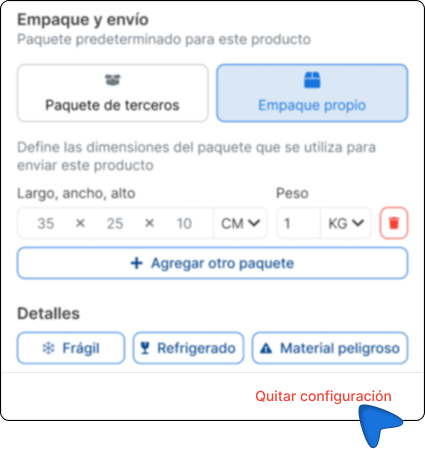
If you need to remove all packaging configuration from the product, select Remove configuration at the bottom of the section.
Important notes
Section titled “Important notes”- The Maximum units field defines the piece limit per box, not the number of boxes per order.
- New packages created from a product are saved in the general package catalog and can be reused on other products.
- The Own packaging option is designed for products with an integrated box: cosmetics, small appliances, branded presentation items, among others.
Frequently asked questions
Section titled “Frequently asked questions”Can I assign the same package to several products? Yes. A package saved in your catalog can be selected on all products that need it.
Can I change the package assigned to a product later? Yes, you can edit the packaging configuration at any time from the product details.
Does the packaging configuration affect the shipping quote? Yes. The package dimensions and weight are the data carriers use to calculate the shipping rate.