Scheduled maintenance on Envia.com: Thursday, October 29, 12:00–12:30 a.m. Login, APIs, and operations will be unavailable.


Account statement
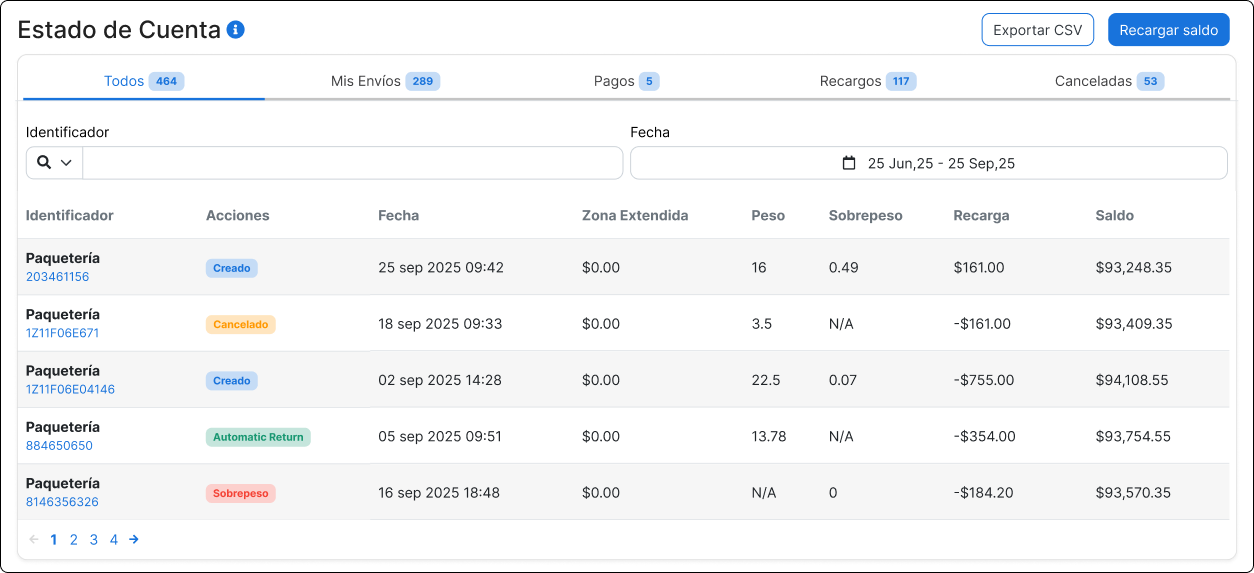
The account statement in Envia.com is where you can review all financial movements related to your shipments. Here you will find details such as top-ups, label charges, fees, refunds, and the updated balance after each operation.
The account statement lets you:
- Review financial movements by shipment
- Identify top-ups, charges, and refunds
- See your current balance at any time
- Download a detailed history in Excel format
- Filter by date or movement type
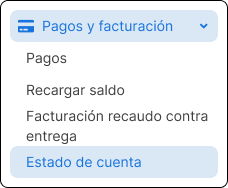
Access the account statement
Section titled “Access the account statement”-
Sign in to your Envia.com account
-
The table with all your most recent movements will open.
Filters and top navigation
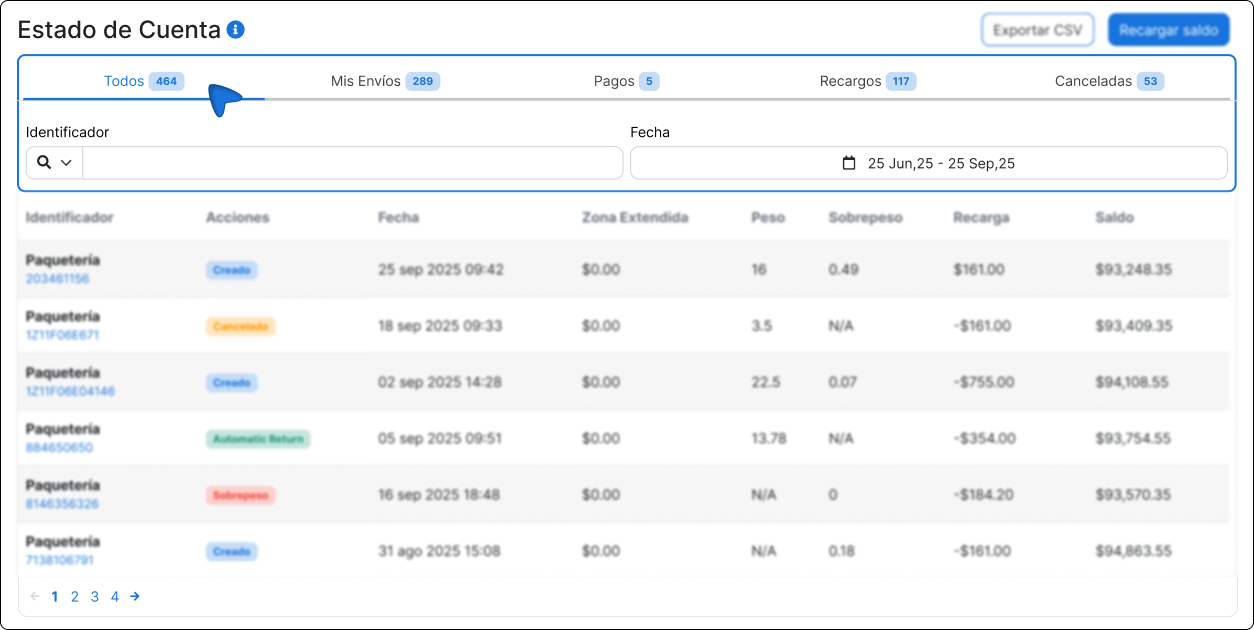
Section titled “Filters and top navigation”At the top of the table you will find tools to customize the view:
- Filter by identifier: You can search by tracking number or shipment code
- Filter by date: Use the calendar to choose a specific date range
- Category tabs:
- All: Shows all movements
- My Shipments: Only the labels generated
- Payments: Incoming movements
- Surcharges: Additional charges (such as overweight or extended area)
- Canceled: Labels that were not charged
Account statement table
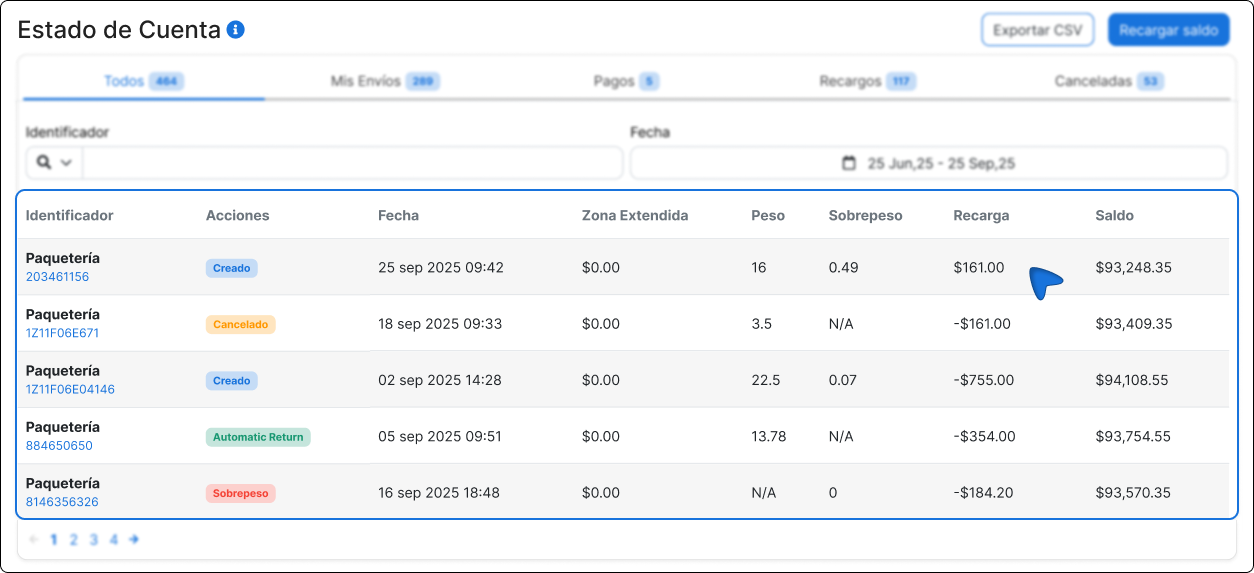
Section titled “Account statement table”Each row in the table represents an individual operation and contains the following fields:
| Column | Description |
|---|---|
| Identifier | Carrier name and tracking number associated with the movement. |
| Actions | Shipment status (Created, Canceled, Overweight, etc.). |
| Date | Date and time the movement was generated. |
| Extended area | Extra amount if the destination is in a remote area. |
| Weight | Declared weight of the package. |
| Overweight | Additional weight detected (if there was a surcharge). |
| Top-up | Positive amount (top-up) or negative amount (discount or charge) applied to the balance. |
| Balance | Total amount available in your account after that movement. |
Frequently asked questions
Section titled “Frequently asked questions”Can I see movements from previous months?
Yes, you only need to adjust the date range with the calendar filter.
What should I do if I see a charge I do not recognize?
Contact our support team.