Scheduled maintenance on Envia.com: Thursday, October 29, 12:00–12:30 a.m. Login, APIs, and operations will be unavailable.


Generate bulk shipments
Bulk shipments 2.0 is the space to build a batch (“list of shipments that you quote and label together”), compare carriers, and generate several labels without entering each shipment separately. It is in Bulk shipments 2.0.
On the screen you will see New batch, Your batches, Save batch, and Back to batch. The flow is: you add shipments → the table validates each row → Quote → you choose a service → Generate labels. From history you reopen a batch you already saved. Help (top right) opens this guide.
How to enter
Section titled “How to enter”-
Go to shipping.envia.com.
-
In the menu, open Bulk shipments 2.0.
-
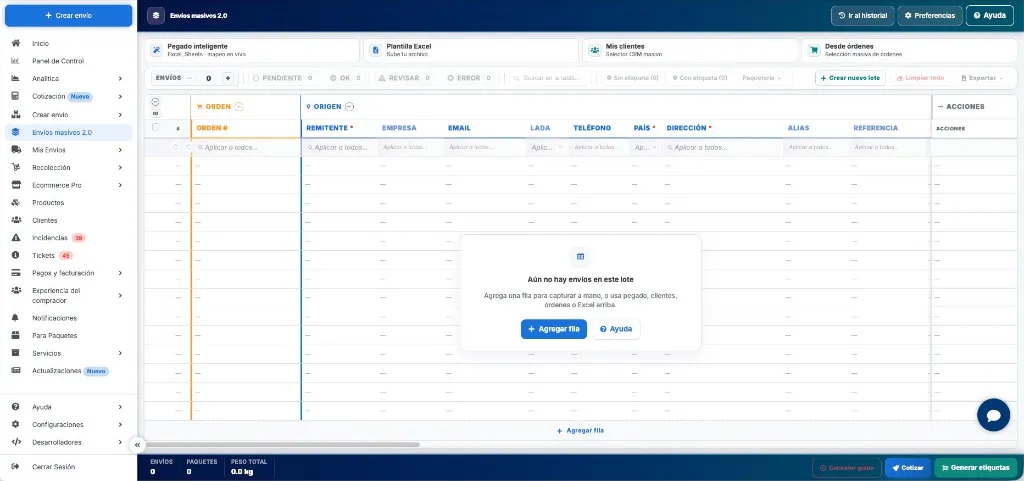
You start with an empty table (New batch). To see batches you already saved, choose Go to history.
History: Your batches
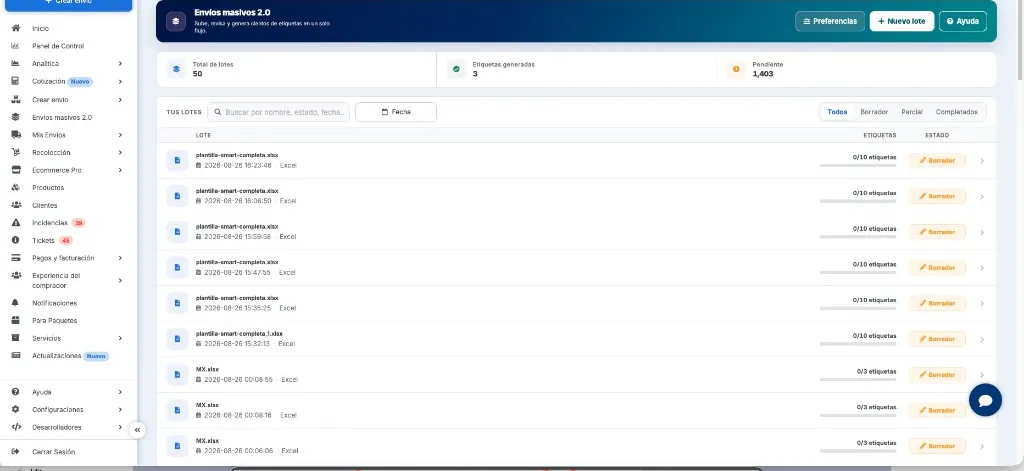
Section titled “History: Your batches”Your batches is the history: each row is a batch you already saved. The header summarizes Total batches, Labels generated, and Pending.
- Open Go to history, or enter the Bulk shipments 2.0 menu and go to the Your batches list.
- Search by name, status, or date. Filter by Date or by tab: All, Draft, Partial, Completed.
- Click a row to open that batch in the table. + New batch starts an empty batch.
| Column | What you see |
|---|---|
| Batch | Name (file or Batch + number), date, and where it came from (for example Excel). |
| Labels | How many have already been generated out of the total, for example 0/10 labels. |
| Status | Draft (no labels), Partial (some), or Completed (all). |
Preferences and Help are also on this screen.
Add shipments to the batch
Section titled “Add shipments to the batch”If the table is empty, you will see: There are no shipments in this batch yet. Choose + Add row or one of the methods above. You can mix several methods in the same batch.
| Method | What it is for |
|---|---|
| Smart paste | You paste from Excel or Sheets and map the columns to Envia fields. |
| Excel template | You upload a file. If your sheet does not follow the template, it interprets the file with AI. |
| My customers | You choose recipients from your saved customers. |
| From orders | You choose orders from your connected store. |
| + Add row | You enter a shipment by hand. |
In Excel template you can download an official template, one with more descriptive names, or one by country.
When importing, choose whether you replace the current rows or add the new ones to the batch. + Create new batch (in the table bar) opens another batch; the current one is saved if it already had a name.
What the table shows
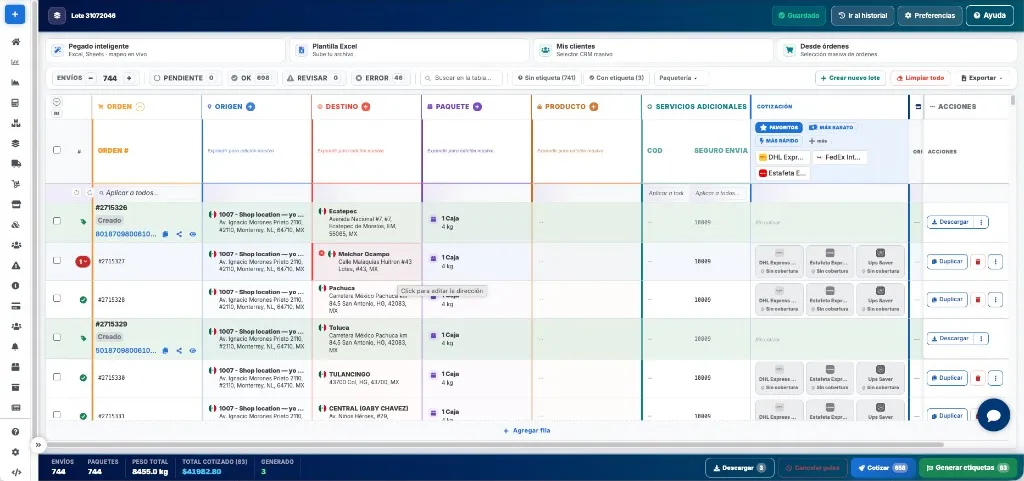
Section titled “What the table shows”Each row is a shipment. Column groups are by color. Click a cell to edit it (in address you will see Click to edit the address).
| Group | What it captures |
|---|---|
| Order | Order number. If there is already a label, the status (for example Created) and the tracking link. |
| Origin | Who sends: sender, company, email, area code, phone, country, address, alias, reference. Fields with an asterisk are required. |
| Destination | Who receives, with the same address logic. |
| Package | Type (for example box), measurements, weight, and quantity. Several packages in the same row are an MPS shipment. |
| Product | What travels: name, SKU, value, HS Code (international shipments), SAT codes if they apply. |
| Additional services | COD (cash on delivery) and Envia Insurance, with the amount if you turned it on. |
| Quote | Prices by carrier for that row. |
| Actions | Download, Duplicate, or delete the row. |
Below the headers is the Apply to all… row: you type a value once and it is copied to the rows (or only to the ones you have checked).
The bottom bar shows Shipments, Packages, Total weight, the quoted total, and how many labels were already Generated.
Complete, filter, and save
Section titled “Complete, filter, and save”To quote without blocks, complete recipient, country, and destination address, package type, and weight. In origin, Sender, Country, and Address are marked as required. Phone, email, contents, and declared value avoid the Needs review status.
- Complete or correct the cells. In Address, use the country form (street, number, neighborhood, postal code).
- Use Apply to all… when several rows share sender, weight, or package type.
- Filter the table:
- Shipments is the total. Pending, OK, Needs review, and Error are the validation result.
- Search in the table… finds text.
- Without label / With label separate rows that do not yet have a label.
- Carrier shows only one service, when you already quoted.
- When it is saved, you will see Saved. If it is a new batch, give it a name. If you leave with changes, choose Save and exit, Cancel, or Exit without saving.
Clear all deletes data from rows without a label (asks for confirmation). Export downloads the batch to Excel. Rows that already have a label are not edited or cleared.
How quoting works
Section titled “How quoting works”- In the bottom bar, choose Quote. The number on the button is how many rows will be quoted. The batch is saved first if there are pending changes.
- In Quote, compare prices per row. Above the logos you can see Favorites, Cheapest, and Fastest.
- Click the carrier for that row. No coverage means that service does not apply to that route.
- If the service uses a branch, assign it on the row or leave the nearest one / your Preferences branch.
Favorites uses the Domestic shipment, International shipment, and LTL / Pallets lists from Preferences. If all rows already have a price, the button switches to quote again.
Generate labels
Section titled “Generate labels”- Correct the rows in Error or Needs review. Generate labels uses the quoted and ready rows (the number on the button indicates this).
- Choose Generate labels. The quoted total in the bar is what is charged for those rows.
- Download or print from Download on the row or in the bar. Copy tracking or open it from the Order column.
- Cancel labels voids labels already generated for the rows you check. It is only enabled when there are labels in the batch.
Labels are also stored in My Shipments.
Quoter preferences
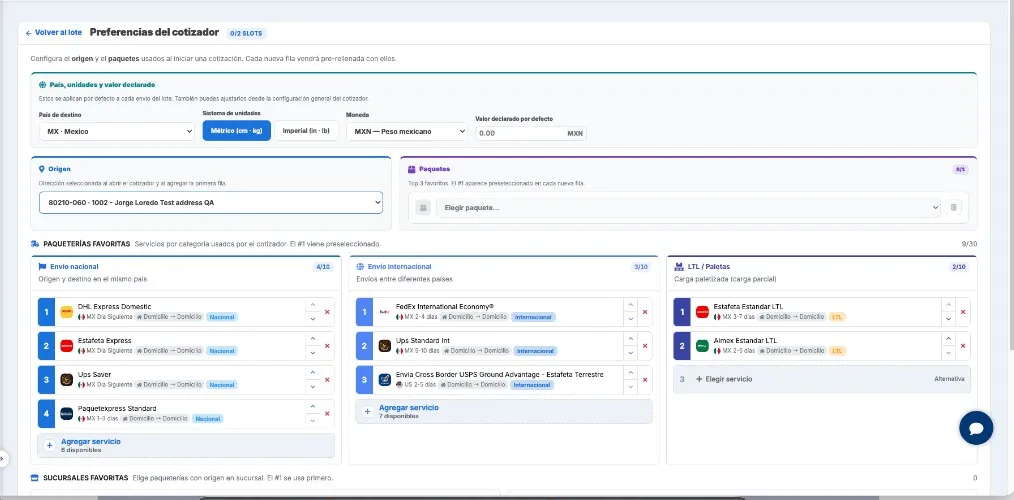
Section titled “Quoter preferences”Preferences opens Quoter preferences. The origin and packages you choose are prefilled on each new row. The Favorite carriers services are the ones in Favorites when quoting. Back to batch returns you to the table.
- In Country, units, and declared value set what applies to each shipment in the batch:
- Destination country
- Unit system: Metric (cm · kg) or Imperial (in · lb)
- Currency
- Default declared value
- In Origin choose a saved address. In Packages build up to three favorites with Choose package…. #1 is used on new rows.
- In Favorite carriers sort services by type. #1 of each list is preselected when quoting. Raise or lower priority with the arrows, or remove a service with X.
- + Add service (or Choose service if the space is empty) opens the catalog. Favorite branches, below, saves delivery or pickup branches by service.
| List | When it is used |
|---|---|
| Domestic shipment | Origin and destination in the same country. |
| International shipment | Origin and destination in different countries. |
| LTL / Pallets | Freight shipments (pallets). |
Each list allows up to 10 services. You do not need to fill them all.
Frequently asked questions
Section titled “Frequently asked questions”Which countries is it available in? Today in Mexico and the United States. In upcoming releases Colombia, Guatemala, Brazil, and India will be enabled. The rest of the countries will open in stages.
Does this replace Excel shipments? No. Excel shipments remains in Create shipment. Bulk shipments 2.0 is the table to build, quote, and generate the batch on the same screen.
Can I make international shipments? Yes. Complete Product, HS Code, and the declared value. The quote uses your favorite international services when origin and destination are different countries.
What are COD and Envia Insurance in the table? They are services per row. COD charges the recipient at delivery. Envia Insurance covers the value you declare. Detail in Cash on Delivery (COD) shipments and Envia Insurance.
A row says No coverage. That carrier does not cover that route or data is missing. Try another service or correct address, weight, and package type, and Quote again.