Scheduled maintenance on Envia.com: Thursday, October 29, 12:00–12:30 a.m. Login, APIs, and operations will be unavailable.


Add products
Adding your products lets you register the information you need to create shipments faster and more accurately. Once your products are created, you can reuse them when you generate domestic or international shipments, without capturing the same information on every operation.
From this flow you can add products with or without a connected ecommerce and define key data from the start such as dimensions, weight, and settings for international shipments.
- Register products to use them directly when you create shipments.
- Add products even if you do not have a connected ecommerce.
- Define dimensions, weight, and logistics details of the product.
- Prepare products for international shipments from the moment you create them.
Steps to add a product
Section titled “Steps to add a product”-
Sign in to your Envia.com account.
-
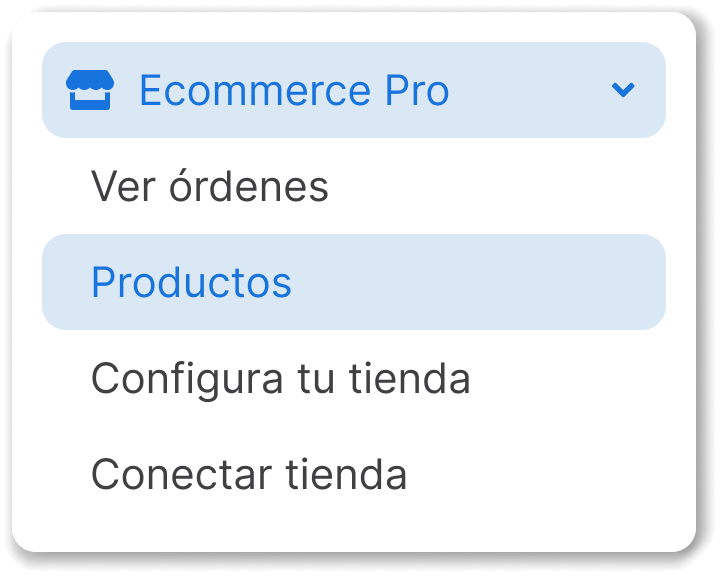
In the side menu, select Ecommerce Pro > Products.
-
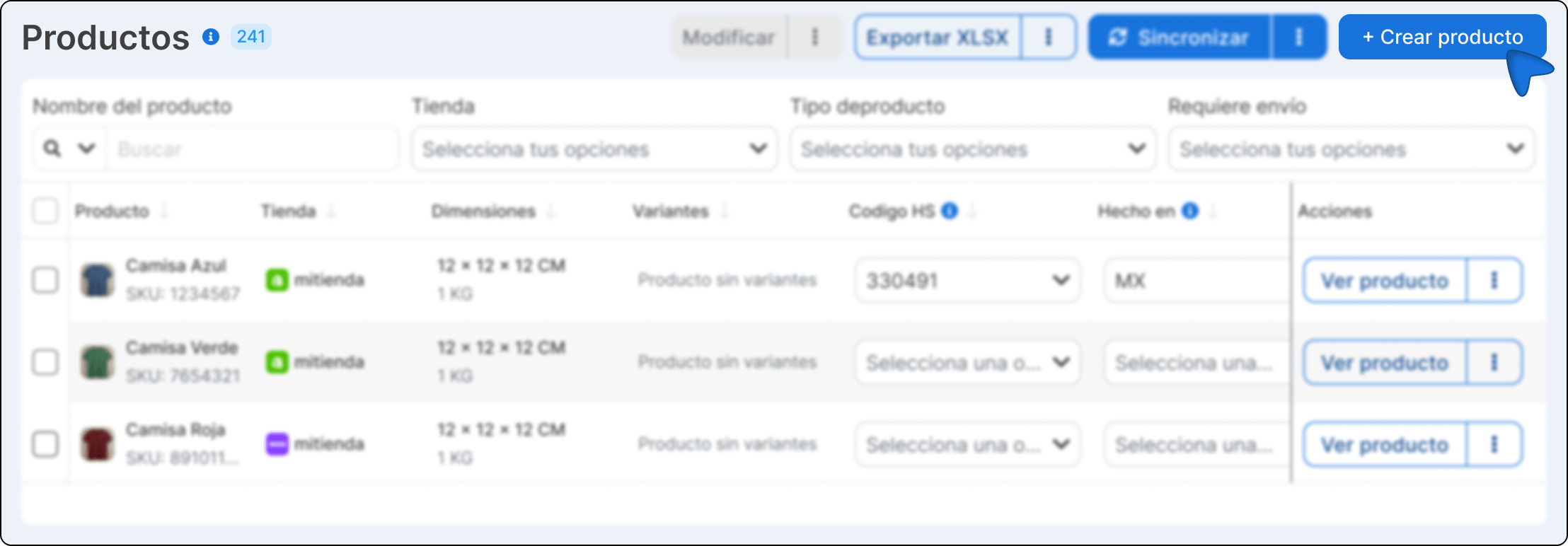
Click Create product +.
-
Complete the fields with the product information.
Product type
Section titled “Product type”-
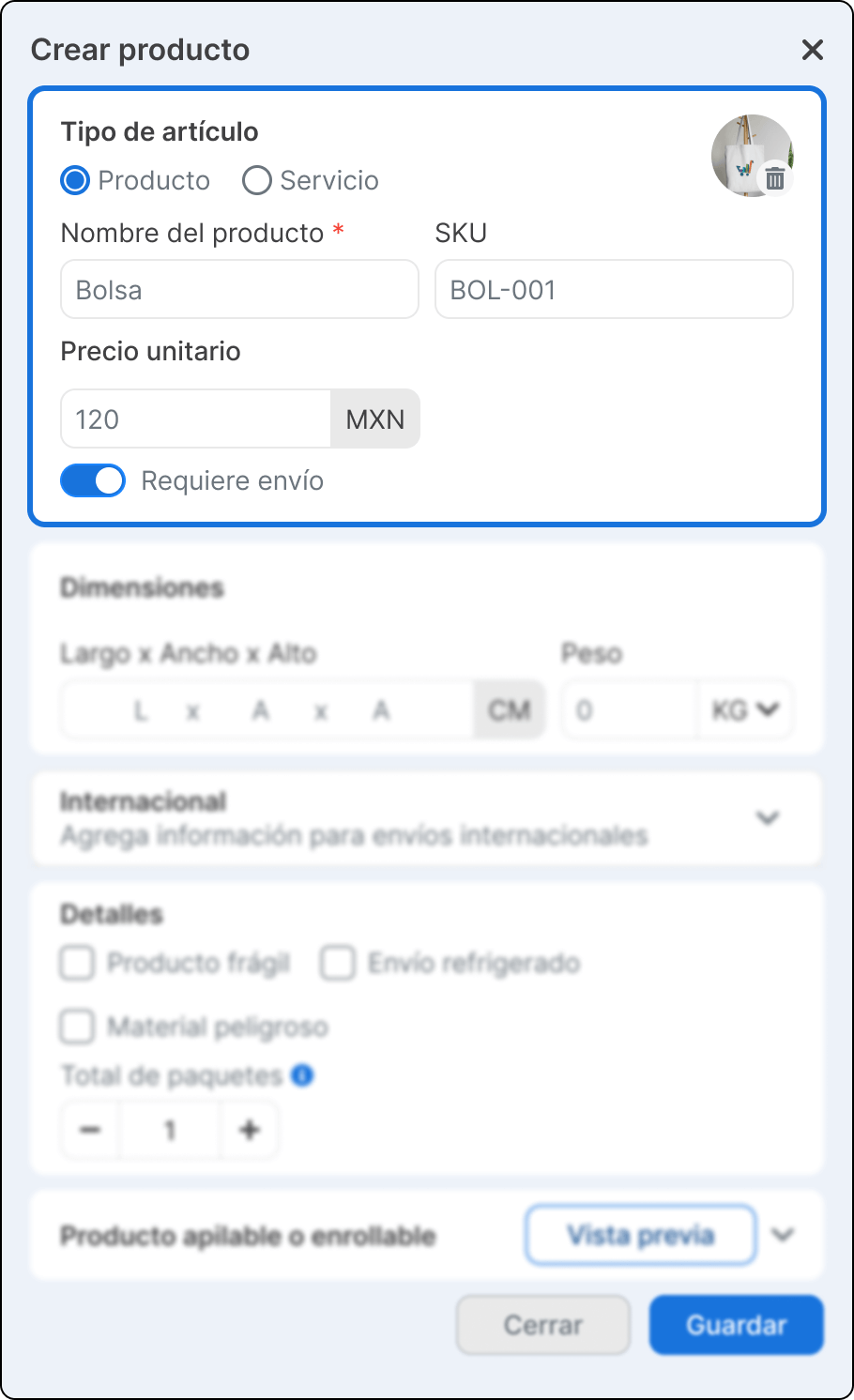
Indicate whether the item you are creating is a Product or a Service.
- Product. Select this option if it is a physical good that may require shipping.
- Service. Select this option if the item does not require physical shipping.
-
Complete the fields to identify your product.
- Product image. Image to identify the product. Applies only to products created in envia.com.
- Product name. Name you will use to identify the product when you create shipments.
- SKU. Internal code to identify the product. (Optional)
- Manufacturer ID. Code the manufacturer uses to identify the product. It is optional when you create the product. If you check I manufacture this product, the SKU is copied and the field is locked. When you declare a DHL or FedEx shipment to the European Union, this code and the SKU become required. The details are in Product declaration.
- Barcode (ISBN, UPC, GTIN, etc.). Code printed on the product. It is optional and does not block saving the product.
- Unit price. Product sale price in your account currency.
- Requires shipping. Enable this option if the product needs to be shipped physically.
Dimensions and weight
Section titled “Dimensions and weight”-
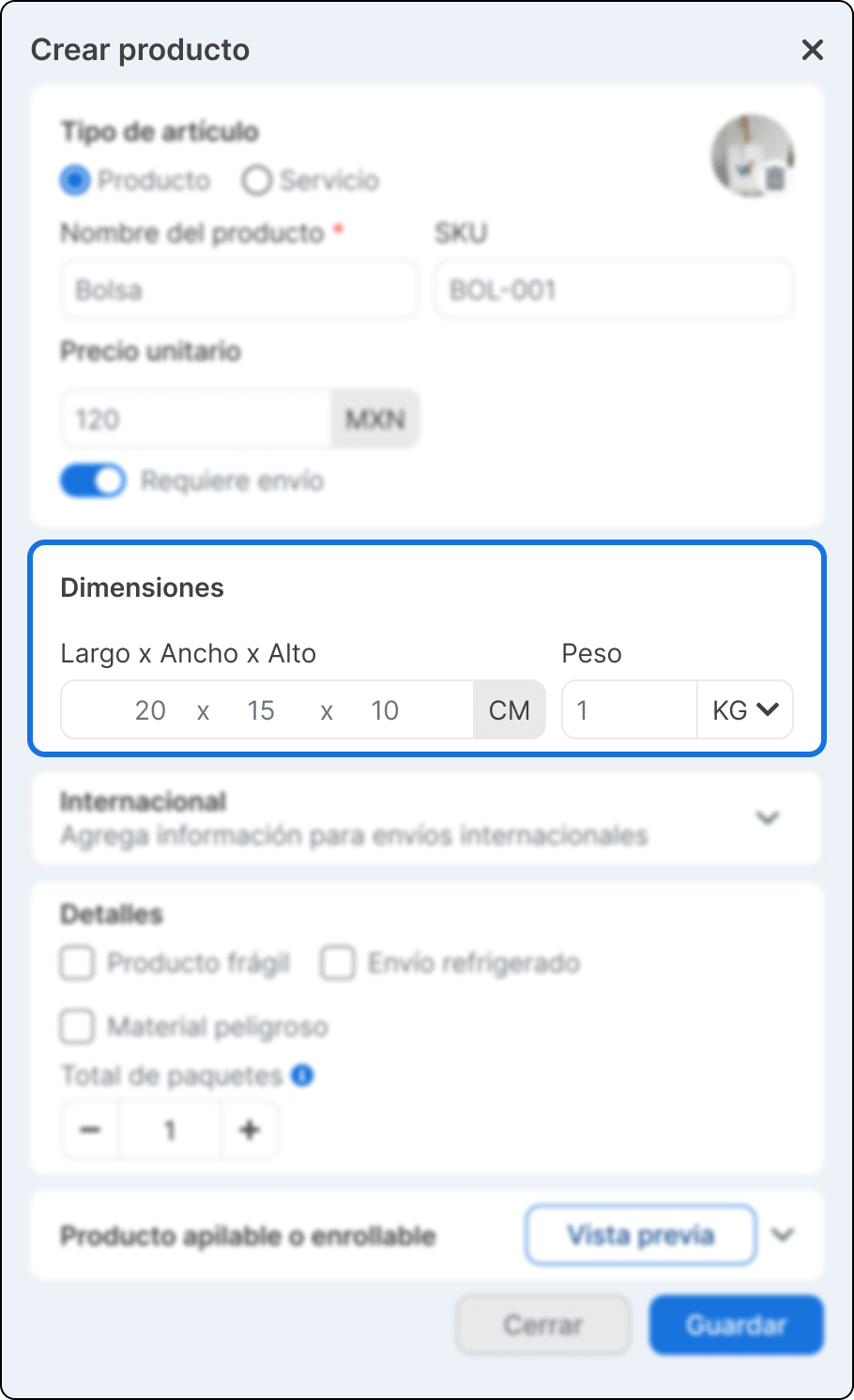
Enter the product measurements to calculate shipments correctly.
- Dimensions. Add the length × width × height of the product.
- Unit of measure. You can choose between centimeters or inches.
- Weight. Enter the product weight and select the unit.
International information
Section titled “International information”-
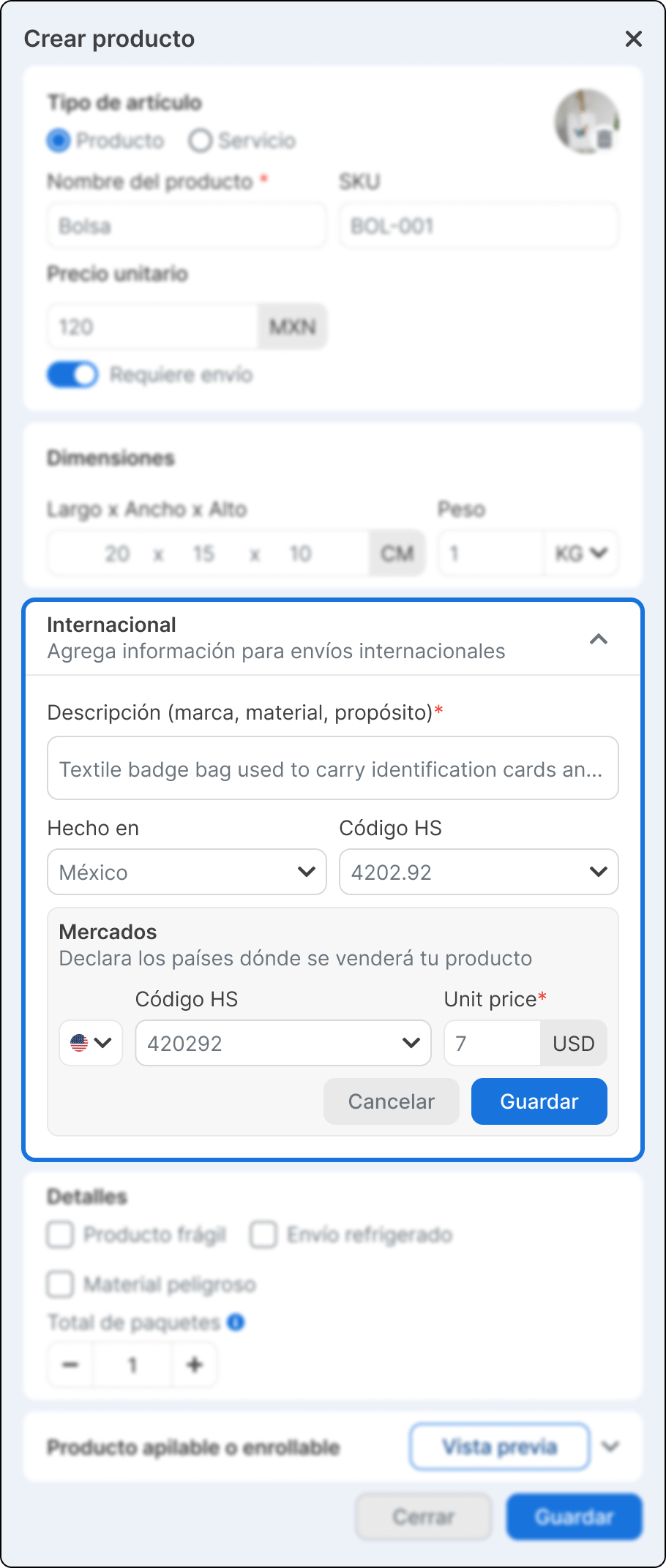
Add this information if your product will be shipped to other countries.
- Product description. Describe the product in English, including brand, material, and purpose.
- Made in. Select the product’s country of origin.
- HS Code. Choose an HS code to classify your product at customs. The system can suggest codes automatically based on the description.
-
Declare the countries where you will sell or ship your product.
- Select the destination country.
- Assign an HS code specific to that country.
- Define the unit price in the corresponding currency.
Product details
Section titled “Product details”-
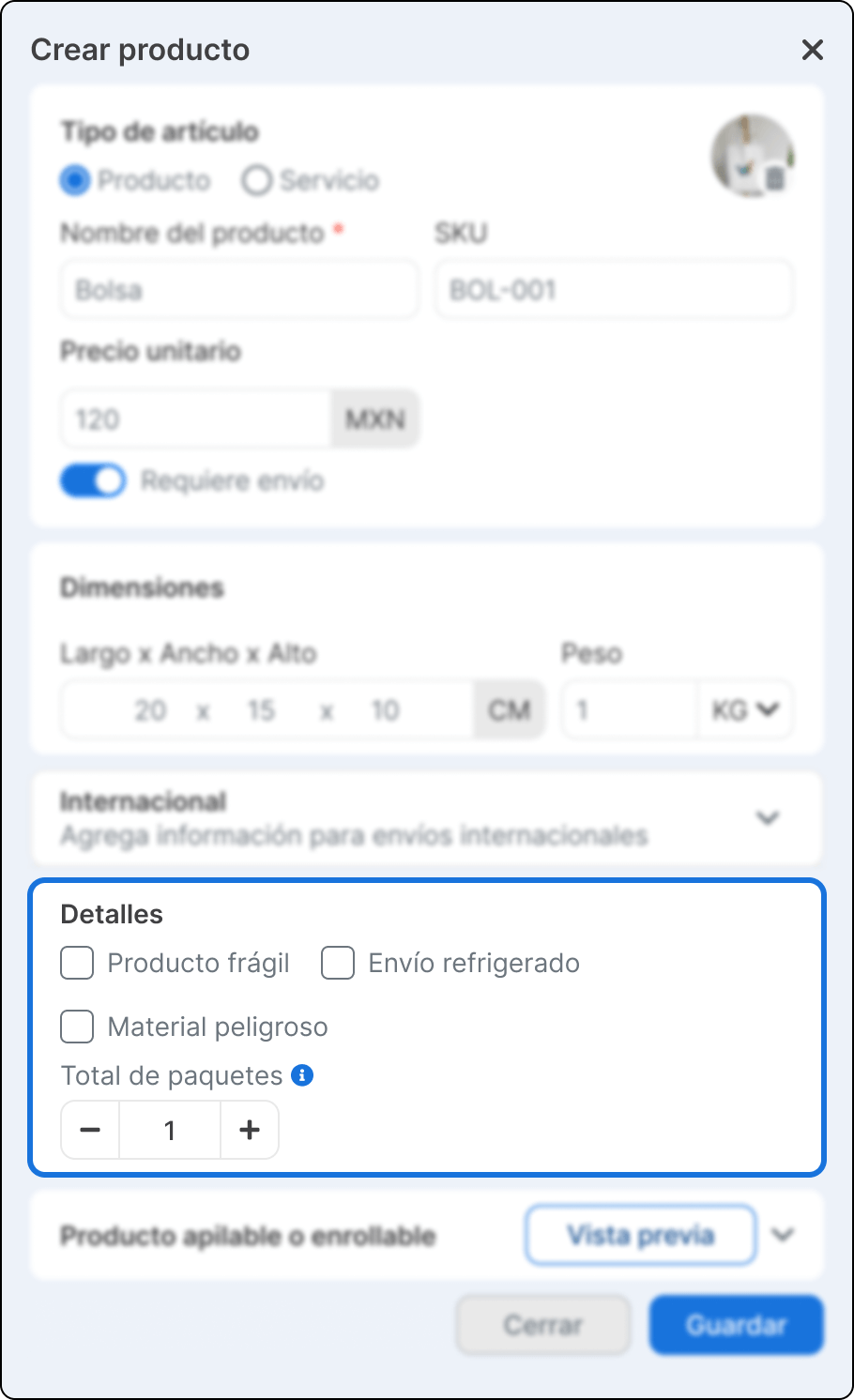
Mark the options that apply based on the product characteristics.
- Fragile product. Indicate if the product requires special handling.
- Refrigerated shipping. Select this option if the product needs temperature control.
- Hazardous material. Mark this option if the product is classified as hazardous material.
-
Indicate the total number of packages the product will be shipped in.
Stackable or rollable product
Section titled “Stackable or rollable product”-
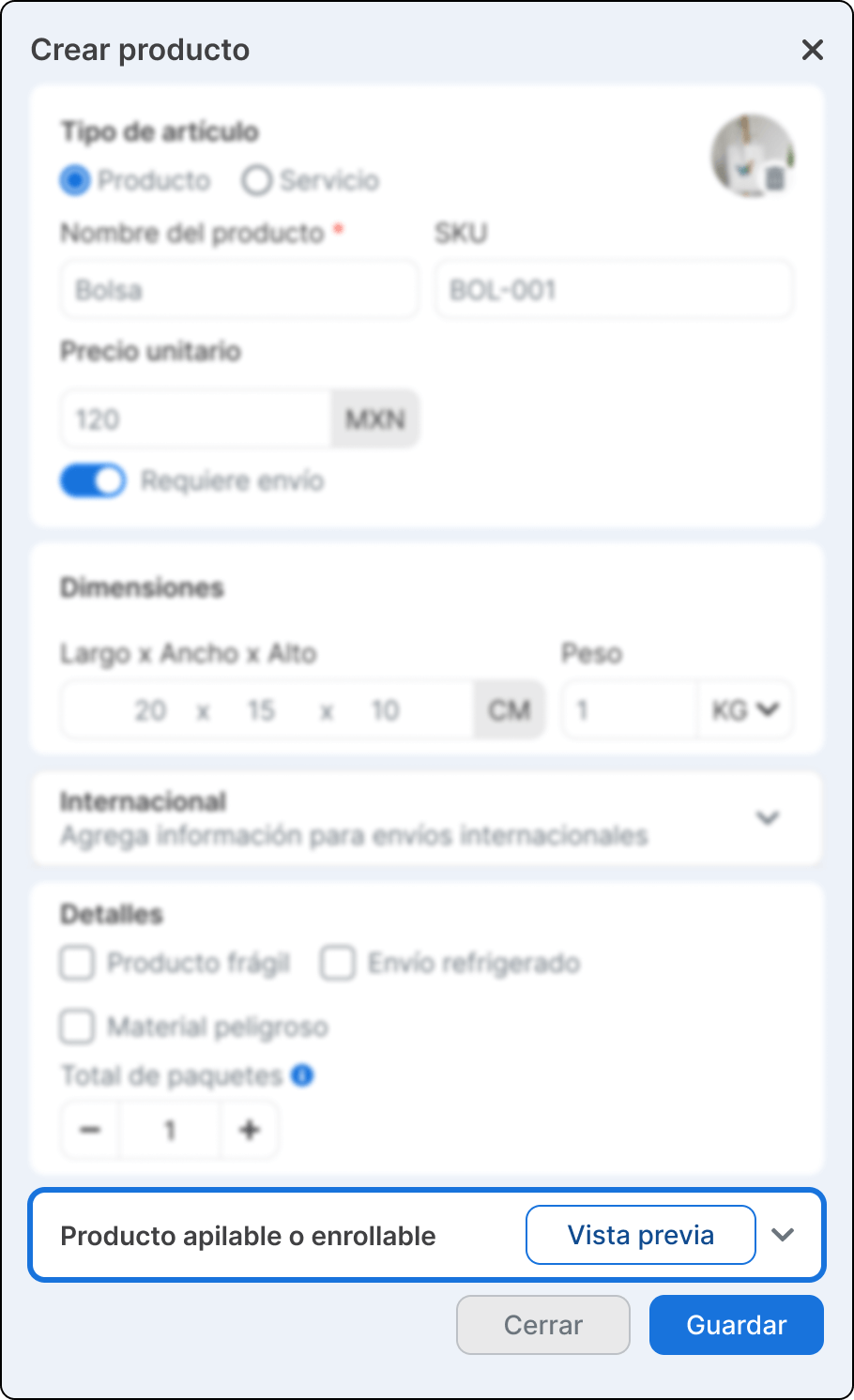
Select how the product behaves during shipping. This configuration helps calculate the space and volume of the shipment correctly.
- Stackable Lets you indicate the height increase when the product is stacked.
- Rollable Applies to products that can be rolled to optimize space.
-
Click Save to create the product.
Difference between ecommerce products and products without ecommerce
Section titled “Difference between ecommerce products and products without ecommerce”Ecommerce products
Section titled “Ecommerce products”On products linked to an ecommerce:
- The name, SKU, and image are not editable.
- You can:
- Add or edit HS codes.
- Configure international markets.
- Define prices by market.
Products without ecommerce
Section titled “Products without ecommerce”On products created directly in Envia.com:
- You can edit all of the product information.
- You can:
- Modify name, SKU, and image.
- Adjust dimensions, weight, and details.
- Configure international information and prices by market.