

Mercado Libre Flex
Mercado Libre Flex allows you to manage same-day or next-day local deliveries directly from Envia.com. Identify your Flex orders, quote, generate and pay for the label before dispatch, all from your Ecommerce Pro panel.
What is Mercado Libre Flex?
Section titled “What is Mercado Libre Flex?”Mercado Libre Flex is a fast local delivery service that appears in your listings as “arrives today” or “arrives tomorrow”. When you connect your Mercado Libre store with Envia.com and request Flex activation, you can operate these shipments with the compatible carriers available in your country.
Benefits of using Flex from Envia.com
Section titled “Benefits of using Flex from Envia.com”- Full visibility: shipments are registered and charged instantly, before dispatch
- Balance control: the cost is deducted immediately, with no subsequent charges
- Centralized management: quote, generate labels and print from a single panel
- Real-time tracking: check the status of each shipment from Envia.com
Prerequisites
Section titled “Prerequisites”Before requesting Mercado Libre Flex activation on Envia.com, you need to meet these requirements:
-
Your Mercado Libre store must be integrated with Envia.com. This allows Flex orders to be identified. If you haven’t connected it yet, consult our Mercado Libre integration guide.
-
Flex must be enabled in your Mercado Libre account. Envia.com verifies this when requesting activation.
-
Have available balance in your Envia.com account. Flex labels are charged before dispatch.
Request Mercado Libre Flex activation
Section titled “Request Mercado Libre Flex activation”You can request Flex activation directly from your Envia.com panel. An advisor will review and approve your request.
-
Log in to your Envia.com account.
-
Go to Ecommerce Pro > Configure your store.
-
Select your Mercado Libre store.
-
Find the Mercado Libre Flex section and activate the service.
-
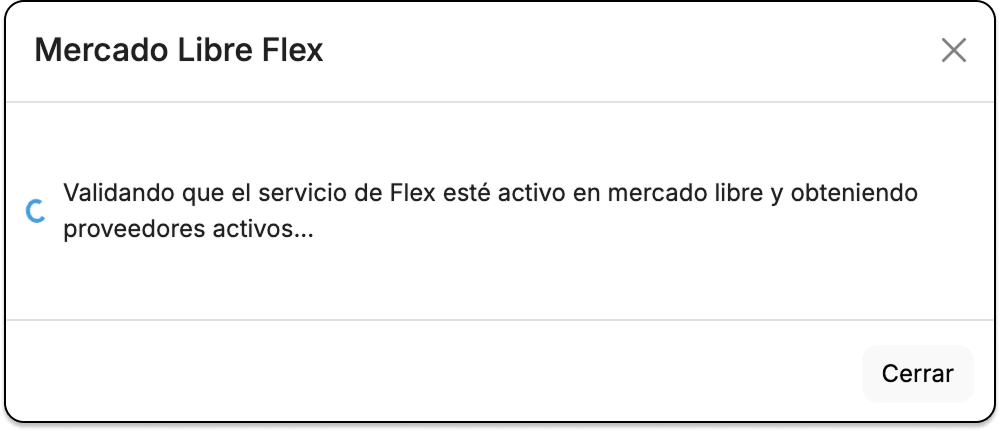
Wait while Envia.com verifies that Flex is enabled on Mercado Libre.
-
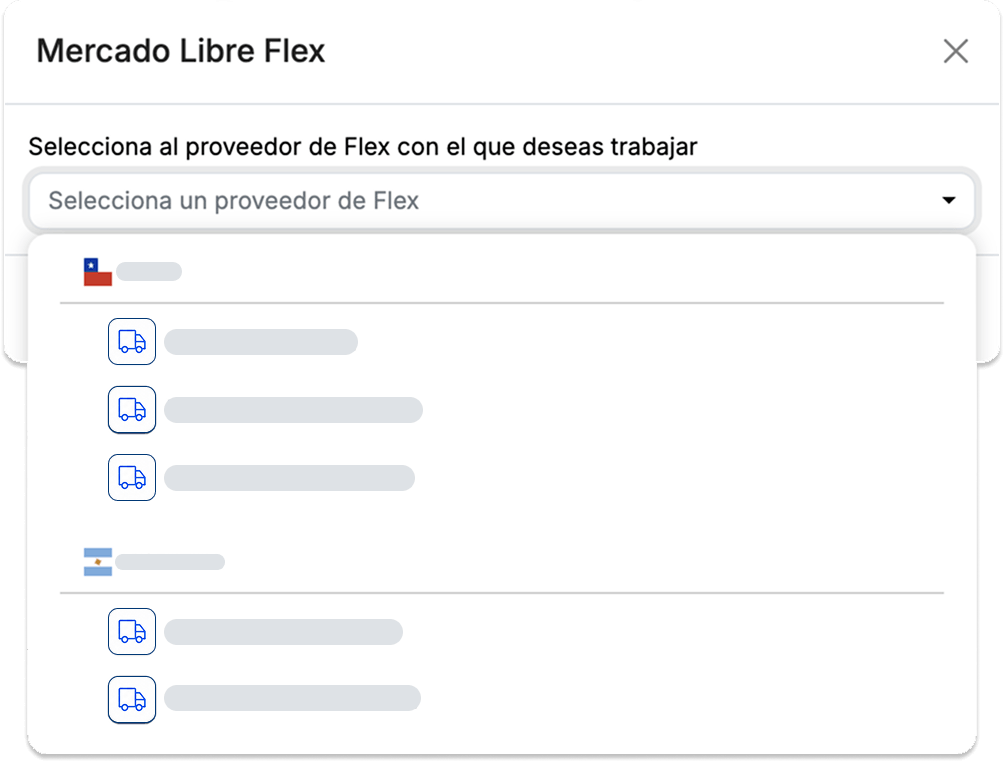
Choose the compatible Flex carrier you want to work with. Envia.com shows the available carriers according to your country.
-
Click Request Activation.
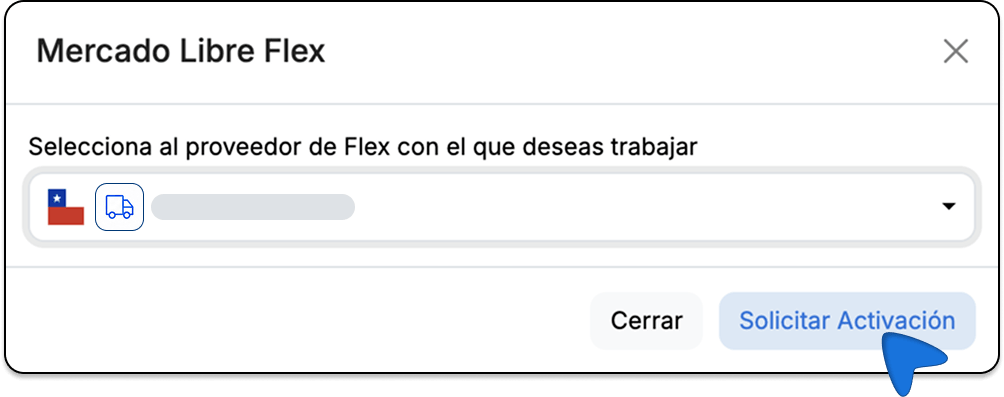
When you submit the request, the status changes to Under review. An Envia.com advisor will review your request and approve or reject it.

Request statuses
Section titled “Request statuses”After submitting your request, you can see its status on the same configuration screen.
| Status | What it means | What you can do |
|---|---|---|
| Under review | An Envia.com advisor is reviewing your request | Wait. Flex orders are not yet dispatched with that carrier |
| Active | The carrier is already configured | Flex orders from that store are dispatched with the chosen carrier |
| Rejected | The request was not approved | Read the reason and request it again, with the same carrier or another |
| Inactive | The service is not in use | You can request activation again |
| Cancelled | The activation was cancelled | You can request activation again |
If your request is rejected, you will see the reason on the screen. You can review the information and submit a new request.
Daily operation: how to manage your Flex shipments
Section titled “Daily operation: how to manage your Flex shipments”Once Flex is active, you can manage your shipments directly from Ecommerce Pro.
Identify Flex orders
Section titled “Identify Flex orders”Mercado Libre orders with Flex logistics appear with a FLEX label in your Ecommerce Pro panel. These orders have the Quote option available.
Quote the shipment
Section titled “Quote the shipment”-
Click Quote on the Flex order.
-
Envia.com displays the available services. The Flex service from the operator you configured will appear with its cost.
-
Select the Flex service to continue.
Generate and charge the label
Section titled “Generate and charge the label”-
Confirm the label generation.
-
The cost is automatically deducted from your Envia.com balance.
-
The shipment is registered and the label is ready to print.
Label with watermark
Section titled “Label with watermark”The label that Envia.com generates is the Mercado Libre label with a watermark. This mark indicates that the label was processed and previously authorized through Envia.com.
-
Download or print the label from Envia.com.
-
Place the label correctly on the package.
-
Deliver the package for pickup by the Flex operator.
-
Tracking: statuses are updated on Envia.com and the label also appears in Ecommerce Pro.
Bulk generation and manifests
Section titled “Bulk generation and manifests”Flex orders are integrated with all Envia.com tools. You can:
- Generate Flex labels in bulk from Ecommerce Pro
- Download and print multiple labels at once
- Generate and print manifests for your Flex shipments
- Check generated shipments immediately
- Maintain control of your balance in real time
Contingency flow
Section titled “Contingency flow”If for any exceptional situation you cannot generate or print the label from Envia.com, you can use the contingency flow:
-
Print the label directly from your Mercado Libre account.
-
Prioritize dispatch to comply with delivery times.
-
The operator registers the label upon receiving the package.
-
The shipment is identified later on Envia.com.
Frequently asked questions
Section titled “Frequently asked questions”Do I need anything else besides having the store integrated?
Yes. You also need Flex to be enabled in your Mercado Libre account and for the activation process to be completed on Envia.com with the chosen carrier.
Where do I generate Flex labels?
In Ecommerce Pro. Identify the order with the FLEX label, click Quote and then Generate. You can also generate them in bulk.
When is the label charged?
When confirming generation, before dispatch. The cost is deducted from your balance and the shipment is registered immediately.
What do I do if I cannot generate the label?
Use the contingency flow: print the label from Mercado Libre and dispatch on time to not affect your reputation.
In which countries is it available?
Mercado Libre Flex is available in several countries. The compatible carriers that Envia.com displays depend on your location.
Can I use Flex with WMS Fulfillment?
Yes. If you use Envia.com’s warehouse and fulfillment (WMS) service, you can integrate Mercado Libre Flex. First you must have Flex active on Envia.com, and then coordinate additional configuration with the WMS team.