Scheduled maintenance on Envia.com: Thursday, October 29, 12:00–12:30 a.m. Login, APIs, and operations will be unavailable.


Scan & Go: generate labels by scanning your orders
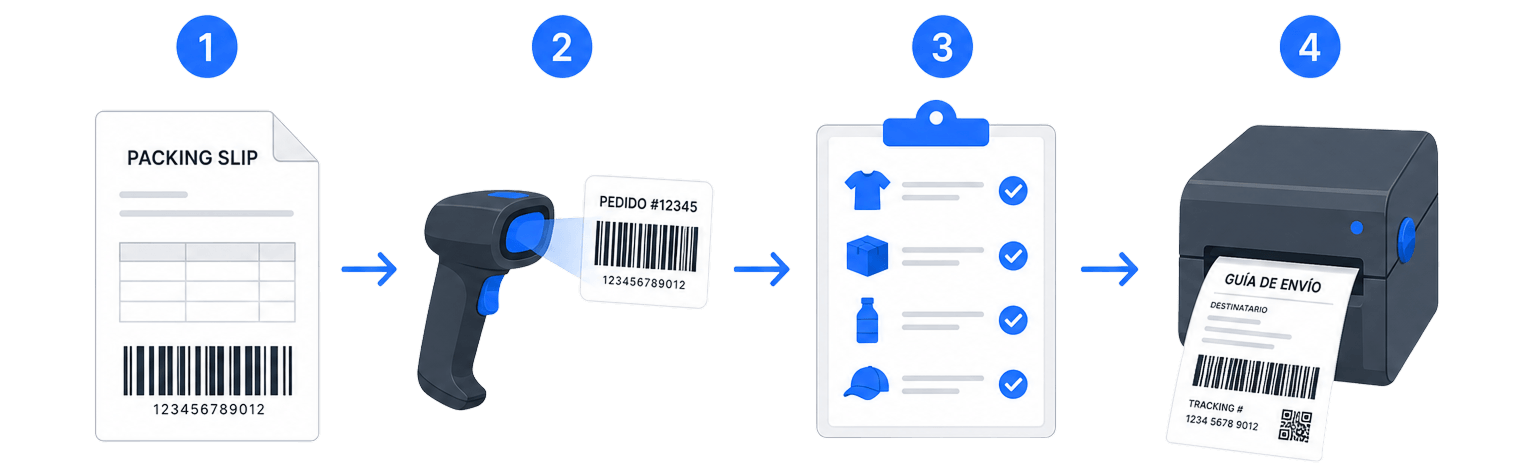
Scan & Go is an Ecommerce screen designed to pack and generate labels faster. You scan the order code, confirm that the products are packed, and create the label in one flow, without going through the full orders board.
It is ideal if you work in a warehouse or at a packing station: you can use a barcode scanner, type the order number, or, on a phone, scan with the camera.
What is Scan & Go?
Section titled “What is Scan & Go?”It is a tool inside Ecommerce that concentrates three steps in a single view:
- Identify the order (scan or enter the code).
- Verify that the products are packed.
- Generate and print or download the label.
The order code is on the packing slip. When you enter Scan & Go without an order loaded, you will see a visual guide with these same steps to orient you.
How to open Scan & Go
Section titled “How to open Scan & Go”- Sign in to your Envia.com account.
- Go to Ecommerce Pro > View orders.
- Click the Scan & Go button.
You can also select one or more orders in the table and open Scan & Go from there: the orders will load in a queue so you can process them in sequence*(that flow is explained later)*.
Basic flow: one order at a time
Section titled “Basic flow: one order at a time”1. Locate the order code
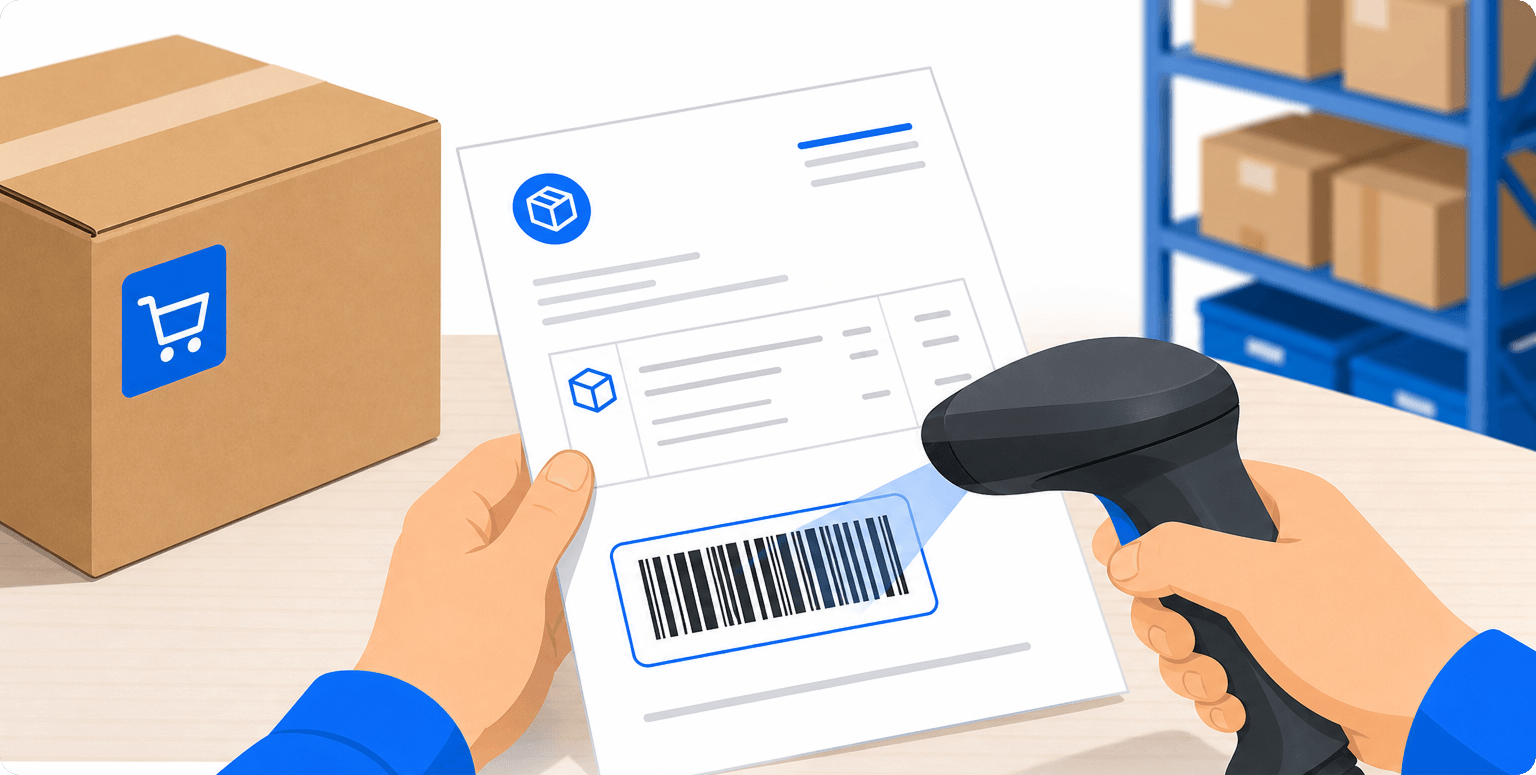
Section titled “1. Locate the order code”Print or keep the order packing slip on hand. The order barcode appears on that document.
2. Scan or type the order
Section titled “2. Scan or type the order”You can do it in three ways:
| Method | When to use it |
|---|---|
| Barcode scanner | On a desktop or workstation: point at the packing slip code. The system captures the scan when you confirm (Enter). |
| Text field | Type or paste the order number/code and confirm to load it. |
| Phone camera | In the mobile view, use the scan with camera button, center the code, and confirm. |
When the order loads correctly, you will see the order information and the product list. You will hear a confirmation sound so you do not have to look at the screen the whole time.
3. Verify the packed products
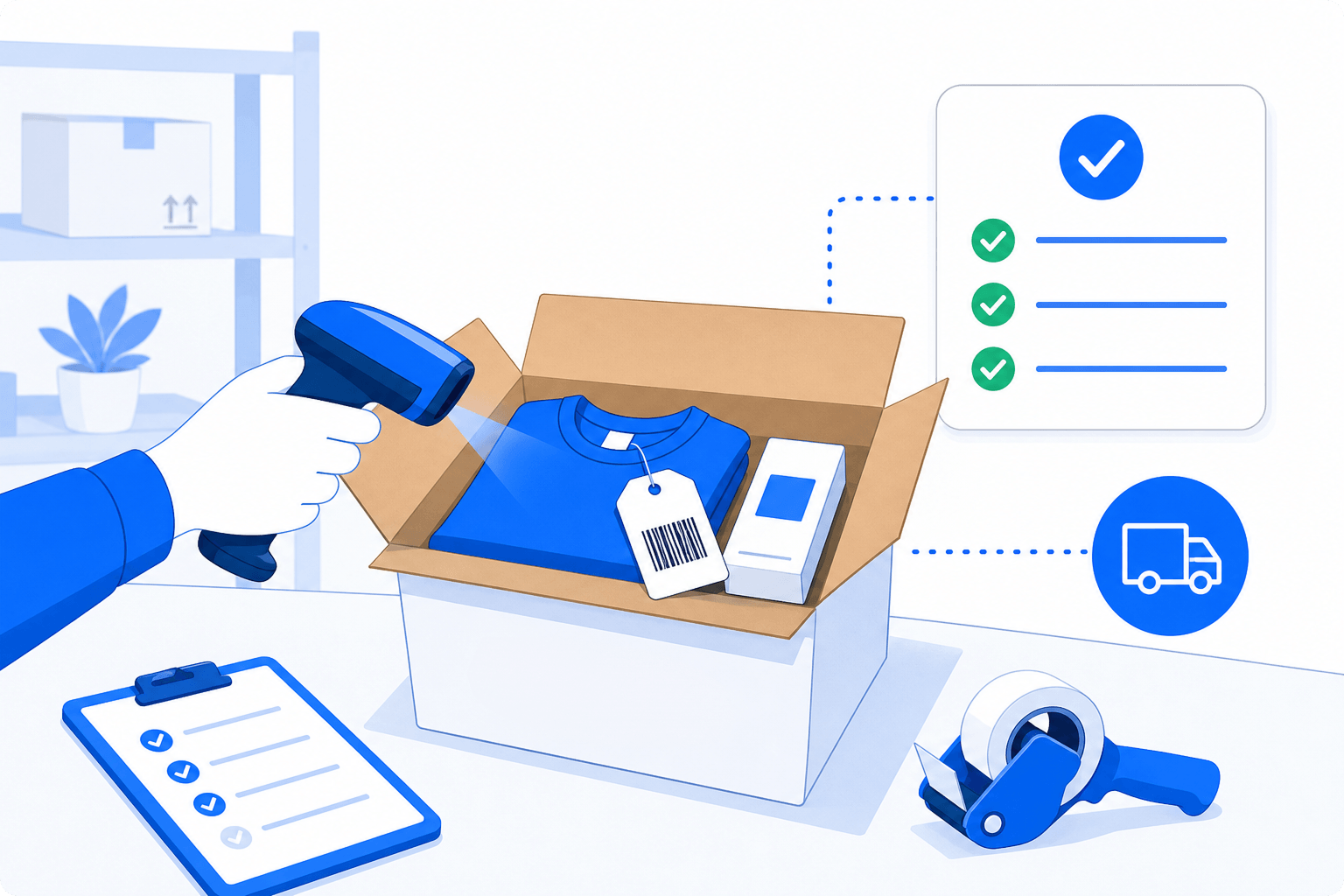
Section titled “3. Verify the packed products”Mark each product as packed with the checkboxes in the list. You can also mark or unmark all at once when it applies.
You must mark all pending products as packed before creating the label. If you try to generate without completing the verification, Scan & Go will notify you and will not start generation.
4. Create the label
Section titled “4. Create the label”- Confirm that the carrier appears correctly on the order.
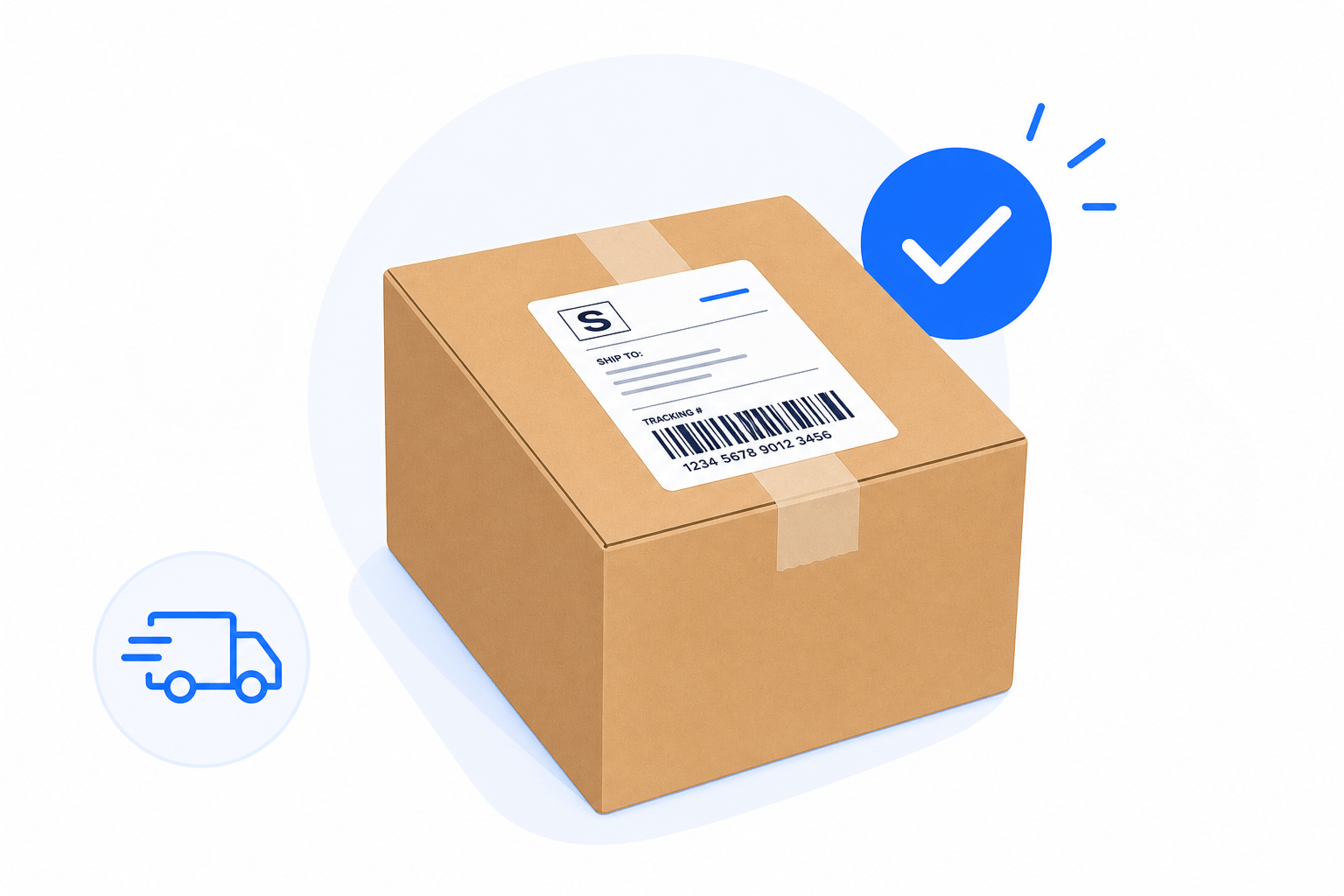
- Click Create label (or the equivalent on screen).
- You will see the generation progress step by step.
- When it finishes, the label is downloaded or opened for printing, and the order is marked as generated in that session.
You can also generate the label without using the mouse by scanning the Scan & Go action code (see the next section).
Action code to generate the label
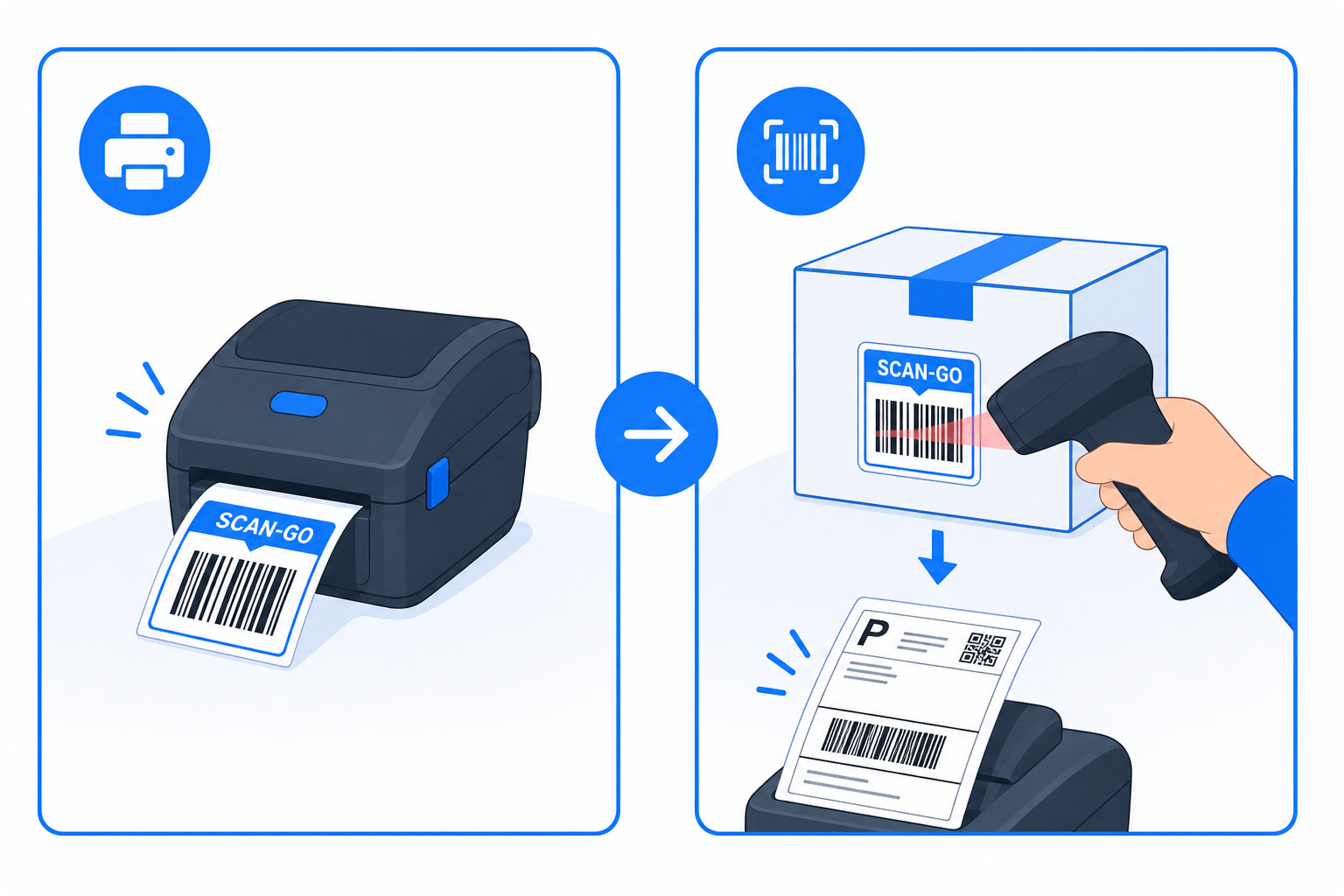
Section titled “Action code to generate the label”You can print a special barcode from Scan & Go. When you scan it (with the scanner), the system tries to create the label for the order you have loaded, as long as:
- There is a ready order on screen.
- All pending products are marked as packed.
- The order has a carrier and is not already fully fulfilled.
Process several orders with the queue
Section titled “Process several orders with the queue”If you select several orders in Ecommerce and open Scan & Go, the screen opens in queue mode:
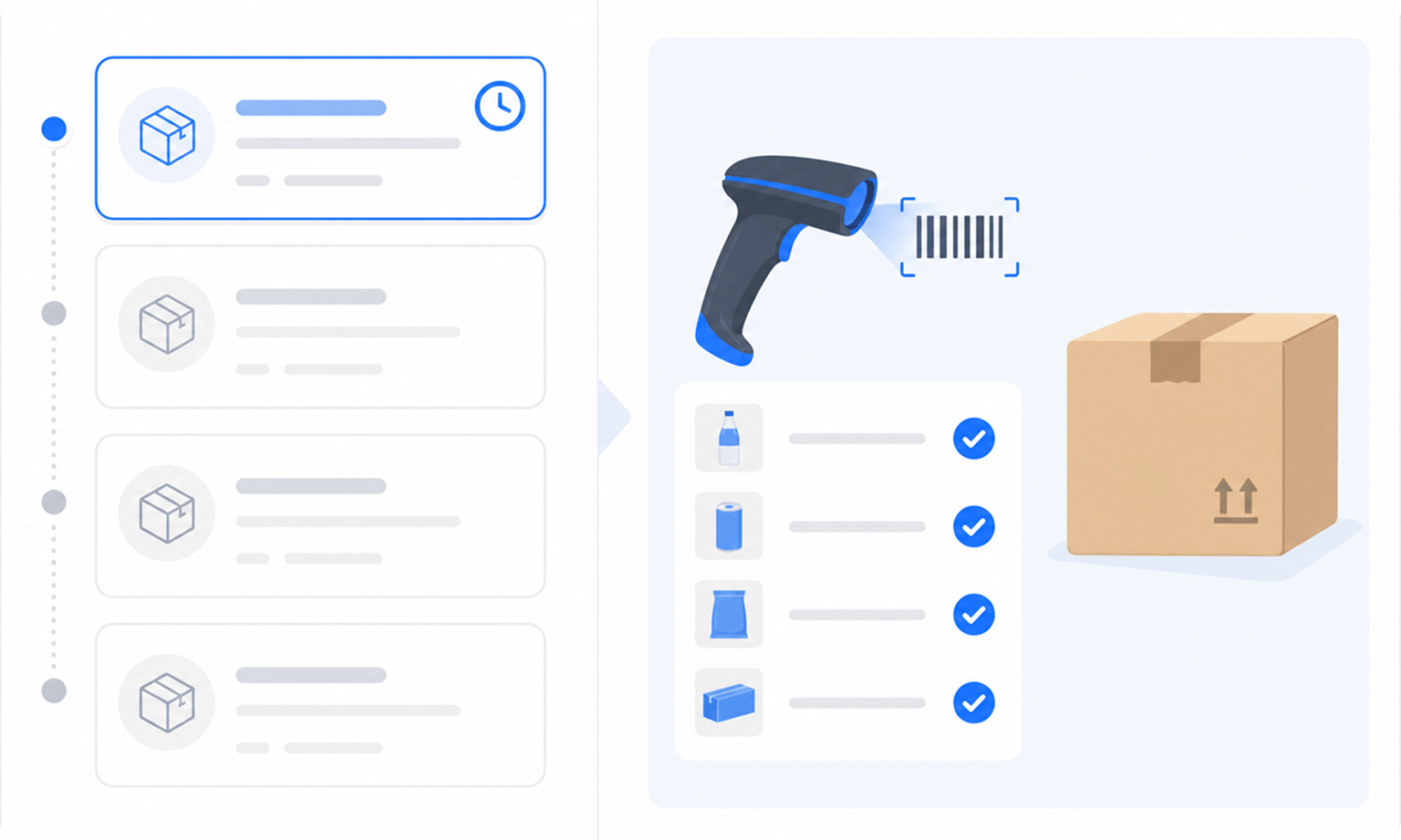
- On the left you see the list of orders to process.
- On the right you work the active order (scan products, verify, and generate the label).
- By default, the queue is ordered from oldest to newest (FIFO), so you handle first what arrived first.
- You can change the sort direction (newest first) with the queue sort control.
- When you generate the label successfully, Scan & Go automatically moves to the next pending order.
How to send it from Ecommerce
Section titled “How to send it from Ecommerce”-
Go to Ecommerce Pro > View orders
-
Select the orders you want to process.
-
Click Scan & Go and the page will open with those orders in the queue.
While you work in the queue you can also scan an order code: if it is in the list, it is selected; if not, Scan & Go will try to load it as a new order.
If you want to leave queue mode and go back to scanning one order at a time, use the option to clear the queue.
Already fulfilled or partially fulfilled orders
Section titled “Already fulfilled or partially fulfilled orders”| Situation | What happens in Scan & Go |
|---|---|
| Order already fulfilled | You cannot generate the label again. You will see a notice with tracking and the option to download the existing labels. |
| Partial fulfillment | You will see which packages already have a label. You will only be able to generate labels for what is still missing. Products already fulfilled appear marked and are not packed again. |
| No carrier | You will not be able to create the label until you choose a carrier in Ecommerce. Scan & Go offers a link to open the order there. |
Tips to work faster
Section titled “Tips to work faster”- Keep the packing slip on hand: the order code is there.
- Use an HID scanner (the kind that types like a keyboard): you can scan even if the cursor is not in the field, as long as you are not typing in another input.
- On a phone, use the camera when you do not have a physical scanner.
- Rely on the sounds: they confirm a correct scan, an error, a created label, or warnings, so you do not depend only on the screen.
- In the queue, leave the FIFO order if you want to handle the oldest orders first; change the order only if your operation requires it.
- Mark all products before generating: it is a control to avoid incomplete shipments.
Frequently asked questions
Section titled “Frequently asked questions”Does Scan & Go replace the Ecommerce screen? No. It is an accelerated flow to pack and generate labels. Quoting, choosing a carrier, editing packages, or other actions you still do in Ecommerce when needed.
Do I need a barcode scanner? It is not required. You can type the order code or, on mobile, scan it with the camera. A physical scanner speeds up the warehouse flow a lot.
Where is the code I should scan? On the packing slip of the order. If you do not have it yet, generate or print it from Ecommerce before using Scan & Go.
Can I generate the label without marking the products? No. You must mark all pending products as packed. If any is missing, the create label button stays disabled or will show a warning.
What happens if the order already has a label? Scan & Go does not generate again. It shows that it is already fulfilled and lets you download the existing labels.
Can I work several orders in a row? Yes. Select them in Ecommerce and open them with Scan & Go. They load in a queue; when you finish one, the system advances to the next pending order.
Does it work on a phone? Yes. In the mobile view you can scan with the device camera, in addition to typing the code manually.
Does Scan & Go generate the same type of label as Ecommerce? Yes. It uses the same generation and fulfillment process as the main Ecommerce screen, only optimized for the scanning flow.