Scheduled maintenance on Envia.com: Thursday, October 29, 12:00–12:30 a.m. Login, APIs, and operations will be unavailable.


Rate rules
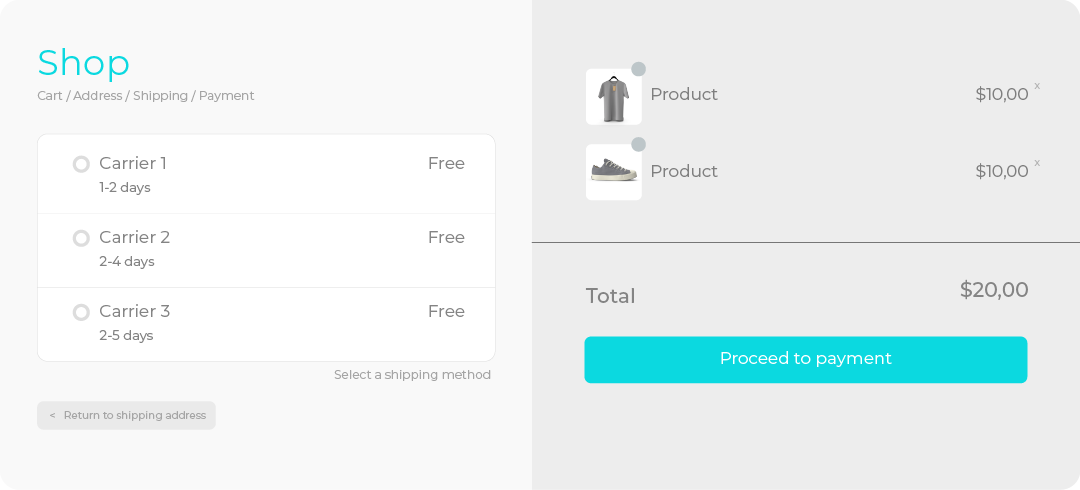
Rate rules change the shipping cost your buyer sees when paying in the store. Use them to lower that cost, raise it, keep it fixed, or hide carriers when the order meets a condition. The buyer only chooses among what you show. With the rule that matches what you are offering, checkout shows the shipping that works for you.
Rate rule types
Section titled “Rate rule types”| Rule | If you want | What the buyer sees |
|---|---|---|
| Discount | Cheaper or free shipping when the order meets the condition | The quote minus the percentage or amount |
| Increase | To charge an extra, for example for packing or handling | The quote plus the surcharge |
| Price | A cost that does not change with the quote | That amount, without the live rate |
| Omit carriers | A carrier not to appear | That carrier stops showing |
Steps to open the rule
Section titled “Steps to open the rule”-
Sign in to your Envia.com account.
-
Open Ecommerce Pro and go to Set up your store.
-
Choose your store and select Settings.
-
In Store checkout, confirm it is turned on. If it is not, see Automatic quoter (checkout).
-
In Rate rule, select Add.
Fill in the rule details
Section titled “Fill in the rule details”Every rule asks for these details.
- Name. Identifies the rule. The buyer does not see it.
- Country. Choose the origin country and whether the shipment is domestic or international.
- Shipping zone. Domestic shipments only. Enter state and city if the rule applies only to that area.
- Carriers. Choose the carriers for the rule.
- Products. All products or only some.
- Shipment type. Order price or weight, with the minimum and the maximum. If you choose weight, select Kg or Lb.
Offer a discount
Section titled “Offer a discount”Use Discount when you want shipping to be cheaper, or free, if the order falls in the range. The buyer sees the quote minus that percentage or amount.
- In Rate rule, select Discount or increase.
- In Amount type, choose Discount.
- In Discount type, choose Percentage or Rate.
- Enter the percentage or the amount to discount.
Example: free shipping from an amount
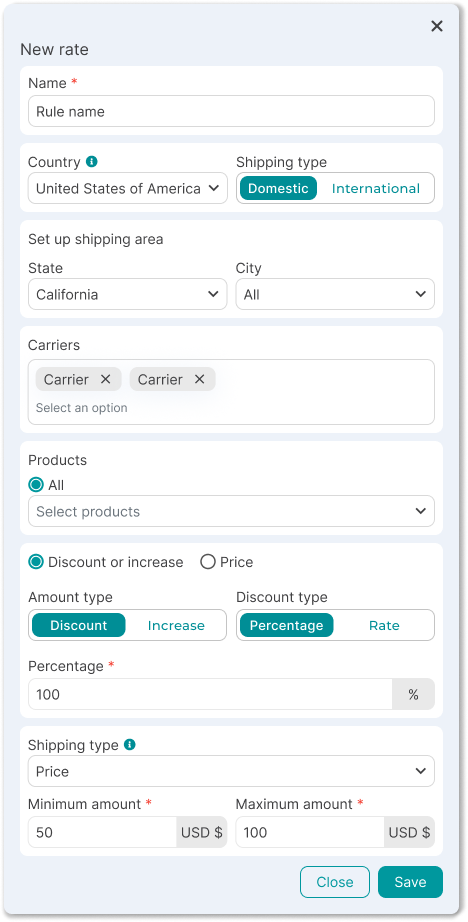
Section titled “Example: free shipping from an amount”You want free shipping in your country when the order is between 1,500 and 100,000, with only one carrier.
- Name: Free shipping from 1500.
- Choose the origin country and a domestic shipment. Set a zone only if you want to limit it to a state or a city.
- In Carriers, choose the carrier you want to show at 0.
- In Products, choose all.
- Select Discount or increase, Discount, Percentage, and enter 100.
- In Shipment type, choose price. Minimum: 1500. Maximum: 100000, to cover large orders.
- Save.
Charge an increase
Section titled “Charge an increase”Use Increase when you need to add a surcharge to the quote, for example to cover packing or handling. The buyer sees the quote plus that percentage or amount.
- In Rate rule, select Discount or increase.
- In Amount type, choose Increase.
- In Surcharge type, choose Percentage or Rate.
- Enter the percentage or the amount to add.
Example: fixed surcharge by weight
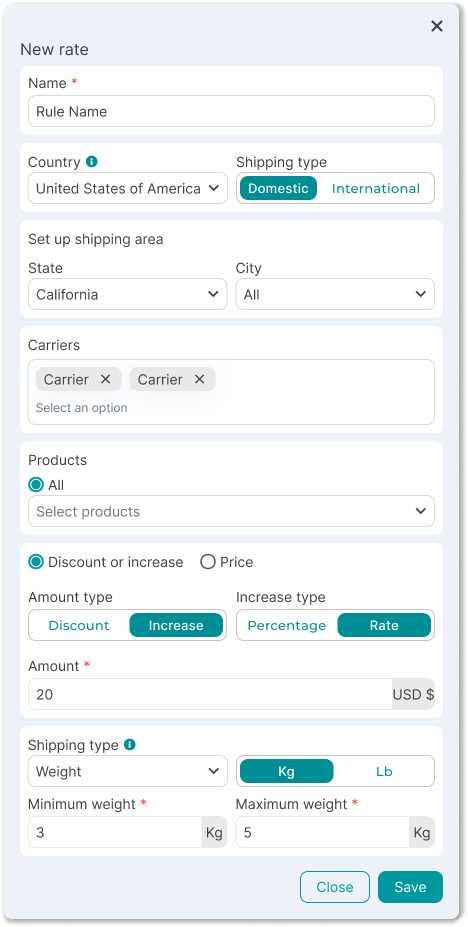
Section titled “Example: fixed surcharge by weight”You want to add 25 in your currency when the package weighs between 5 and 20 kg, to cover packing.
- In Rate rule, select Add.
- Name: Packing surcharge.
- Choose the country and whether the shipment is domestic or international.
- In Carriers, choose the ones that get the surcharge. In Products, choose all.
- Select Discount or increase, Increase, Rate, and enter 25.
- In Shipment type, choose weight and Kg. Minimum: 5. Maximum: 20.
- Save.
Show a fixed price
Section titled “Show a fixed price”Use Price when you want the buyer to always see the same cost, without that carrier’s live quote.
- In Rate rule, select Price.
- In Amount, enter the price the buyer will see.
Example: the same cost in one city
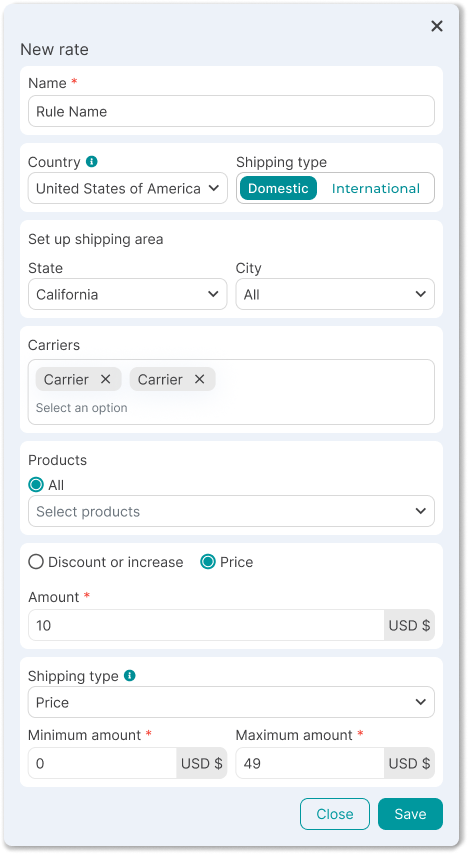
Section titled “Example: the same cost in one city”You want one carrier in a city to always show 99, regardless of the quote.
- In Rate rule, select Add.
- Name: Fixed shipping in the city.
- Choose the country and a domestic shipment. In the zone, enter the state and the city.
- In Carriers, choose the carrier for the fixed price. In Products, choose all.
- Select Price and enter 99.
- In Shipment type, choose price. Minimum: 0. Maximum: 100000, so it applies to orders in that city.
- Save.
Omit carriers
Section titled “Omit carriers”Use Omit carriers when you do not want to offer those carriers if the order meets the condition. The buyer does not see them and cannot choose them. The others keep quoting as usual.
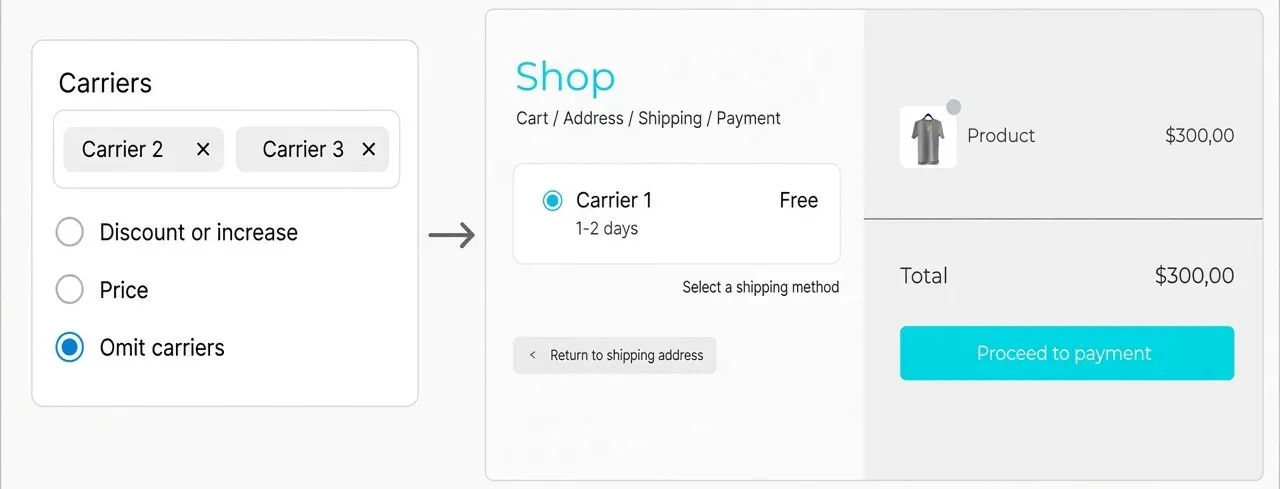
- In Rate rule, select Omit carriers. Amount fields are hidden: there is no discount, surcharge, or fixed price.
- In Shipment type, set whether the rule depends on price or weight, and the minimum and maximum range.
- Save.
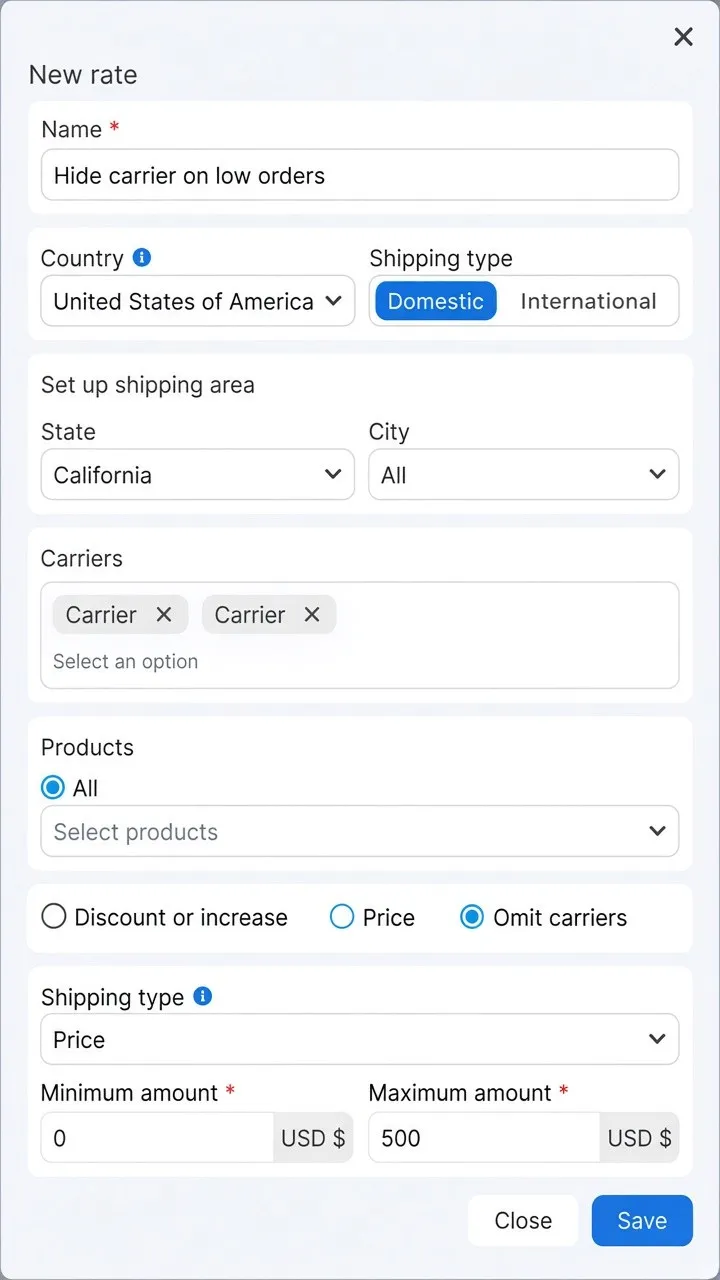
Example: hide a carrier on low orders
Section titled “Example: hide a carrier on low orders”You do not want to offer a carrier when the order price is between 0 and 500. The other carriers should still appear.
- In Rate rule, select Add.
- Name: Hide carrier on low orders.
- Choose the country and a domestic shipment. Set a zone only if you want to limit it to a state or a city.
- In Carriers, choose only the ones you want to hide. In Products, choose all.
- Select Omit carriers.
- In Shipment type, choose price. Minimum: 0. Maximum: 500.
- Save.
Check the result
Section titled “Check the result”- Save the rule and confirm it appears in the list with the correct type: discount, increase, price, or Omit carriers.
- In your store, build a test order that meets the price or weight condition, the products, and the zone.
- Open checkout and enter a postal code.
- Build a second order outside that range and confirm the rule no longer changes checkout.
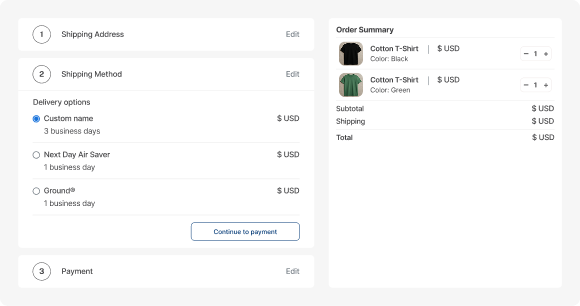
If you omitted carriers, those must not appear. If you applied a discount, increase, or fixed price, the cost must match the rule.
If the rule does not apply
Section titled “If the rule does not apply”- Store checkout must be on and those carriers must be in the quoter.
- The test order must fall within the price or weight range, the products, and the rule’s zone. The maximum must be greater than the minimum.
- The rule changes the carriers you selected, not the rest. The whole carrier is included or hidden.
Frequently asked questions
Section titled “Frequently asked questions”How is omit different from a fixed price of 0?
With Price at 0 the carrier stays visible and the buyer can choose it. With Omit carriers it stops appearing.
What happens if I omit every carrier at checkout?
If the rule matches and no carrier remains visible, the buyer will not see shipping options for that order. Make sure other carriers stay available, or narrow the condition.
Does this replace checkout zones?
No. Checkout zones filter by destination. A rate rule changes the price or the carriers based on the order condition: price, weight, or products.