Scheduled maintenance on Envia.com: Thursday, October 29, 12:00–12:30 a.m. Login, APIs, and operations will be unavailable.


Request service activation
Some carrier services appear in rates when you quote, but you cannot generate labels with them yet. To enable them, your account manager must activate them first. From the Create shipment screen, you can request activation by completing your account requirements and uploading evidence. Once the request is submitted, you receive a tracking number and can check the progress in the Tickets section.
When the request appears
Section titled “When the request appears”When you click Generate label in Create shipment with a service your account can only quote, the dialog Request activation for this service opens. The service continues to show in the rates with its price, without any visible mark.
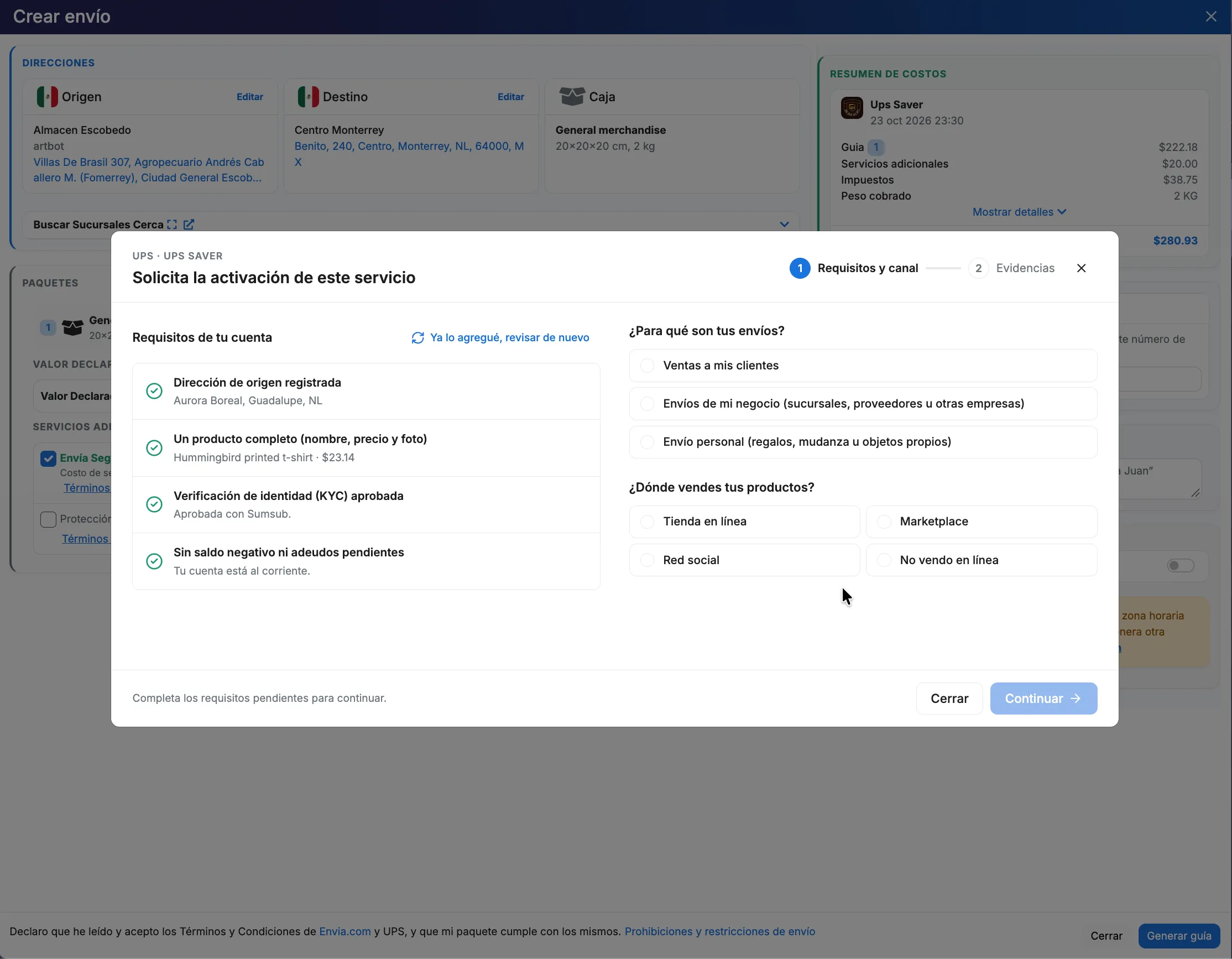
Your account requirements
Section titled “Your account requirements”Before submitting the request, your account must meet these 4 requirements. The system checks them automatically:
| Requirement | Met when | How to complete it if missing |
|---|---|---|
| Registered origin address | You have at least one origin address | Click Add to open the address form. See Locations and packages. |
| A complete product (name, price, and photo) | You have an active product with a name, price greater than 0, and photo | Click Add to open the product panel. See Add products. |
| Identity verification (KYC) approved | Your identity verification is approved (Sumsub) | Click Verify to open verification in another tab. See Verify your account. |
| No negative balance or outstanding balances | Your balance is 0 or more and you have no outstanding balances | Click Pay balance to open the top-up panel. See Add balance. |
If any requirement is missing, complete it and click I already added it, check again. The Continue button is enabled only when all 4 requirements are complete.
Step 1: Requirements and channel
Section titled “Step 1: Requirements and channel”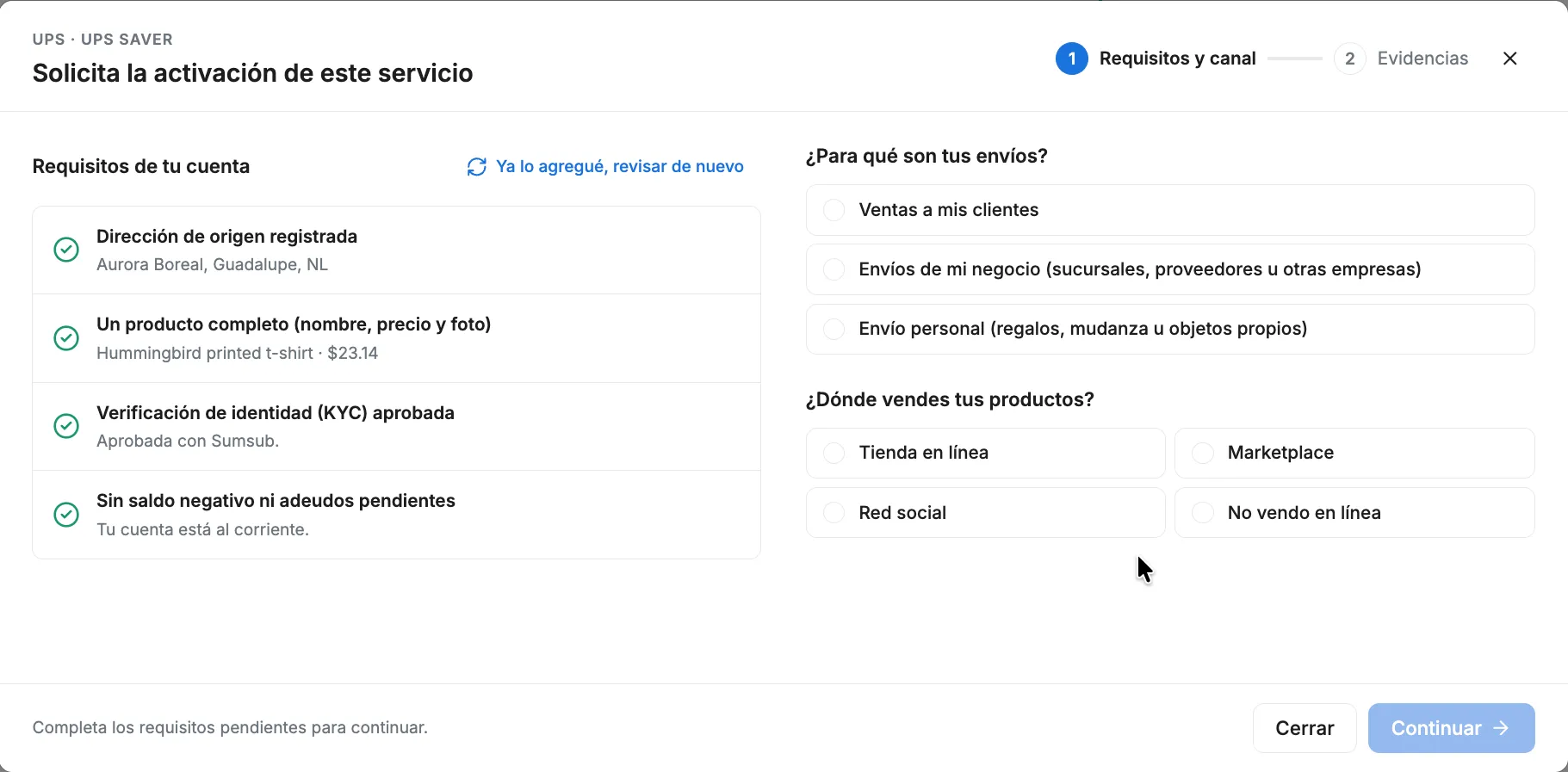
-
Make sure all 4 account requirements are complete (they appear with Complete in green).
-
In What are your shipments for?, choose an option:
- Sales to my customers
- Business shipments (branches, suppliers, or other companies)
-
In Where do you sell your products?, choose:
- Online store, Marketplace, or Social network: the field Link to your sales channel (store, marketplace, or social network) opens. The link must start with
https://and be public. It must show the products you will ship. - I don’t sell online: the notice In the next step we’ll ask for your tax status certificate (Constancia de Situación Fiscal) appears.
- Online store, Marketplace, or Social network: the field Link to your sales channel (store, marketplace, or social network) opens. The link must start with
-
Click Continue when everything is complete.
Step 2: Evidence
Section titled “Step 2: Evidence”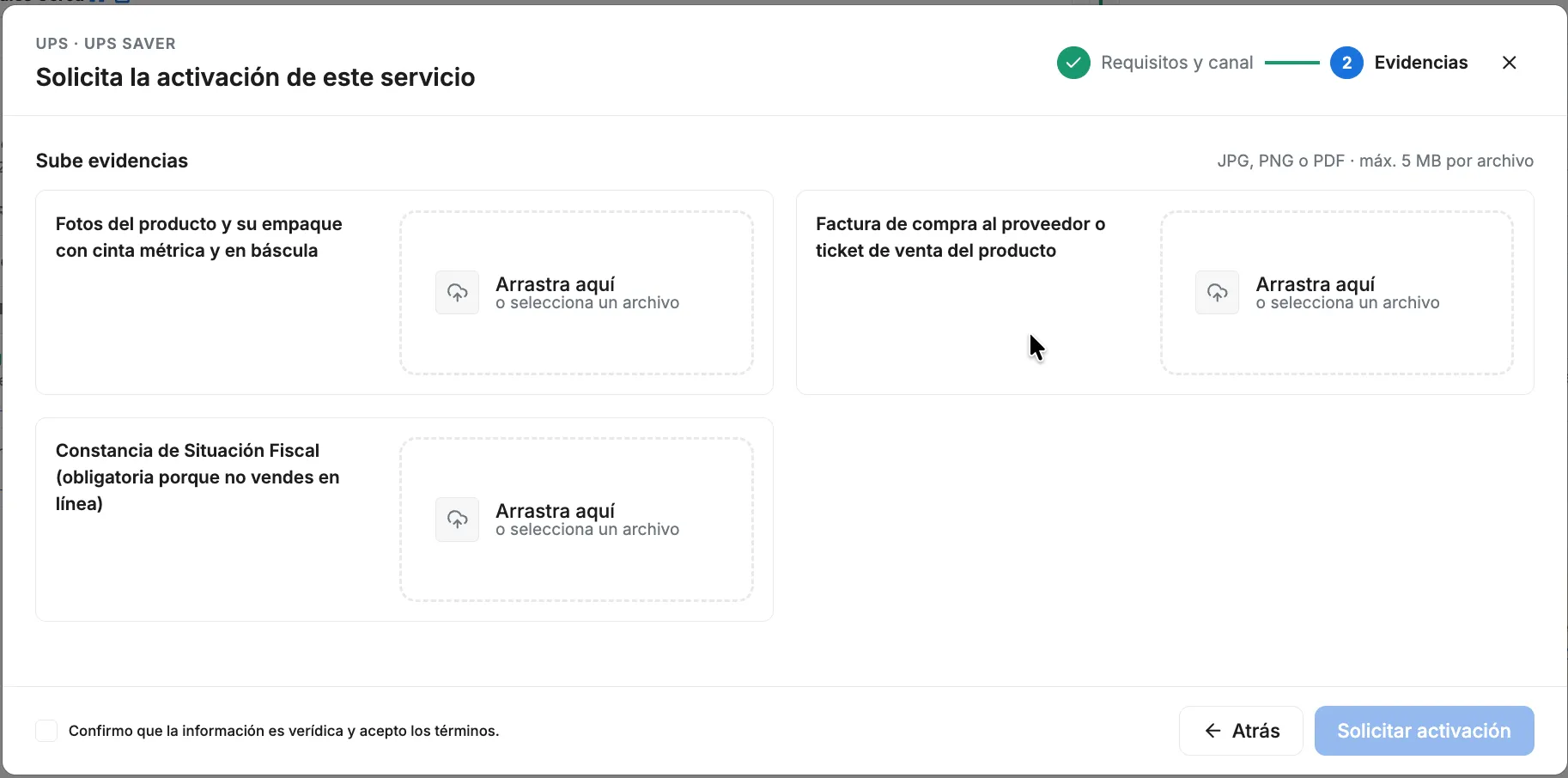
-
In Upload evidence, drag or select a file for each box. The required files are:
- Photos of the product and its packaging with a measuring tape and on a scale
- Supplier purchase invoice or product sales receipt
- If you sell online: Screenshot of your sales channel
- If you don’t sell online: Tax status certificate (Constancia de Situación Fiscal), required because you don’t sell online
-
Check the box I confirm that the information is accurate and I accept the terms.
-
Click Request activation. The button is enabled only when all files are uploaded and the box is checked.
What happens after submitting
Section titled “What happens after submitting”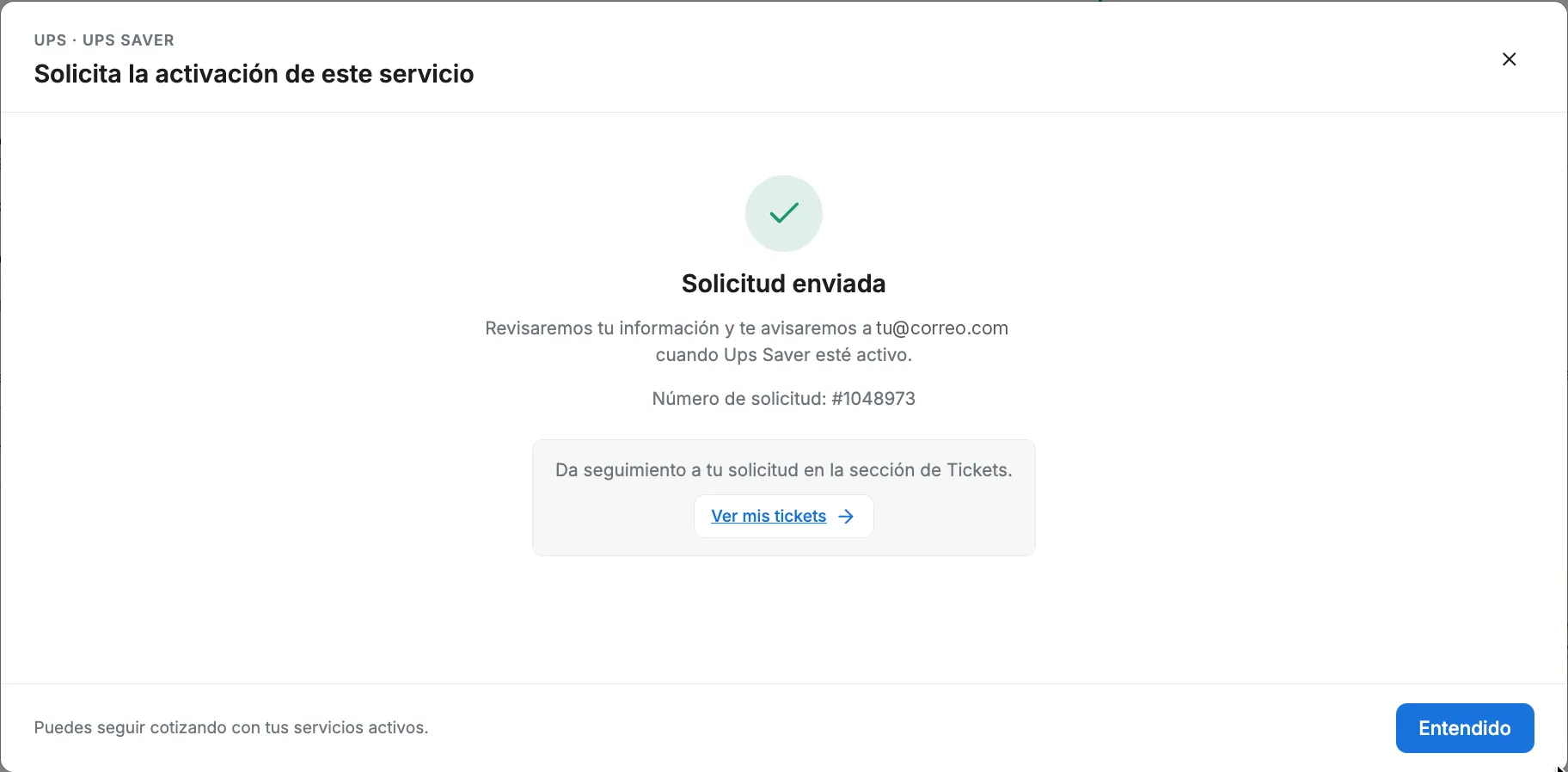
-
You will see the Request submitted screen with:
- The message confirming your request was received
- Request number (example: #12345)
- The indication that you will receive the response in the Tickets section
-
The request appears in Settings > Tickets, Active tab, with the type Carrier Activation and status Pending.
-
Your account manager reviews the request, activates the service, and responds in the ticket.
-
When the ticket becomes Resolved, check the account manager’s response to confirm the service was activated. A Resolved ticket status alone does not automatically confirm activation: read the ticket response.
-
Once activated, the service appears in the rates and you can generate labels with it.
Frequently asked questions
Section titled “Frequently asked questions”Can I open another request for the same service? Not while you have an open request for that service. Once the request is closed, you can request again.
What do I do if the file upload fails? If the error An error occurred uploading the files appears, the request is already created. Click Request activation again and only the missing files will be uploaded.
How do I know the service was activated? Check the account manager’s response in the ticket. A Resolved ticket status alone does not confirm activation; the ticket response must indicate that it was activated.
How long does the review take? Review time varies depending on each case. You will receive the response through the ticket.