Scheduled maintenance on Envia.com: Thursday, October 29, 12:00–12:30 a.m. Login, APIs, and operations will be unavailable.


Set up automatic pickup
Automatic pickup requests a pickup for your pending labels on the days you choose. You set it up once in Pickup and Envia requests it from each carrier. If there are no pending labels that day, no pickup is requested.
Steps to set up automatic pickup
Section titled “Steps to set up automatic pickup”-
Sign in to your Envia.com account.
-
Open Pickup.
-
Choose Schedule automatic pickup. If you already have a setup, that button is not shown: use Edit on the Automatic pickup card.
-
In Origin, choose All my origin addresses or Only some addresses. With all of them, addresses you add later are included. With only some, new addresses are not added.
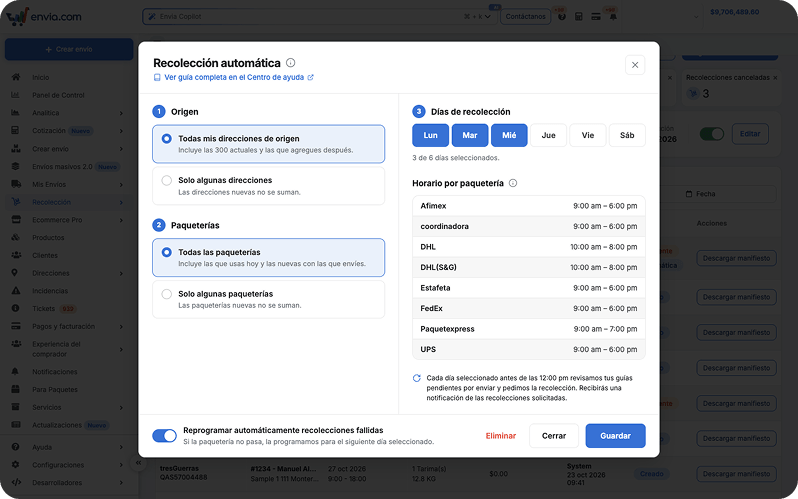
-
If you chose Only some addresses, open Select addresses, mark the ones you need, and use Search address if the list is long. Select all marks the addresses in the list.
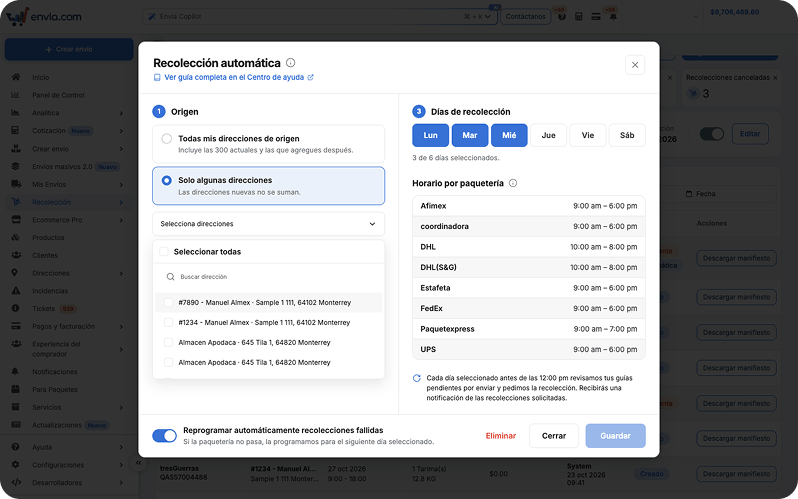
-
In Carriers, choose All carriers or Only some carriers. Only carriers you created labels with in the last 30 days are shown. With all of them, new carriers you ship with are included. With only some, new carriers are not added.
-
In Pickup days, choose at least one day, Monday through Saturday. Sunday is not available. Disabled days have no service with the carriers you chose.
-
Review Hours by carrier. Each carrier shows its own hours, and you cannot change them there.
-
Automatically reschedule failed pickups starts on. If the carrier does not come, we schedule it for the next selected day. Turn it off if you prefer to reschedule that pickup yourself.
-
Choose Save.
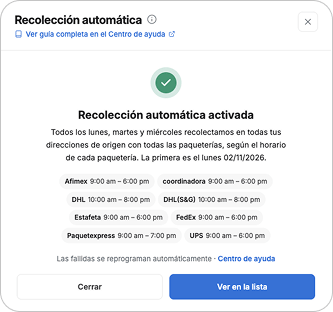
You will see Automatic pickup turned on, the days, the origins, the carriers, and the first date. Close returns to Pickup. View in the list opens the list.
The card stays Active, with the summary, Next pickup, and Edit. In the list, the pickup shows Automatic and Created, with the date and time. The status keeps its value, for example Pending, and adds the Automatic mark.
Return labels are not included. Request those with Schedule a Pickup.
Pause or delete automatic pickup
Section titled “Pause or delete automatic pickup”-
Sign in to your Envia.com account.
-
Open Pickup.
-
On the Automatic pickup card, turn the switch off. You can also open Edit and choose Delete.

-
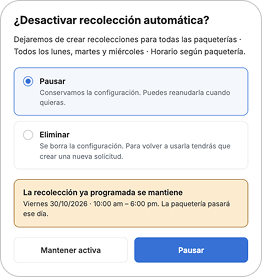
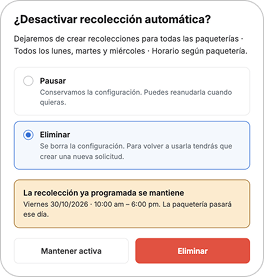
In Deactivate automatic pickup?, choose Pause or Delete.
-
Pause keeps the setup. You can turn it back on whenever you want. The card changes to Paused and no new pickups are created.
-
Delete removes the setup. To use it again, create a new one with Schedule automatic pickup.
-
Keep it on closes the dialog without changing anything.
What happens after you save
Section titled “What happens after you save”In the bell you can get one of these notices:
- Pickup requested. It says which carrier will come, how many labels are included, and which day.
- Pickup failed due to insufficient balance. Add funds and we’ll try again at the next cutoff.
- You already have a pickup scheduled. We didn’t request another one because there is already one for that ZIP code and date.
- Pickup failed. We couldn’t request it. Request it manually from Pickups.
Frequently asked questions
Section titled “Frequently asked questions”What do I do if the notice says it failed due to insufficient balance?
Add funds. Envia tries again at the next cutoff. A pickup that was already requested stays in place.
Why does it say I already have a pickup scheduled?
There is already one for that ZIP code and date, even if you requested it yourself. Another one is not created that day.