Scheduled maintenance on Envia.com: Thursday, October 29, 12:00–12:30 a.m. Login, APIs, and operations will be unavailable.


Install Odoo Module - Odoo Online/Odoo SaaS

Envia Shipping is Odoo’s module for Odoo Online (Odoo SaaS). You install the app in Odoo, paste the Envia token, and quote or create the label inside Odoo: when you confirm the order or from the delivery. Support for this module is from Odoo, not Envia.
Use it if your URL is yourdomain.odoo.com and you want to run shipping in Odoo. It is not the Envia plugin for Odoo.sh or Ecommerce Pro Oauth. No module offers cash on delivery (COD).
Odoo publishes the version in Apps. For screens and fields that change in Odoo, see their official guide.
Steps to connect Envia Shipping
Section titled “Steps to connect Envia Shipping”-
Sign in to your Envia.com account.
-
Open Developers > API Access. Click Add, reveal the token, and copy it.

-
In Odoo, open Apps, search Envia Shipping, and Install.
-
Open Inventory > Configuration > Delivery Methods > New.
-
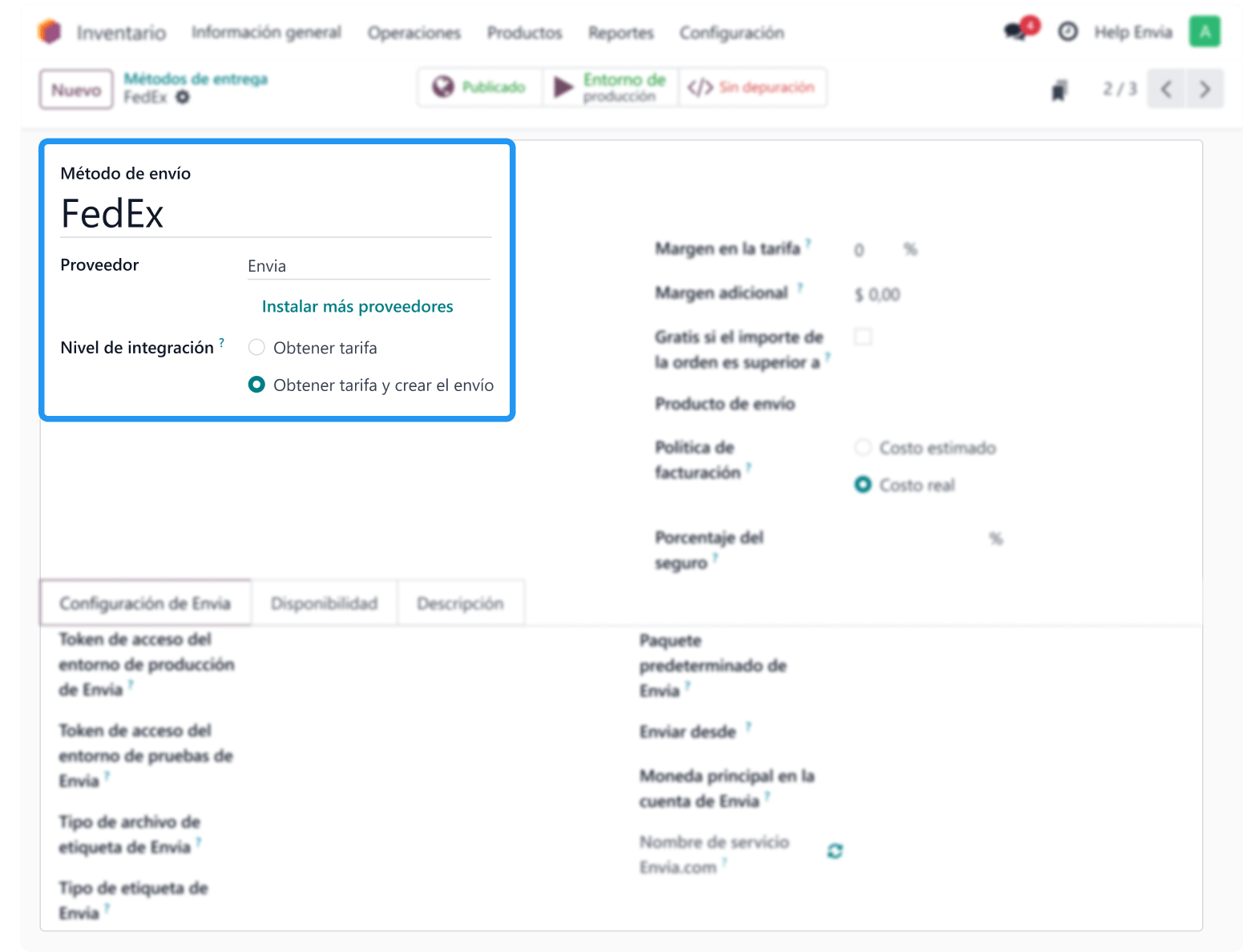
Complete the method:
- Delivery Method: the name the buyer will see (in the screenshots it appears as FedEx; it can be Envia.com or another name).
- Provider: Envia.
- Shipping Product: the shipping charge on the order. Create one if you do not have it.
- Integration Level: Get Rate and Create Shipment.
-
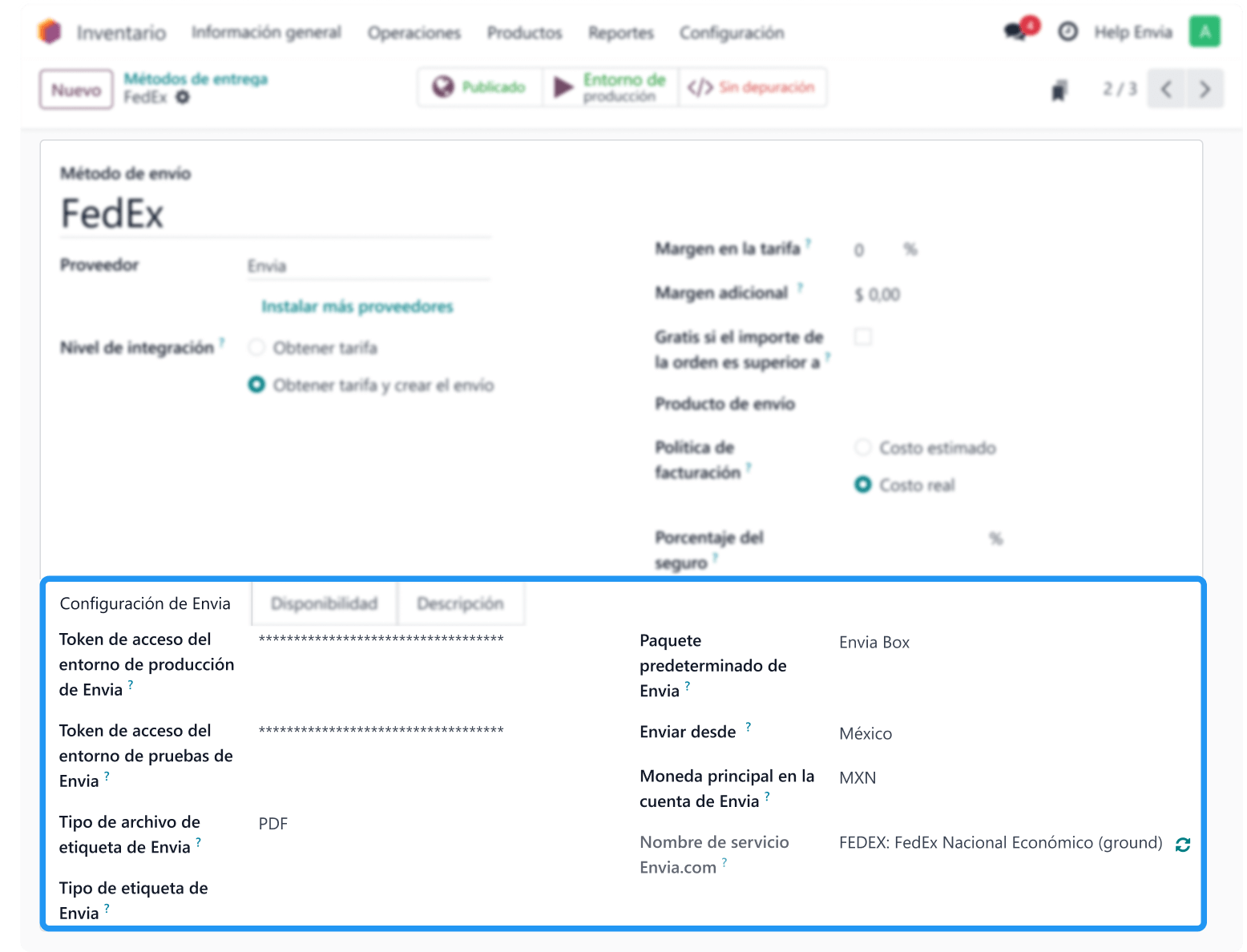
On the Envia Configuration tab:
- Paste the token in Envia Production Environment Access Token.
- Odoo also asks for Envia Test Environment Access Token. If you do not use a test environment, you can paste the same key in both. Both fields must have a value.
- Fill in Envia default package, ship from, main currency in the Envia account, and file type / label type.
- Insurance percentage: leave it empty or 0 if you do not insure. The charge is calculated after the label is created.
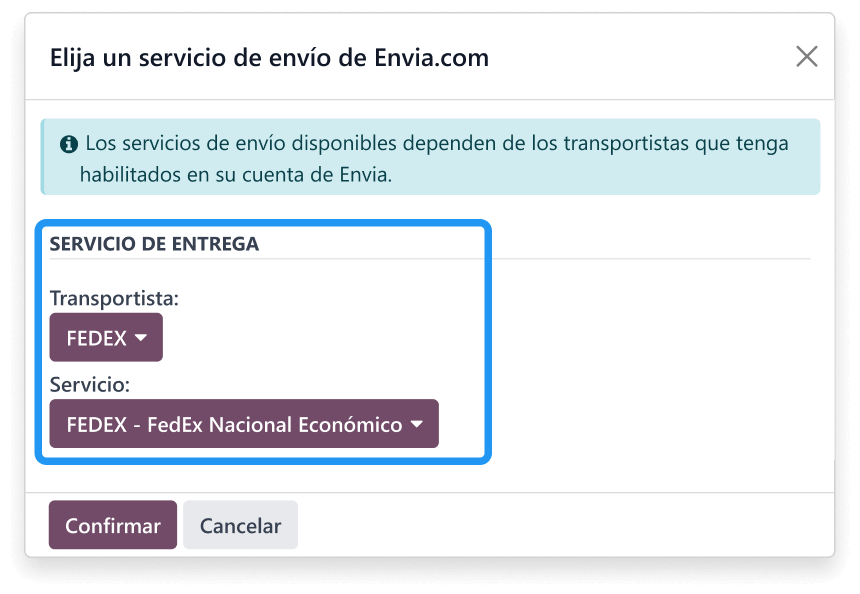
- In Envia.com Service Name, reload the list and choose carrier and service.
-
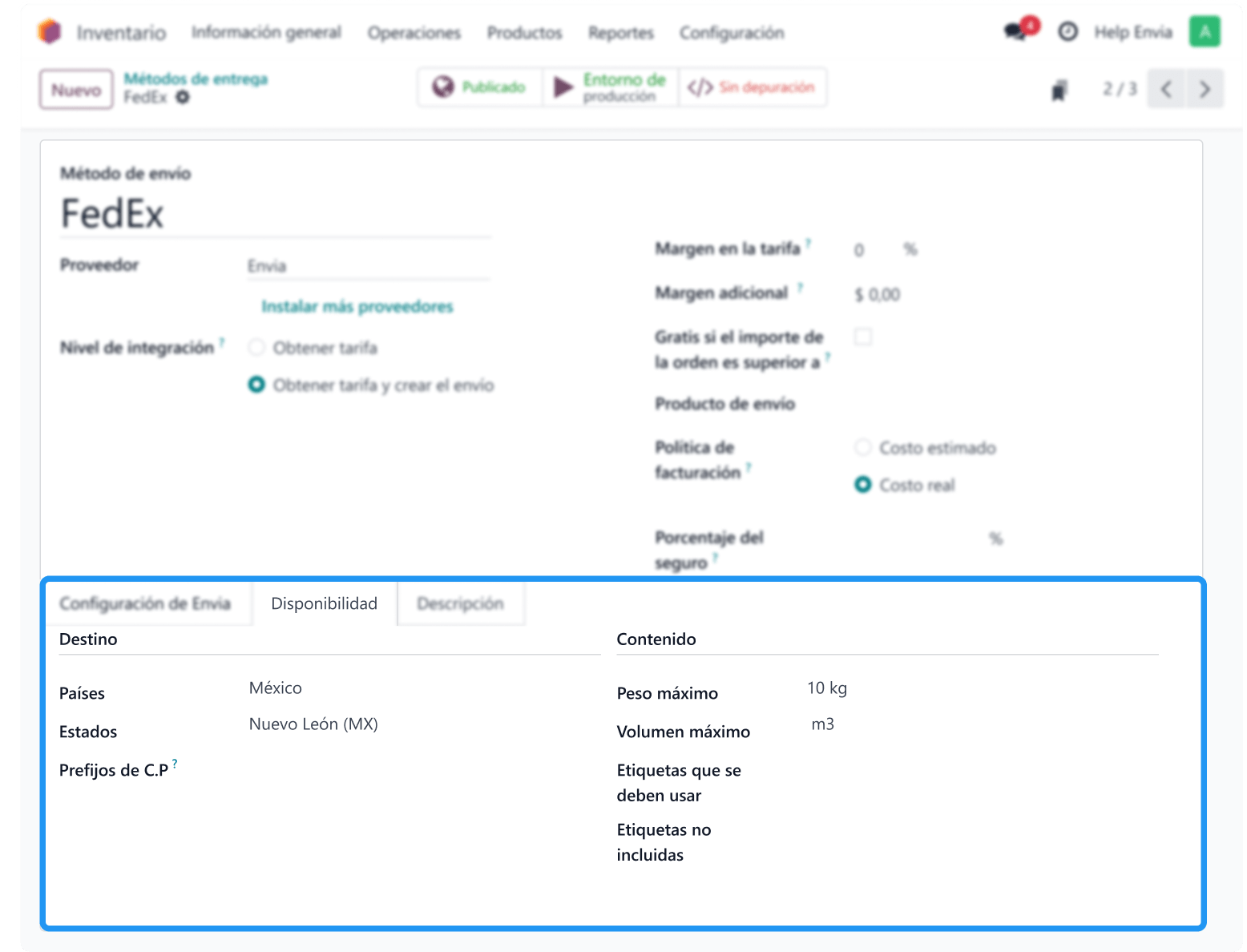
Under Availability, set destination (country, state, ZIP) and weight or volume limits if you need them. At the top, leave the method Published and on Production Environment.
-
Under Configuration > Warehouses, open the warehouse and complete the address (street, ZIP, city, state, phone, and email). Without a complete warehouse, Odoo does not build the label.
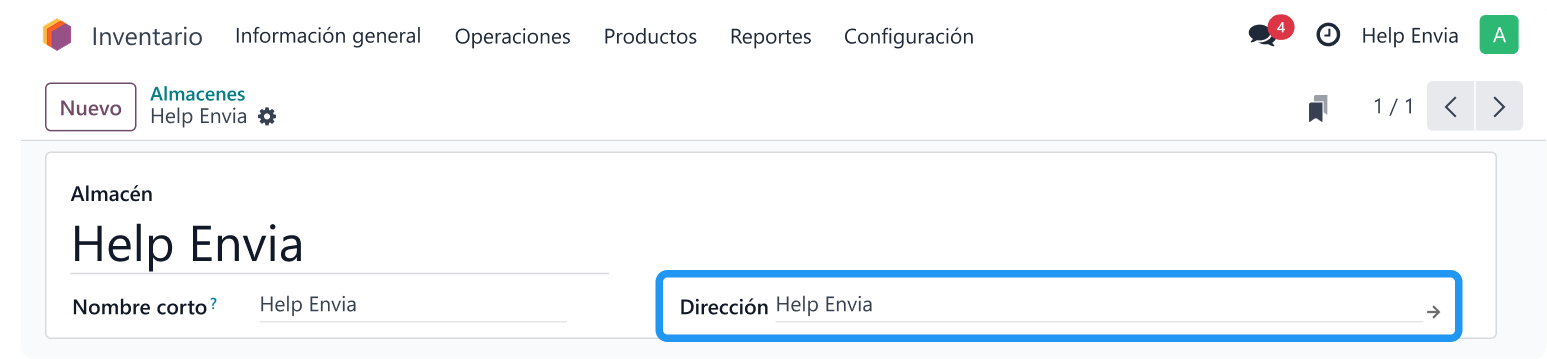
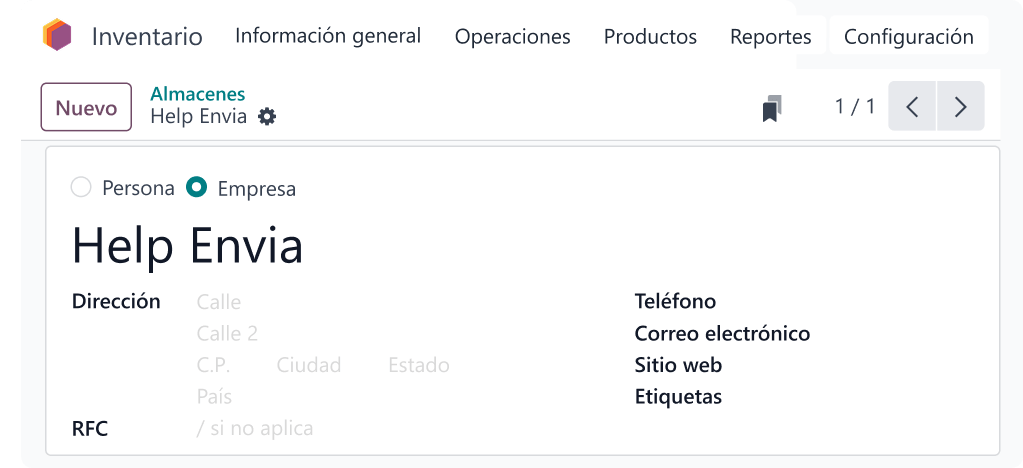
If you need more than one service, repeat the method: another package, another carrier, or another service. Margins, free shipping, and insurance are optional.
It is ready when the method is published, on production environment, and the warehouse has a complete address.
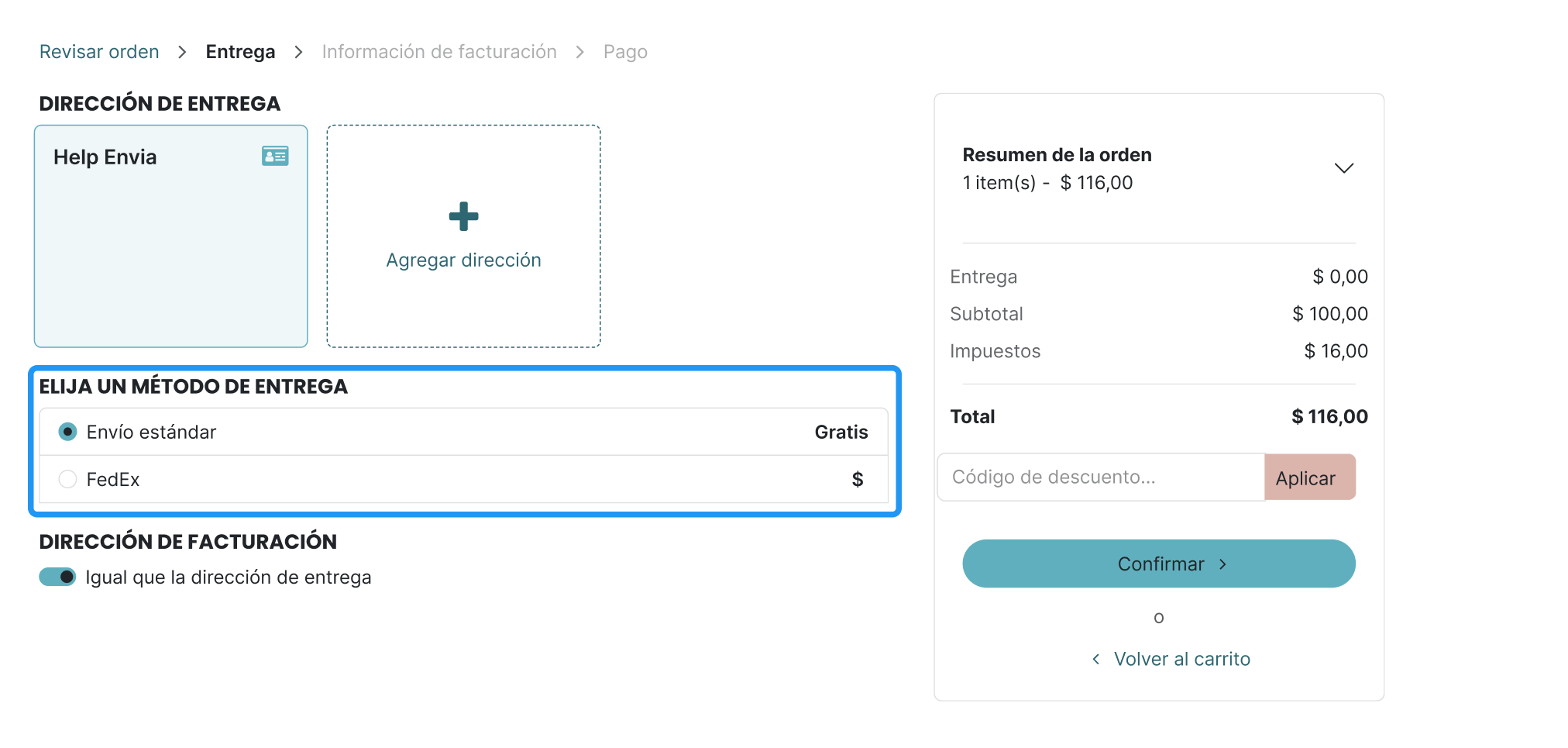
If you publish the method, the buyer also sees it in the Odoo checkout, with the name you set in Delivery Method.
Data Odoo needs on each order
Section titled “Data Odoo needs on each order”- Buyer: phone, email, and delivery address.
- Products: weight on the product form (Inventory tab).
- Warehouse: the origin address of the label.
If any of these is missing, the label is not created. Odoo shows the reason.
Create the label
Section titled “Create the label”The label is created in Odoo, not in Envia View orders.
-
On the sales order, add shipping and choose the Envia method.
-
Confirm the order.
-
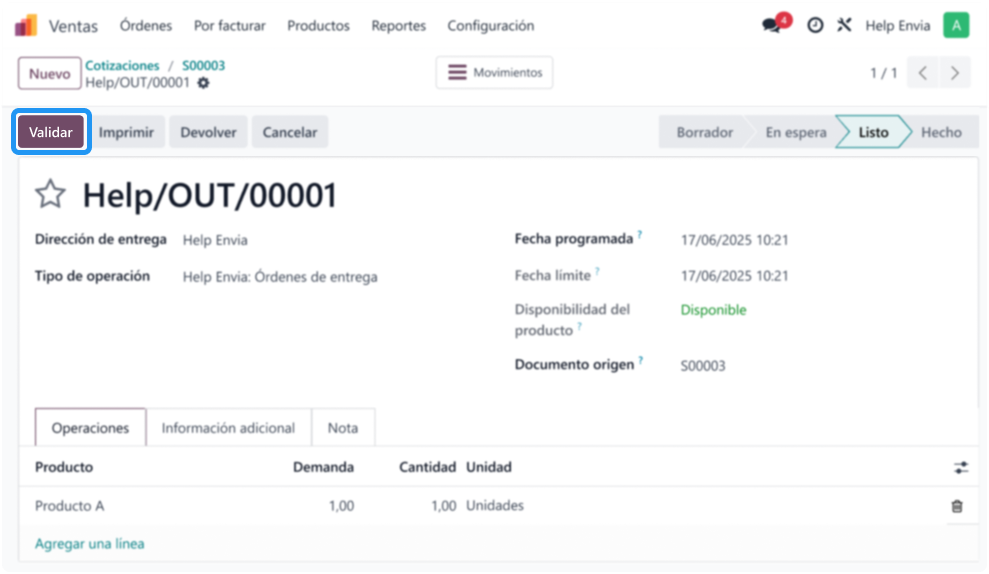
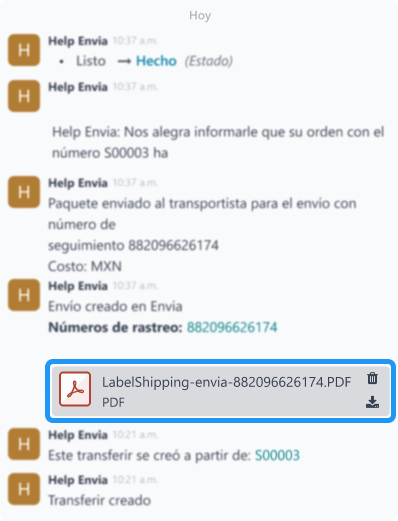
Open the delivery and click Validate. Odoo creates the label and tracking.
-
If it was not created on validate, generate or download the label from that delivery. If it fails, read Odoo’s message.
When the label is created, Envia charges the shipment on your company. Tracking stays on the Tracking button of the delivery.
Do not expect an Envia panel inside Odoo or orders in Ecommerce Pro: this module is not Oauth.
If it does not connect
Section titled “If it does not connect”- Confirm that Envia Shipping is installed and the method is published.
- Check token, package, Envia service, and warehouse (address, ZIP, phone, email, state).
- If there is no label, Odoo shows the reason. Support is from Odoo.
- If you are on Odoo.sh and want to quote and label with Envia’s plugin, uninstall Envia Shipping first.
Frequently asked questions
Section titled “Frequently asked questions”Who supports Envia Shipping?
Support is from Odoo. It is their module in Apps. Envia can help with the account and the token; Odoo supports the connector.
Can I use this module and the plugin at the same time?
No. Uninstall Envia Shipping before you install the Envia.com plugin.
Are labels paid with Envia balance?
Yes. The API Access token links the Odoo method to your company. Creating the label happens in Odoo.