Scheduled maintenance on Envia.com: Thursday, October 29, 12:00–12:30 a.m. Login, APIs, and operations will be unavailable.


Automatic shipping rules
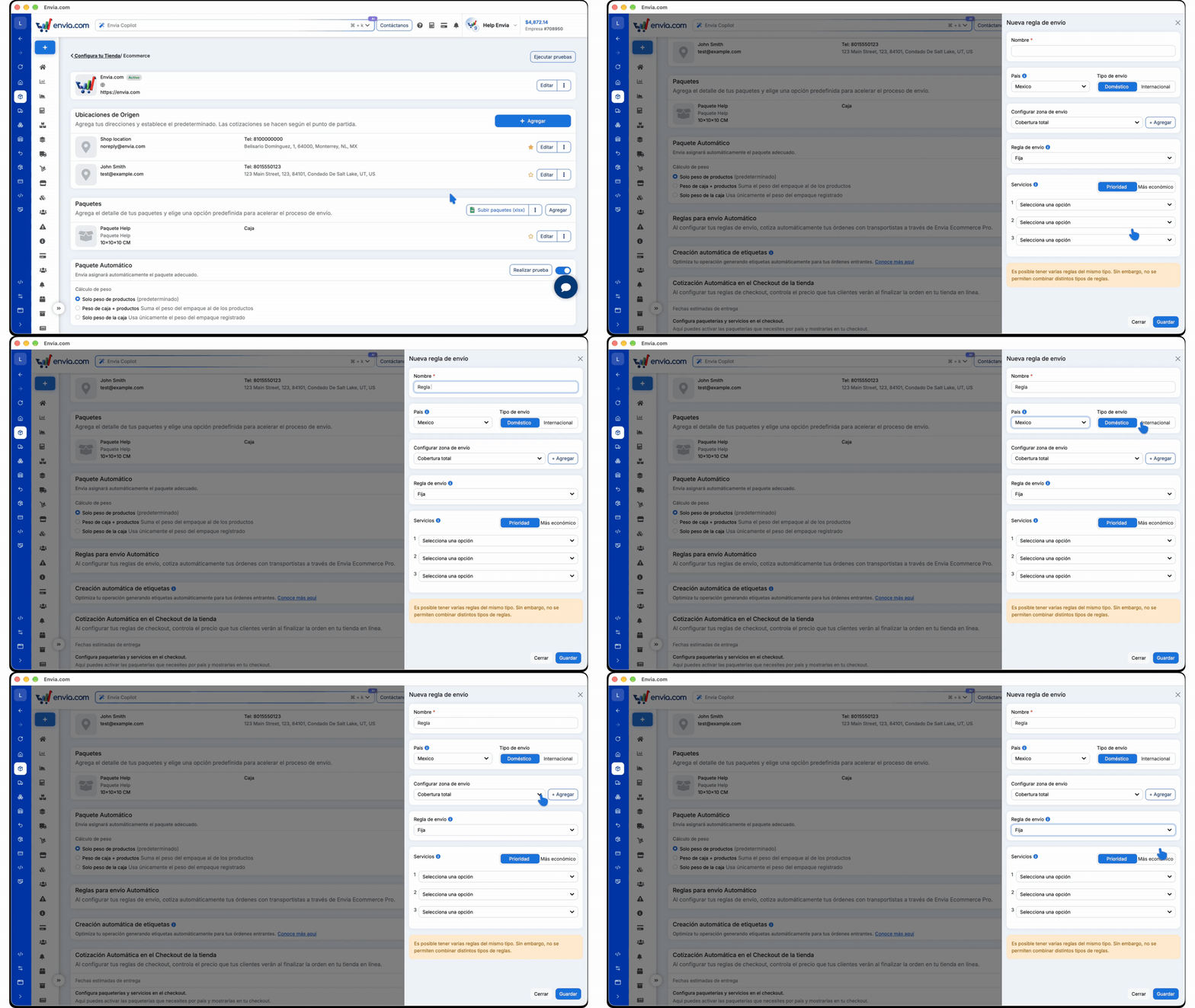
Automatic shipping rules choose the carrier when your store orders are quoted. You do not pick the service by hand on every order. You set the condition once, and Envia.com applies the service you configured.
Shipping rule types
Section titled “Shipping rule types”Shipping rule has five types. Compare the benefit and the example before you create the rule.
| Shipping rule | It fits if | Example |
|---|---|---|
| Fixed | Every order for that country and zone should be quoted with the same carriers. | Domestic orders in Mexico: try one service first and, if it has no coverage, the next. Or the cheapest among the ones you chose. |
| Price | The service should change with the order total. | From 0 to 500, a lower-cost carrier. From 501 to 5,000, one with better coverage. |
| Weight | The service should change with the order weight. | Up to 1 kg, one service. From 1 to 20 kg, another. |
| Products | Certain products should ship with a specific service. | The fragile product only with the service you chose. |
| Customized shipping method | The buyer already chose a method in your store and you want to map it to an Envia service. | If the store method is Express, quote the service you chose for that method. |
Fill the rule from chat
Section titled “Fill the rule from chat”Envia Copilot writes the rule you describe into the form. You review the fields and save the rule.
- In Automated Shipping Rules, select Add or open a rule from the list.
- Select the button that fills the fields with Envia Copilot. The form does not open the chat on its own.
- Start the message with Create or Generate. Include the name, the zone, the type, and the services. For a Price rule, include the minimum and maximum amount.
- Review the fields marked in purple. If the zone already exists in your store, it stays selected. If it does not exist, it is created and assigned to the rule.
- Select Save.
Envia Copilot fills Fixed, Price, and Customized shipping method rules. If you ask for Weight or Products, the chat explains that and does not change the form. If your store already has rules, the new one has to be the same type.
Set a fixed rule
Section titled “Set a fixed rule”Fixed applies to every order for that country and zone, with no amount and no weight. Use it when you always want the same carriers, and you can choose Priority or Cheapest.
- Enter the Name. It helps you recognize the rule in the list.
- Choose the Country the shipment leaves from.
- In Shipping type, select Domestic or International.
- If the shipment is Domestic, in Set up shipping area leave Full Coverage or choose a zone. With Add you can create one. This zone does not appear for International.
- In Shipping rule, select Fixed.
- In Services, choose Priority or Cheapest.
- Select the services. With Priority, service 1 is tried first and the next ones if there is no coverage. With Cheapest, Envia.com uses the lowest price among the ones you chose.
- Select Save.
For domestic shipments, you cannot have two active Fixed rules with the same country and the same zone.
Set a price rule
Section titled “Set a price rule”Price changes the service based on the order total. Use it when a low order and a high order should not leave with the same carrier. Create one Price rule for each range.
- Enter the Name. It helps you recognize the rule in the list.
- Choose the Country the shipment leaves from.
- In Shipping type, select Domestic or International.
- If the shipment is Domestic, in Set up shipping area leave Full Coverage or choose a zone. With Add you can create one. This zone does not appear for International.
- In Shipping rule, select Price.
- Enter the Minimum amount and the Maximum amount, in your company’s currency. The minimum must be lower than the maximum. For example, 0 and 500 for a lower-cost carrier.
- In Service options priority, select up to three services. Service 1 is the one for that range. Services 2 and 3 are optional.
- Select Save.
- For the next range, select Add again and repeat from the name. For example, minimum 501 and maximum 5000.
Set a weight rule
Section titled “Set a weight rule”Weight changes the service based on the order weight. Use it when a light package and a heavy one should not leave with the same carrier. Create one Weight rule for each range.
- Enter the Name. It helps you recognize the rule in the list.
- Choose the Country the shipment leaves from.
- In Shipping type, select Domestic or International.
- If the shipment is Domestic, in Set up shipping area leave Full Coverage or choose a zone. With Add you can create one. This zone does not appear for International.
- In Shipping rule, select Weight.
- Enter the Minimum weight and the Maximum weight. Choose Kg or Lb. The minimum must be lower than the maximum. For example, 0 and 1 for light packages.
- In Service options priority, select up to three services. Service 1 is the one for that range. Services 2 and 3 are optional.
- Select Save.
- For the next range, select Add again and repeat from the name. For example, minimum 1 and maximum 20, in the same unit.
Set a products rule
Section titled “Set a products rule”Products applies the service only to the products you choose. Use it when an item should leave with a different carrier from the rest.
- Enter the Name. It helps you recognize the rule in the list.
- Choose the Country the shipment leaves from.
- In Shipping type, select Domestic or International.
- If the shipment is Domestic, in Set up shipping area leave Full Coverage or choose a zone. With Add you can create one. This zone does not appear for International.
- In Shipping rule, select Products.
- Open Select products and choose the products for the rule. For example, the fragile product.
- In Service options priority, select up to three services. Service 1 is the one for those products. Services 2 and 3 are optional.
- Select Save.
Set a customized shipping method
Section titled “Set a customized shipping method”Customized shipping method links a method from your store to an Envia.com service. Use it when the buyer already chose a method, for example Standard or Express, and you want that name to always quote the same service.
The methods come from the shipping zones configured in your store.
- Enter the Name. It helps you recognize the rule in the list.
- Choose the Country the shipment leaves from.
- In Shipping type, select Domestic or International.
- If the shipment is Domestic, in Set up shipping area leave Full Coverage or choose a zone. With Add you can create one. This zone does not appear for International.
- In Shipping rule, select Customized shipping method.
- In Preferred shipping method, choose the store method. For example, Express.
- In Default service, choose the Envia.com service that should quote that method.
- If you have another method, complete the second pair. You can add up to three. The first one is required.
- Select Save.
For domestic shipments, you cannot have two active Customized shipping method rules with the same country and the same zone.
Check that the rule applied
Section titled “Check that the rule applied”- In Automated Shipping Rules, confirm that the rule appears active and with the type you chose.
- Open Ecommerce Pro and go to Orders.
- Open an order that meets the condition: country, shipping type, zone and, depending on the rule, the amount, the weight, the product, or the store method.
- Check the quote. It should use the service you put in position 1 or, for Fixed with Cheapest, the lowest price among the ones you chose.
If the quote does not match, check that the rule is active, that the order falls in the range, the products, the zone, and the shipping type, and that the store has no rules of another type.
To change an active rule, open it in the list and save the changes. You can deactivate it from the list. To delete it, deactivate it first.
If the rule does not save
Section titled “If the rule does not save”- Service 1 is missing. For Customized shipping method, the method in the first pair is missing.
- For Price or Weight, the minimum is not lower than the maximum, or a value is missing.
- For Products, you did not choose products.
- An active Fixed or Customized shipping method rule already exists for the same country and zone. Edit that rule or change the zone.