Scheduled maintenance on Envia.com: Thursday, October 29, 12:00–12:30 a.m. Login, APIs, and operations will be unavailable.


Manage orders from Ecommerce Pro
The View orders section is your space to review, organize, and prepare the orders generated in your connected store. Here you can check payment status, prepare shipments, generate quotes, and run bulk actions to speed up your operation.
Refresh button
Section titled “Refresh button”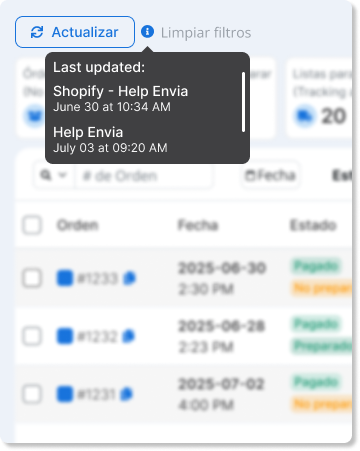
In the upper-left corner, you will find the Refresh button. This button lets you manually sync orders from your connected stores. Hovering over the tooltip shows the date and time of the last successful update.
When you click the button, the system tries to sync orders from your ecommerce store.
- If the sync completes successfully, the information is updated and a new last-update date is shown.
- If an error occurs during the update, no new date is shown, because only the last successful sync is recorded.
Metrics panel
Section titled “Metrics panel”At the top of the section you will see a summary with the number of orders by status:
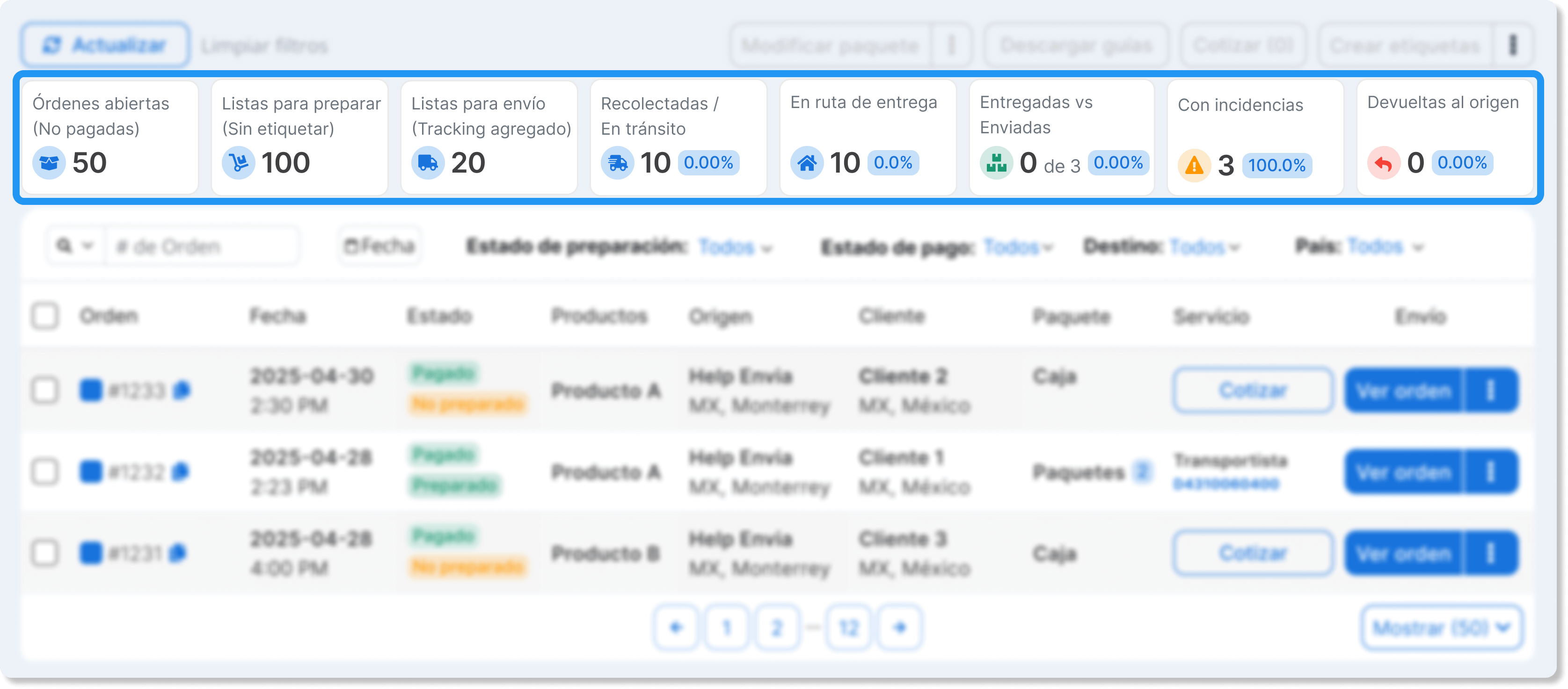
- Open orders (Unpaid)
- Ready to prepare (No label)
- Ready to ship (Tracking added)
- Picked up / In transit
- Out for delivery
- Delivered vs shipped
- With incidents
- Returned to origin
Order filters
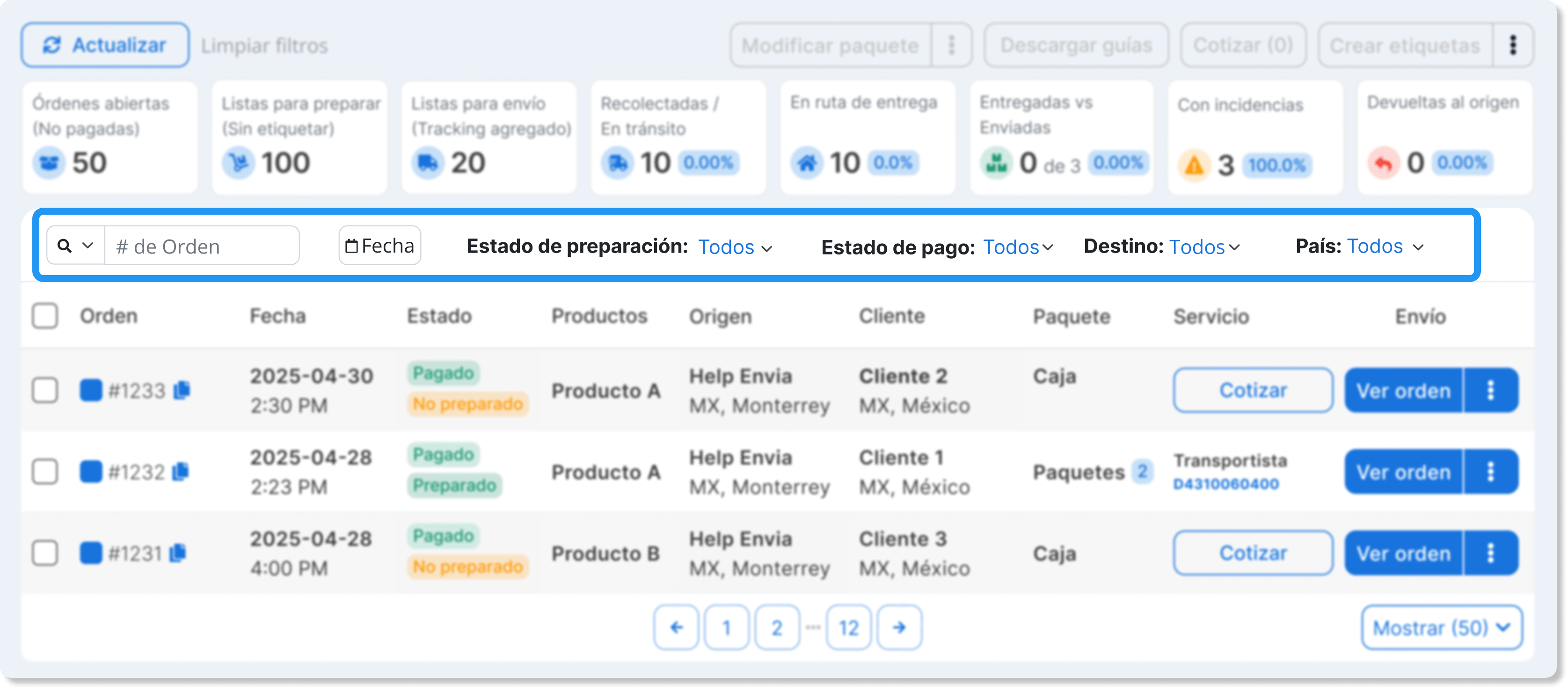
Section titled “Order filters”The wide range of filters is designed to make it easier to search and manage your orders. These filters can be applied individually or combined, so you can find specific orders quickly and accurately and keep your store organized.
| Filter | What it lets you do |
|---|---|
| Search | Search orders by entering the order number, tracking number, or ID. |
| Date ranges | Filter orders by a specific time period. |
| Preparation status | Filter orders by preparation status: Not prepared, Prepared, Partially prepared, or Other. |
| Payment status | Filter orders by payment status: Paid, Pending payment, or Pending payment - COD. |
| Destination | Filter orders by destination type: Domestic, International, or Other. |
| Country | Filter orders by destination country. |
| Shipping methods | Filter orders by the shipping method configured in your store. |
| Store | Filter orders by origin store. |
| Weight | Filter orders by package weight. |
| Product/SKU | Search orders that contain a specific product or SKU. |
| Quoted service | Filter orders by quoted shipping service. |
Orders table
Section titled “Orders table”Each row represents an order and shows:
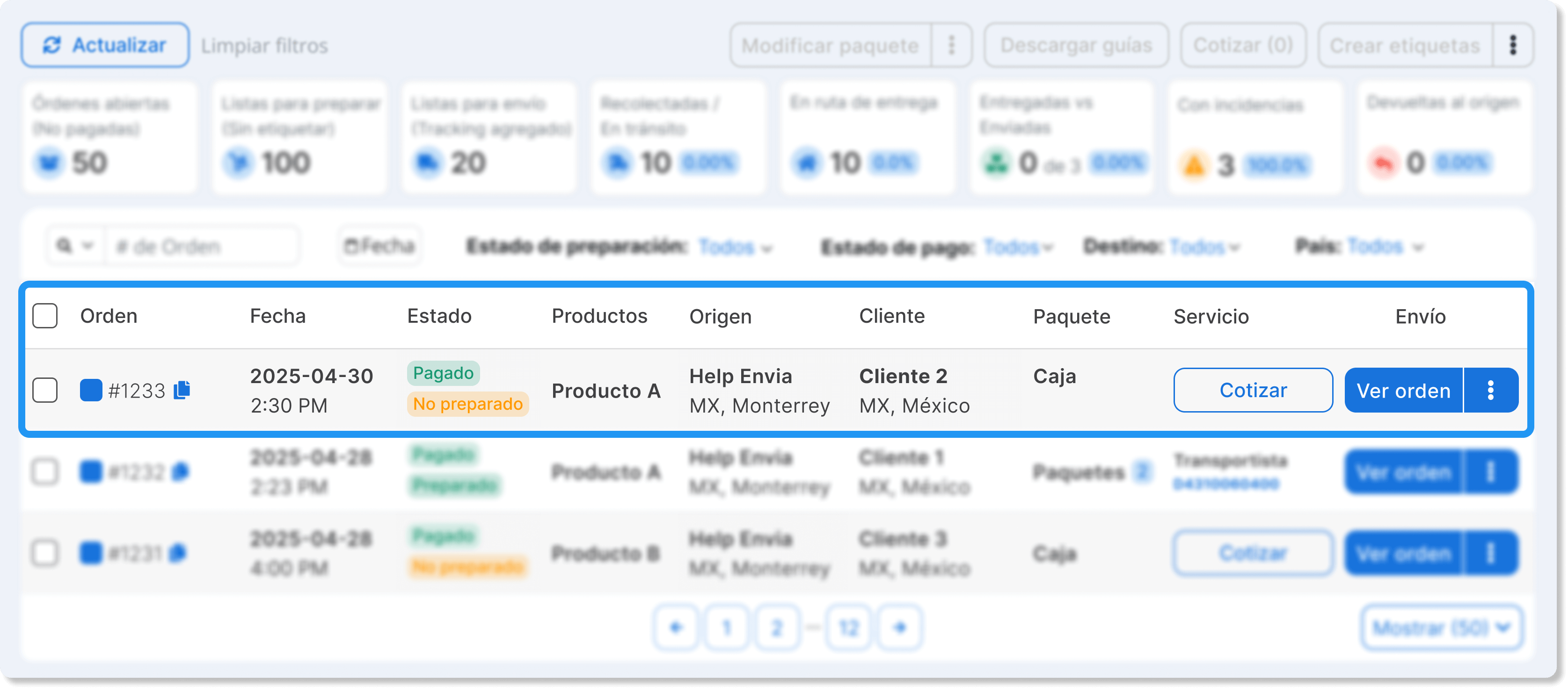
- Order number (clickable for more details)
- Creation date
- Payment and preparation status (Paid / Not prepared, and so on)
- Included products
- Origin and destination
- Customer
- Package dimensions
- Service and shipping cost
- Available actions
Available actions on each order
Section titled “Available actions on each order”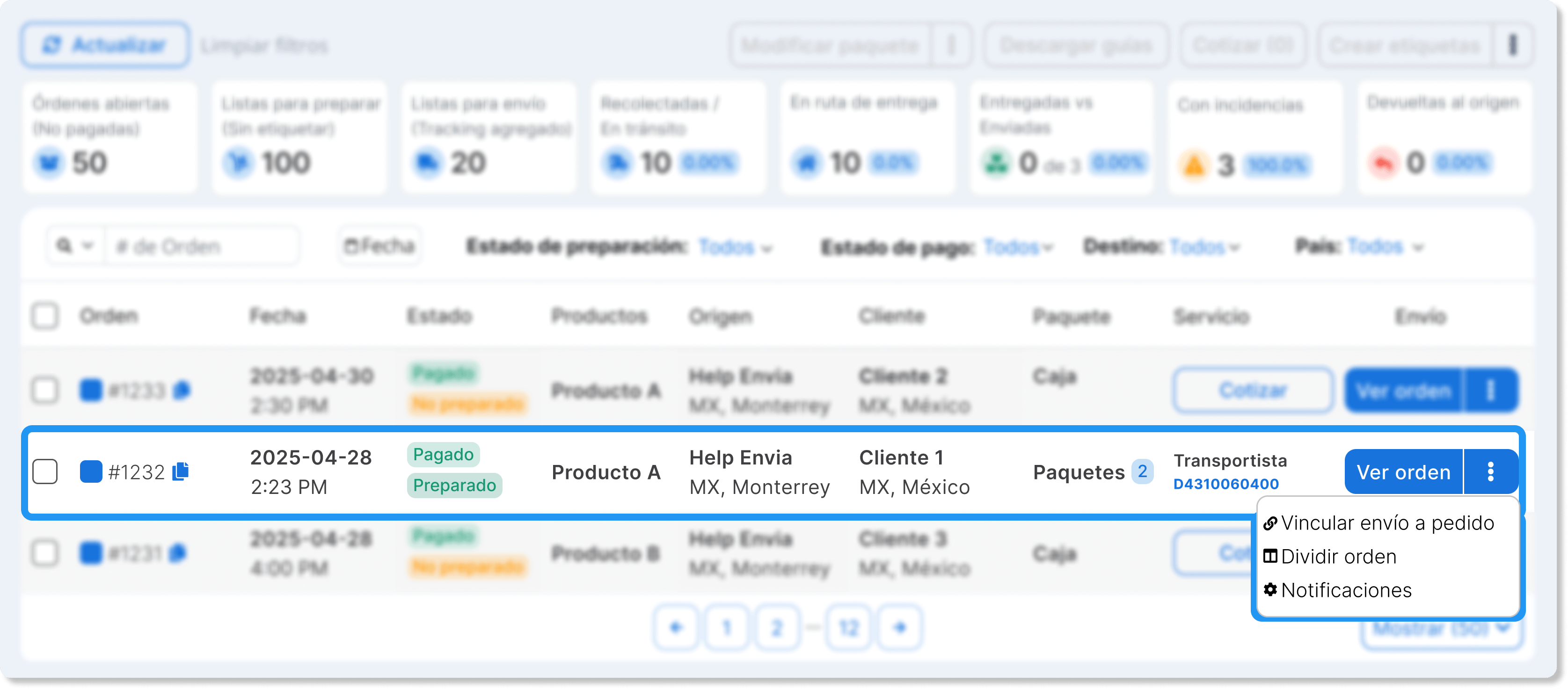
| View order | Quote | Link shipment to order | Notifications | Split order |
|---|---|---|---|---|
| See the full detail of products, customer, and address | Generate a quote with the loaded data | Relate the shipment to a specific order | Turn on automatic notifications for your end customer | Split an order into several when it contains multiple products |
Top buttons
Section titled “Top buttons”In the upper-right corner you will see a set of buttons that let you run actions individually or in bulk:
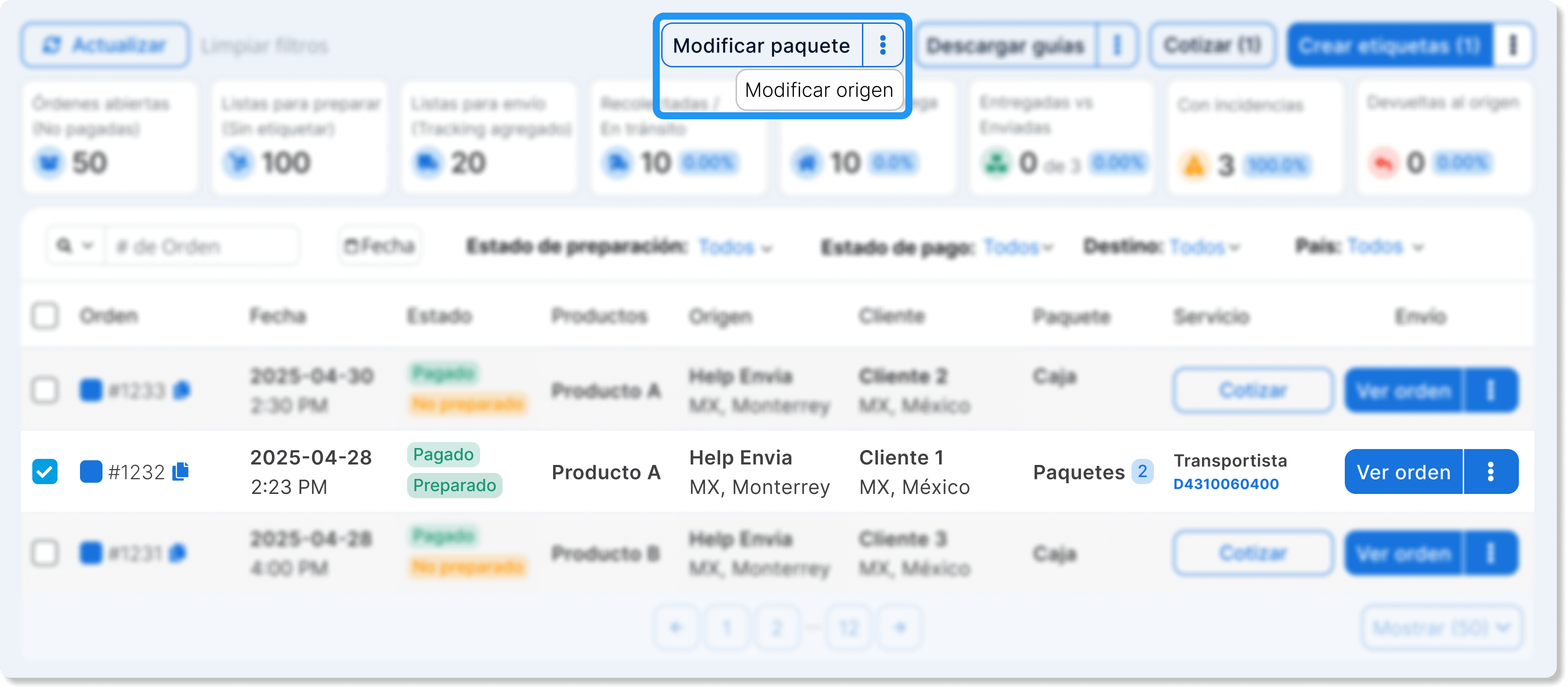
Edit package or origin
Section titled “Edit package or origin”You can change the origin address of one or several orders at the same time.
Download labels
Section titled “Download labels”You can download labels individually or in a batch. When you click this button, you will have these options:
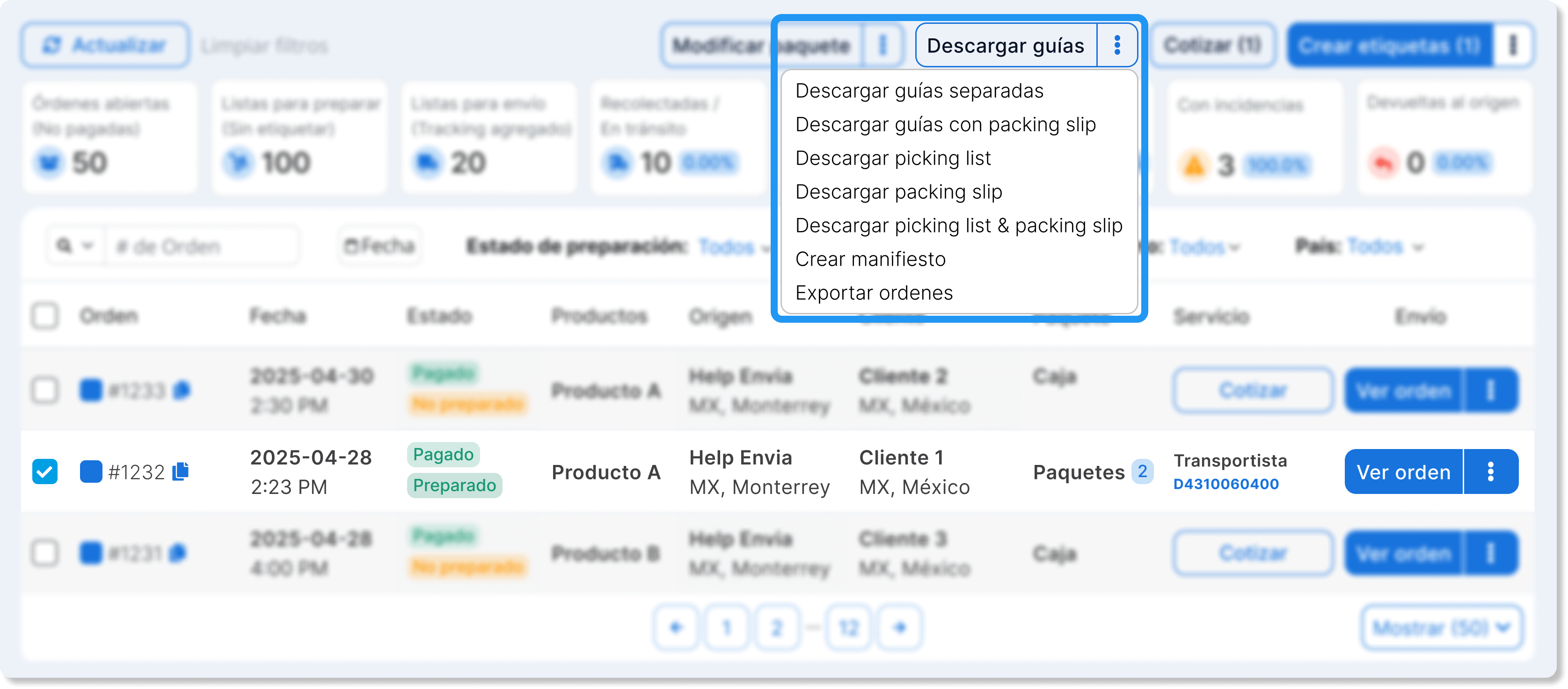
- Download separate labels (individual PDFs)
- Download labels with packing slip (label + shipping slip)
- Download picking list (list of products to prepare)
- Download packing slip (contents slip)
- Download picking list + packing slip (both combined)
- Create manifest for groups of shipments.
- Export orders to a file for external analysis.
Quote shipping service
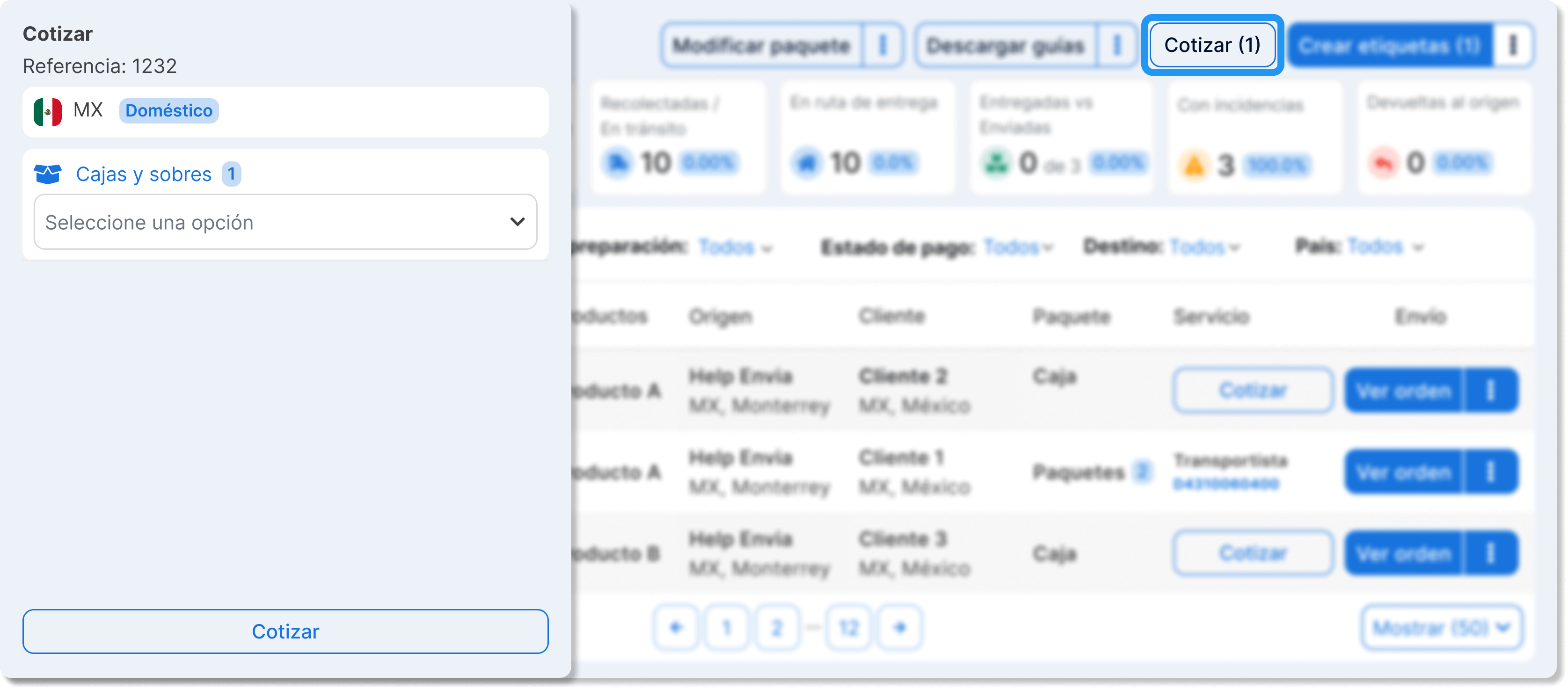
Section titled “Quote shipping service”From this button you can quote shipments using the information already loaded. It works both individually and in a batch.
Create labels
Section titled “Create labels”Lets you generate labels for orders that are already ready. When you open the button, you will see additional options:
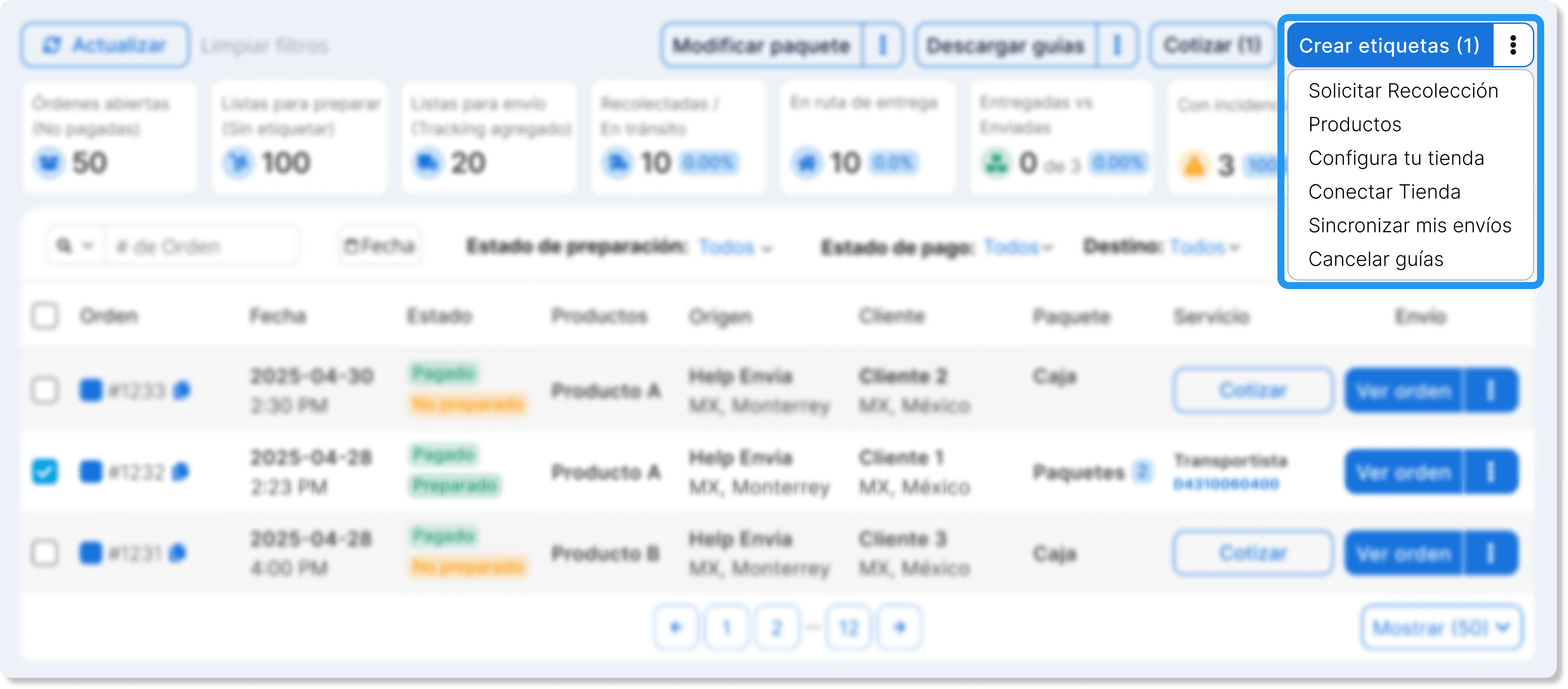
- Request pickup
- View associated products
- Set up your store
- Connect store
- Sync my shipments
- Cancel labels