Scheduled maintenance on Envia.com: Thursday, October 29, 12:00–12:30 a.m. Login, APIs, and operations will be unavailable.


Edit products in bulk
Bulk edit lets you correct the size of many products in one table. If length, width, height, or weight do not match the real package, the quote and the packing come out wrong. Here you adjust them together, without opening each product, and once you save, those measurements are ready to quote and build the shipment.
You can do it in two ways: by hand, cell by cell, or with AI.
Edit dimensions manually
Section titled “Edit dimensions manually”-
Sign in to your Envia.com account.
-
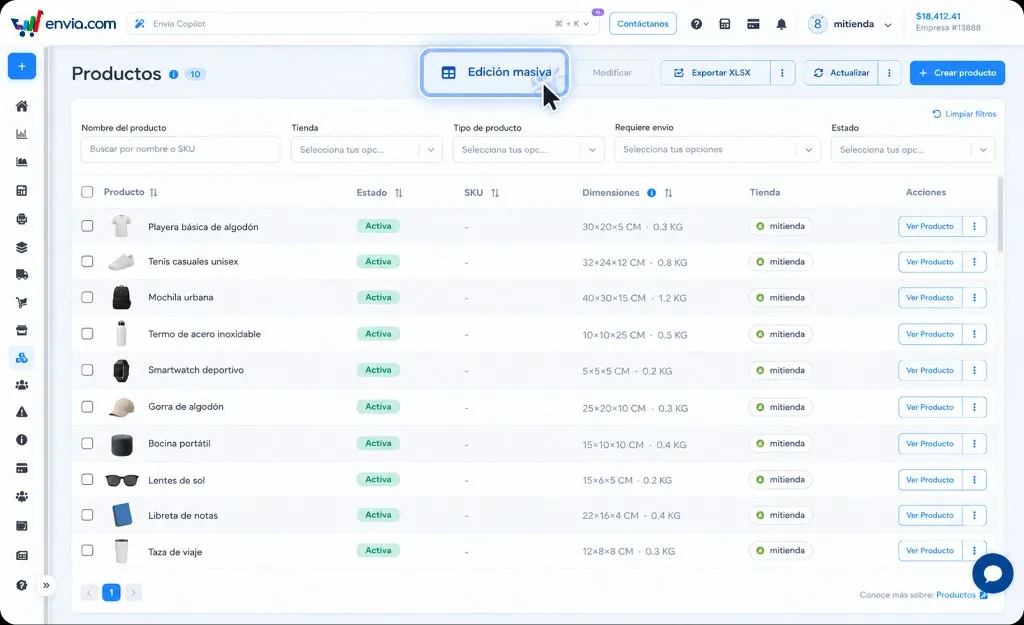
Open Products.
-
Click Bulk edit.
-
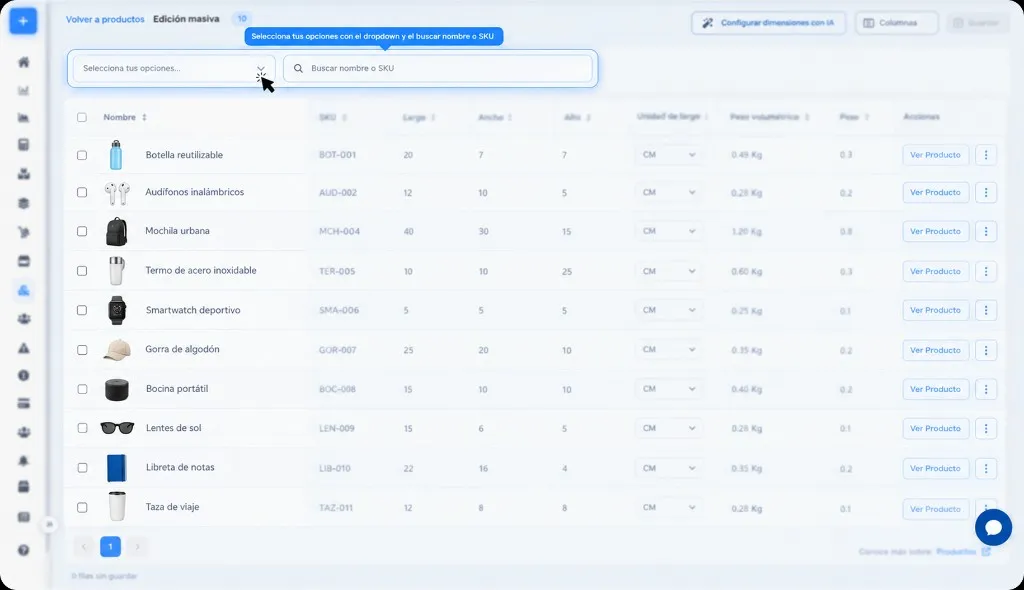
Search with Search name or SKU, or choose one or more stores in Select your options. You can also use Select all.
-
Edit the product cells:
- Length, Width, Height, and Length unit (CM or IN). If you switch from CM to IN, weight switches to LB or OZ. If you switch back to CM, it stays in KG or G.
- Weight and Weight unit.
- SKU and Barcode.
- Fragile, Hazmat, and Allow rotation.
-
Check the counter and click Save.
If you change page, click Back to products, or close the tab with unsaved changes, the screen asks you to confirm. If you confirm, those changes are discarded.
Measurements cannot be negative. You can leave the cell empty or at zero. If a row does not save, try again with only those products. The rest of the page may already have been saved.
Edit dimensions with AI
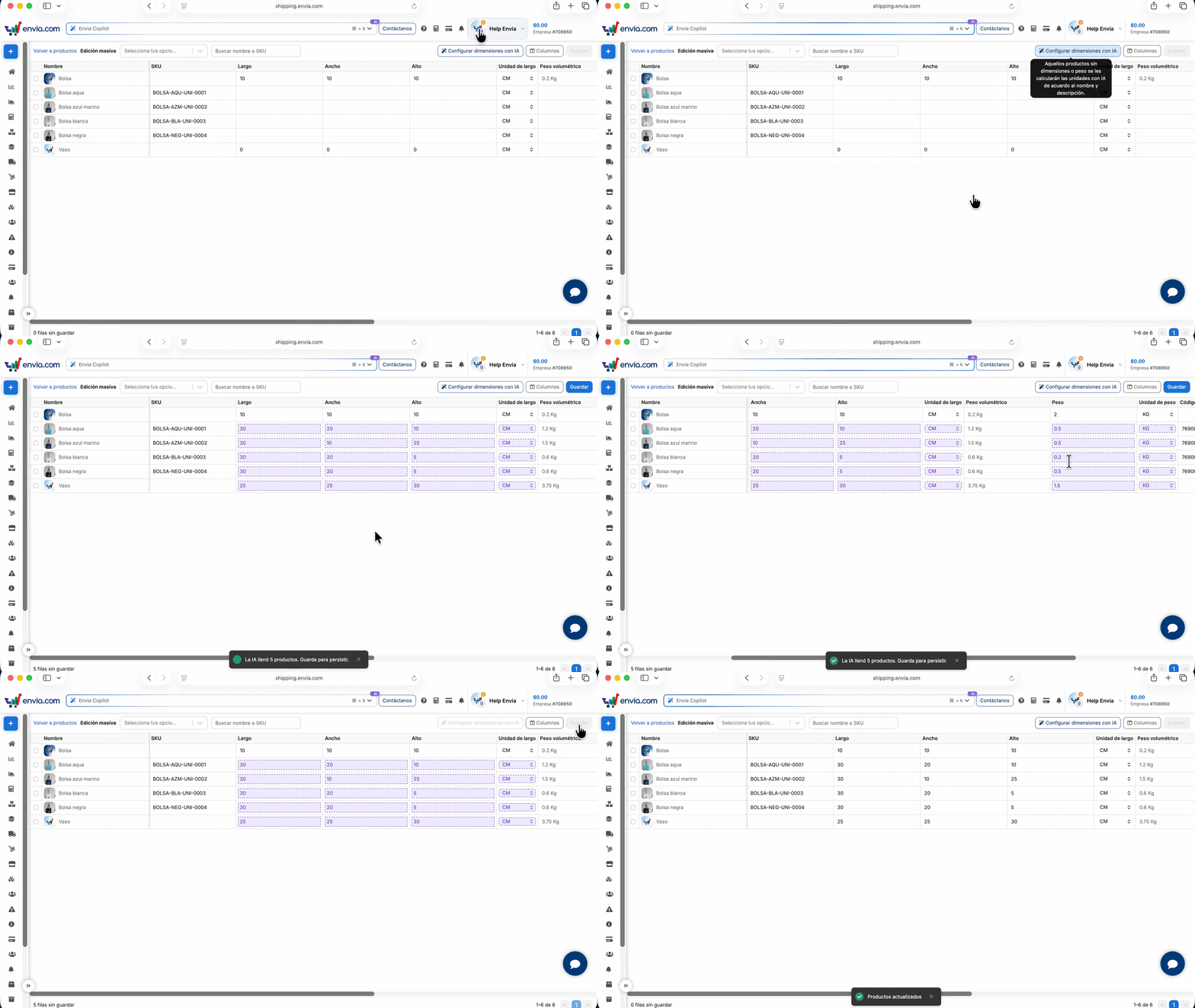
Section titled “Edit dimensions with AI”Use it when several products on the page have no length, width, height, or weight, or those values are zero. The suggestion comes from the name and the description, so you do not type each measurement by hand. Review the result: it is a suggestion, not the final measurement, and it does not stay in the catalog until you click Save.
- Sign in to your Envia.com account.
- Open Products.
- Click Bulk edit.
- Click Configure dimensions with AI, above the table.
- The screen asks how many products on this page it will fill, one at a time, and whether you want to continue. If you cancel, it calculates nothing.
- If you continue, it fills only the rows on this page that require shipping and have no measurements, or have them at zero. It does not change products that already have measurements. It also skips the row of a product with variants and products that are not shipped.
- The suggested cells look different from the rest. Change them if the size does not match the real package.
- Click Save. If you leave without saving, the suggestion is discarded.
It only runs on the page you are viewing, up to 100 products. If there are more, go to the next page and click Configure dimensions with AI again. If no product on the page needs measurements, nothing is calculated and the screen says: No products on this page need AI dimensions.
Set up the columns
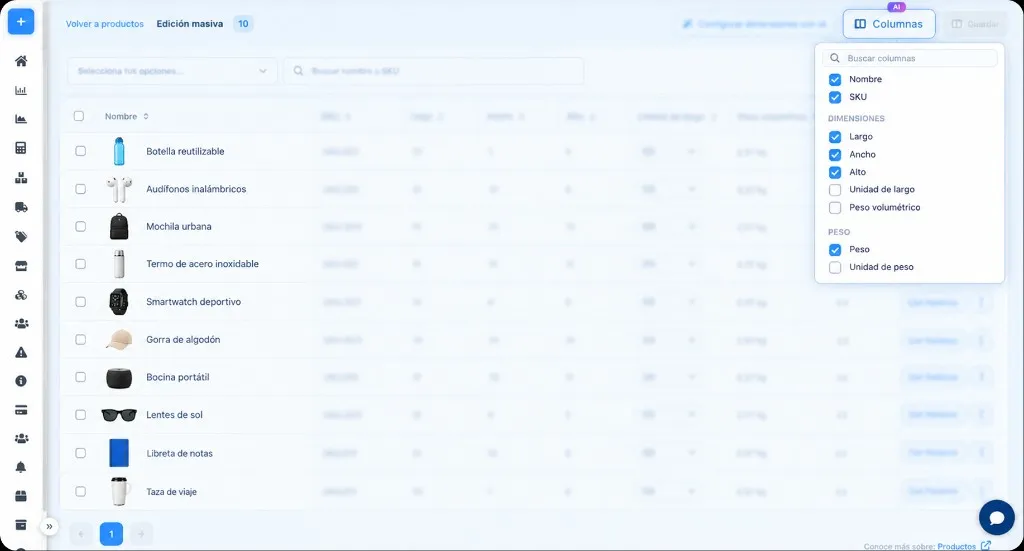
Section titled “Set up the columns”Columns opens the list of what you can see in the table. Each option has its own checkbox. Name and SKU appear checked and cannot be turned off. You check or uncheck the rest one by one. If you hide a column you already edited, the change is still there and Save applies it. The next time you open this screen, the columns you left checked stay that way.
If you cannot find a column, type it in Search columns. Price and stock are not on this screen.
| Group | Checkboxes |
|---|---|
| Dimensions | Length, Width, Height, Length unit, Volumetric weight |
| Weight | Weight, Weight unit |
| Barcode | Barcode |
| Flags | Fragile, Hazmat, Allow rotation |
Copy data between variants of the same product
Section titled “Copy data between variants of the same product”If the product has variants, the product row does not store shipping data: SKU, length, width, height, weight, barcode, and the marks are not entered there. Change them on each variant. The name cannot be edited on any row.
When you select two or more variants of the same product, you can copy the measurements, the weight, the barcode, or Fragile from one variant to the others. You can also drag the corner of a cell to repeat that value in the rows below. Those changes also have to be saved with Save.
Frequently asked questions
Section titled “Frequently asked questions”Can I edit price or stock here?
No. This table is for measurements, SKU, barcode, and the marks Fragile, Hazmat, and Allow rotation.
Does the measurement suggestion save by itself?
No. It fills the cells and you click Save.
What happens with a product that has variants?
Measurements go on each variant. The product row does not store them.