Scheduled maintenance on Envia.com: Thursday, October 29, 12:00–12:30 a.m. Login, APIs, and operations will be unavailable.


Offer pickup point delivery at the Shopify checkout
You offer pickup point delivery so the buyer, at the Shopify checkout, chooses a nearby point on a map instead of receiving the order at home. This guide is for Shopify Plus stores based in Spain, France, Italy, or the United Kingdom. When you finish, the Pickup Point Delivery Option rate is on for the location you set up.
If you have not connected the store yet, go back to Shopify.
Does this apply to you?
Section titled “Does this apply to you?”It applies only if your store is Shopify Plus and the location is in Spain, France, Italy, or the United Kingdom. Installation requires permission handling with Shopify and can take a few days.
If your store does not meet those conditions, this option is not available at checkout.
Before you start
Section titled “Before you start”- The store is already connected to Envia.com.
- You have an Envia.com contact who can request the installation.
- You can manage permissions with Shopify.
Install and turn on pickup point delivery
Section titled “Install and turn on pickup point delivery”At checkout, the buyer sees the map and chooses a nearby point instead of home delivery.
-
Contact your Envia.com point of contact to grant permissions and receive the installation link.
-
Sign in to your Envia.com account.
-
Go to Ecommerce Pro > Set up your store.
-
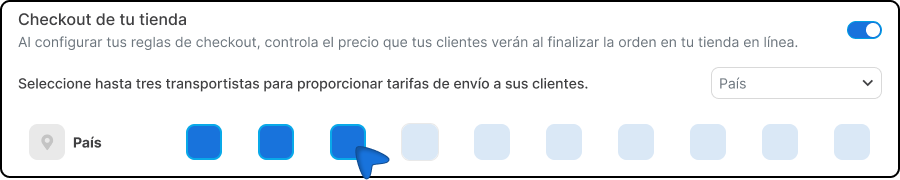
Turn on automatic quote at checkout.
-
Select carriers with pickup point service.
-
In Shopify, go to Settings > Locations.
-
Confirm that you have an active location with Pickup point shipping enabled in Order fulfillment.
-
Go to Settings > Shipping and delivery.
-
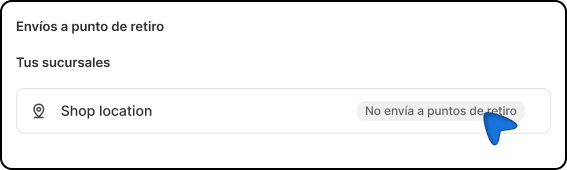
In Pickup point shipping, select the location and turn on the location status.
-
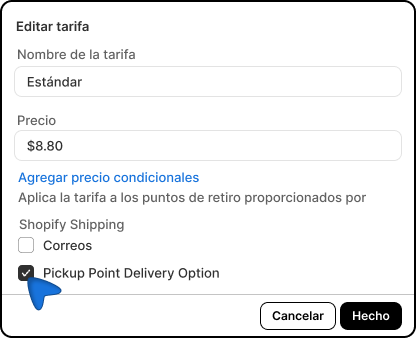
In Pickup point rates, click the three dots (…) and select Edit rate.
-
Turn on Pickup Point Delivery Option.
-
Go to Products > Inventory.
-
Confirm that all of your products have available inventory at the active location.
With the rate on and inventory at that location, the buyer can choose the pickup point at checkout.
See more in the Shopify Help Center on pickup points.