Scheduled maintenance on Envia.com: Thursday, October 29, 12:00–12:30 a.m. Login, APIs, and operations will be unavailable.


Export reason and taxes on international shipments
The export reason is why your package crosses the border: a sale, a gift, a return, a repair, and others. The destination country’s customs uses it to decide how to handle the shipment. When you pay the taxes and duties with Guaranteed Prepaid, Envia.com uses the reason you choose to calculate them. If you choose the correct one, you see a cost closer to the actual amount before paying and avoid holds or extra charges at customs.
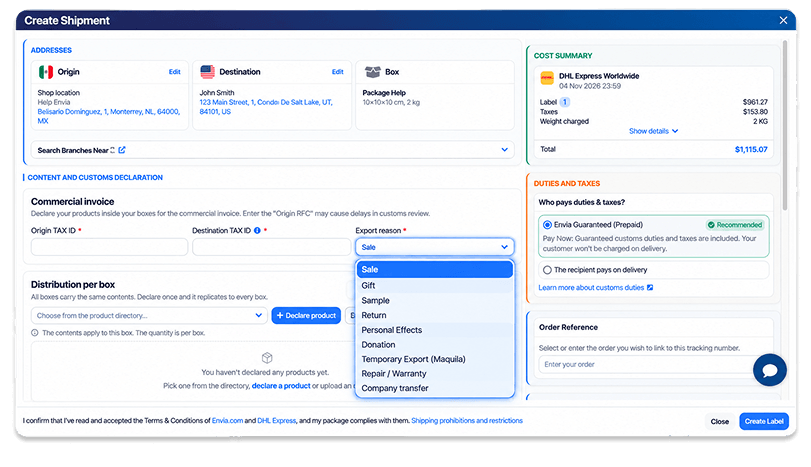
This continues Product declaration: you are already in the Create Shipment confirmation of an international shipment, in the Content and customs declaration section.
Available export reasons
Section titled “Available export reasons”In Export reason you can choose one of these options. Sale comes preselected; change it if the actual reason for your shipment is different:
| Reason | When to use it | How taxes are calculated |
|---|---|---|
| Sale | You sold the products and your customer paid for them. | As a commercial sale. |
| Gift | You are sending a gift and the recipient does not pay for it. | As a gift. |
| Sample | You are sending a product sample, with no sale involved. | As a non-commercial shipment. |
| Return | You are returning products to who sold or sent them to you. | As a return. |
| Personal effects | You are sending your own personal belongings. | As a non-commercial shipment. |
| Donation | You are donating the products to a person or organization. | As a non-commercial shipment. |
| Temporary export (Maquila) | The products are leaving temporarily and will return, for example for a maquila process. | As a non-commercial shipment. |
| Repair / Warranty | You are sending a product for repair or warranty replacement. | As a non-commercial shipment. |
| Company transfer | You are moving goods between companies or branches of the same group. | As a non-commercial shipment. |
A reason other than Sale does not mean your shipment is free of taxes. A Gift, for example, may pay taxes and duties depending on its value and the destination country. Always review the amount in Cost Summary before generating the label.
Choose the reason and recalculate taxes
Section titled “Choose the reason and recalculate taxes”-
Log into your Envia.com account, open Create Shipment, and quote an origin and destination in different countries.
-
Choose the service and click Generate. The Create Shipment confirmation opens.
-
In Content and customs declaration, go to the Commercial invoice card and complete RFC / Tax ID Origin and RFC / Tax ID Destination. They are required on the side that is in Mexico or the United States. Some carriers do not request them and in that case they do not appear.
-
In Export reason, review the preselected option (Sale) and change it if your shipment has a different purpose.
-
Declare your products in the same Content and customs declaration section and complete all their required data. How to do it: Product declaration.
-
In the right column, below Cost Summary, choose who pays in Duties and taxes. For the reason to change the calculation of taxes and duties, choose Guaranteed Prepaid.
-
If the carrier calculates taxes and duties when quoting, when you change the reason or who pays, the Generate label button changes to Update. Click it to recalculate.
-
When recalculating, you will see the notice Quote updated and the button returns to Generate label. Review the taxes and duties in Cost Summary.
-
If everything is correct, accept the terms and click Generate label.
Required data to recalculate and generate the label
Section titled “Required data to recalculate and generate the label”When you click Update, Envia.com checks that your products are complete. If something is missing, it does not recalculate and shows you one of these notices:
| Notice | What to do |
|---|---|
| Complete the product declaration to continue. | Add at least one product in each box. |
| There are incomplete products. Complete the required information before continuing. | Fill in the missing data in the products marked in red. |
When you click Generate label, Envia.com also checks Commercial invoice. If a required RFC / Tax ID is missing, you see the notice Complete the bill of lading requirements. Fill in the marked field and click Generate label again.
Frequently asked questions
Section titled “Frequently asked questions”Why did the cost change when I changed the reason? Because customs treats a sale, a gift, a return, or a non-commercial shipment differently. With Guaranteed Prepaid, Envia.com recalculates the taxes and duties with the reason you chose.
Why does Update not appear when I change the reason? That carrier does not calculate taxes and duties when quoting. The reason is included in your commercial invoice and you can generate the label.
Does the reason change the cost if I pay as Sender or if the recipient pays? No. Envia.com calculates the taxes and duties with the reason only when you choose Guaranteed Prepaid. With the other options, the reason only goes in your commercial invoice.
If I choose Gift or Sample do I no longer pay taxes? Not necessarily. The amount also depends on the value, the product, and the destination country. Review Cost Summary after clicking Update.
Can I use Guaranteed Prepaid with any reason? Yes. If Guaranteed Prepaid is available for your carrier and route, you can choose it with any export reason.