Scheduled maintenance on Envia.com: Thursday, October 29, 12:00–12:30 a.m. Login, APIs, and operations will be unavailable.


Custom shipping zones at checkout
The automatic quoter (checkout) of your store shows real-time shipping options when your buyer is about to finish their purchase. By default, all the carriers you have active appear, regardless of whether they can deliver to the address the buyer entered.
This can cause a carrier to appear available at checkout, but then fail when generating the label because it does not have coverage in that zone, creating errors, incomplete orders, and a poor experience for your buyer.
Custom shipping zones let you define exactly in which states or cities each carrier operates. Checkout filters automatically: when your buyer types their address, the system detects their location and only shows the carriers that can deliver there.
How the automatic filter works
Section titled “How the automatic filter works”Every time a buyer enters their address at checkout, the system:
- Detects the destination state and city.
- Reviews the shipping zones you configured for each carrier.
- Shows only the carriers with coverage in that destination.
If you configured restrictions by service type within a zone — for example, only economy rate and not express — checkout also applies that filter automatically.
Steps to set up a new shipping zone
Section titled “Steps to set up a new shipping zone”1. Open your store checkout settings
Section titled “1. Open your store checkout settings”-
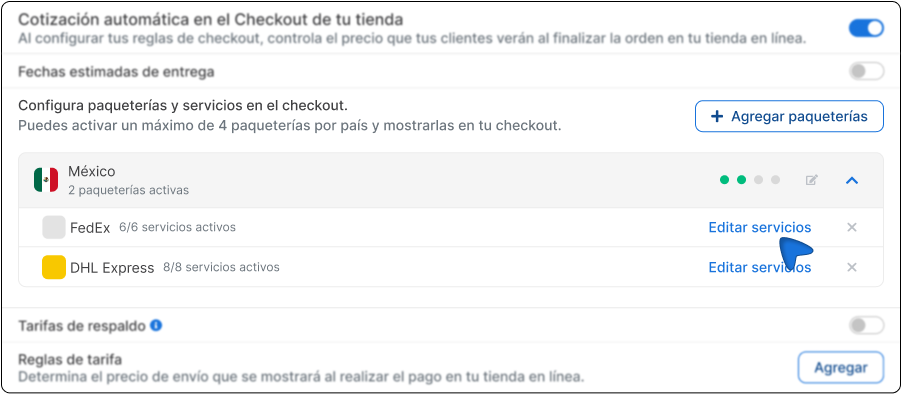
Go to Ecommerce Pro > Set up your store.
-
Choose your store and click Settings.
-
Find the Automatic quote at store checkout section.
2. Select the carrier you want to assign a zone to
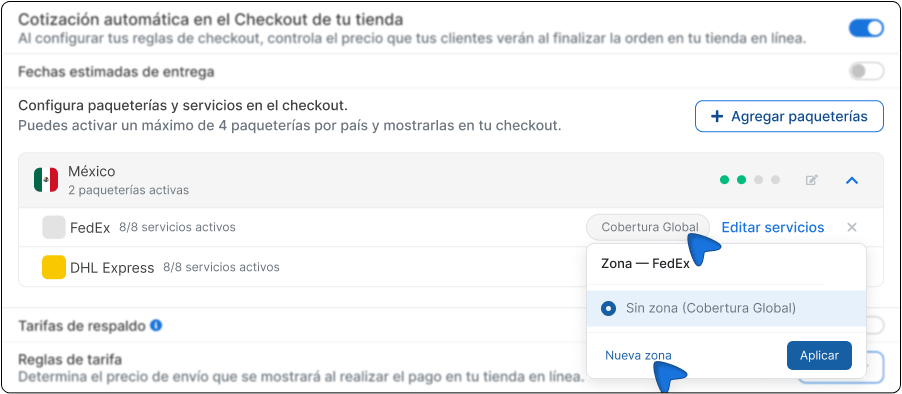
Section titled “2. Select the carrier you want to assign a zone to”You will see the list of carriers active at your checkout. Next to each name you will see how many services it has active.
Click the Global coverage button that appears to the right of the carrier you want to configure and select New zone.
3. Assign a name and description to the zone
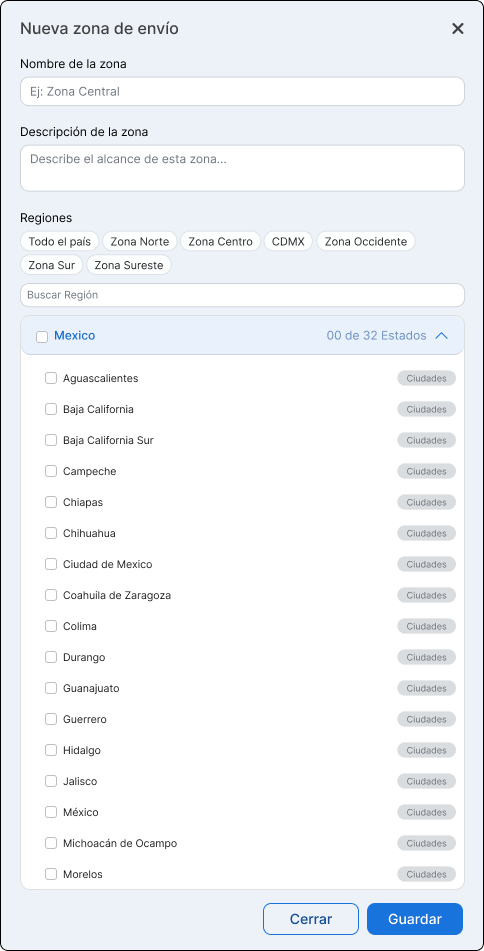
Section titled “3. Assign a name and description to the zone”The New shipping zone form will open with the following fields:
- Zone name — Give it a name that helps you identify it. For example: North Zone, CDMX only, Southeast economy. Only you see this name from the platform; your buyer does not see it.
- Zone description (optional) — Add a note to remember the purpose of the zone. For example: “States where DHL operates only with standard rate”.
4. Define the geographic coverage of the zone
Section titled “4. Define the geographic coverage of the zone”Select the states or cities this zone covers. You have two ways to do it:
-
Using predefined regions At the top of the form you will find shortcuts: Entire country, North Zone, Central Zone, CDMX, West Zone, South Zone, and Southeast Zone. If the carrier’s coverage matches one of these groupings, select it and the corresponding states will be marked automatically.
-
Selecting state by state If the coverage is more specific, go through the list of the 32 states and mark the ones that apply. If the carrier only covers certain cities within a state, click Cities next to the state name to choose only the ones that apply.
5. Save the zone
Section titled “5. Save the zone”Click Save. The zone will be created and assigned to that carrier.
From that moment, that carrier will only appear at checkout when the buyer’s destination is within the states or cities you configured.
What you should keep in mind
Section titled “What you should keep in mind”- A carrier can have more than one zone. If a carrier operates in the north and south but not in the center, you can create two different zones and assign them to the same carrier.
- You can turn off a zone without deleting it. Each zone has an on/off switch. You can pause it and turn it back on when you need to without losing the configuration.
- This setting only applies to your store checkout. Labels you generate manually from Envia are not affected.
- If you do not configure any zone, your checkout keeps working the same. This feature is completely optional and does not change your current operation until you configure it.
Frequently asked questions
Section titled “Frequently asked questions”Can I use the same zone for several stores? Yes. You can create a zone once and assign it to multiple stores. Each store independently manages which carriers operate within that zone.
What happens with carriers I do not assign to any zone? They keep appearing normally for all destinations, with no restriction. Only the carriers you configure with specific zones are limited by that setting.
Can I configure zones by neighborhood or ZIP code? For now, zones are defined at the state and city or municipality level. Coverage by neighborhood or ZIP code is not available in this version.
Does this feature affect the labels I generate manually from Envia? No. The zone filter applies only to your online store checkout. Labels you generate directly from the platform are not affected.