Scheduled maintenance on Envia.com: Thursday, October 29, 12:00–12:30 a.m. Login, APIs, and operations will be unavailable.


Create a manual order in Ecommerce Pro
If you receive sales by WhatsApp, phone, social media, or in person, you can register them directly in Envia.com. You do not need a connected store. With a manual order you can save what was sold, to whom, where the shipment leaves from, and whether it was already paid, all from the same panel.
What is a manual order?
Section titled “What is a manual order?”A manual order is a sales record that you create directly in Envia.com, without it coming from an online store such as Shopify or WooCommerce. It lets you document the full sale: products, customer, origin, amount, currency, and payment status.
Steps to create a manual order
Section titled “Steps to create a manual order”1. Open the new order form
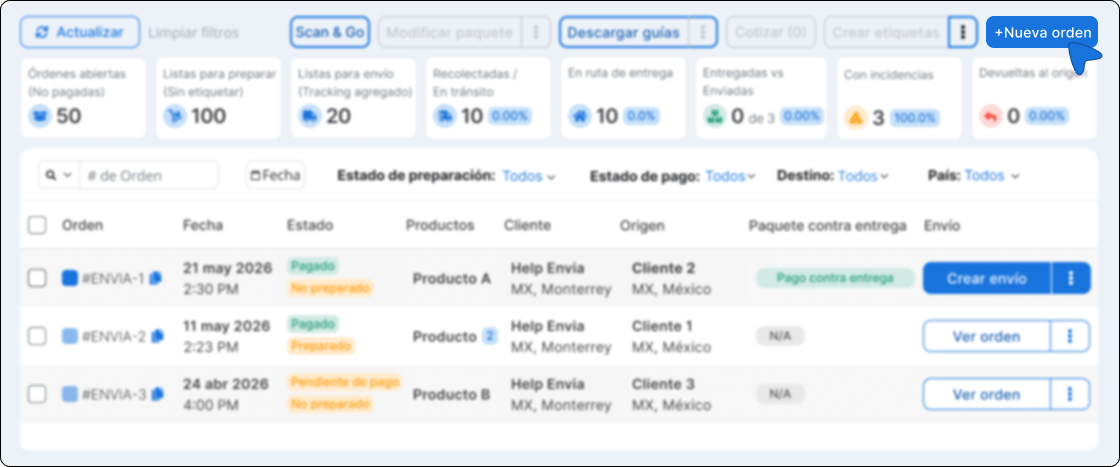
Section titled “1. Open the new order form”Go to Ecommerce Pro > View orders and click the + New order button.
The screen to create a new order is shown.
2. Choose the origin address
Section titled “2. Choose the origin address”Before quoting or creating the order, define where the shipment leaves from.
-
In the origin card, search for and select an address.
-
If you do not have the address yet, create it from the same form.
-
If the address is incomplete, fill in the missing data before continuing.
The origin you choose is used when quoting the shipment and is saved on the order.
3. Add the products
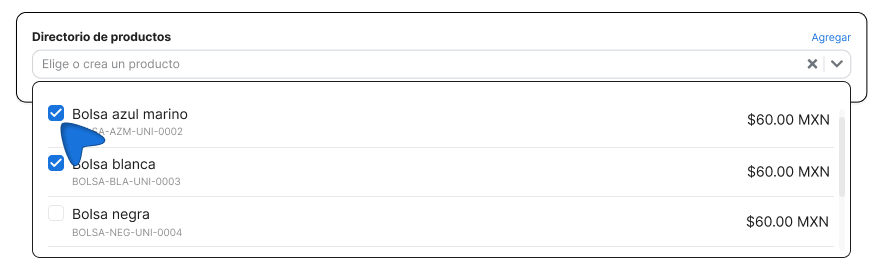
Section titled “3. Add the products”In the Product directory field, type the name of the product you want to add and select it from the menu. You will see its thumbnail, name, SKU, and price.
Inside the table you can:
- Edit the price directly in the field.
- Adjust the quantity with the + and - buttons.
- Remove a product with the red button.
- Click the product name to edit its details from the side panel.
Order currency
The first product you add sets the currency for the entire order. Products in another currency appear disabled in the search so you do not mix prices. Totals and the summary are shown in the order currency.
4. Add the shipment destination
Section titled “4. Add the shipment destination”In the right panel you have two ways to add the customer address:
- Saved address. Search among the addresses already registered in your account. Type a name, street, or ZIP code to find it.
- Customer. Search for the customer by name, email, or phone. When you select them, their name, email, phone, and address are filled in automatically.
Inside the Saved address tab, you can also choose how to enter a new address:
- Address. Enter the recipient data manually, field by field.
- Smart Address AI. Type the address in free text and the artificial intelligence automatically detects street, number, neighborhood, city, and ZIP code. Useful when the customer shares their address in a message or in an unstructured format.
5. Add tags
Section titled “5. Add tags”In the Tags field, type the tag you want to use and press Enter to add it. You can use tags such as VIP, Urgent, or Influencer_A. To remove a tag, click it.
6. Add or quote the shipping method
Section titled “6. Add or quote the shipping method”In the Shipping method field on the right panel you can:
- Type the matching method in free text (Express, Free shipping, FedEx Priority, and so on), or
- Quote with your connected carriers if you have checkout turned on.
To quote real rates you need:
-
Origin address
-
Destination address
-
At least one product
7. Create the order
Section titled “7. Create the order”When you finish completing the order, the main button gives you three options based on the payment status. Choose the one that applies:
Mark as paid Use it when the customer already made the payment. When you click, a summary appears with the number of products and the total. Confirm it with Create order to save it as paid.
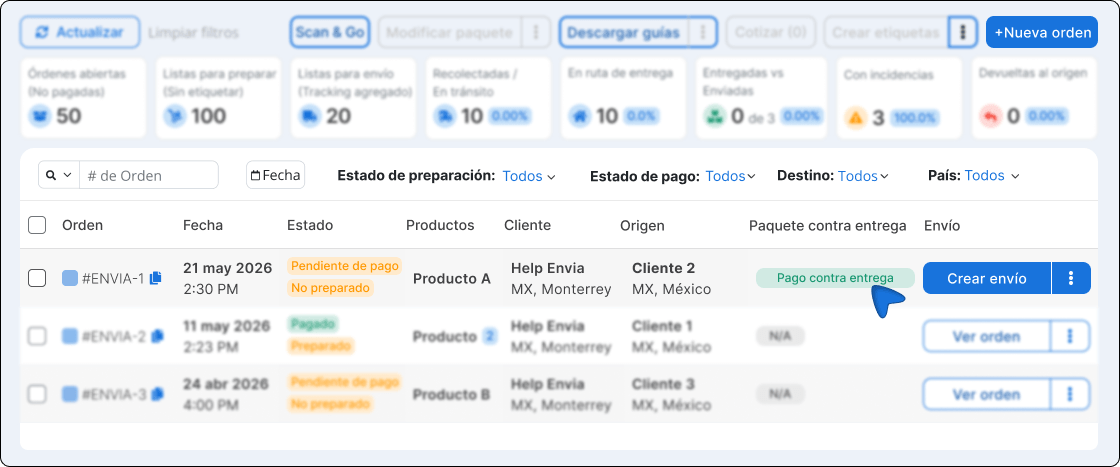
Create with cash on delivery Use it when the customer will pay when they receive the order. Access this option from the three-dot menu next to the main button. The order will appear in your list with the Cash on delivery tag.
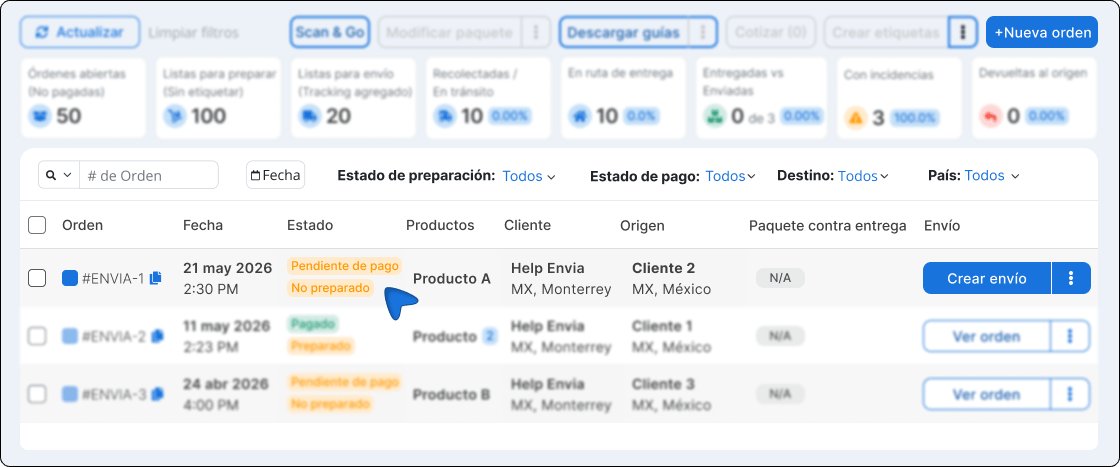
Create order Use it when the customer has not paid yet. The order is saved with Pending payment status. Later you can mark it as paid yourself or collect it with an EcartPay payment link.
8. Mark a pending order as paid
Section titled “8. Mark a pending order as paid”If you created the order with pending payment and the customer pays later, you can update it from the orders table:
-
In Ecommerce Pro > View orders, find the pending order.
-
Click the Mark as paid action.
-
The order changes to paid and the action disappears.
If you prefer to send the customer a link so they can pay online, use Create payment link. The full guide is in Collect pending orders with a payment link.
Available actions on an order
Section titled “Available actions on an order”Once created, you can manage each order from the actions menu (three dots) in the View orders table:
| Action | What it does |
|---|---|
| View order | Opens the full order detail |
| Create payment link | Generates an EcartPay link to collect a pending order. See Collect pending orders with a payment link |
| Link order to shipment | Connects the order with an existing shipment |
| Split order | Separates the products into multiple packages |
| Mark as paid | Changes the payment status to paid (only on pending orders) |
| Cancel order | Cancels the order and marks it as Canceled |
Frequently asked questions
Section titled “Frequently asked questions”Is the origin address required? Yes. You must select or create an origin to create the order. That address is also used when quoting the shipment.
Can I mix products in MXN and USD in the same order? No. The first product sets the currency. Products in another currency stay disabled until you clear the product list.
Do I need a connected store to create a manual order? No. The manual order is created directly in Envia, even if you do not have Shopify, WooCommerce, or another integration.
Can I collect a pending order from the same section? Yes. If the order is pending payment and you have EcartPay connected, use Create payment link from the order actions. For currency requirements, roles, and how to share the link, see Collect pending orders with a payment link.
What is the difference between Mark as paid and Create payment link? Mark as paid updates the status when the customer already paid you by another method. Create payment link generates an EcartPay link so the customer can pay online; when they complete payment, the order is marked as paid automatically.